
Efficient troubleshooting of the Admin Panel and effective management of content cache are essential for ensuring smooth platform performance and seamless user experiences.
If you are unable to access the HOST site, it may be due to VPN or firewall restrictions.
• Disable the VPN temporarily and try accessing the site again. Some VPNs block or reroute traffic that interferes with access to specific websites.
• If disabling the VPN isn't an option, try switching to a different server location in your VPN settings.
• If the issue persists, contact your VPN provider for assistance in ensuring HOST is accessible.
• Temporarily disable your firewall to test whether it's causing the blockage. If this resolves the issue, re-enable the firewall and follow the step below.
• Add the HOST domain (hostlife.io) to your firewall's whitelist. For corporate or organizational firewalls, contact your IT team to whitelist the site.
This can happen due to caching issues, connectivity problems, or a delay in data synchronization. Try the following steps:
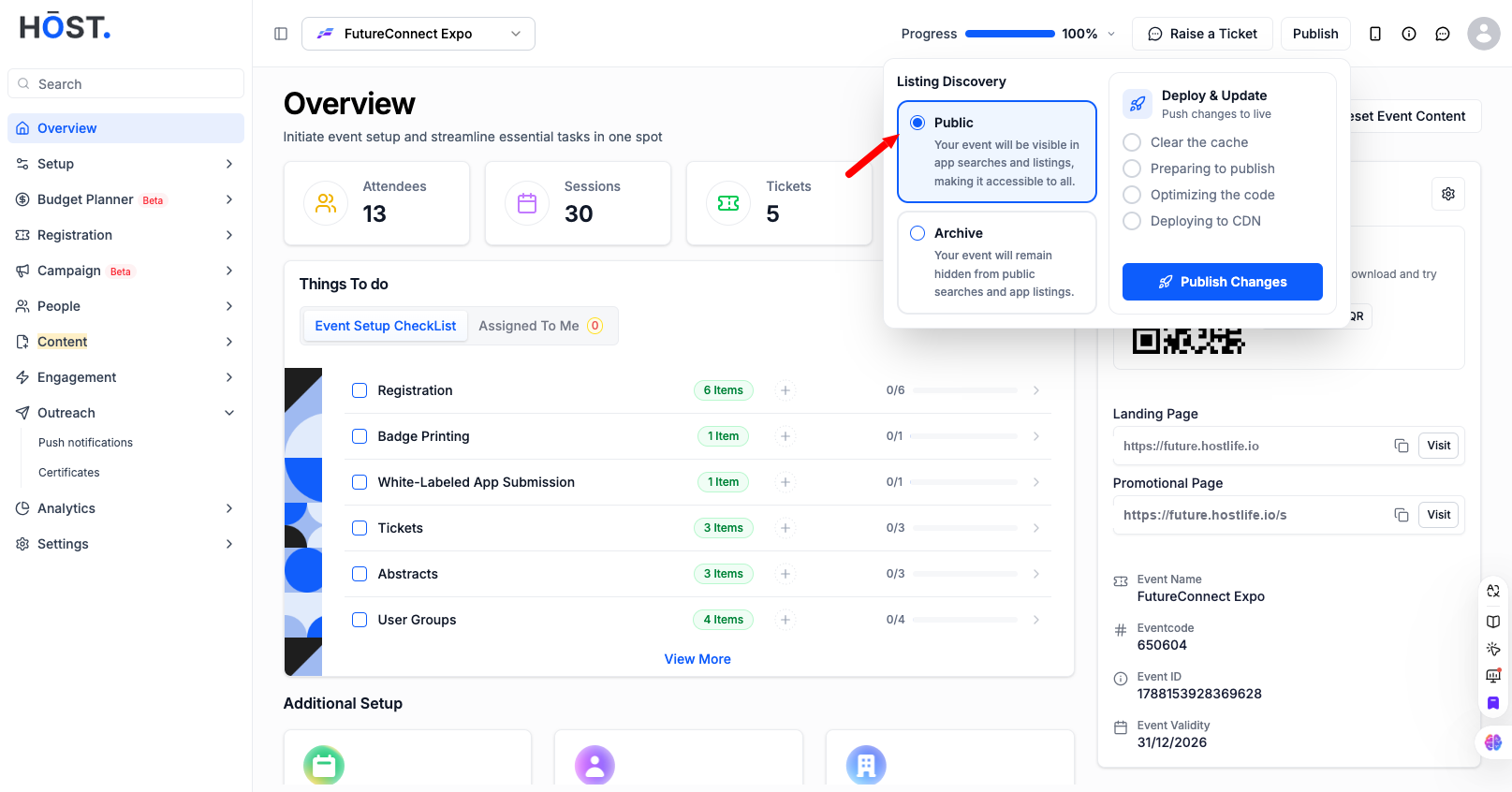
• Go to the Admin Panel and check whether the event is archived or published. Click the Publish button in the top-right corner of the Admin Panel to publish the event.
• For web users: On Windows press Ctrl + F5. On Mac press Cmd + Shift + R.
• For iOS users: Swipe up or double-press Home, swipe the event app up to close it, then reopen it from the Home screen.
• For Android users: Open Recent Apps, swipe the event app away to close it, then reopen it from the app drawer or Home screen.
Follow the steps below to clear the cache and view the most recent event data.
• Go to the event admin dashboard overview, click Publish in the top-right corner, and republish the event. This refreshes the app cache.
If your browser is storing outdated data, clear the cache using the relevant guide below:
• Google Chrome
• Microsoft Edge
• Mozilla Firefox
• Safari
Try the following advanced troubleshooting steps:
• Private browsing bypasses cached data or problematic extensions. Open a private window and retry the action.
• Open a different browser (for example, switch from Chrome to Firefox) and repeat the action that caused the issue.
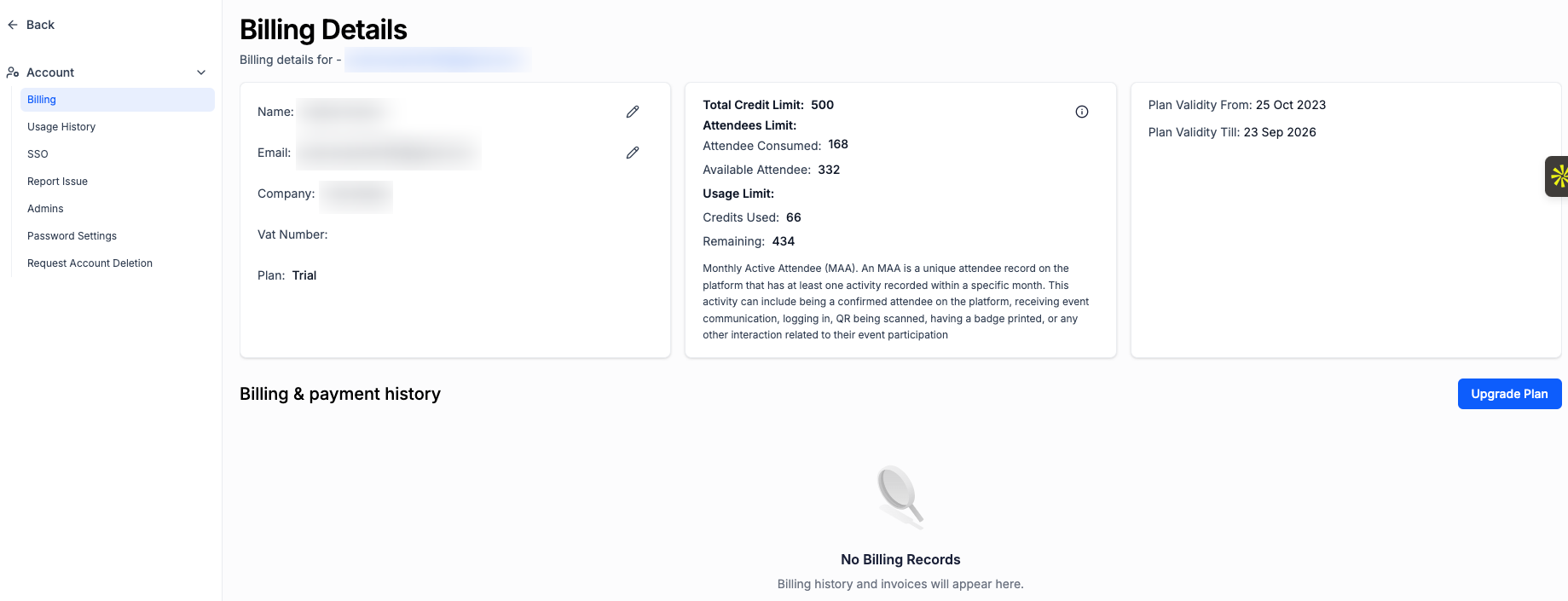
Emails can only be sent to attendees during an active license period. To check your license period, go to Account Settings > Billing Details and review the Plan Validity. If your license has expired or is inactive, renew it to resume sending emails.
If attendees aren't receiving emails, check the following:
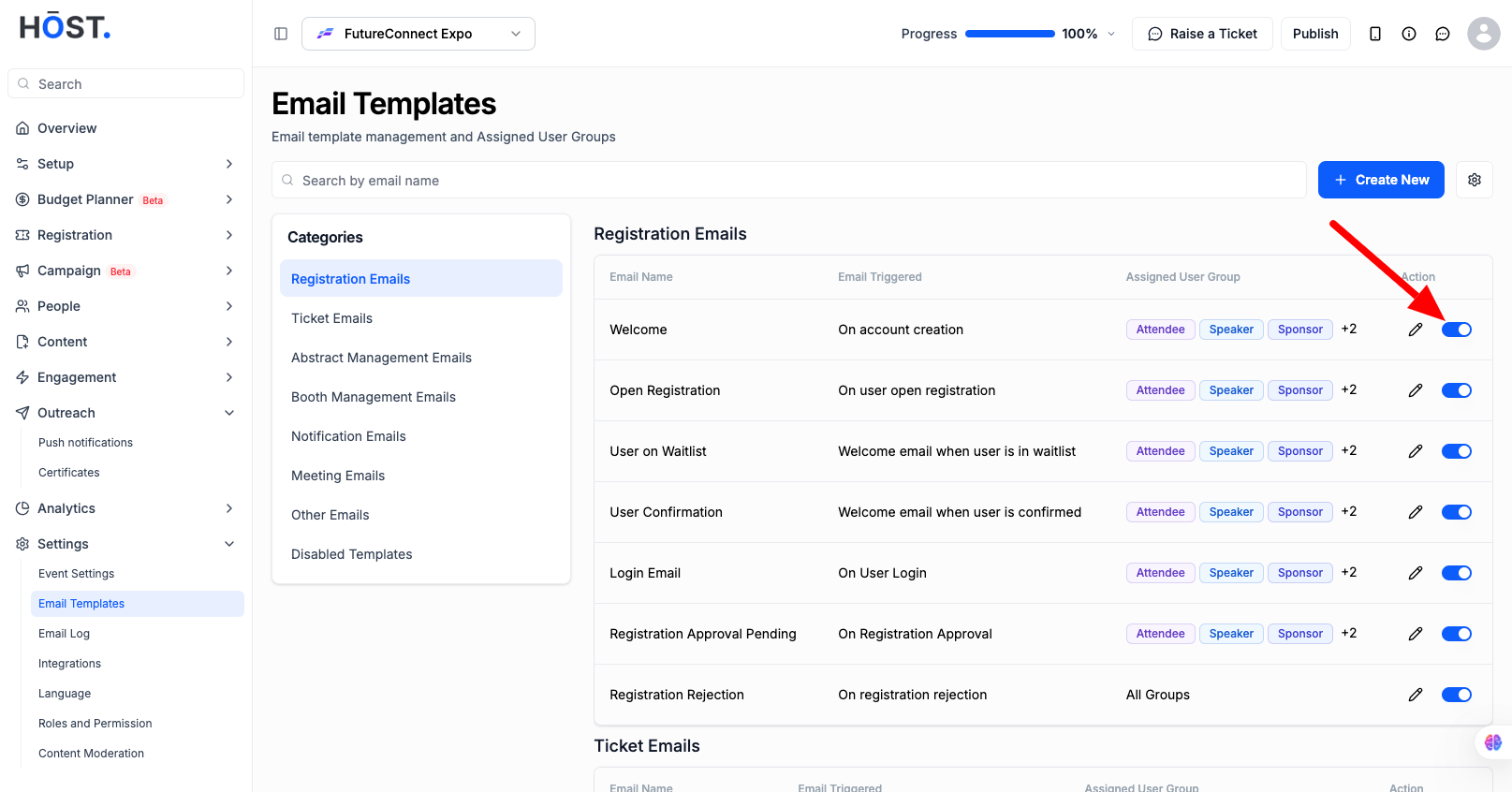
• SMTP configuration: Go to Settings > Email Templates and check the SMTP Setting. Ensure your SMTP server is configured correctly, as incorrect settings can block email delivery.
• Login validity date: Go to Registration > Registration Settings > Ticket Settings and check whether a login date is set under "Set Event Login Dates." Verify this date is still active.
• License period: Go to Account Settings > Billing Details and check the Plan Validity. Emails will not be sent if your account is outside the validity period.
• Email template settings: Go to Settings > Email Templates and confirm the relevant template is enabled, and that the correct user group has been assigned to that template.
For further support on unresolved issues, raise a ticket from Account Settings > Report Issue.
Q: I disabled my VPN but still can't access HOST. What should I do next?
A: Try whitelisting hostlife.io in your firewall settings, or temporarily disable your firewall to confirm it's the cause. If neither resolves the issue, raise a ticket via Account Settings > Report Issue.
Q: How do I know if my event is published or archived?
A: Open the Admin Panel and check the status indicator near the top-right corner. If the event is archived, click Publish to make it live.
Q: I cleared my browser cache, but the event still shows old data. What now?
A: Try opening the event in a private/incognito browser window, or switch to a different browser entirely. If the issue continues, clear the app cache from the dashboard overview page.
Q: Why am I able to access the dashboard but emails aren't sending to attendees?
A: This is usually due to license validity, SMTP configuration, or email template settings. Check Account Settings > Billing Details for plan validity, and Settings > Email Templates for SMTP and template configuration.
Q: How can I tell if my license has expired?
A: Go to Account Settings > Billing Details and check the Plan Validity field. If it shows as expired or inactive, renew your plan to restore full functionality, including email delivery.
Q: I've tried all the troubleshooting steps and the issue persists. What should I do?
A: Raise a support ticket from Account Settings > Report Issue with details of the steps you've already tried, so the support team can assist further.
