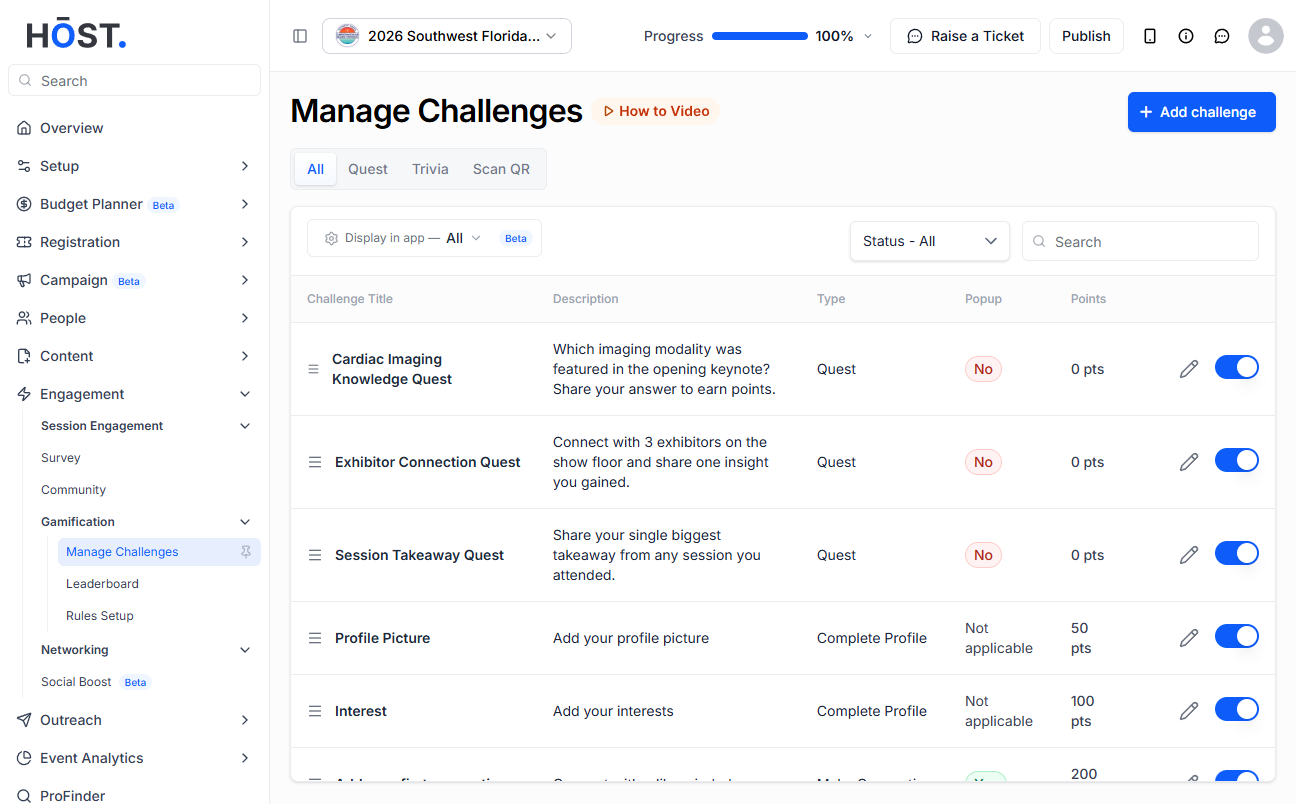
Quests let you combine multiple challenges into a single interactive experience for users. Follow the steps below to add a Quest Challenge to your gamification module
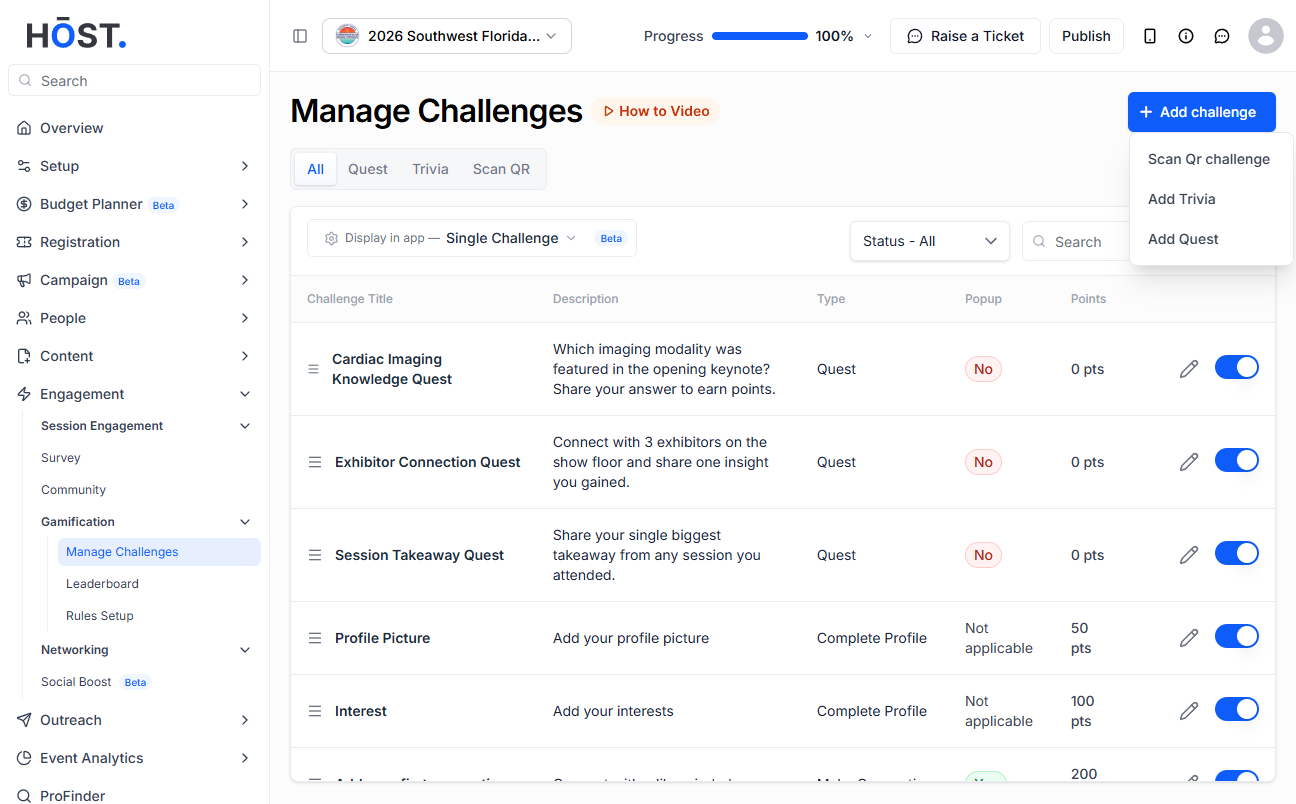
1: Go to Engagement > Gamification > Manage Challenges and click “+ Add challenge”, then choose “Add Quest” from the menu.
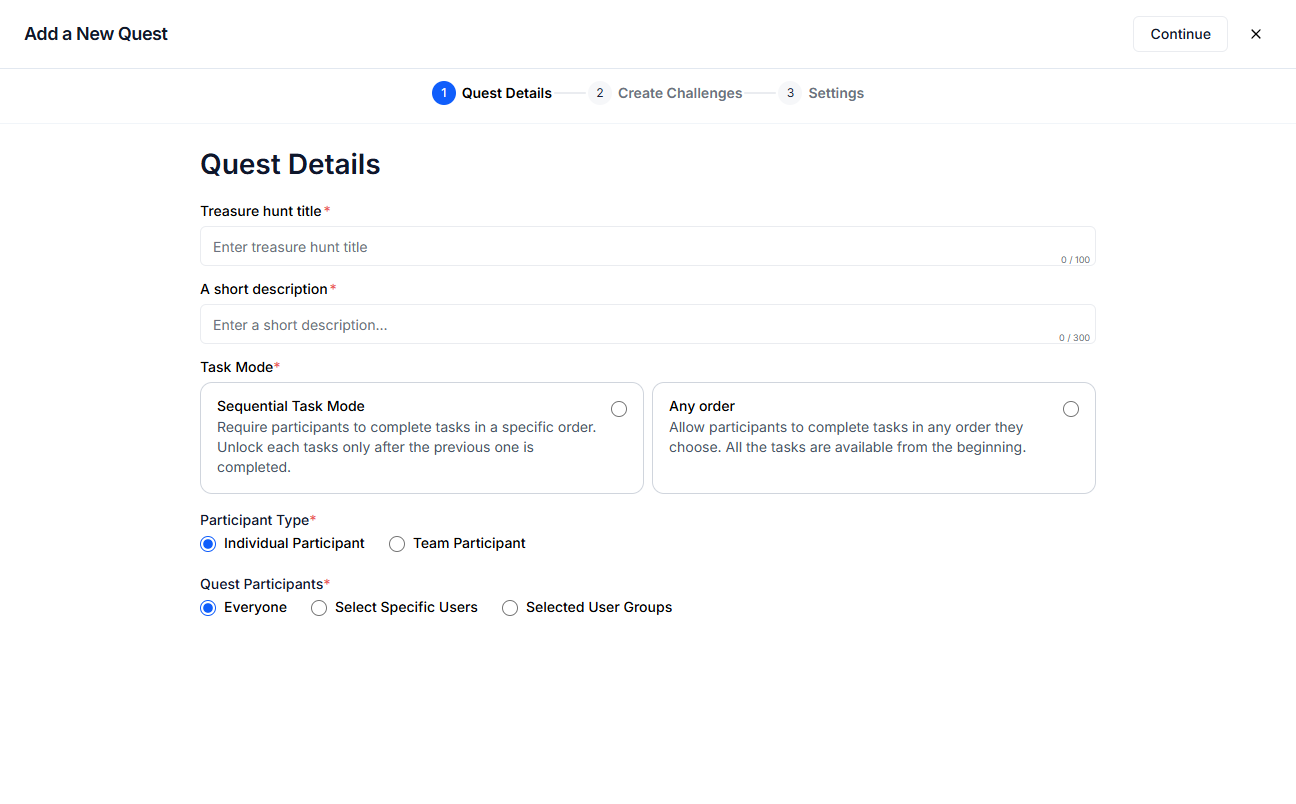
2: In Step 1 (Quest Details), enter a title and short description, pick a Task Mode (Sequential or Any order), choose the Participant Type — Individual or Team (for Team, click “Create Custom Team” to name the team and add members) — and who can take part (Everyone, Select Specific Users, or Selected User Groups). Click “Continue”.
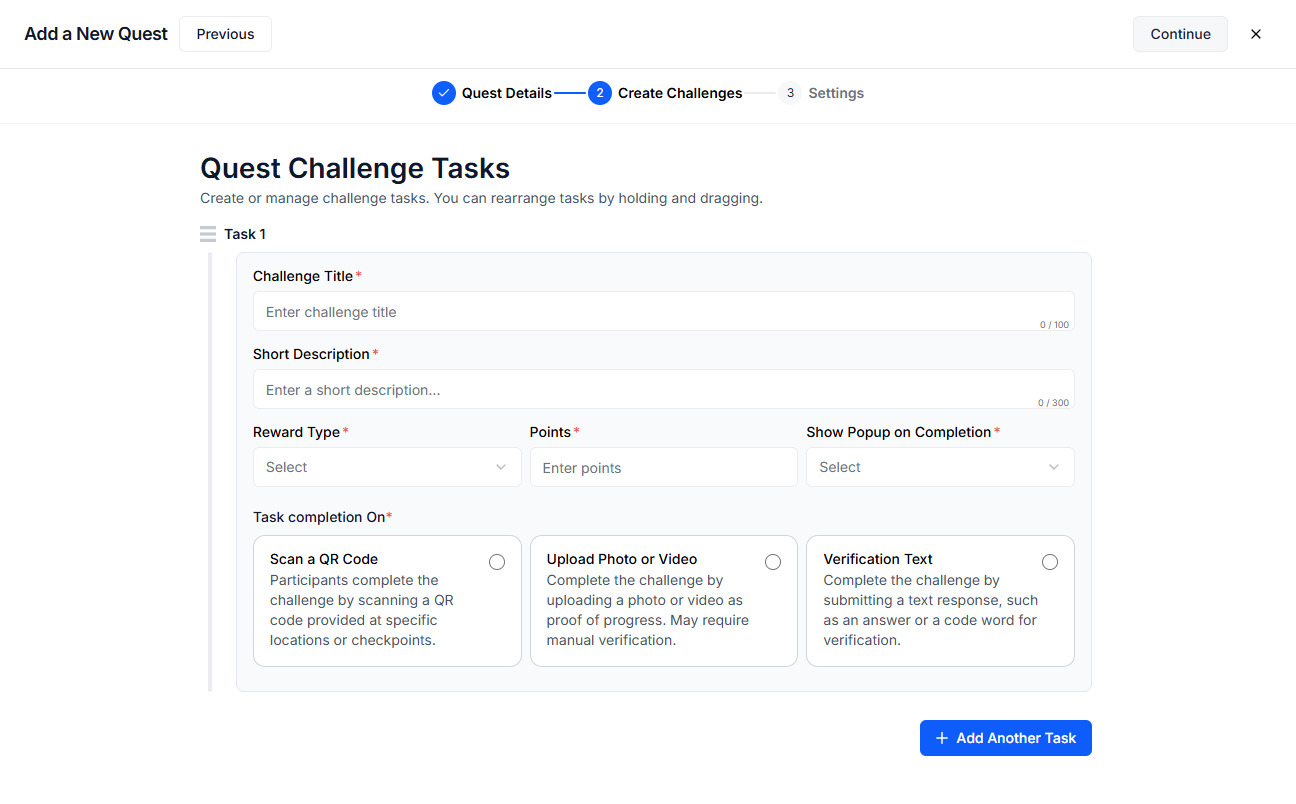
3: In Step 2 (Create Challenges), add each task with a title, description and reward (Points or Award), and a Task Completion method: scan a QR code (auto-generated or a code you enter, optionally linked to a sponsor/exhibitor), upload a photo/video as proof, or submit a text response — each with optional host verification. Use “Add Another Task” for more tasks, then “Continue”.
4: In Step 3 (Settings), enter the rules, the maximum number of winners, and the start and end dates, then click “Save” to add the quest.
5: The quest now appears in Manage Challenges. Use the pencil icon to edit it, and the toggle to enable or disable it.