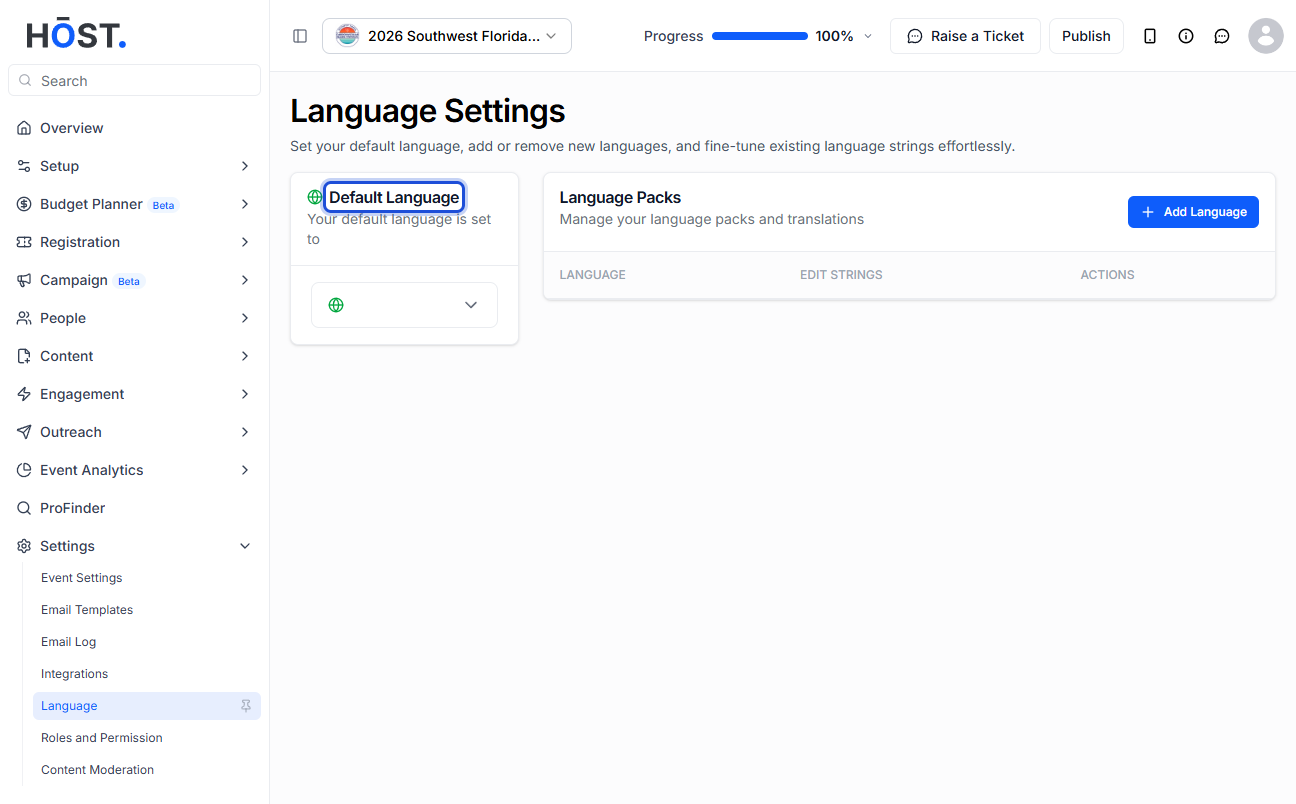
HOST now supports multiple languages, and you can set it up from the Admin Panel itself.
To learn how to organize an event for non-native English attendees through HOST, follow the steps as displayed in the guide below
1: Go to Settings > Language. HOST's default language is English — from here you can add more languages and fine-tune their translation strings.
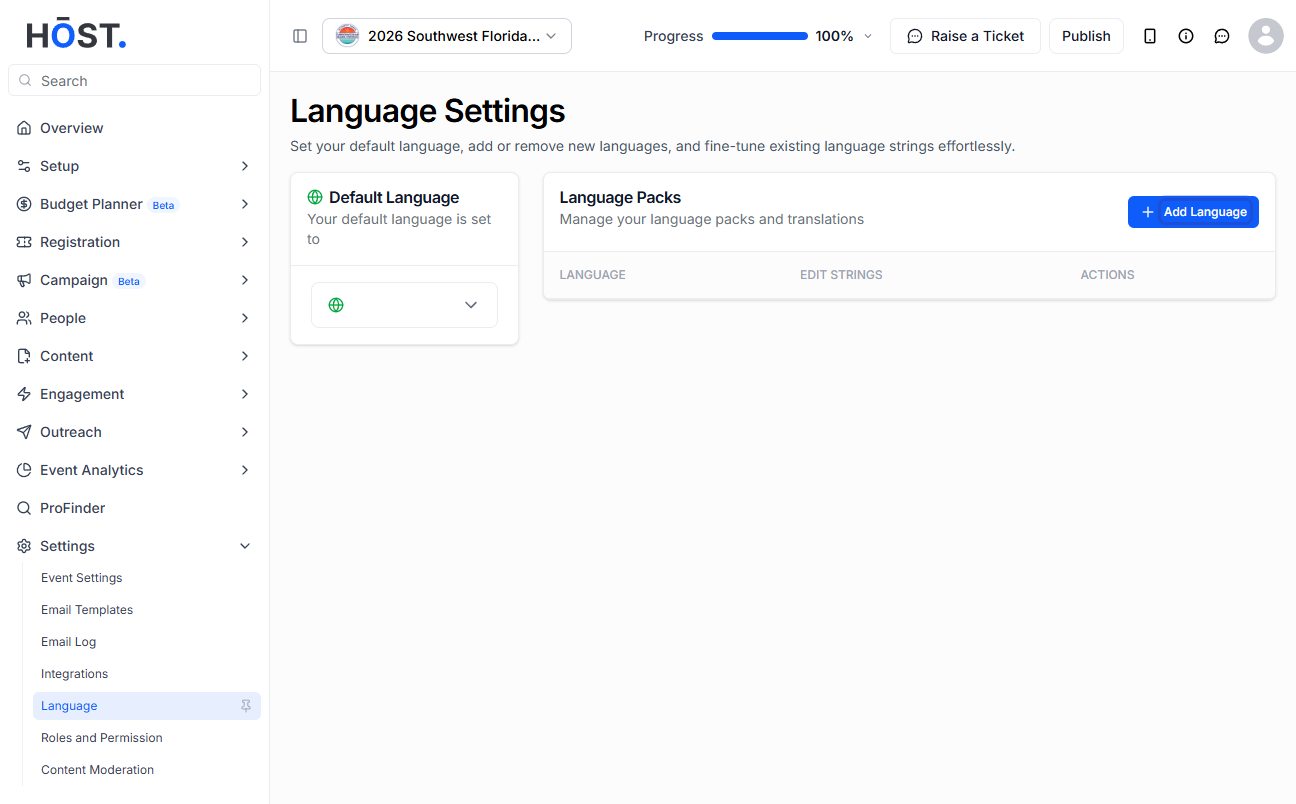
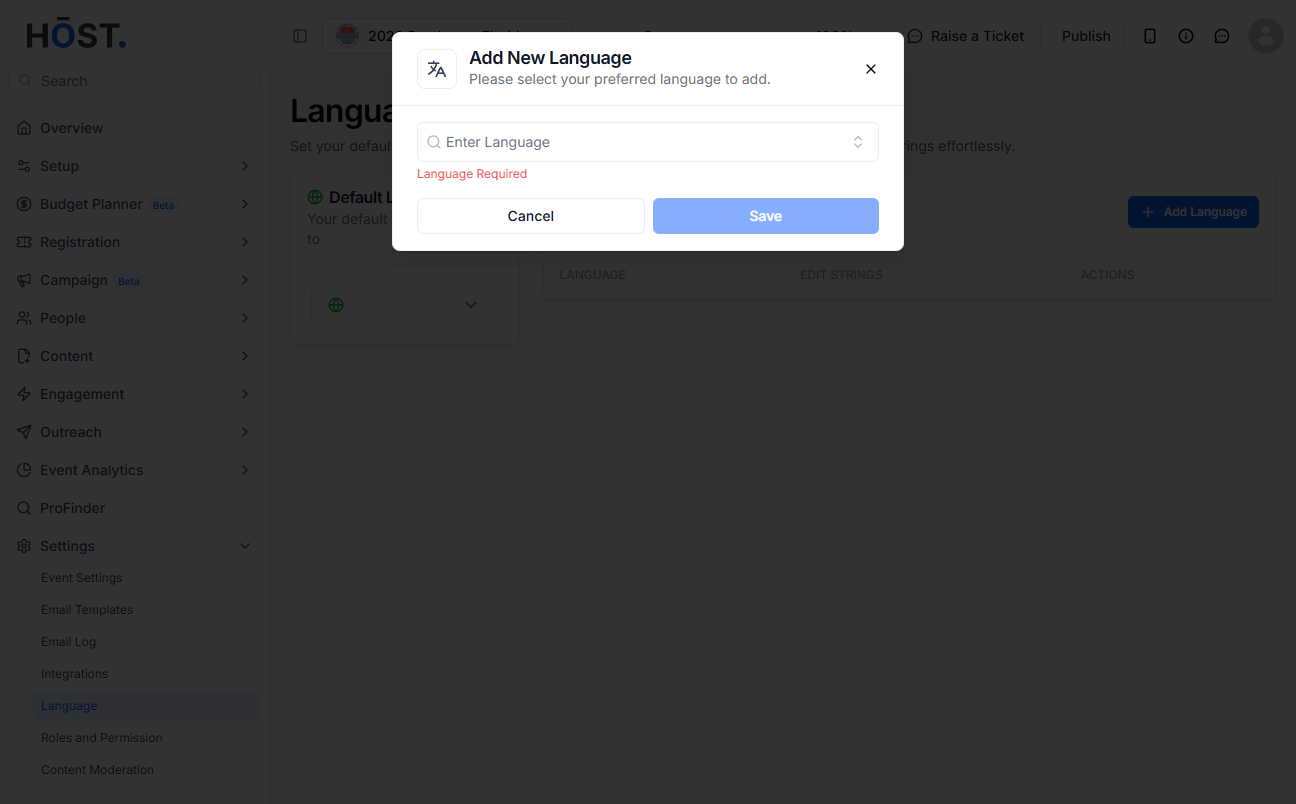
2: Click “+ Add Language”, search for and select the language you want, then click “Save”.
3: The language now appears under Language Packs. Use “Edit Strings” to fine-tune individual translations, or use Bulk String Upload — download the Language CSV, translate the text in the “Text” column, and re-upload the file.
4: Enable the language under Actions so it becomes available in the app, and choose your preferred default in the Default Language card. Attendees can then switch languages from the app.