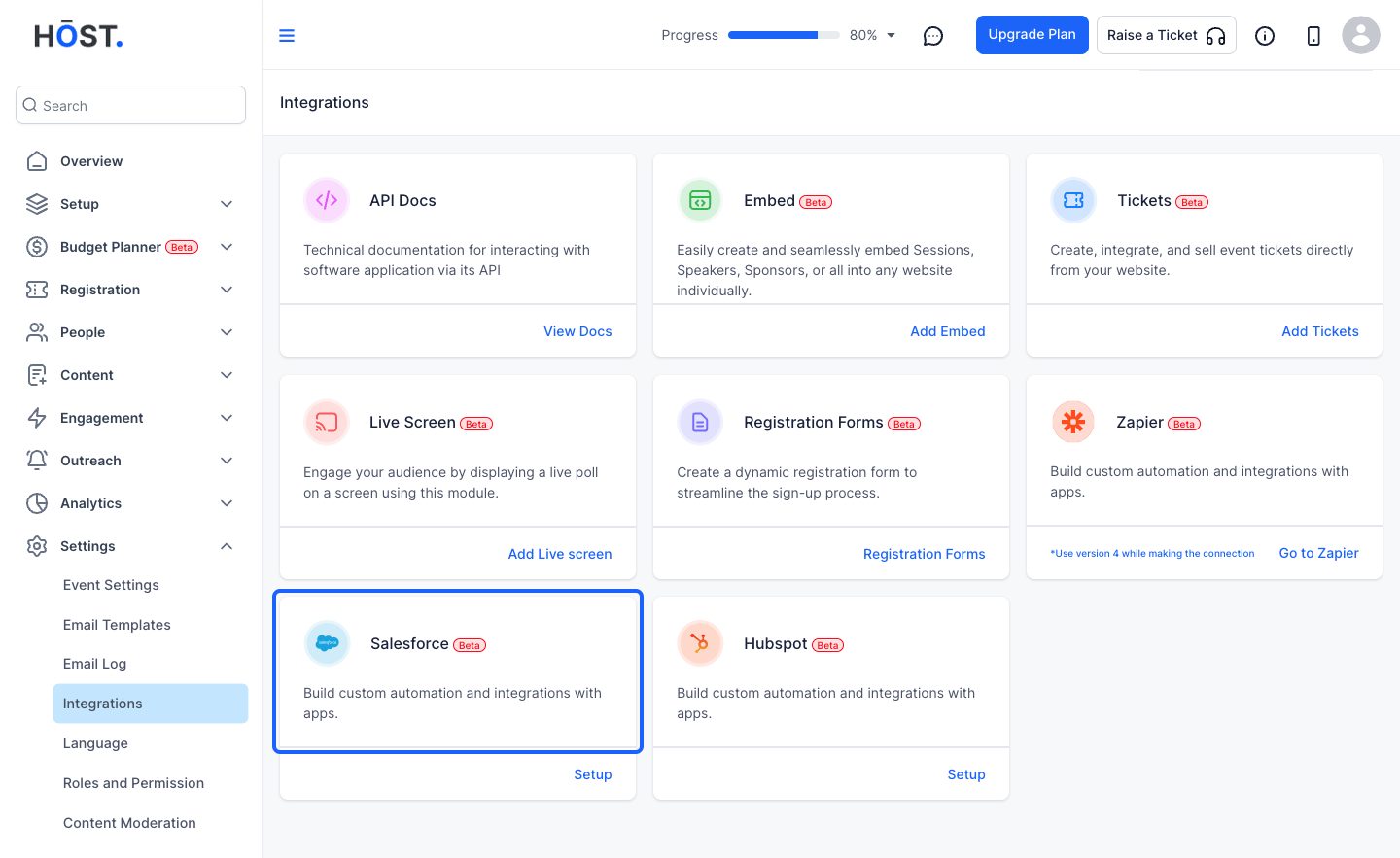
Integrating Salesforce can be particularly useful if you want to import or export attendee data to and ad from HOST. Here is how you can integrate.
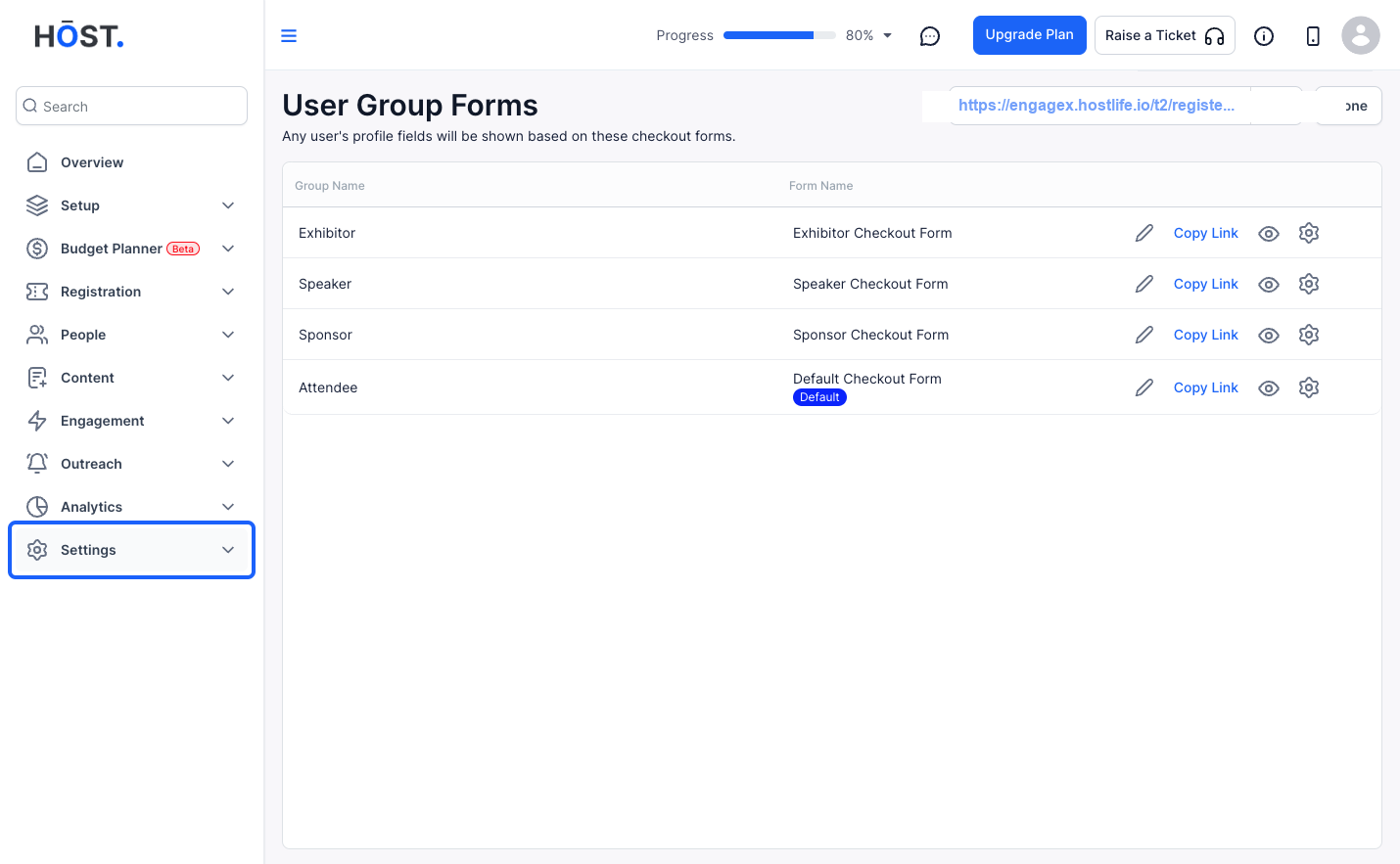
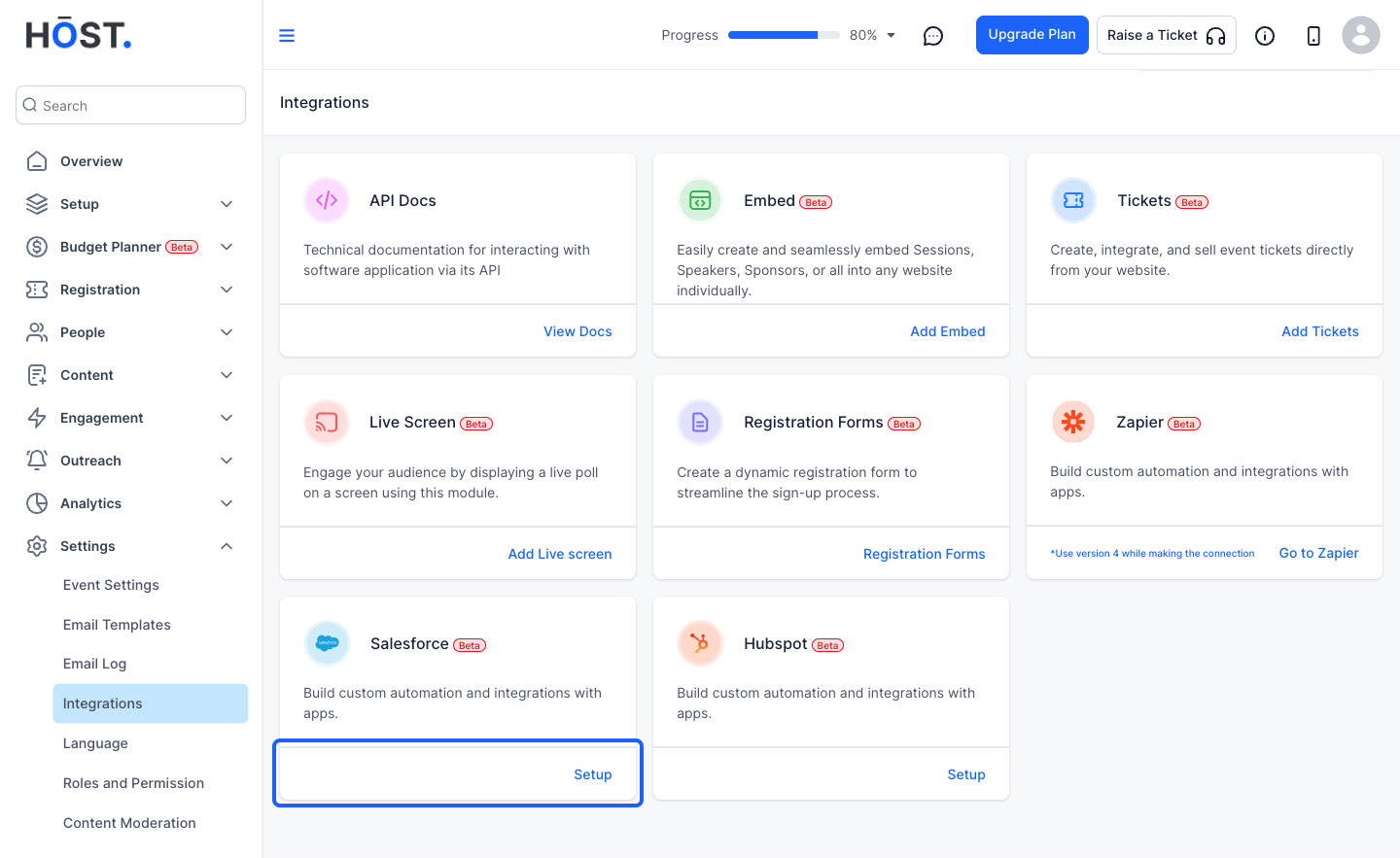
1: Login to the admin panel and go to Settings
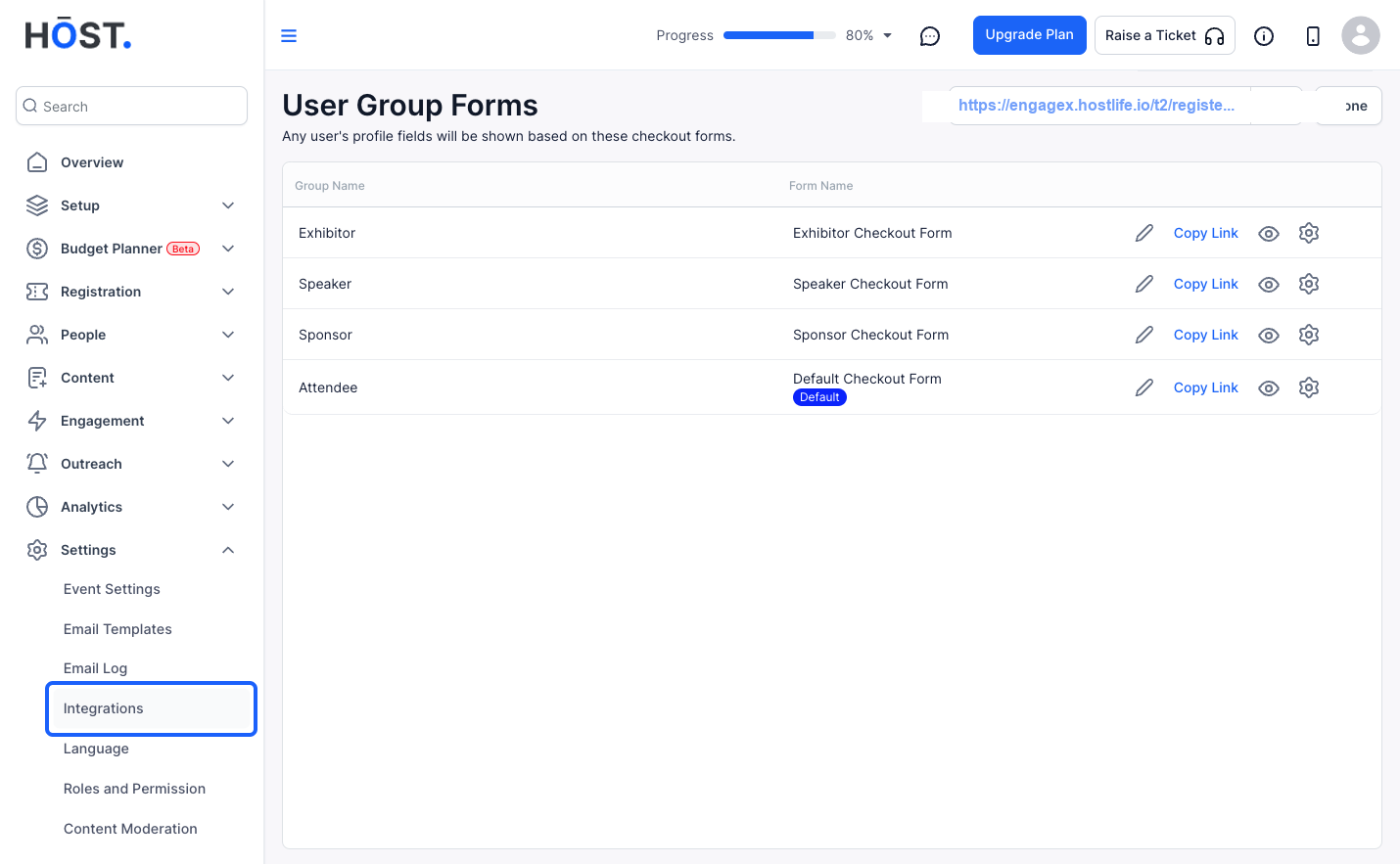
2: Go to Integrations
3: Here you can integrate your Salesforce account to import or export attendees to and from HOST
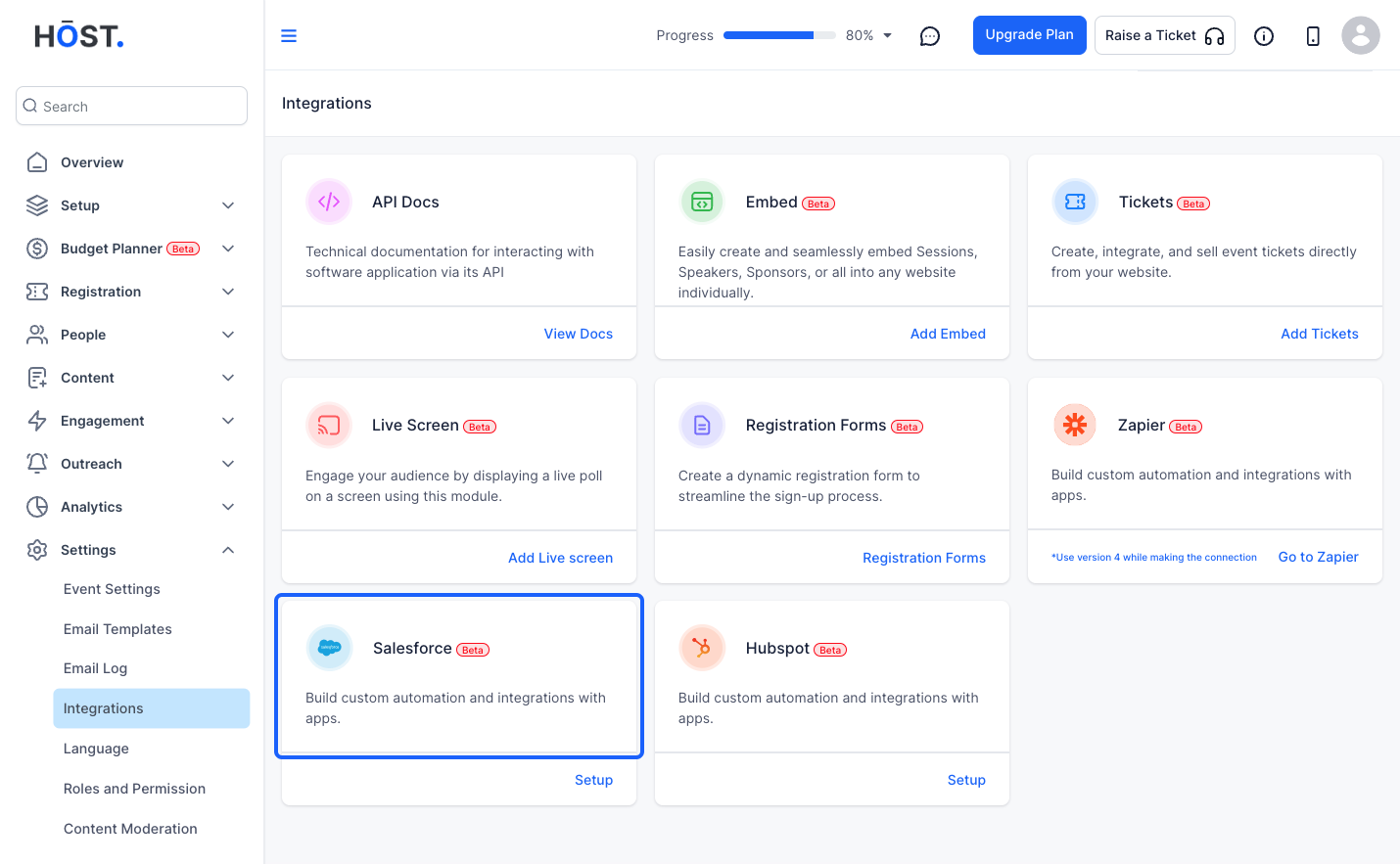
4: Click on Setup
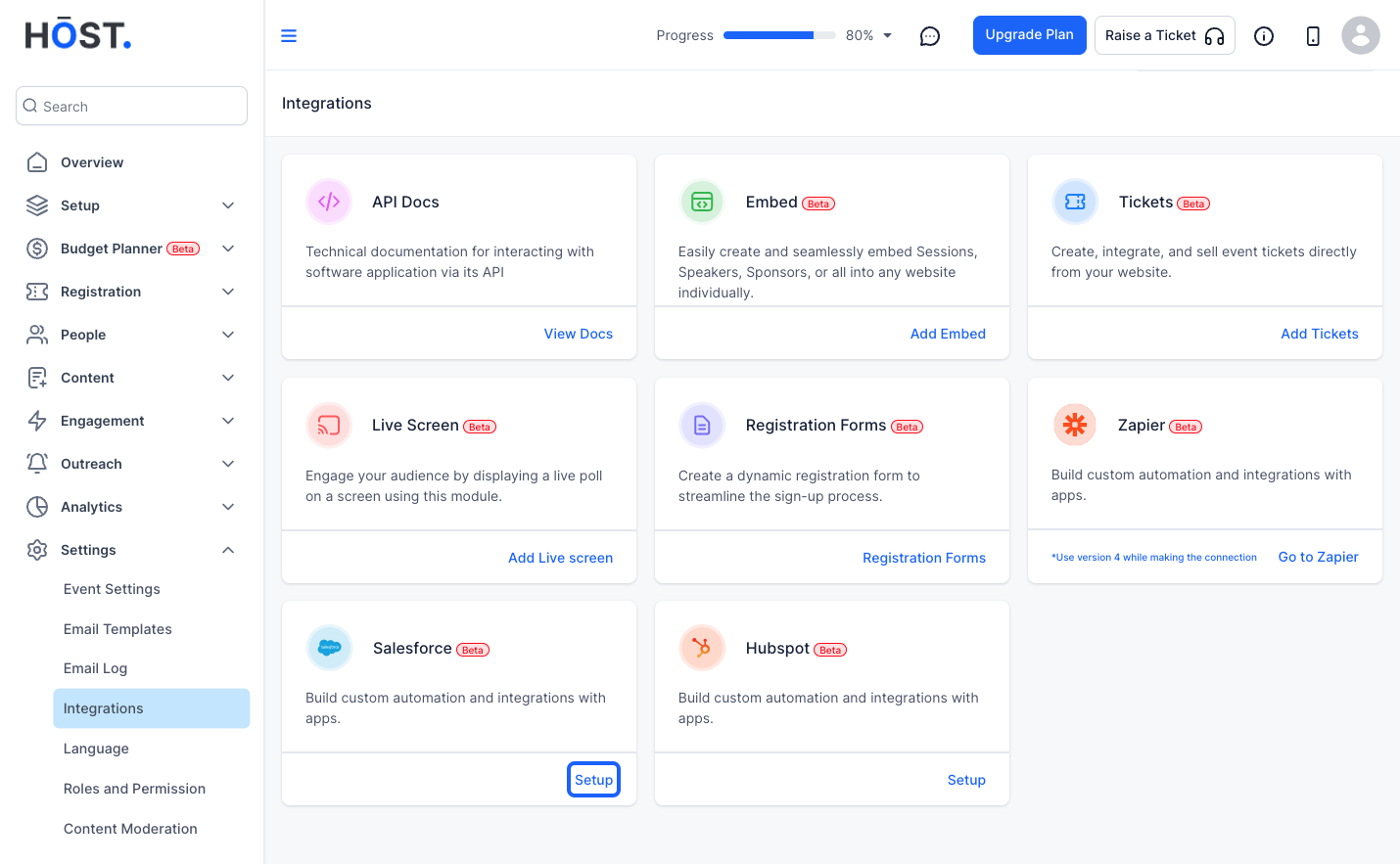
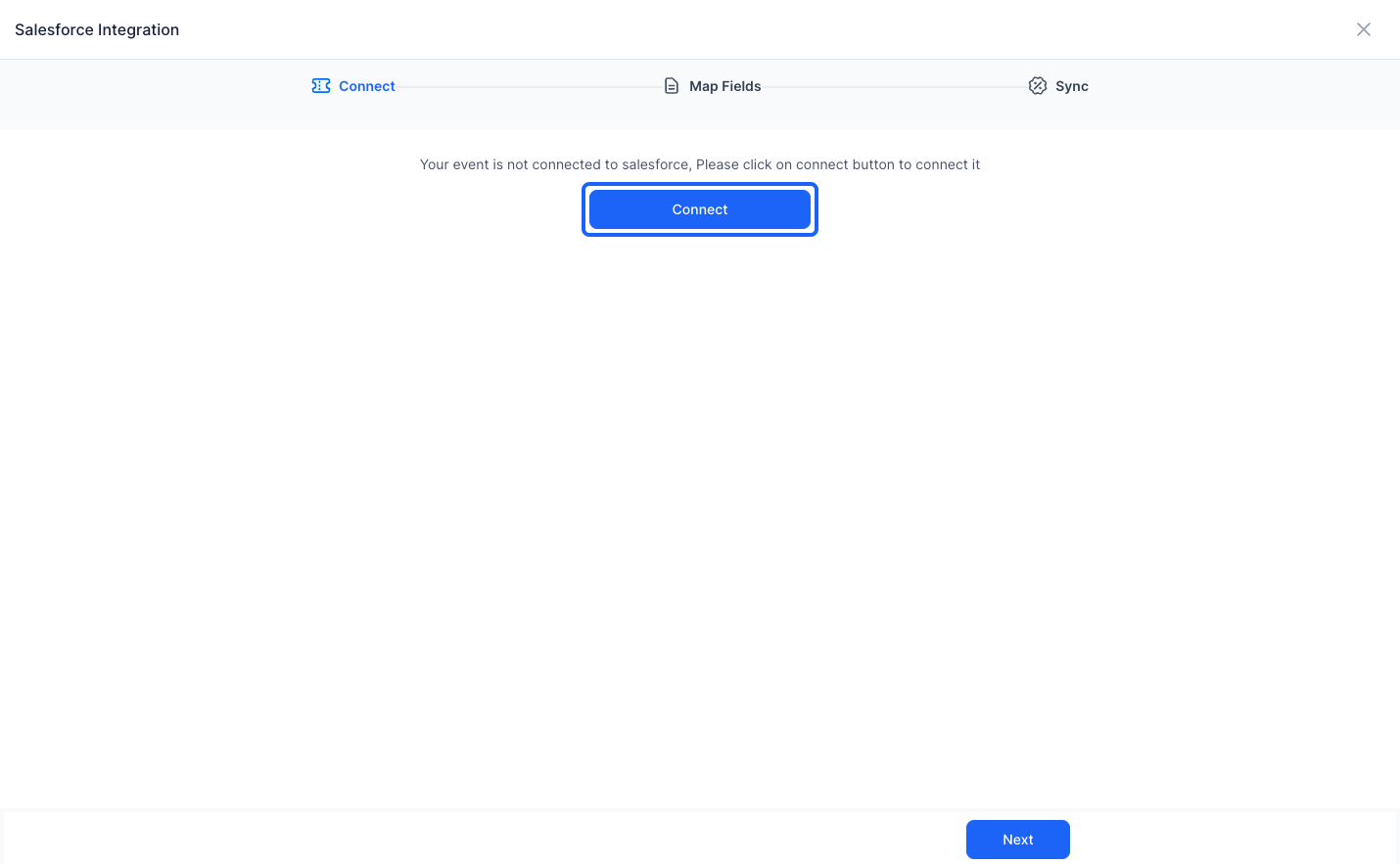
5: Click the “Connect” button. It will ask you to authenticate and connect your Salesforce account with HOST
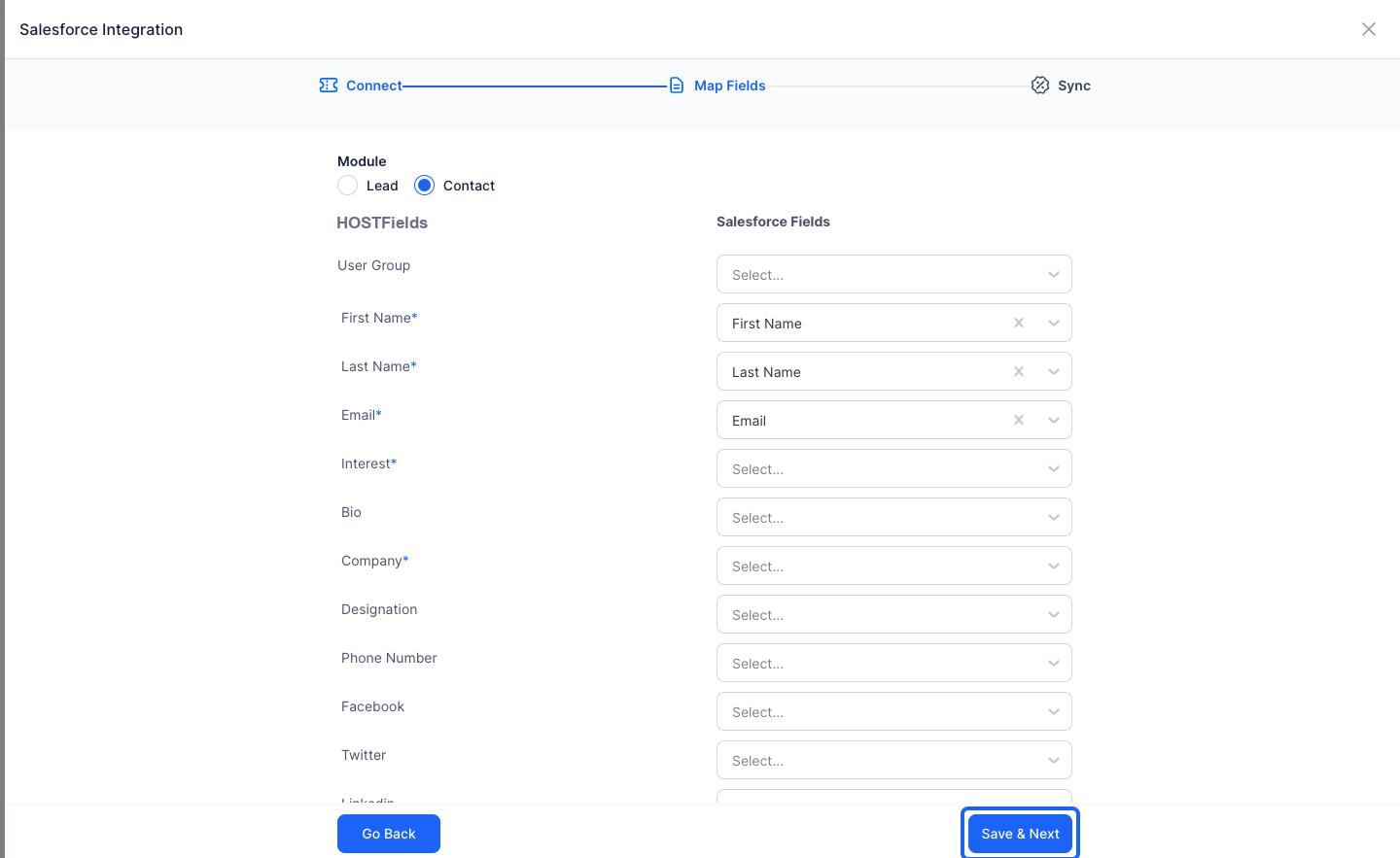
6: Once connected, you can select either "Leads" or "Contacts" from the Salesforce list
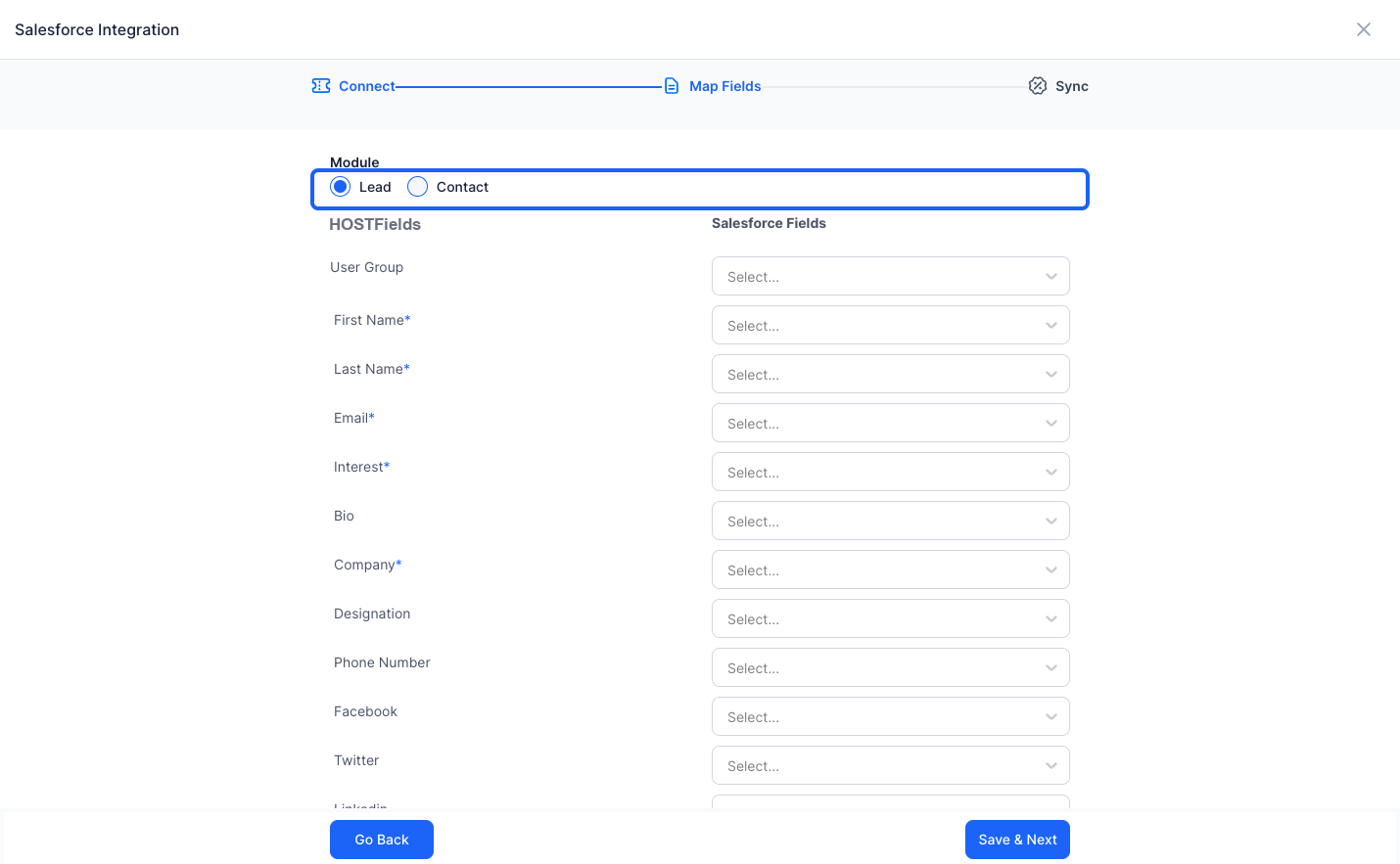
7: Once selected, map the registration form fields from HOST to the Salesforce List fields.
This will determine, which field the data comes from or goes to.
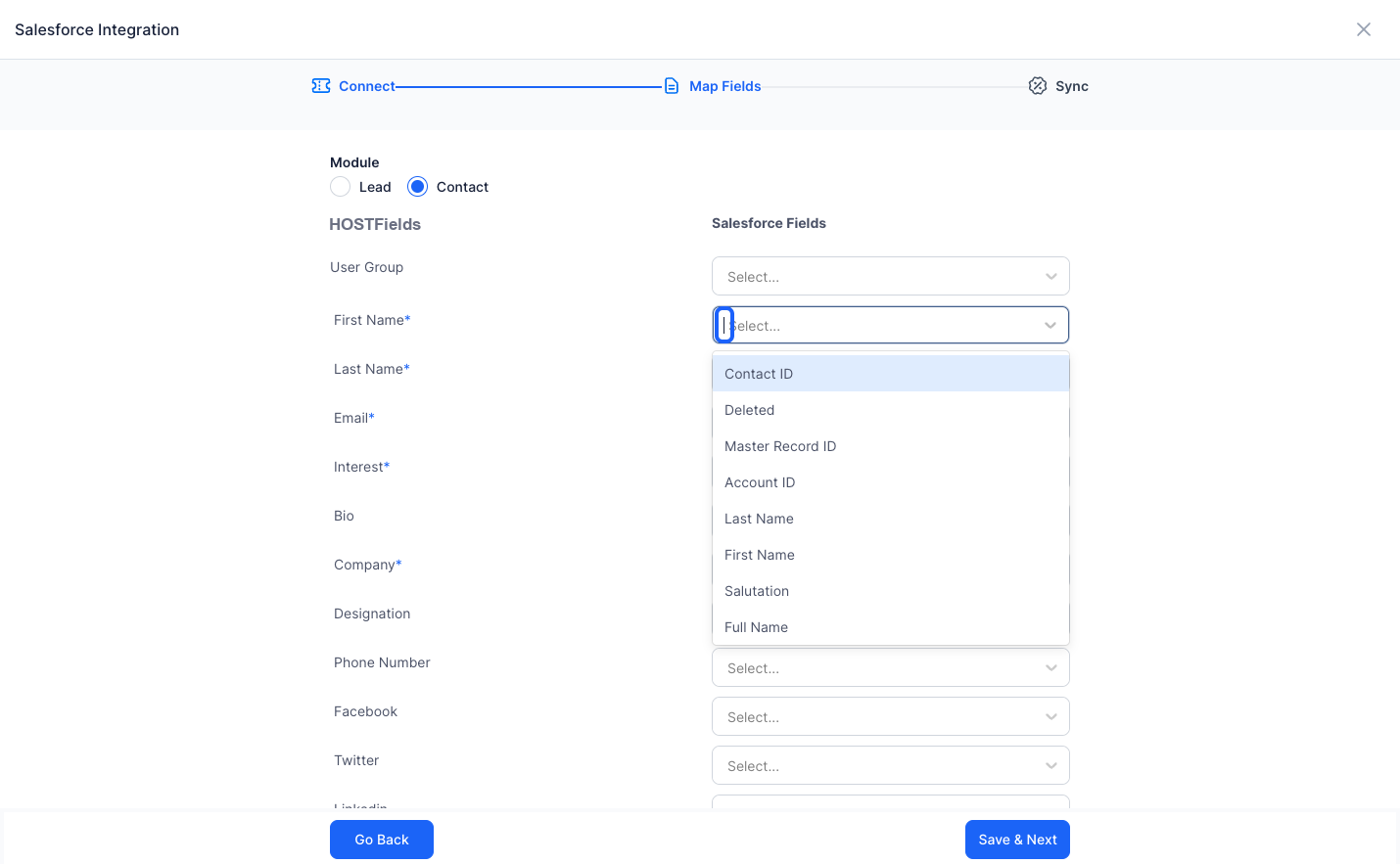
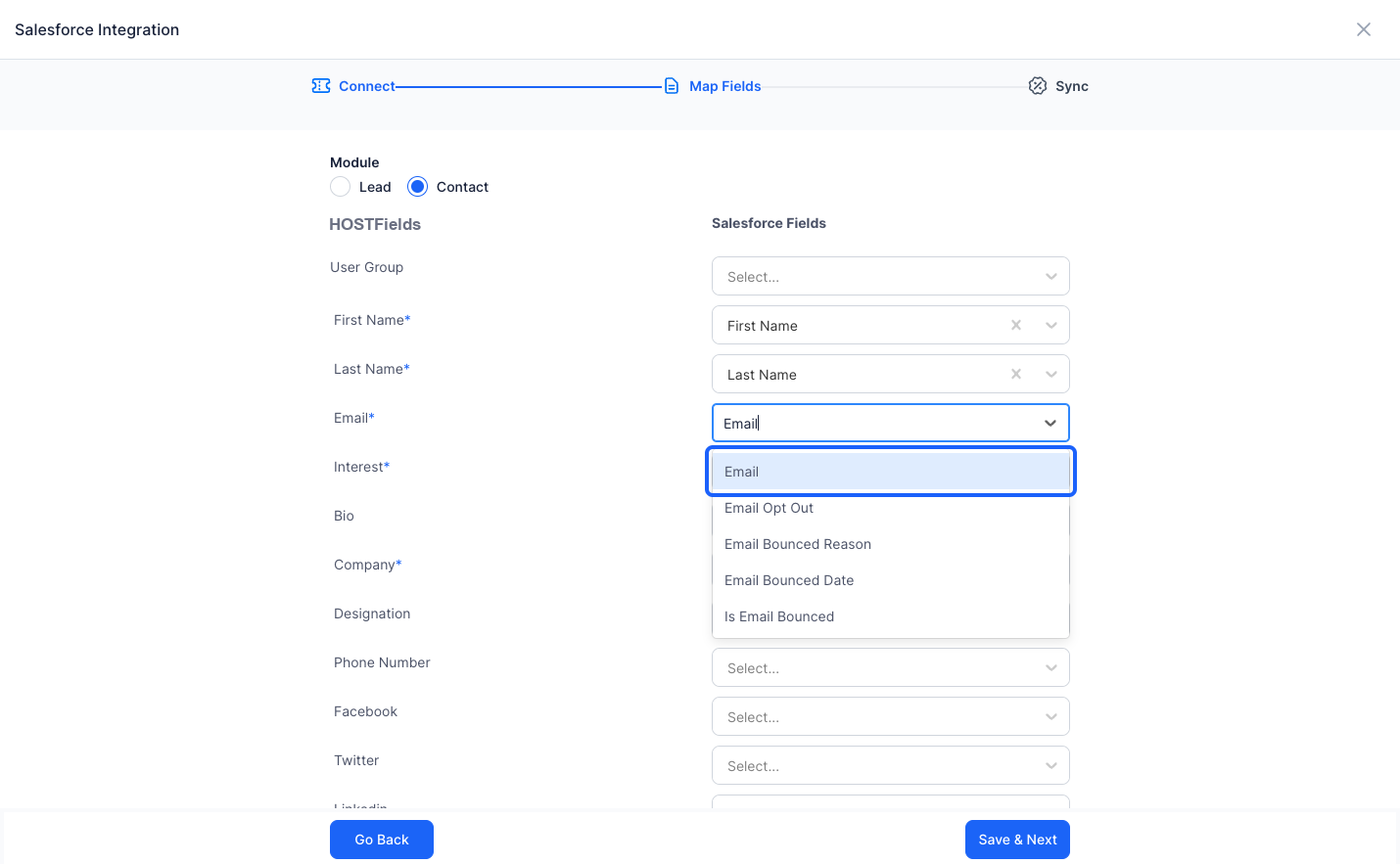
8: Search and Select the appropriate fields
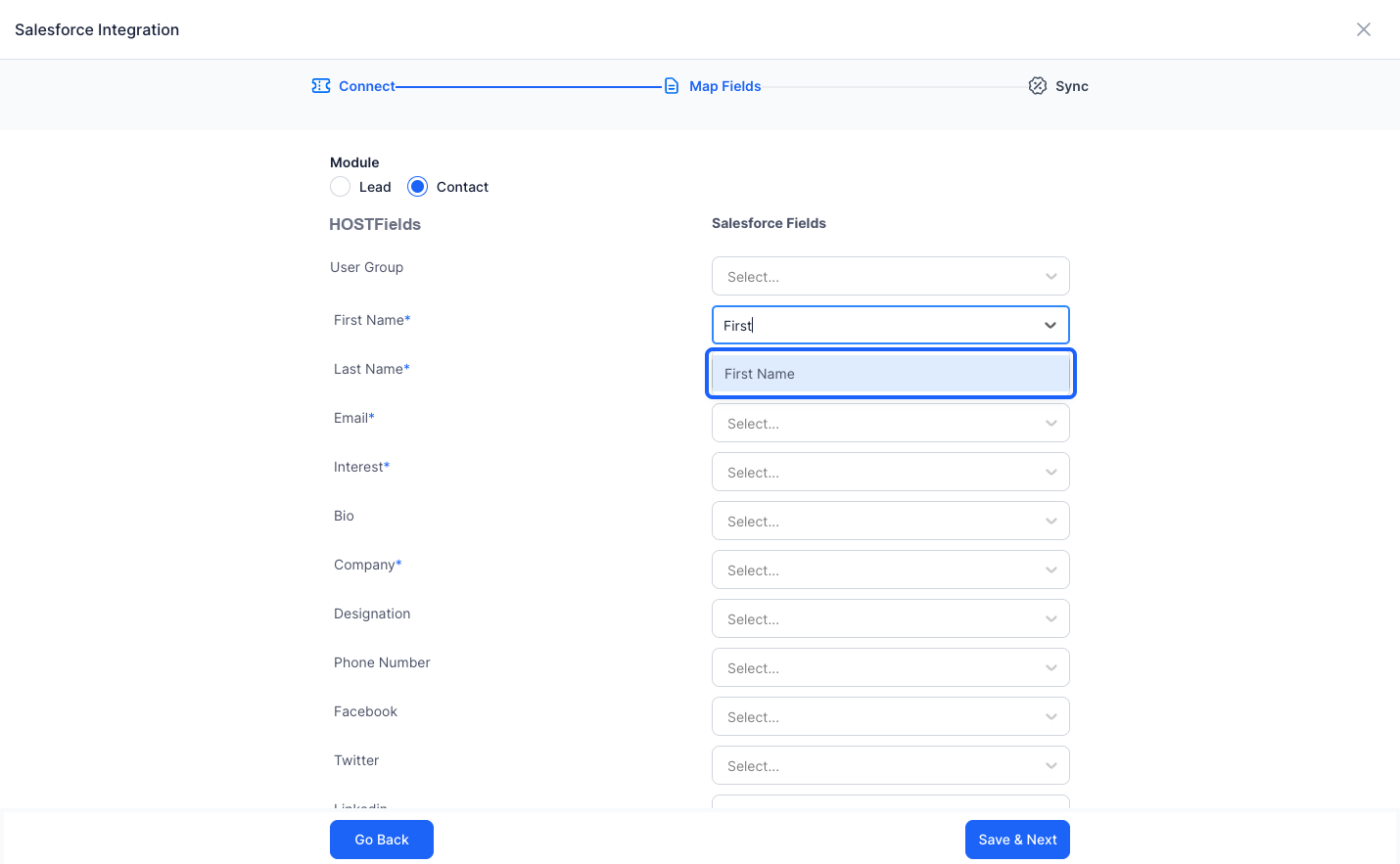
9: Map all the fields you would want to be imported or exported
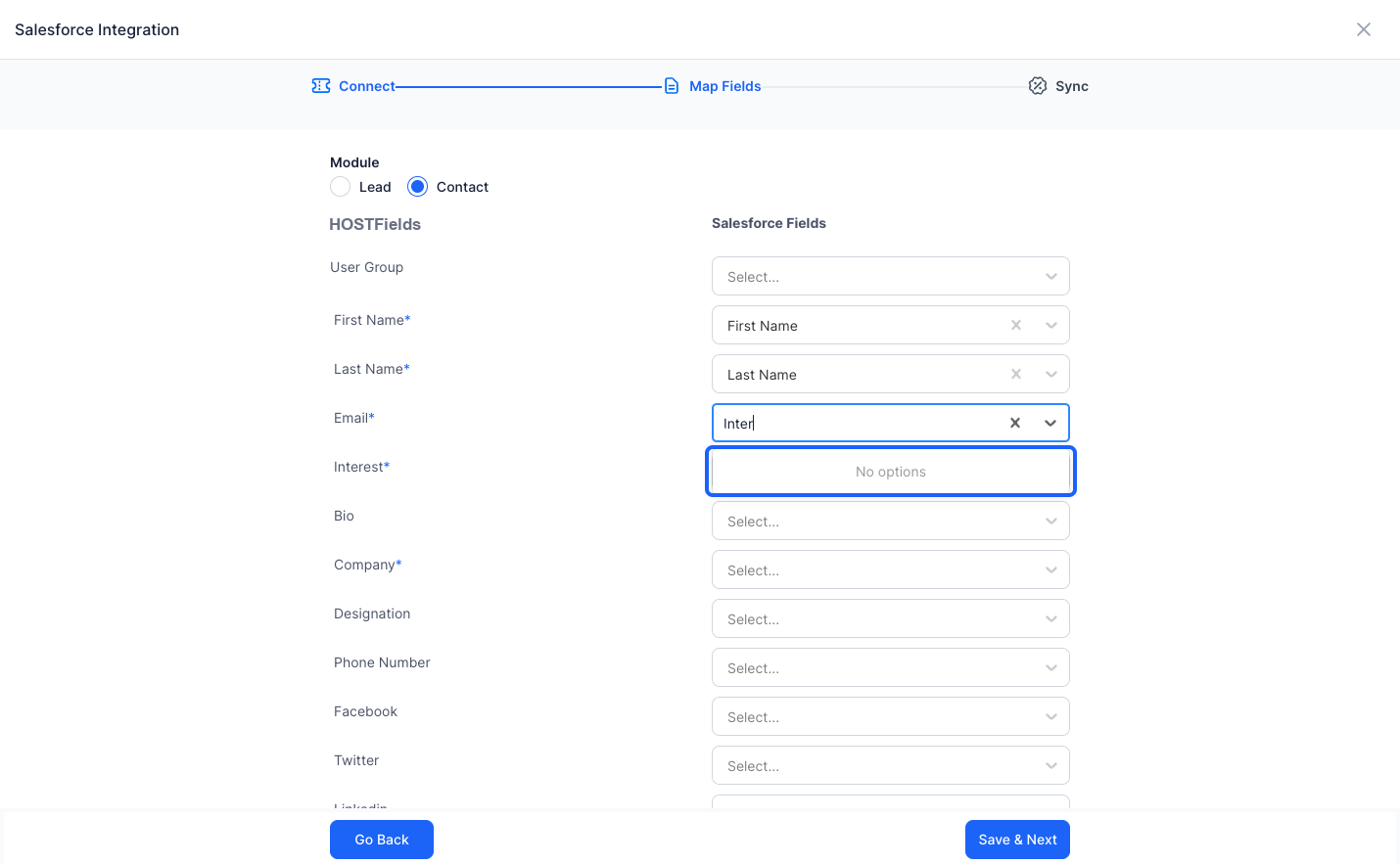
10: There might be cases where you do not find any field in Salesforce, that correspond to the registration form fields
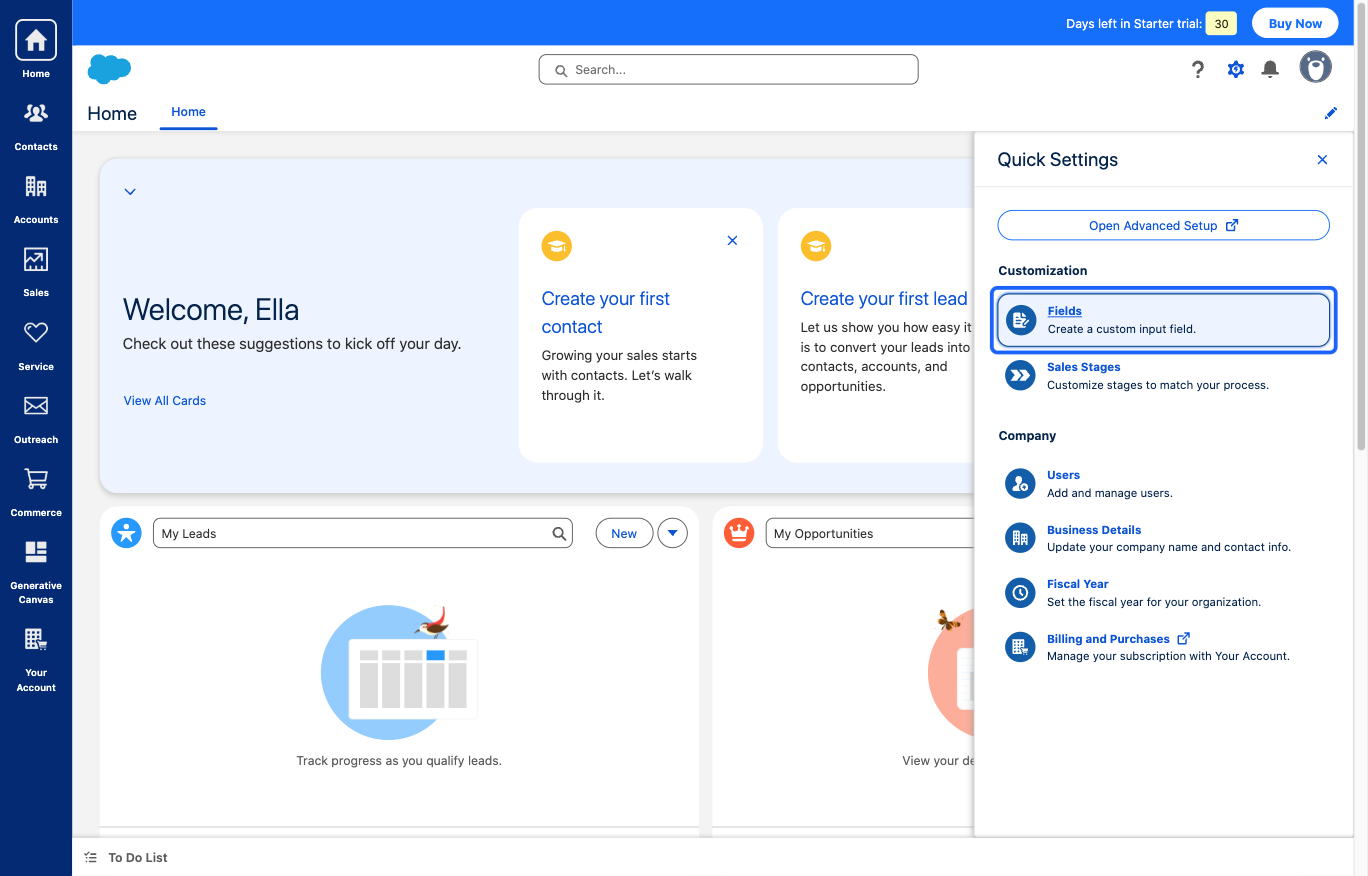
11: Go to the Salesforce dashboard and click on “Quick Settings” button
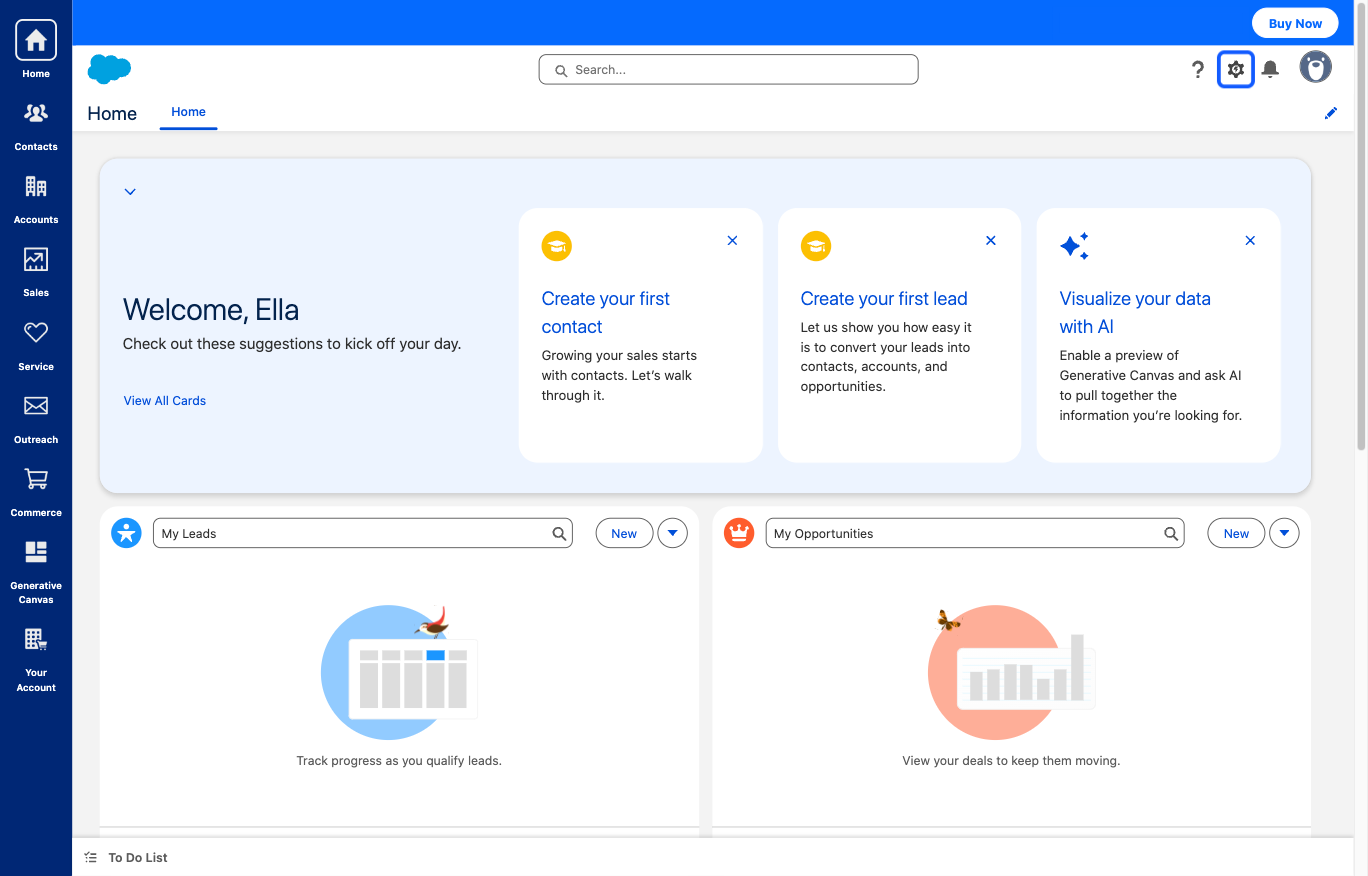
12: Click the “Fields Create a custom input field.” button
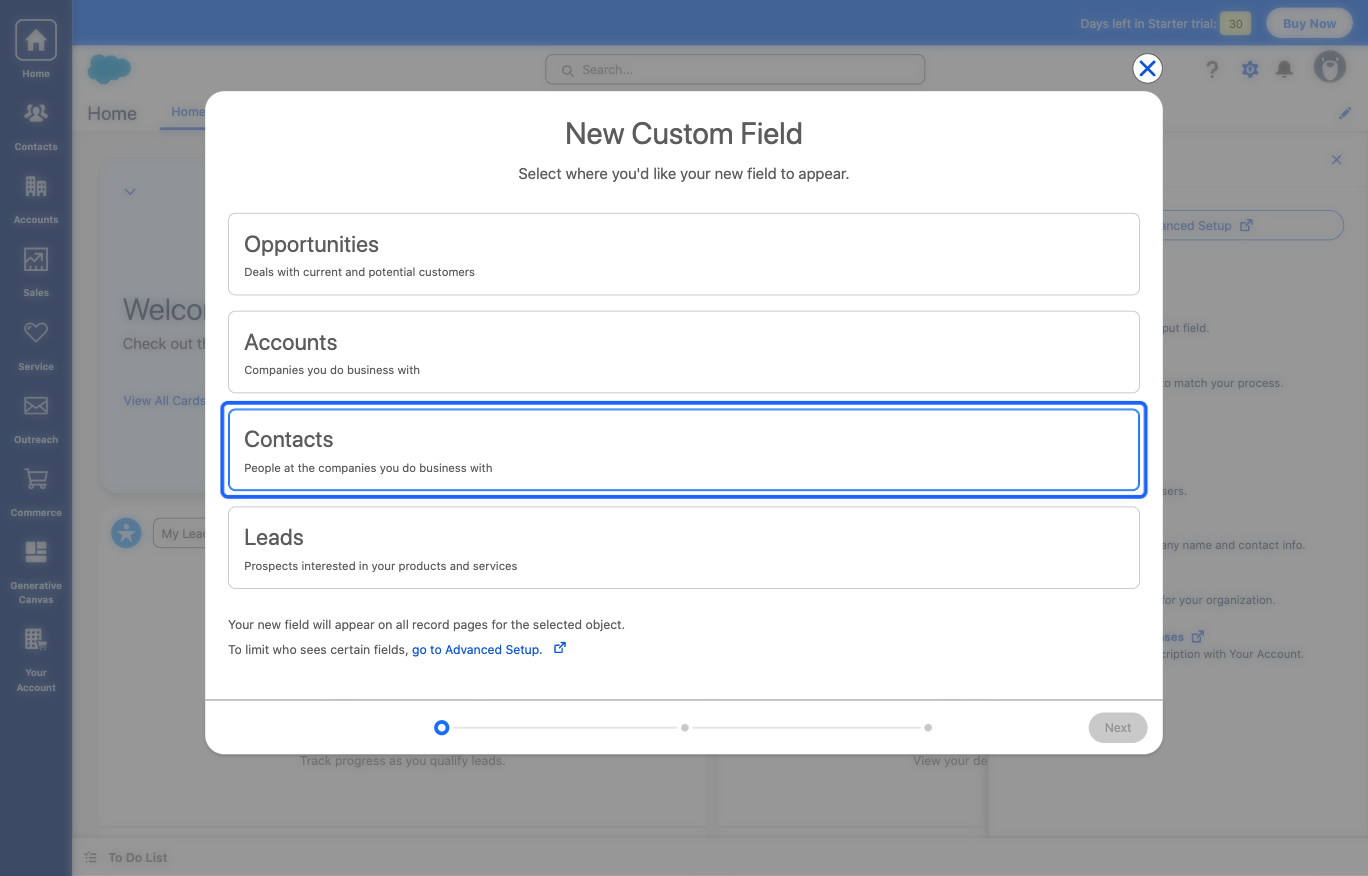
13: Click “Contacts" or "Leads" depending on which list you are using in HOST
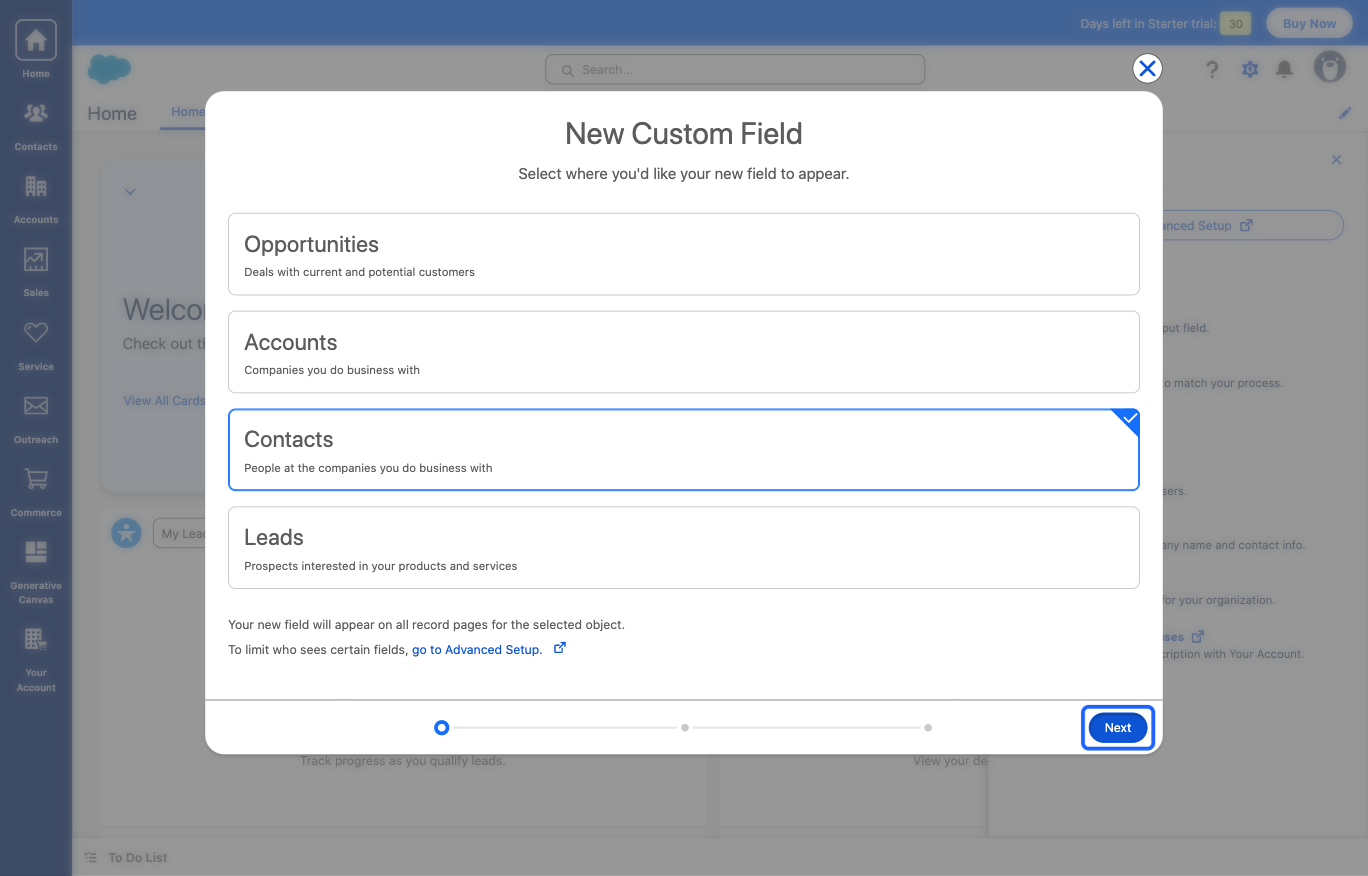
14: Click the “Next” button
15: Type in the “Name” of the required field
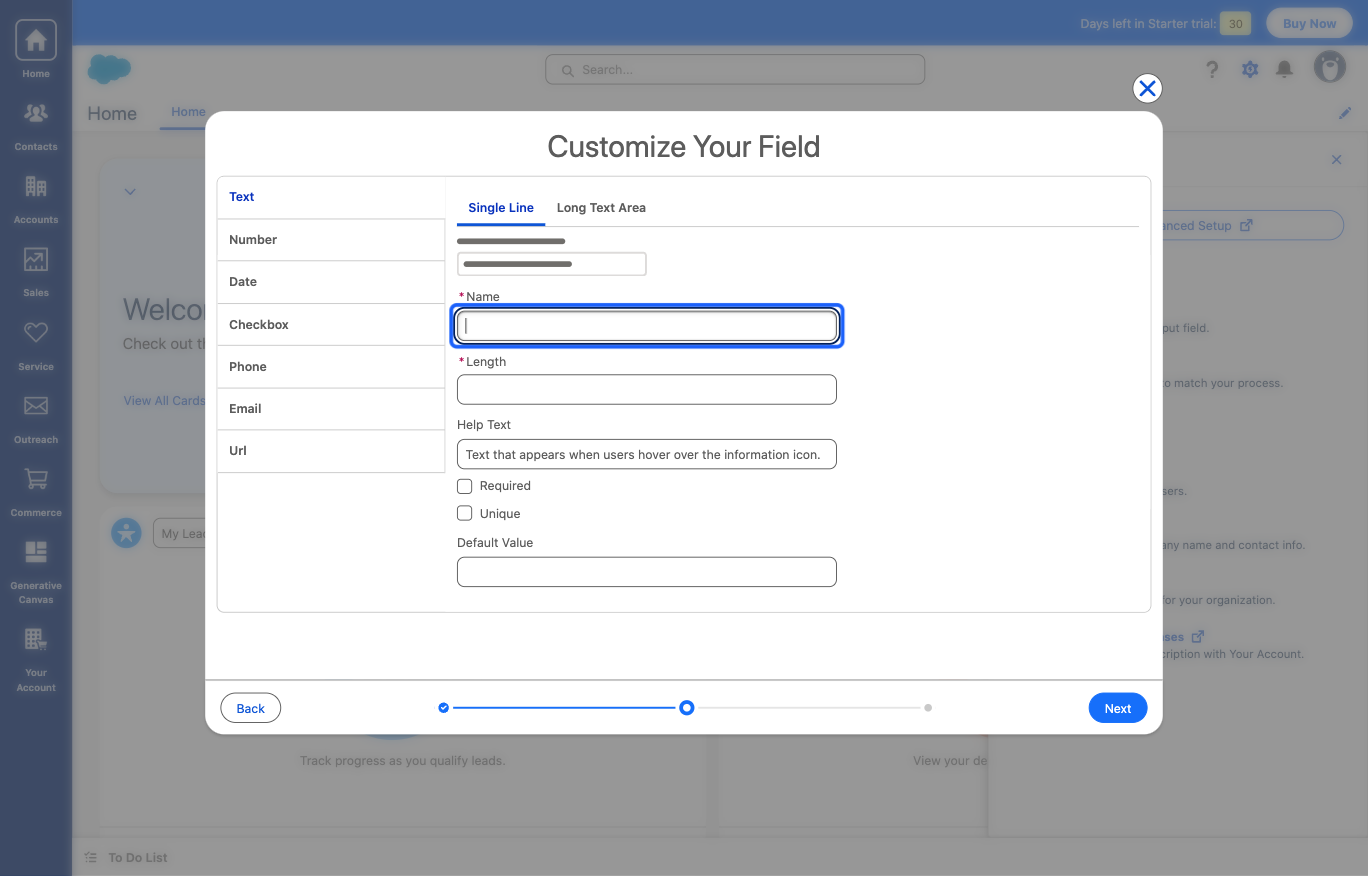
16: Type in the “Length” of the field
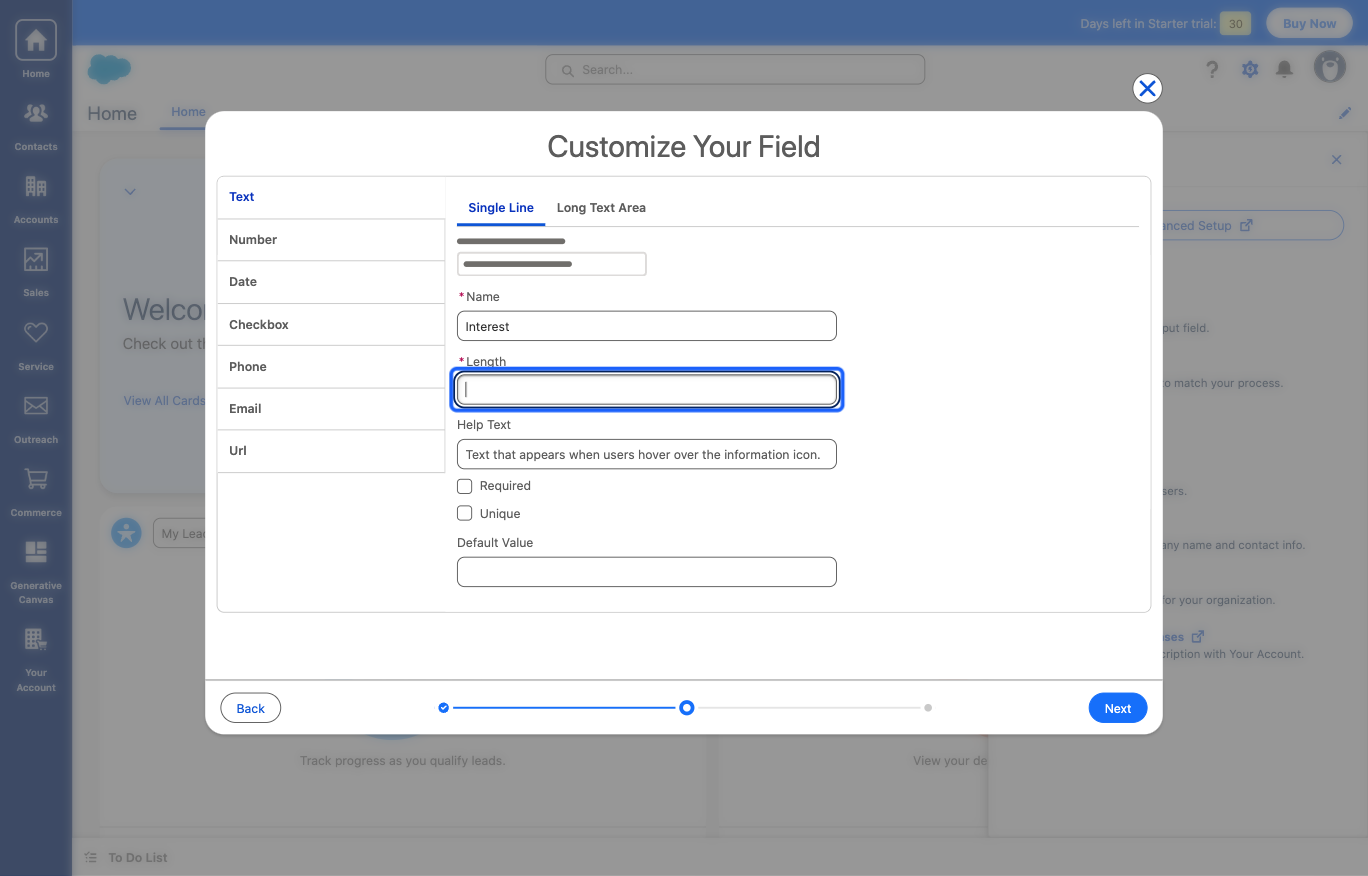
17: Click the “Next” button
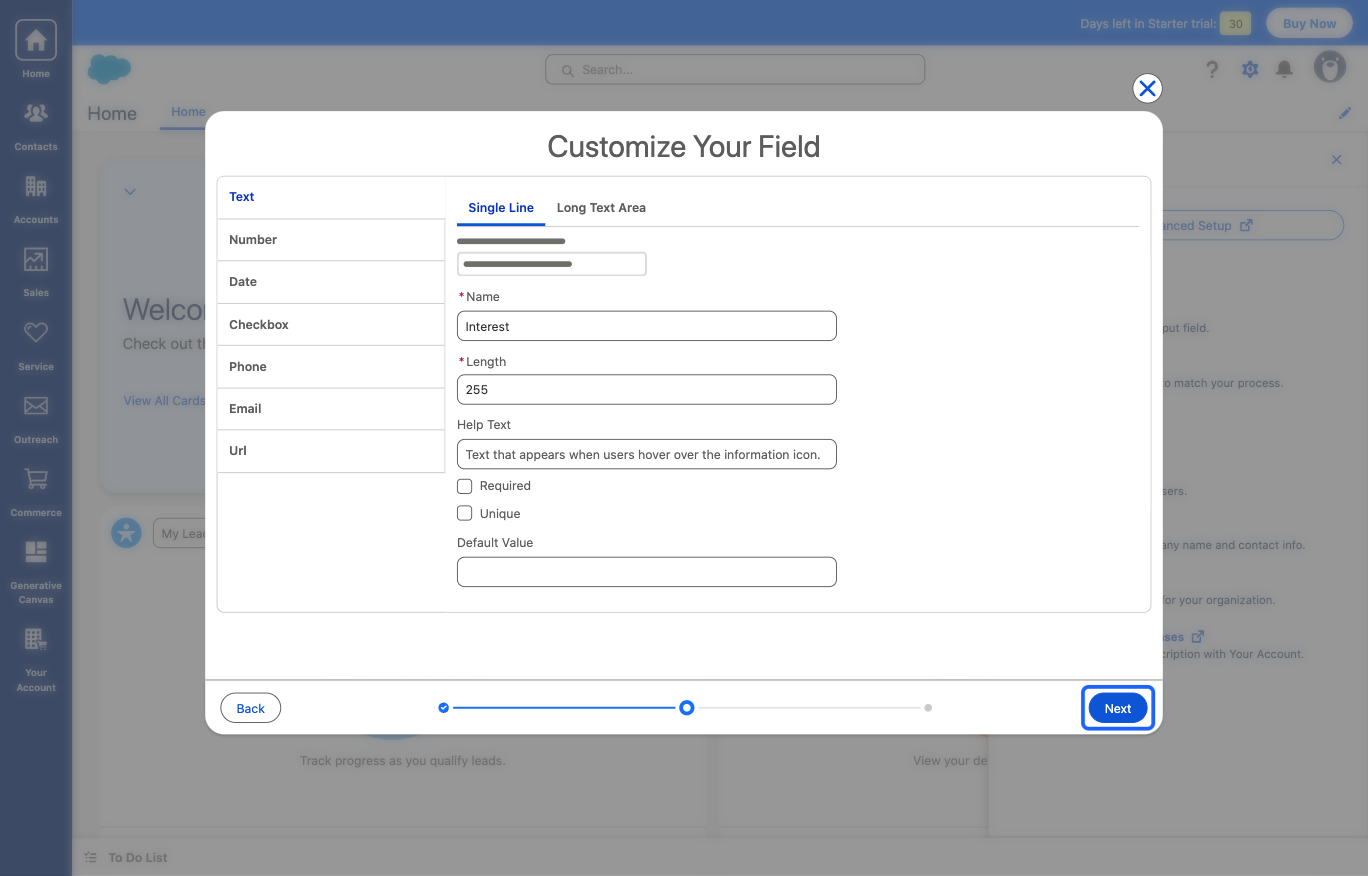
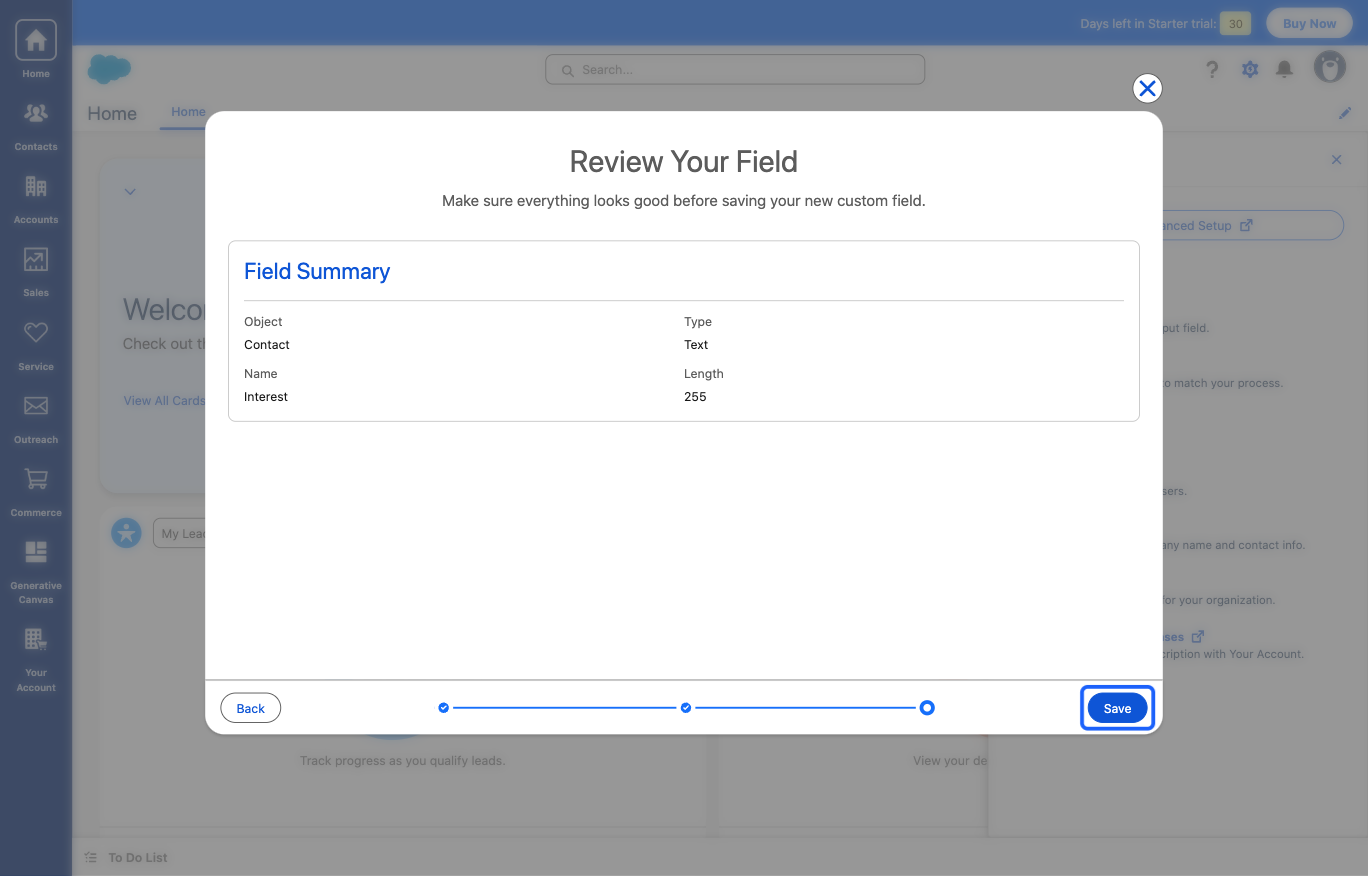
18: Review and click on the “Save” button
19: Go back to HOST Admin Panel and Reload this form after creating the custom field in Salesforce in order to fetch all the new fields
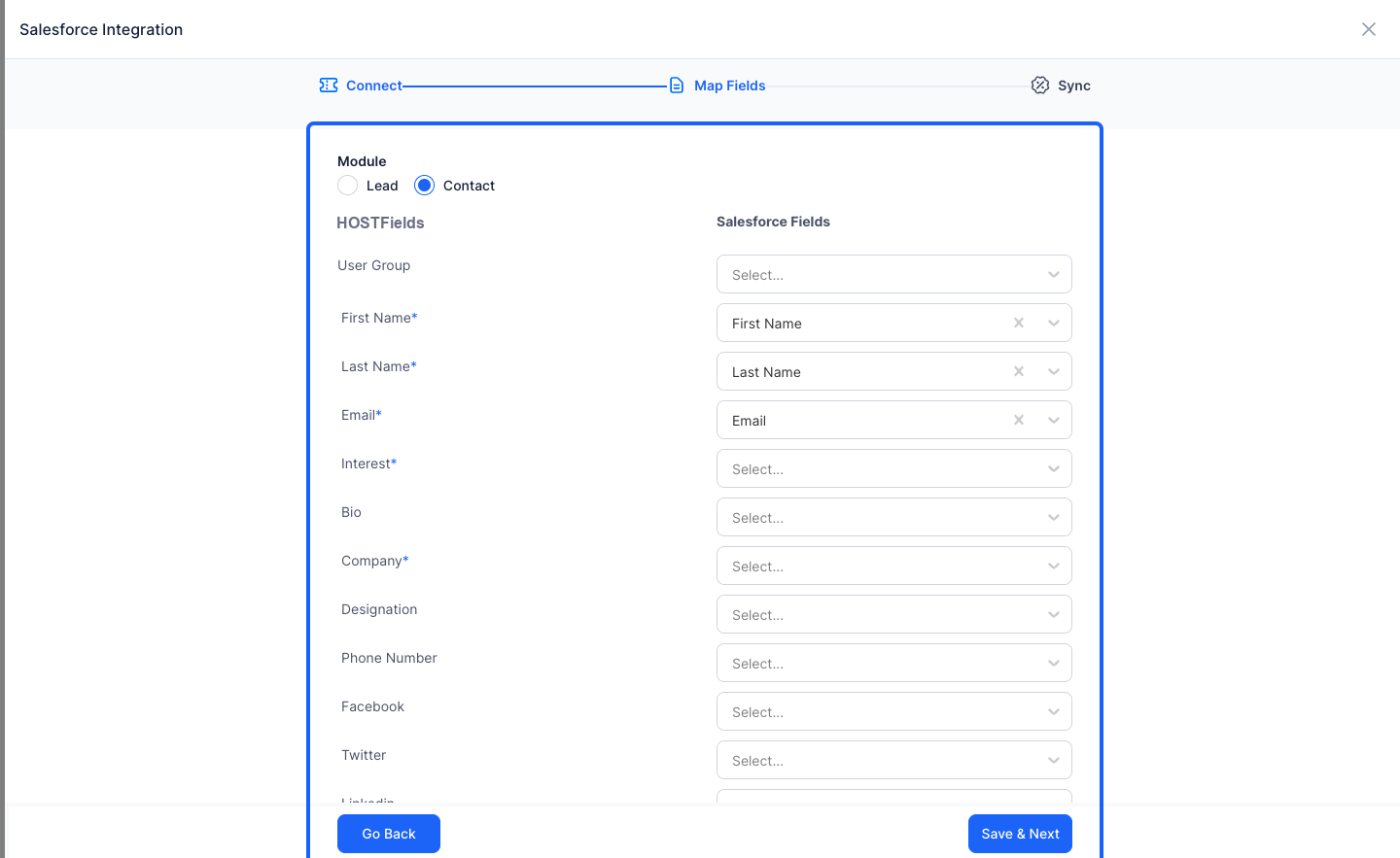
20: You can save the mapped fields before exiting the form to reload
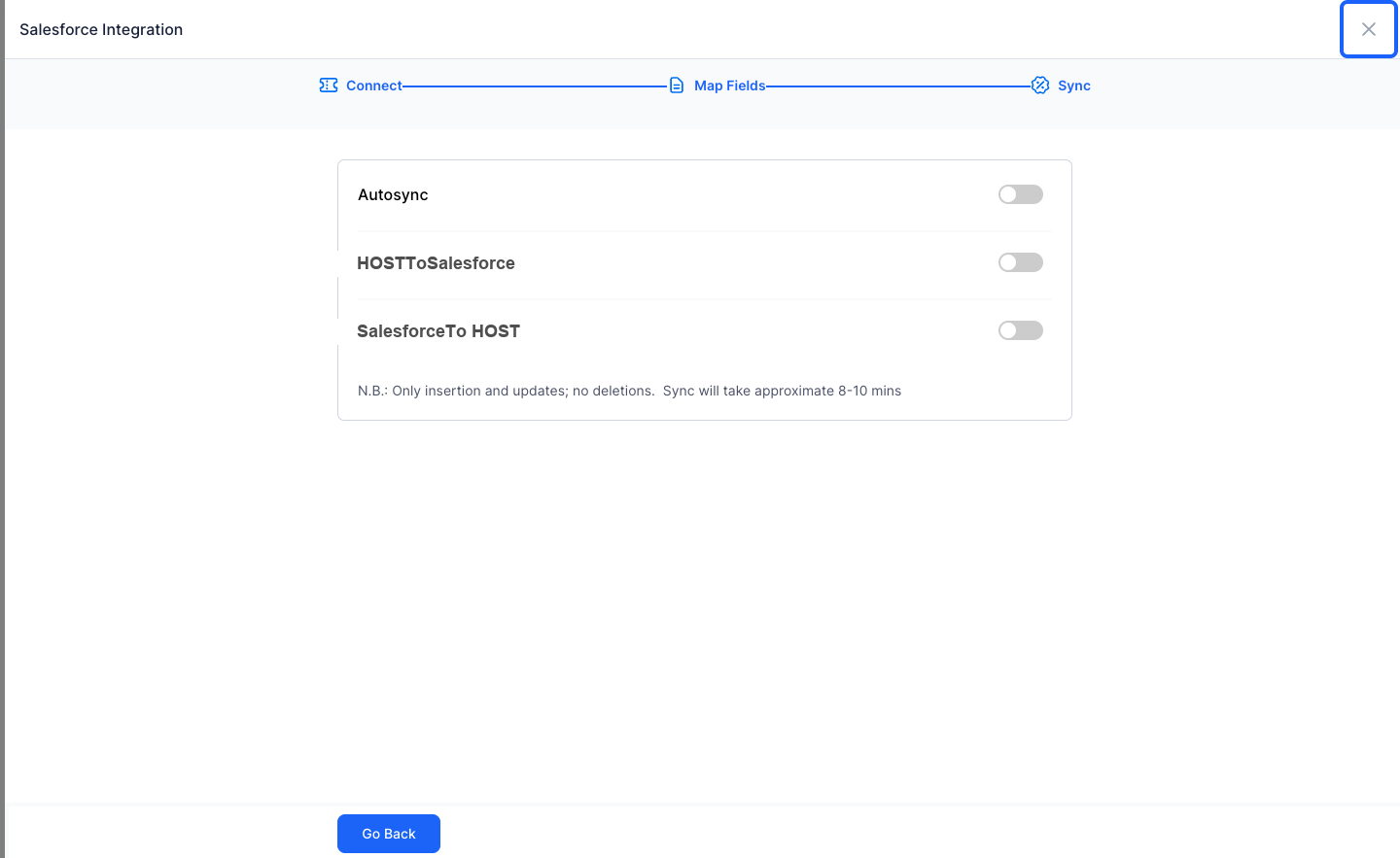
21: Click the “close” button to exit and reload the form
22: Go back to Setup
23: Click the “Next” button
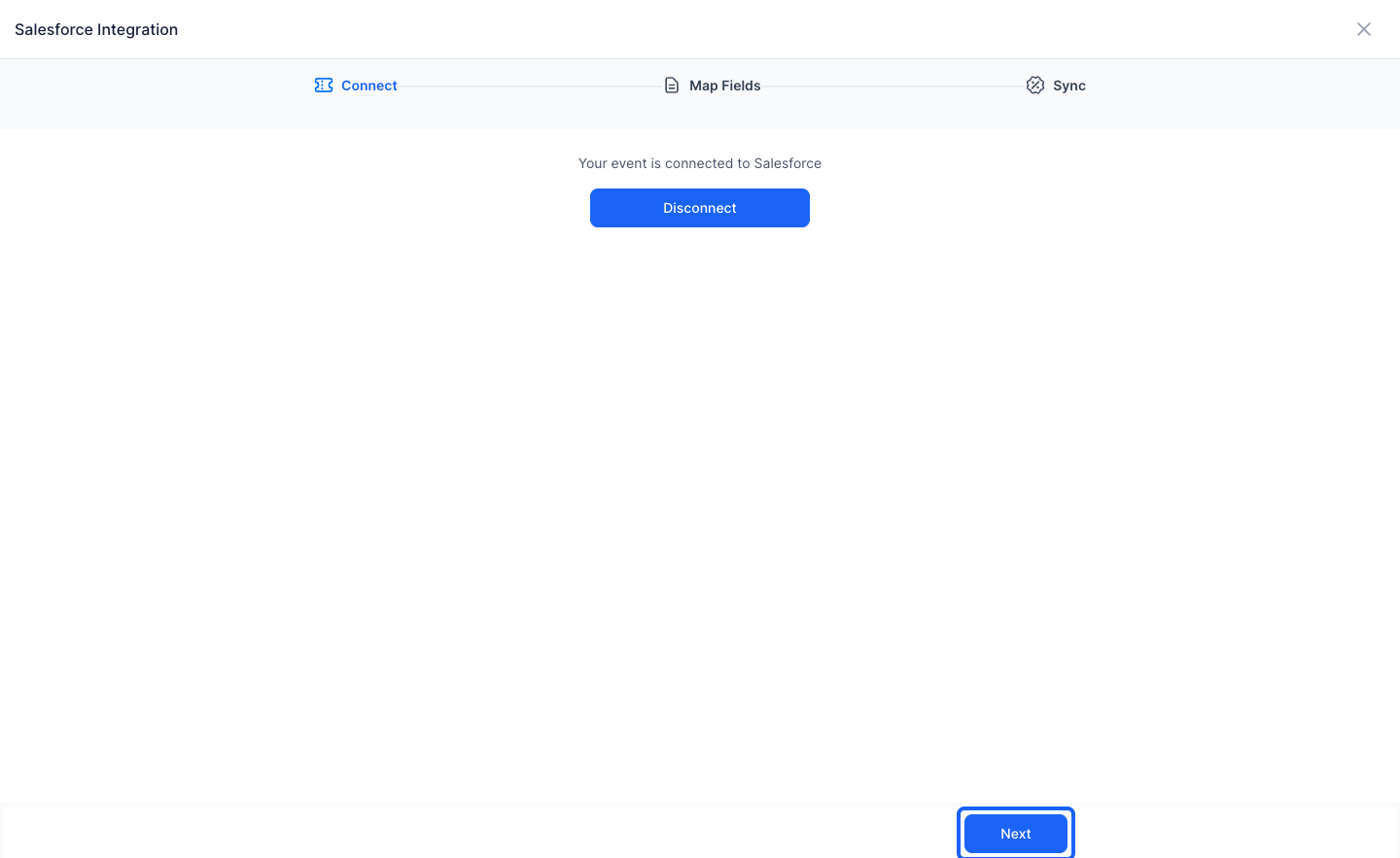
24: Continue mapping with all the newly created fields in Salesforce
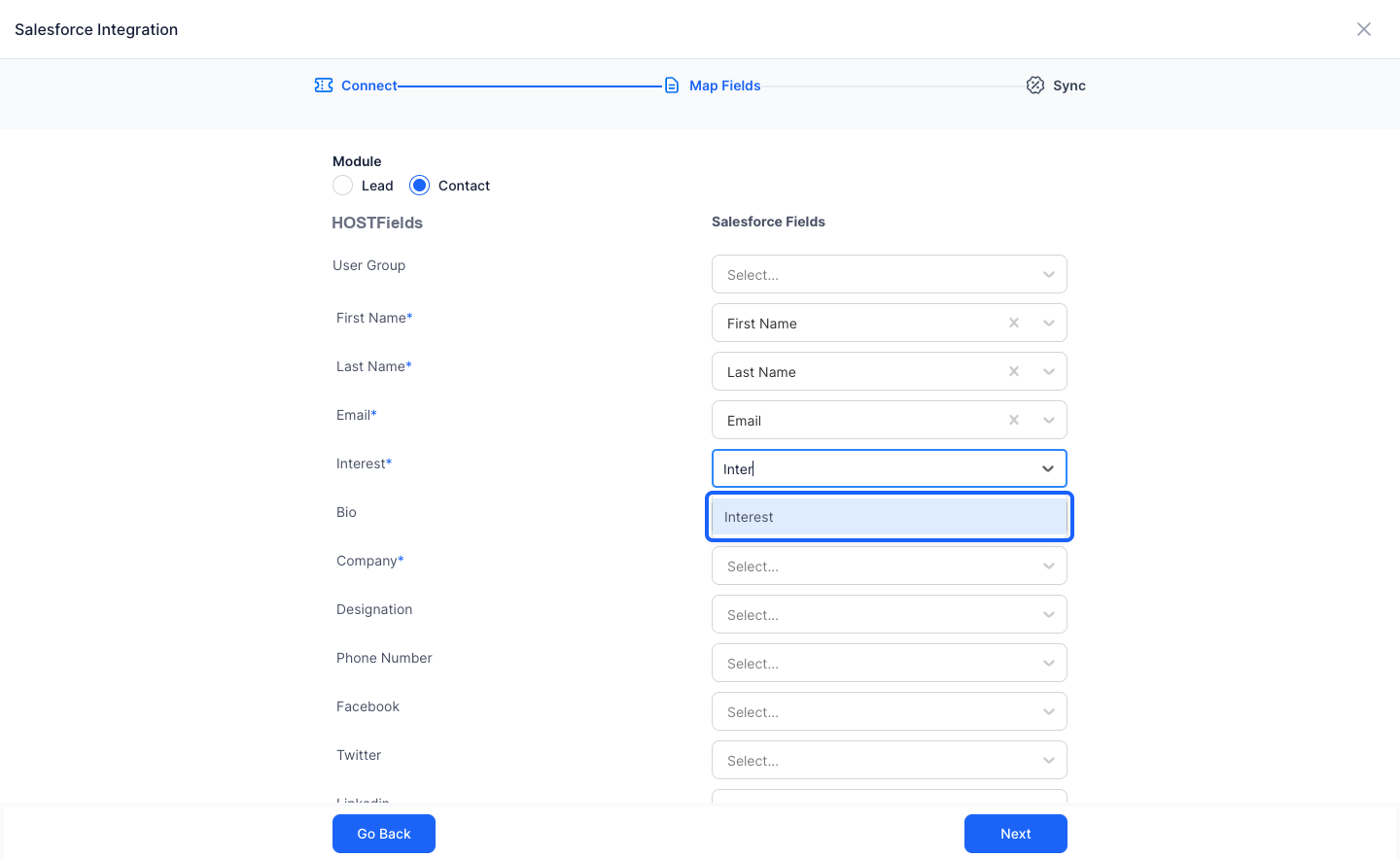
25: Once all the desired fields are mapped
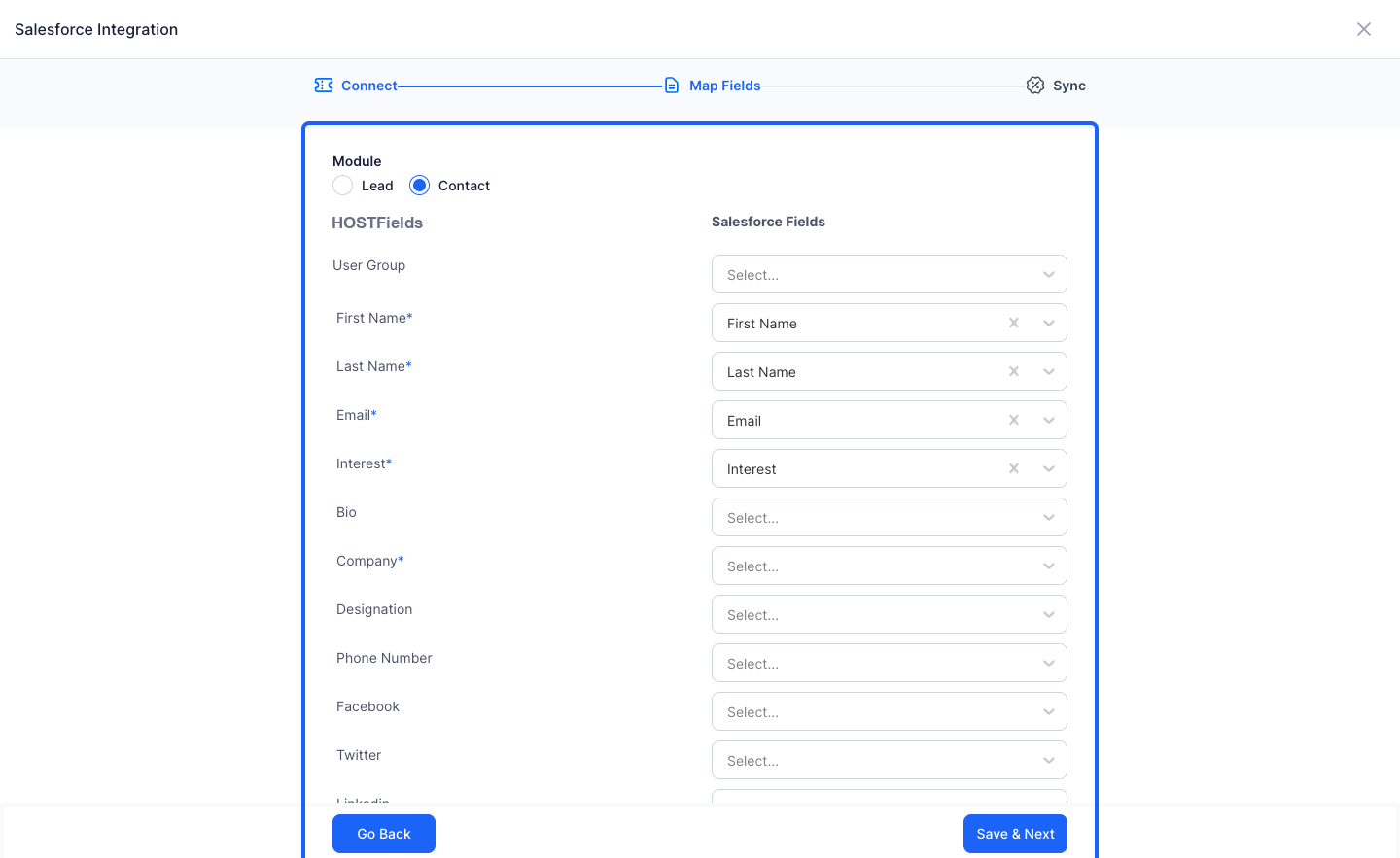
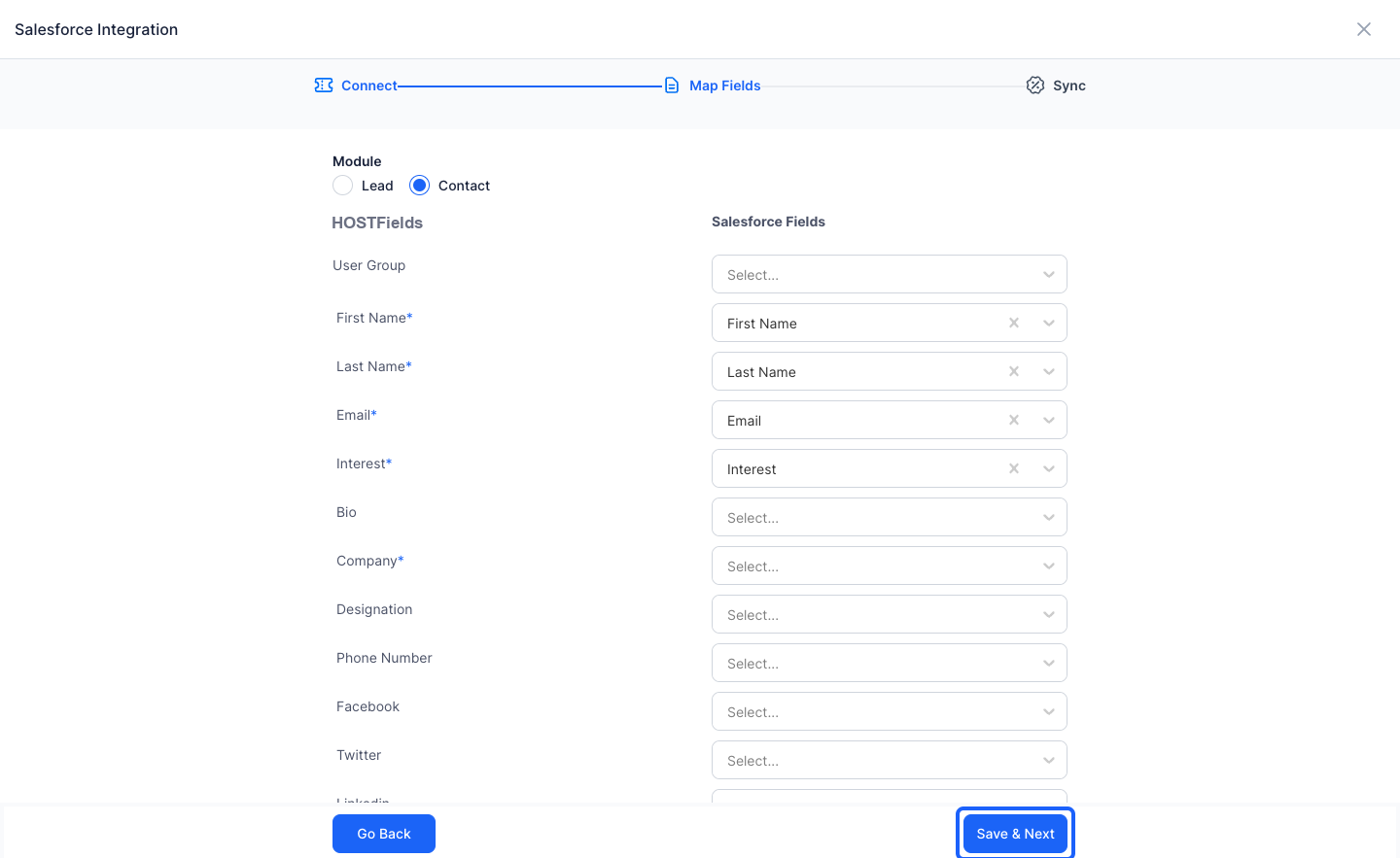
26: Click the “Save & Next” button
27: Turn on Export
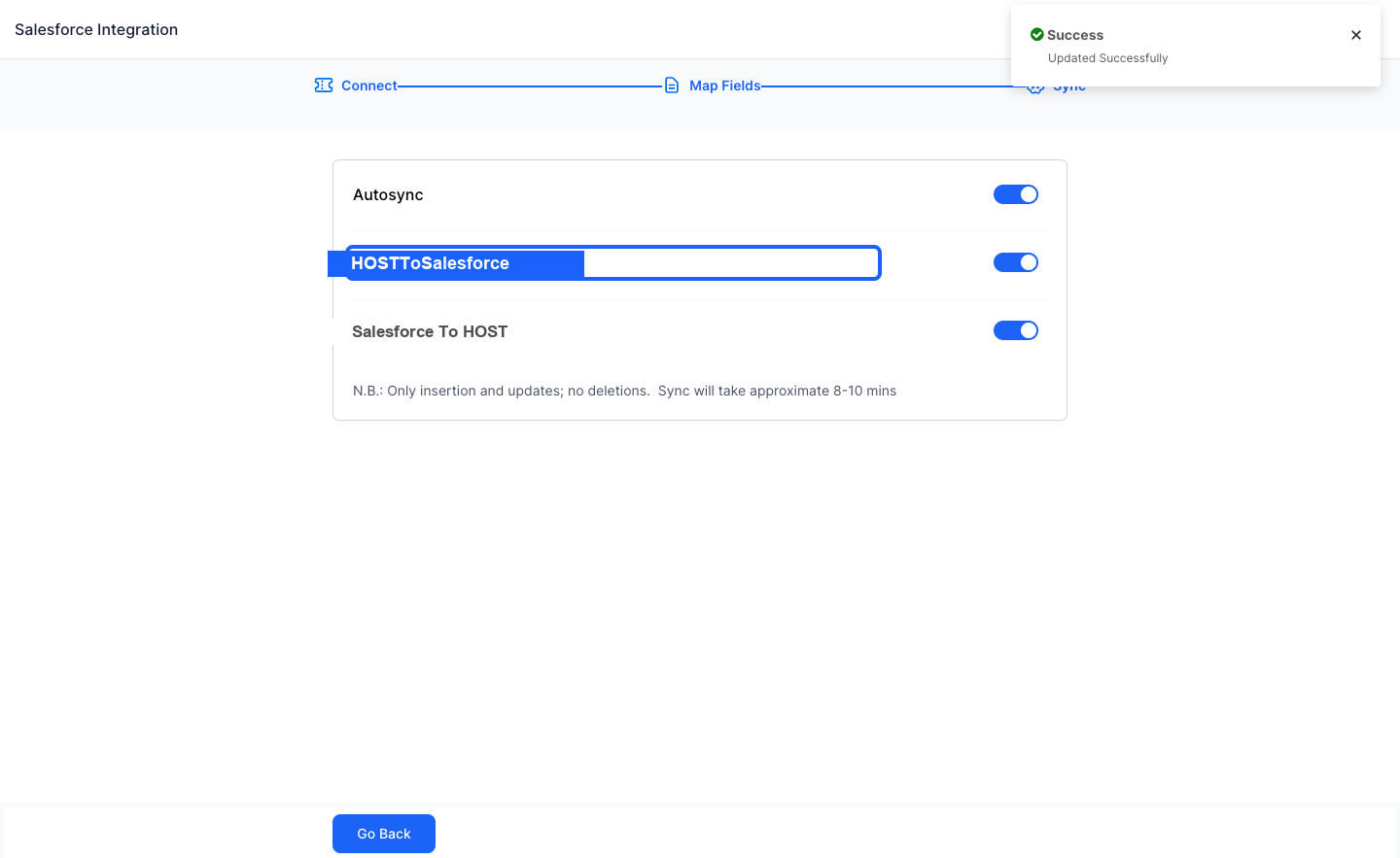
28: Or Import
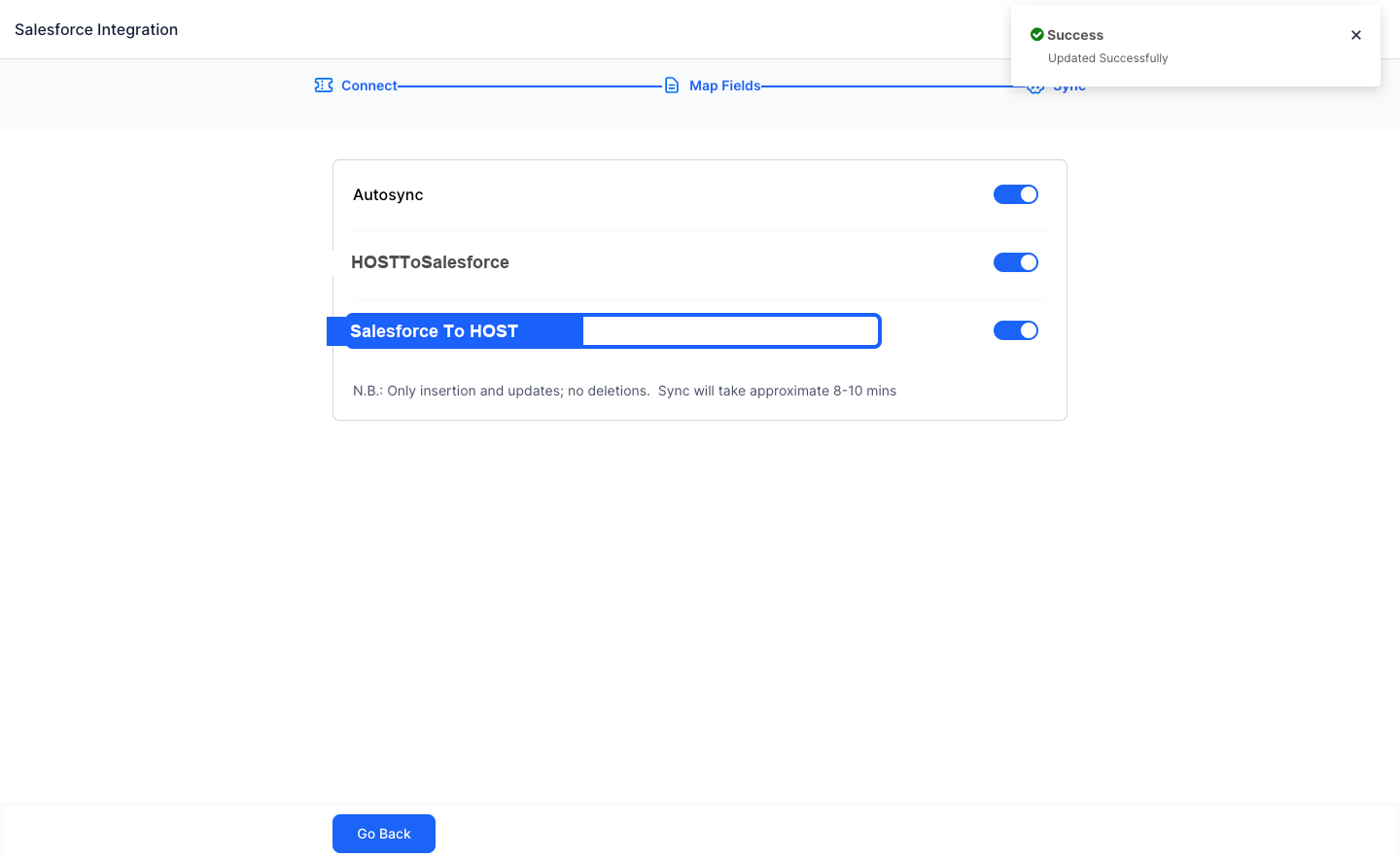
29: The Setup is now complete and you can exit the form
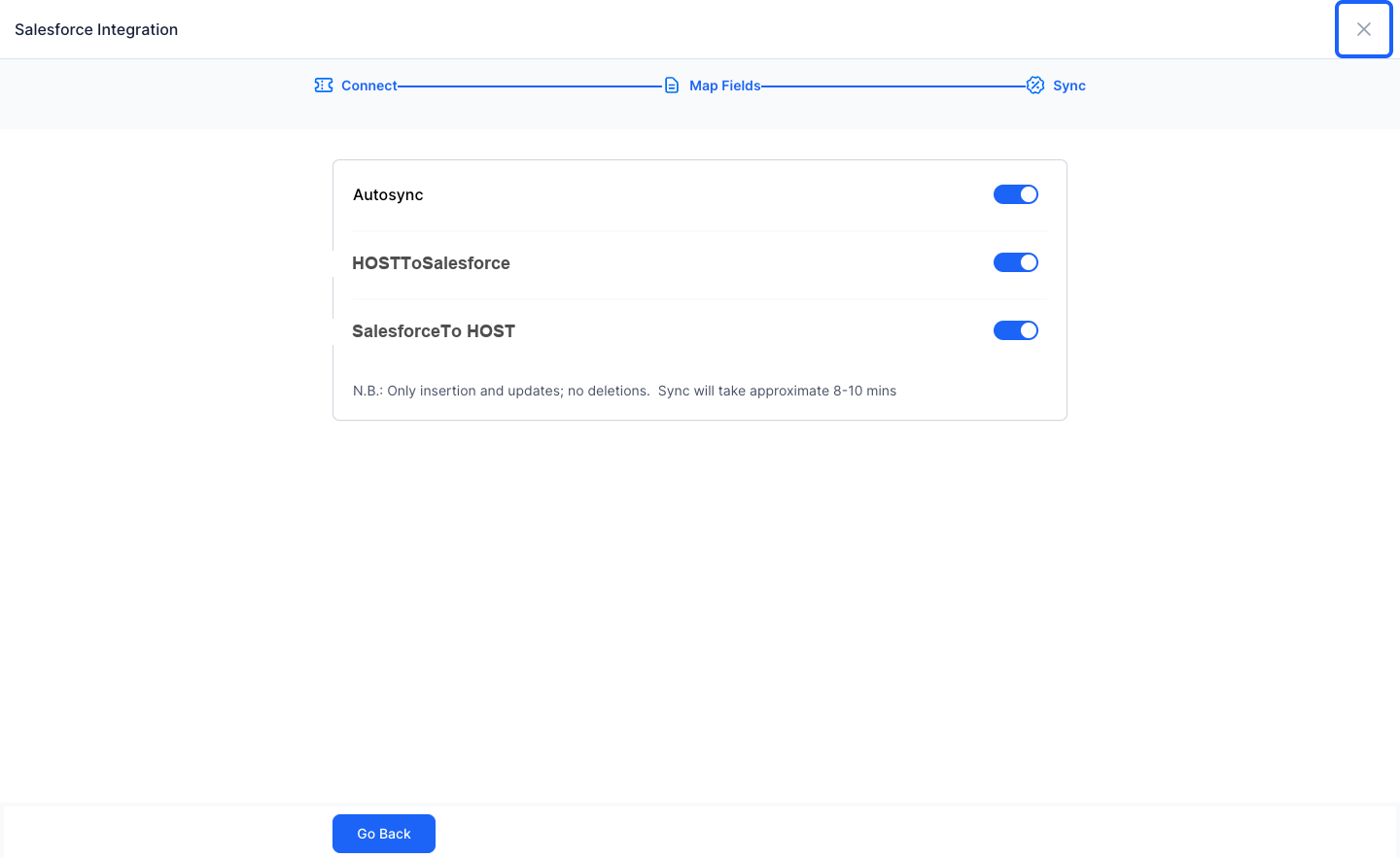
30: Salesforce will auto sync the attendee list in every 8-10 minutes