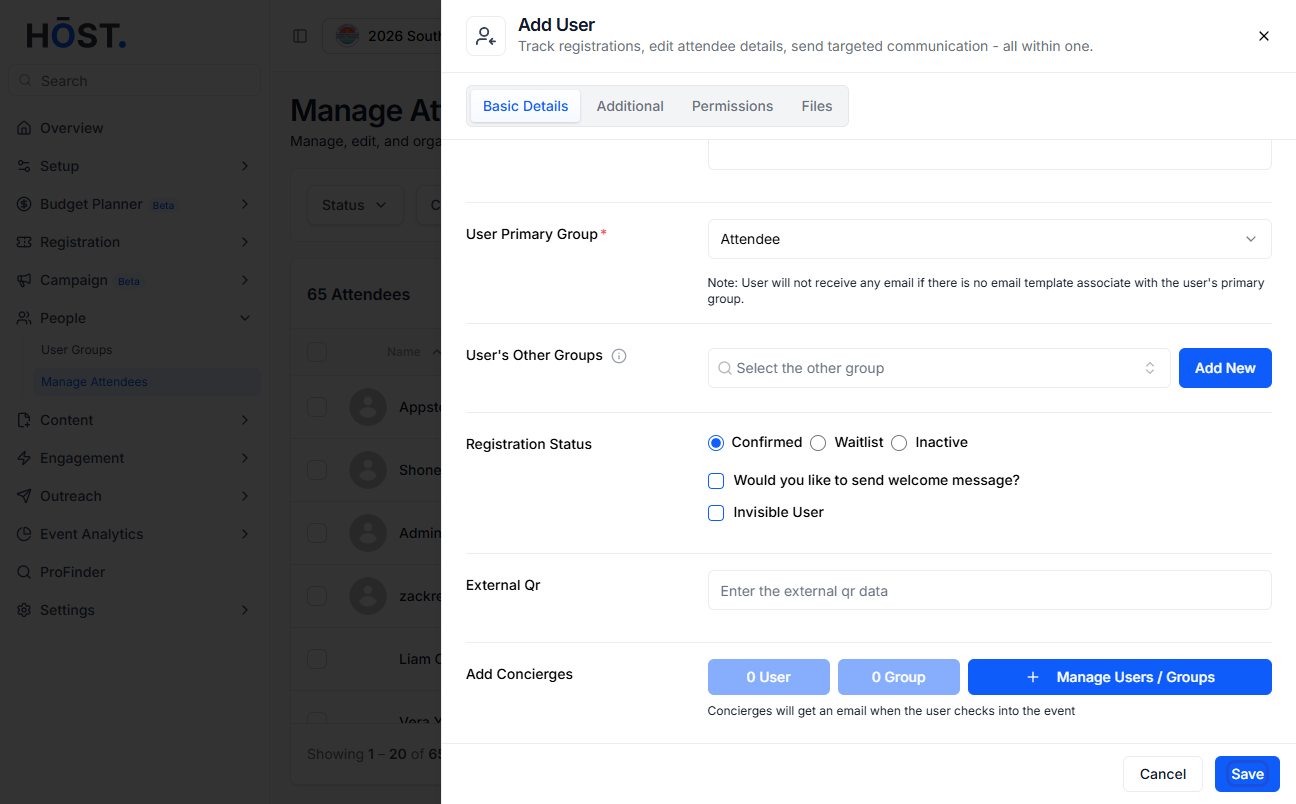
Manually adding attendees allows organizers to include participants who haven’t registered through the regular registration process. Follow the steps below to add attendees manually
1: Go to People > Manage Attendees and click the “Add User” button.
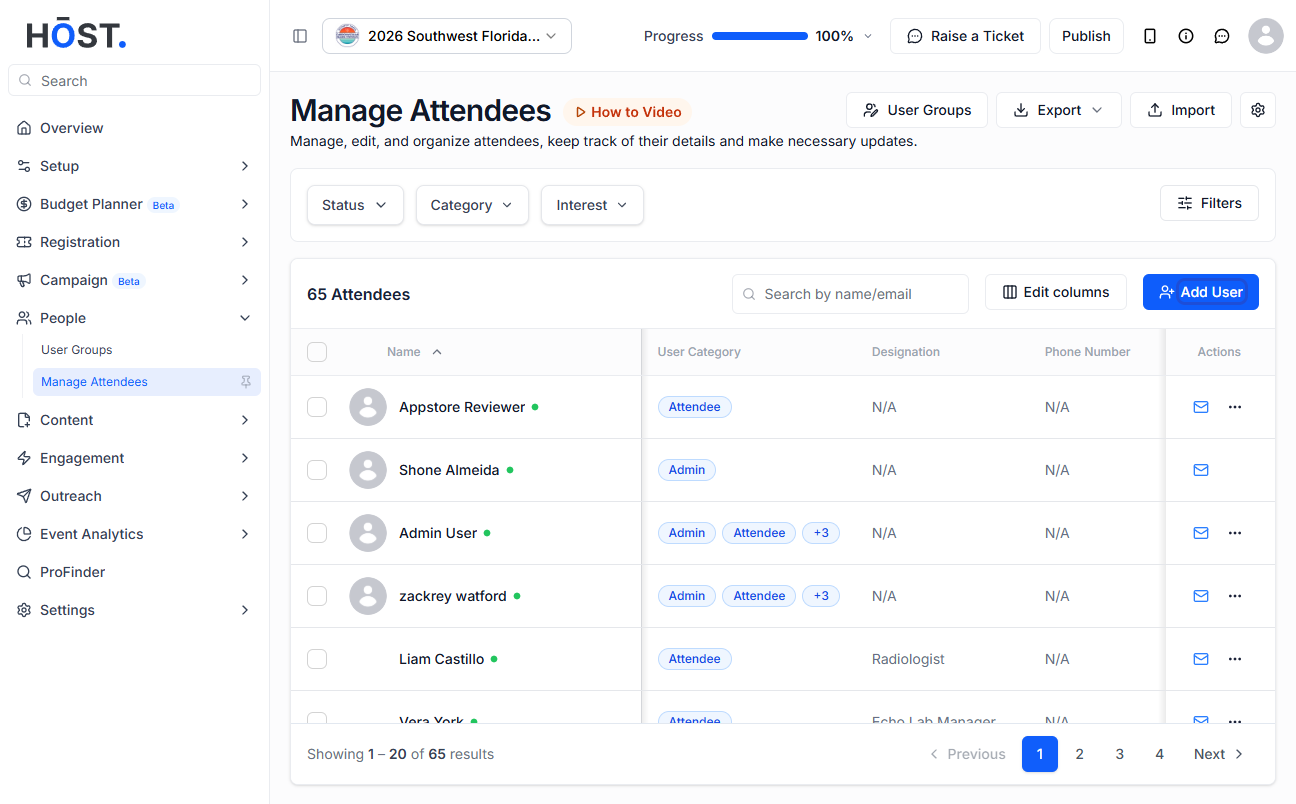
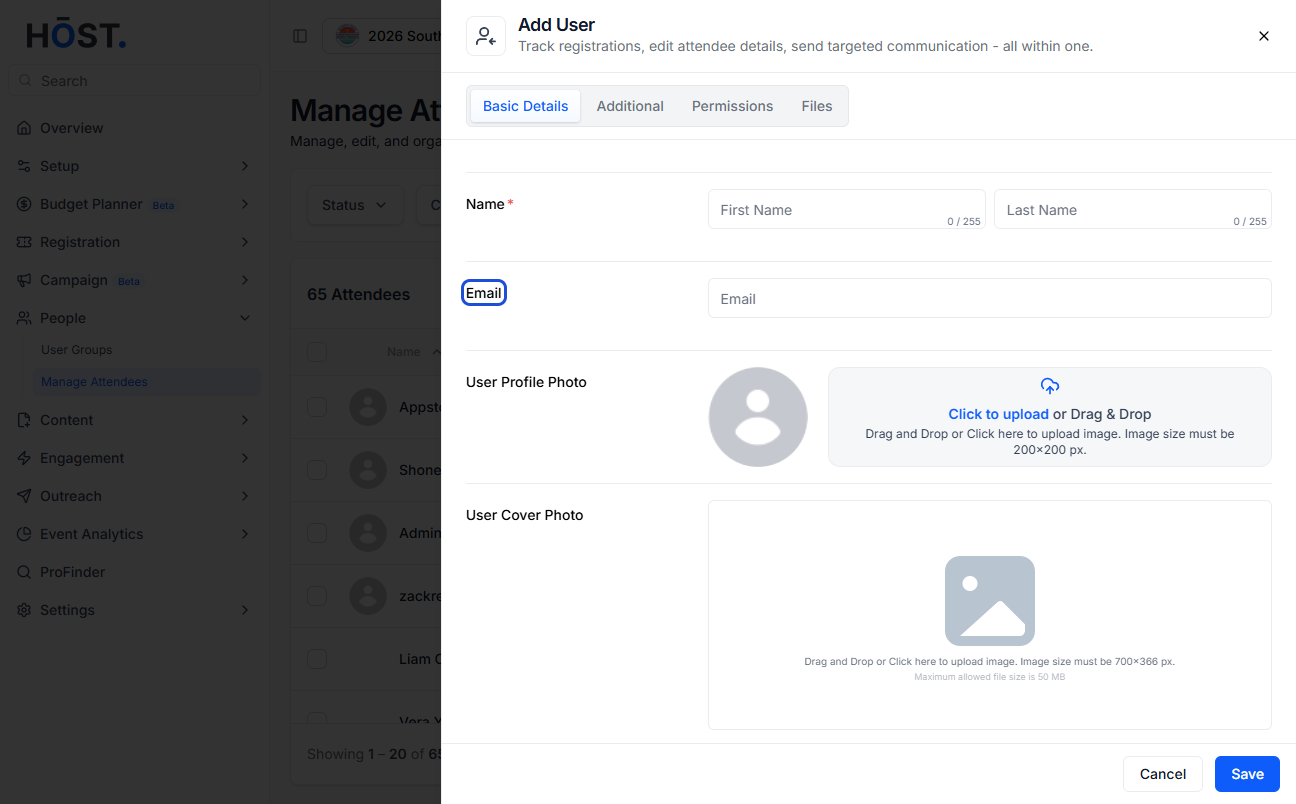
2: In the Basic Details tab, upload a profile photo for the attendee if needed.

3: Enter the attendee’s first name, last name, and email address. The email is what gets registered and is used to log in to the event.
4: Add a profile cover photo if you’d like.
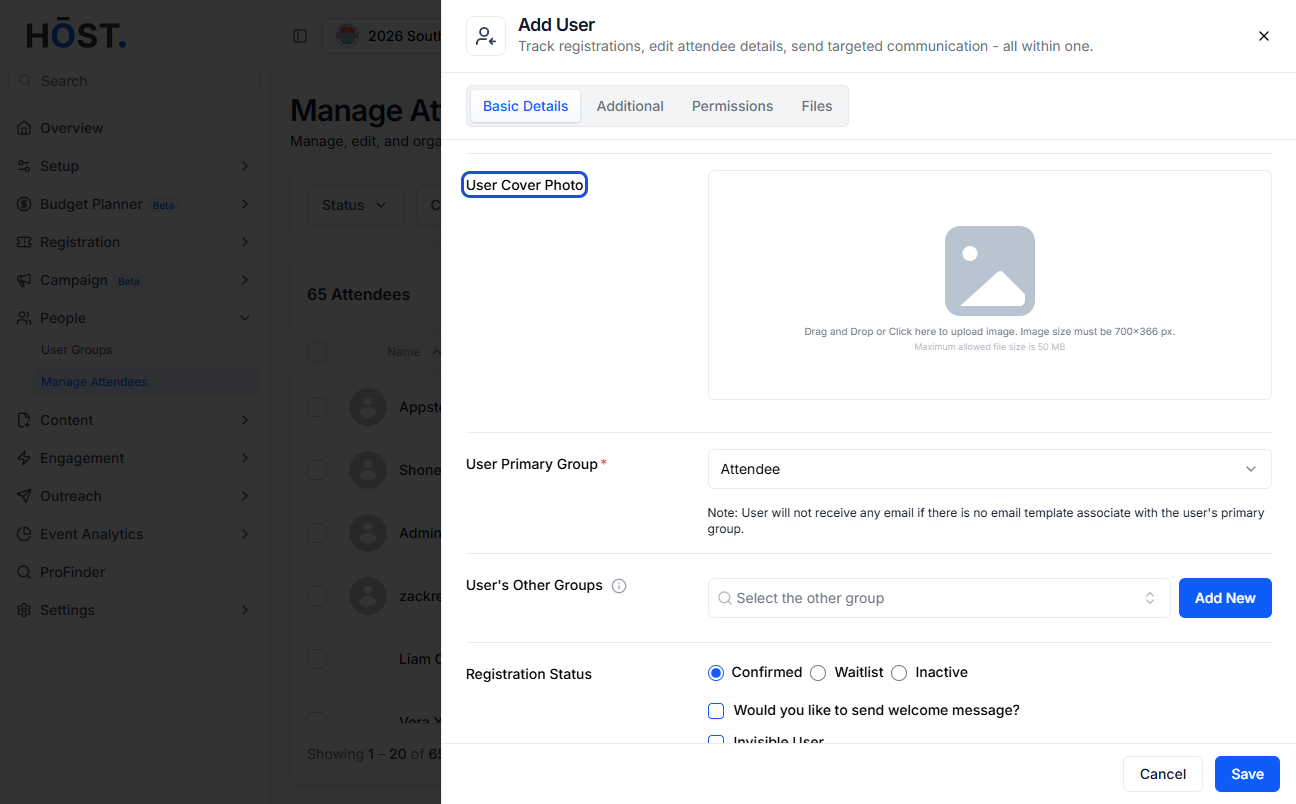
5: Assign the attendee to a User Primary Group. Each attendee must belong to at least one group.
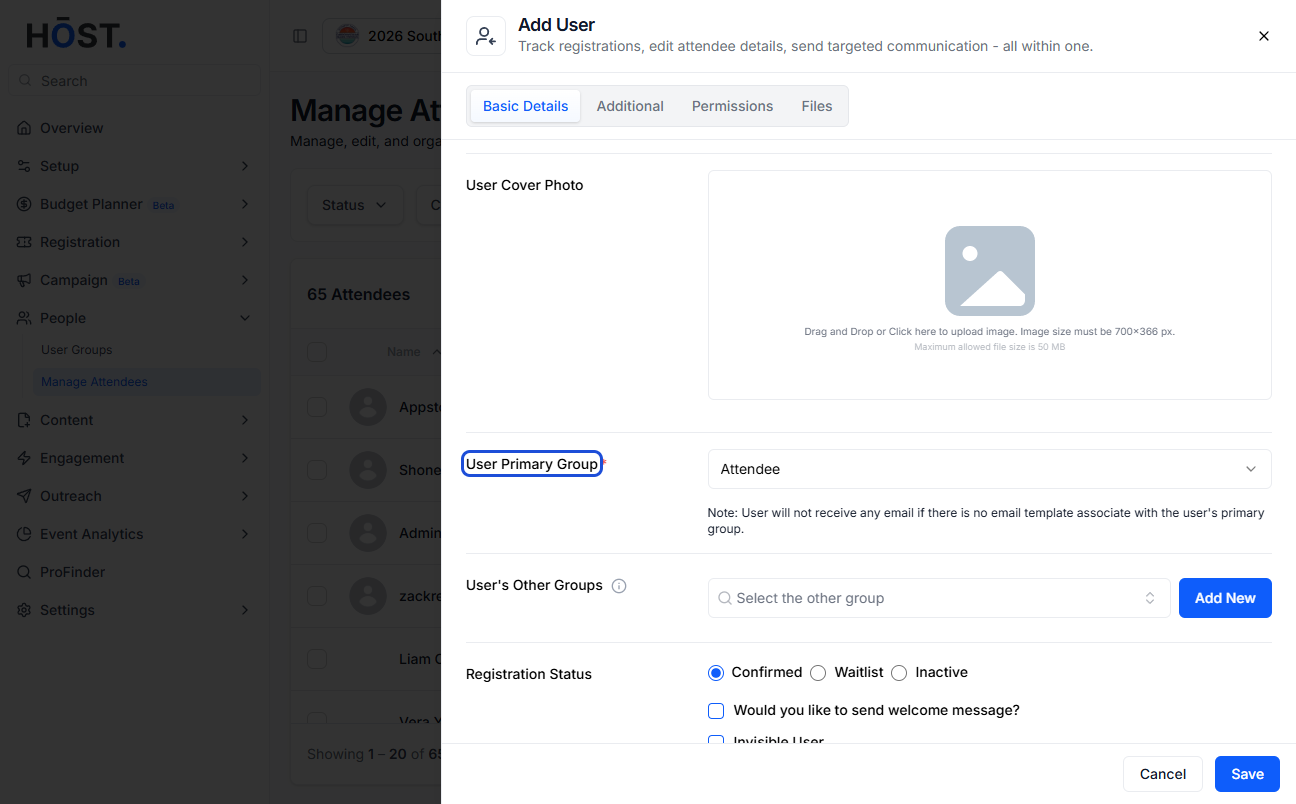
6: Add any other groups, set the Registration Status (Confirmed, Waitlist, or Inactive), and choose whether to send a welcome message.
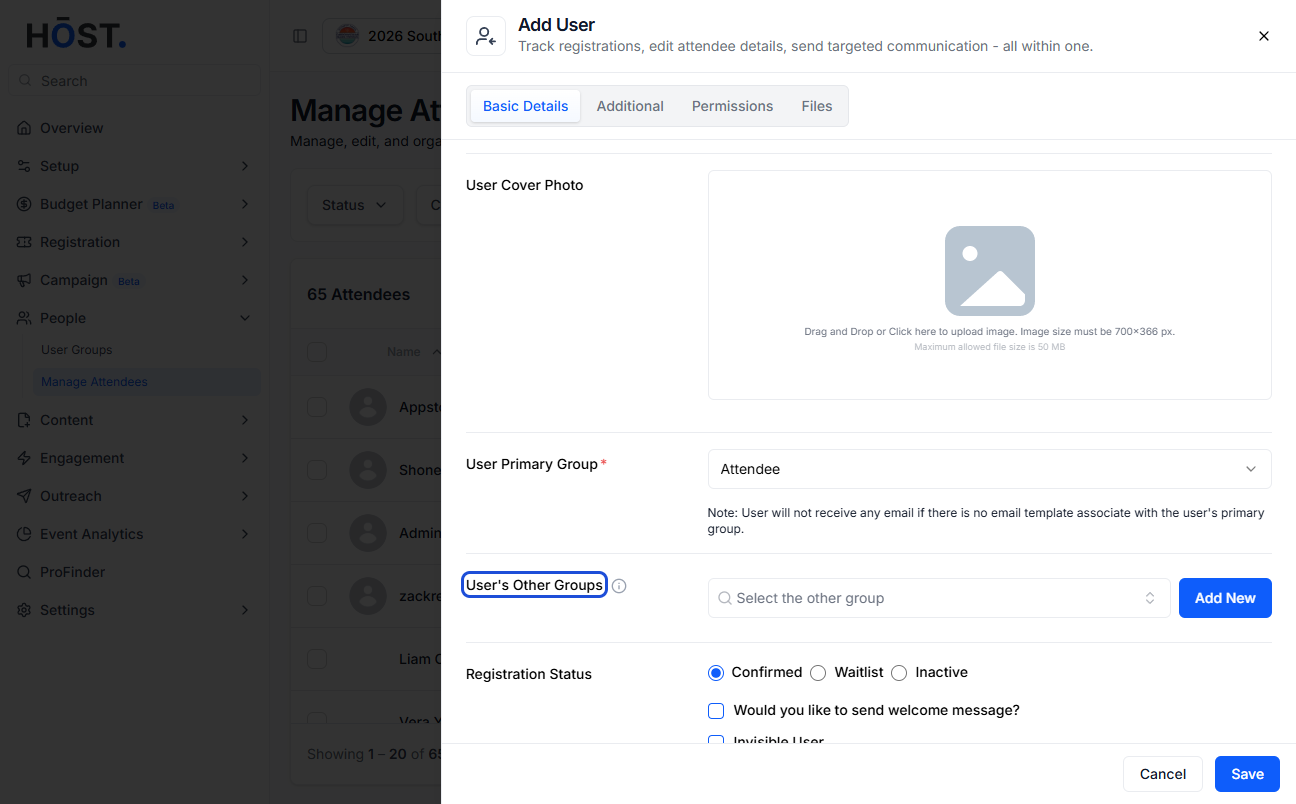
7: Click the “Save” button to add the attendee. Use the Additional, Permissions, and Files tabs to capture extra details, permissions, or documents if needed.