Customising email templates for user groups allows you to send tailored communication to different segments of your event audience. Follow the steps below to create and assign customised email templates for specific user groups.
1: Go to People > User Groups and click the pencil icon on the group whose emails you want to customise.
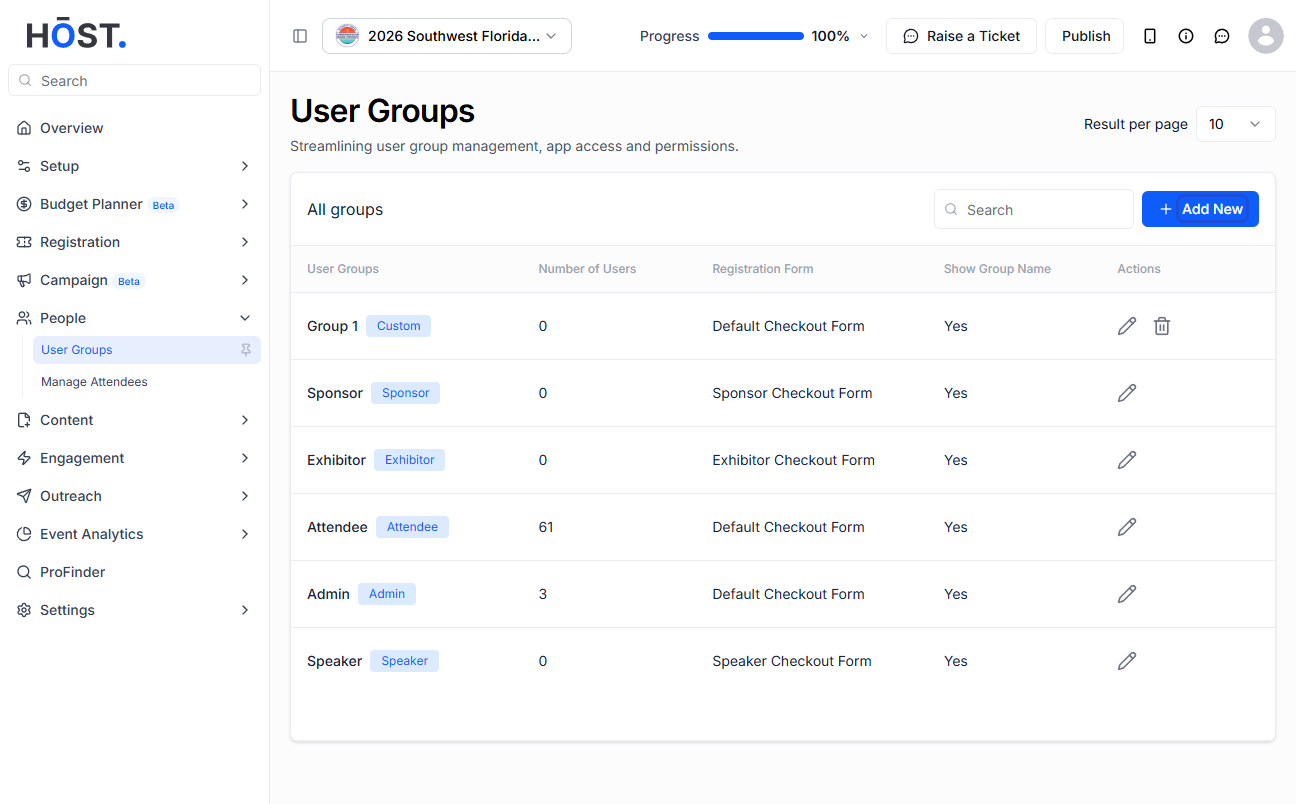
2: Open the “Email Templates” tab. A default set of templates is added when the group is created — for each event email (Onboarding/Invitation, Ticket Assign, User on Waitlist, User Confirmation, Registration Confirmation, Registration Approval and more) pick the template to use from the dropdown, or click “Create new template” to build your own.
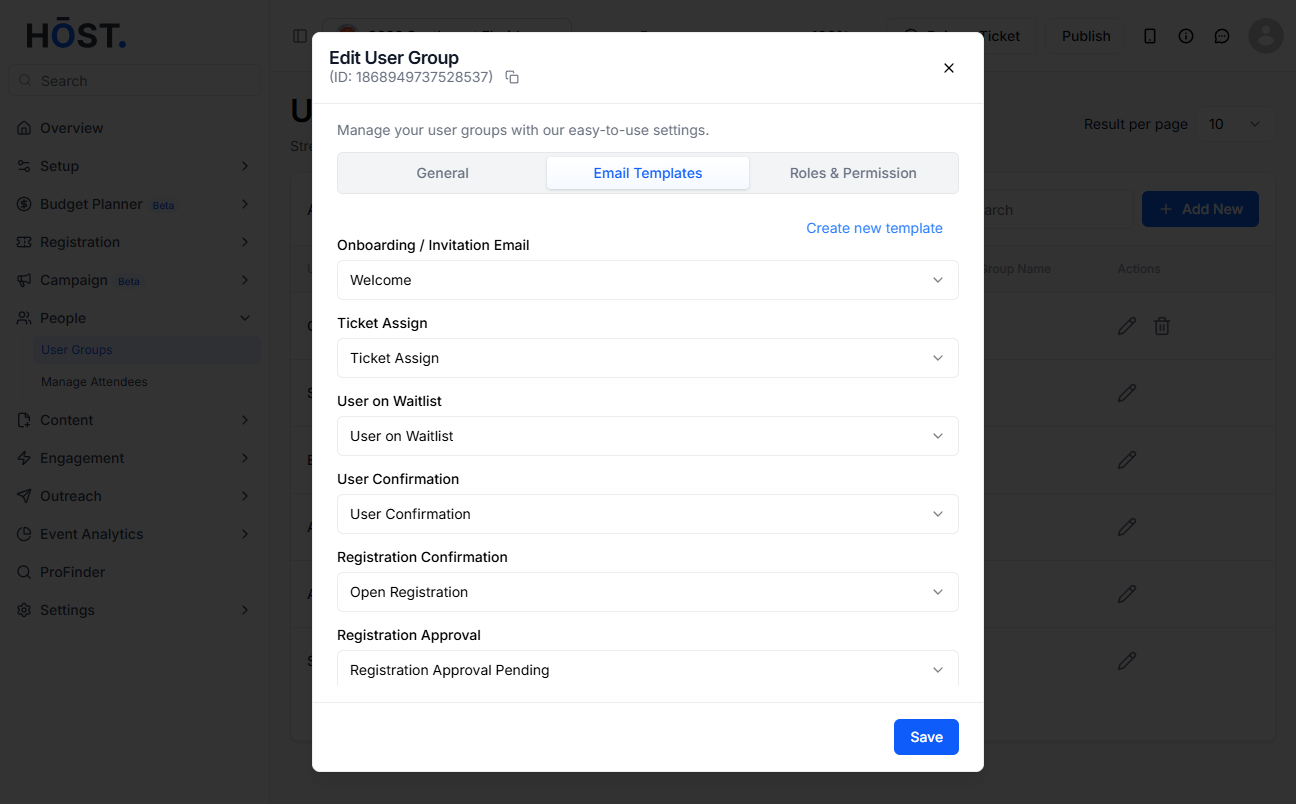
3: Click “Save” to apply the selected email templates for this user group.

