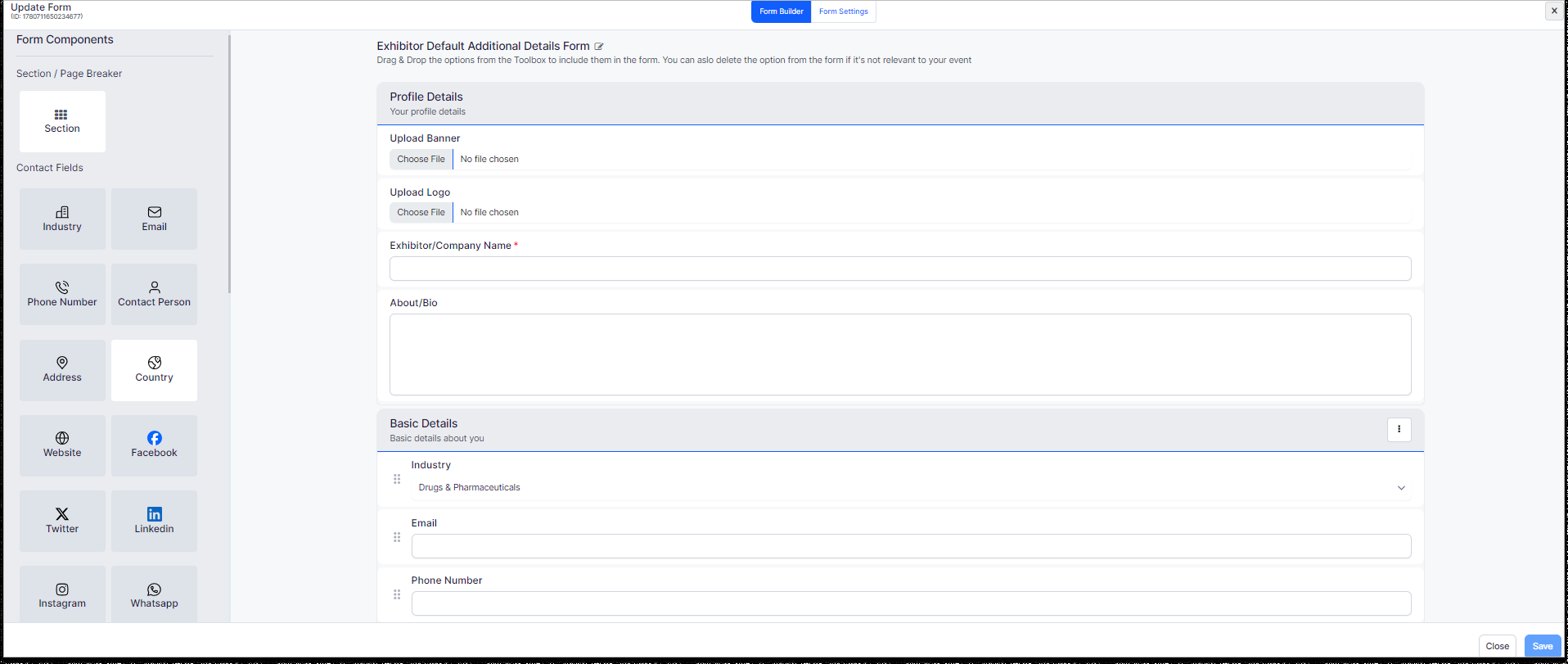
Upon clicking on the update form, you'll be directed to the page where you can customize the exhibitor details form according to your preferences.
From the Form Components on the left side of the form builder, select the field type you require. You can also choose "Section/Page Breaker" to divide the form into sections.
Drag and drop/rearrange the necessary fields from the left panel of the form builder to change their order.
You can also drag and drop certain fields like radio buttons, checkboxes, etc.
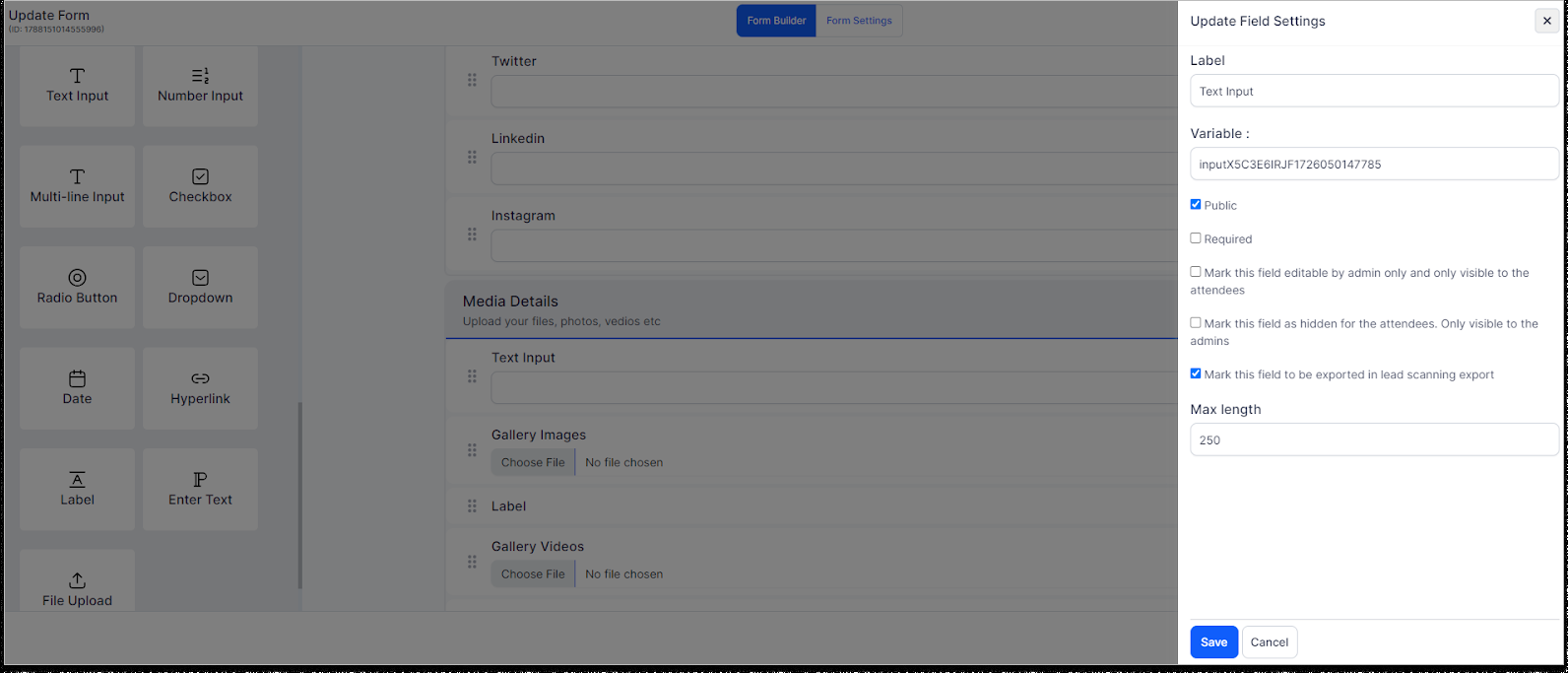
Click on the fields, and a pencil edit option will appear. Click on it to change the settings or rename the fields as needed.
You can rearrange the fields by dragging them or delete them if necessary.
Label changes: For each section, you can change the label names and also mark the fields as:
Public
Required
Editable by admin only and only visible to the attendees
Hidden for the attendees. Only visible to the admins
Exported in lead scanning export
Rename the form from the top of the form if required.
Click on "Save" to save the form.
All these changes and modifications will automatically appear in the HOST app for the exhibitor form page.