Enabling polls allows you to gather live feedback from attendees during a session through multiple-choice questions. Follow the steps below to enable polls for your session.
1: Access to HOST Admin Panel and go to Content> Schedules
2: Click the “New Session” button to create a new session
3: Enter all the required details
4: Now go to "Advanced Settings"
5: Scroll Down to "Allow Access for session" section
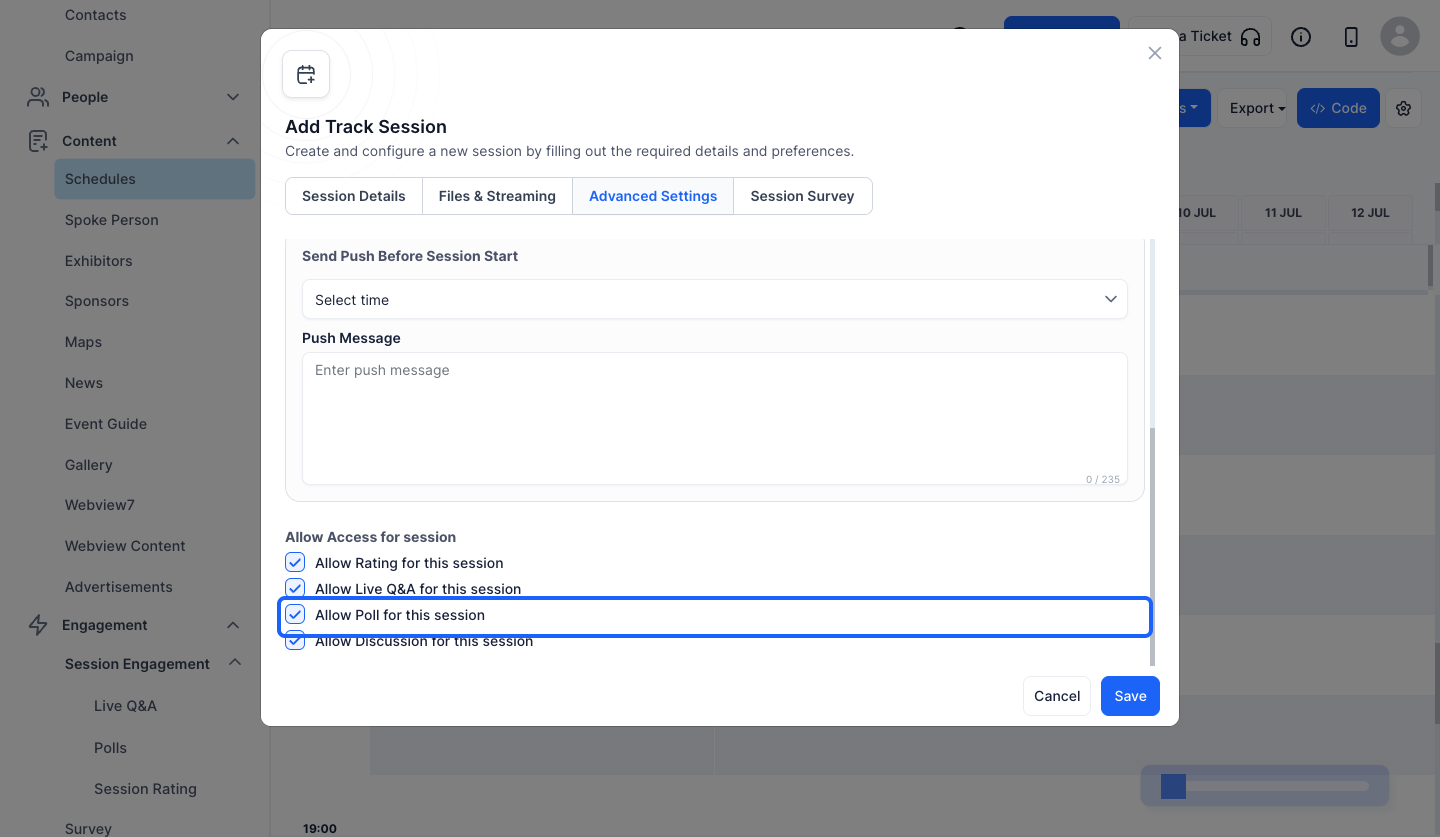
6: Enable "Allow Poll for this session" option
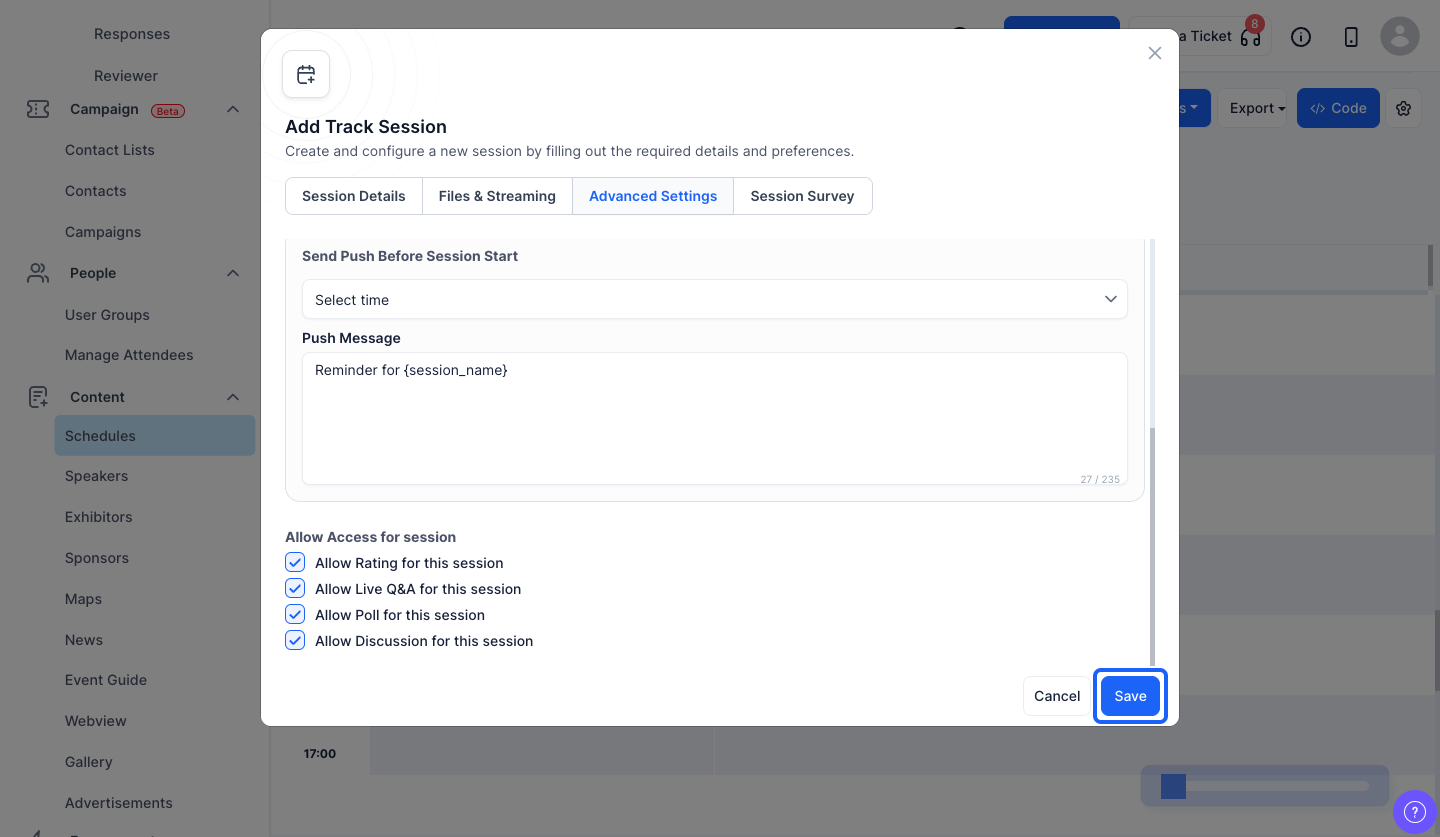
7: Click the “Save” button to add the session
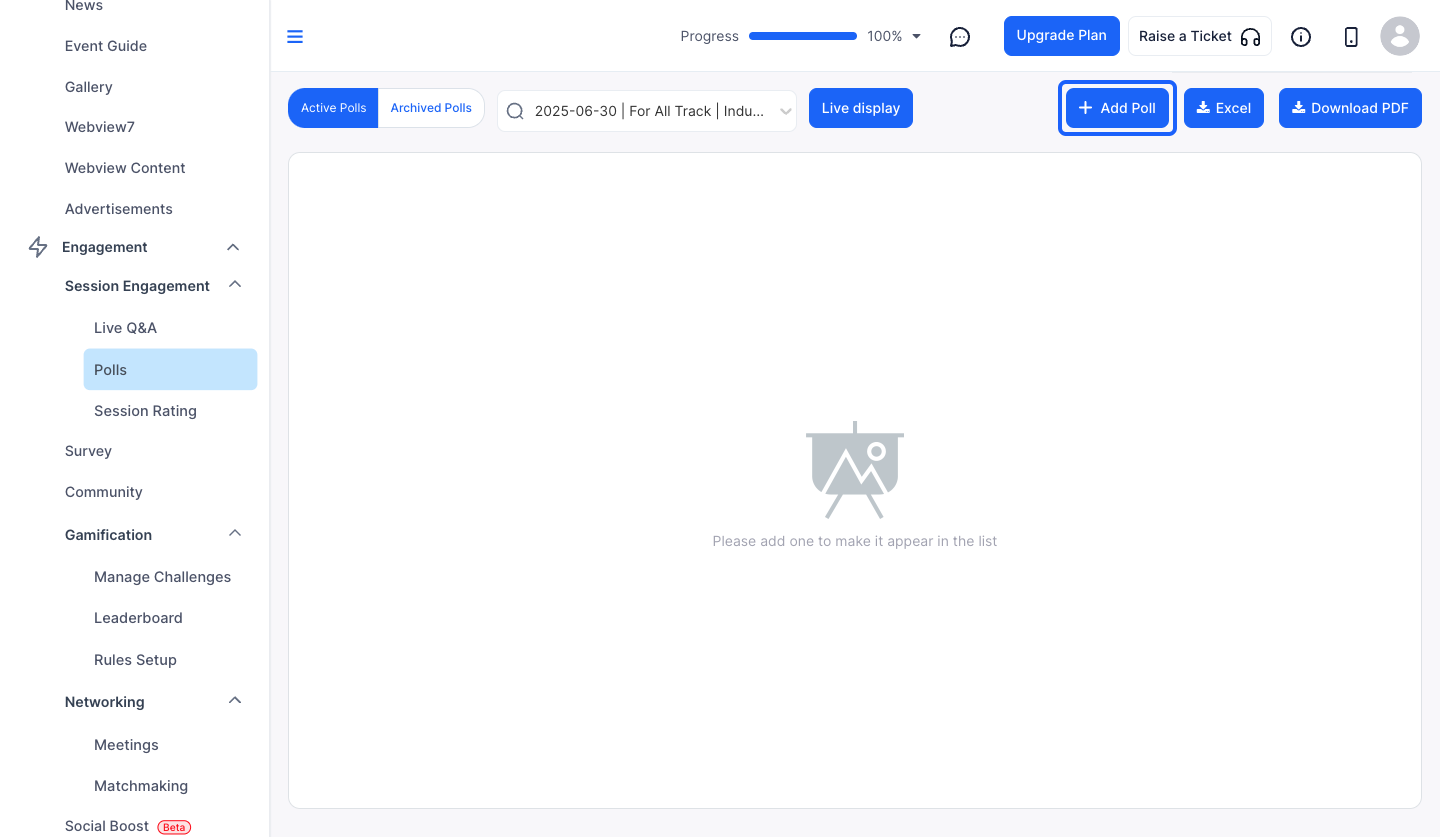
8: Next go to Engagement> Session Engagement> Polls
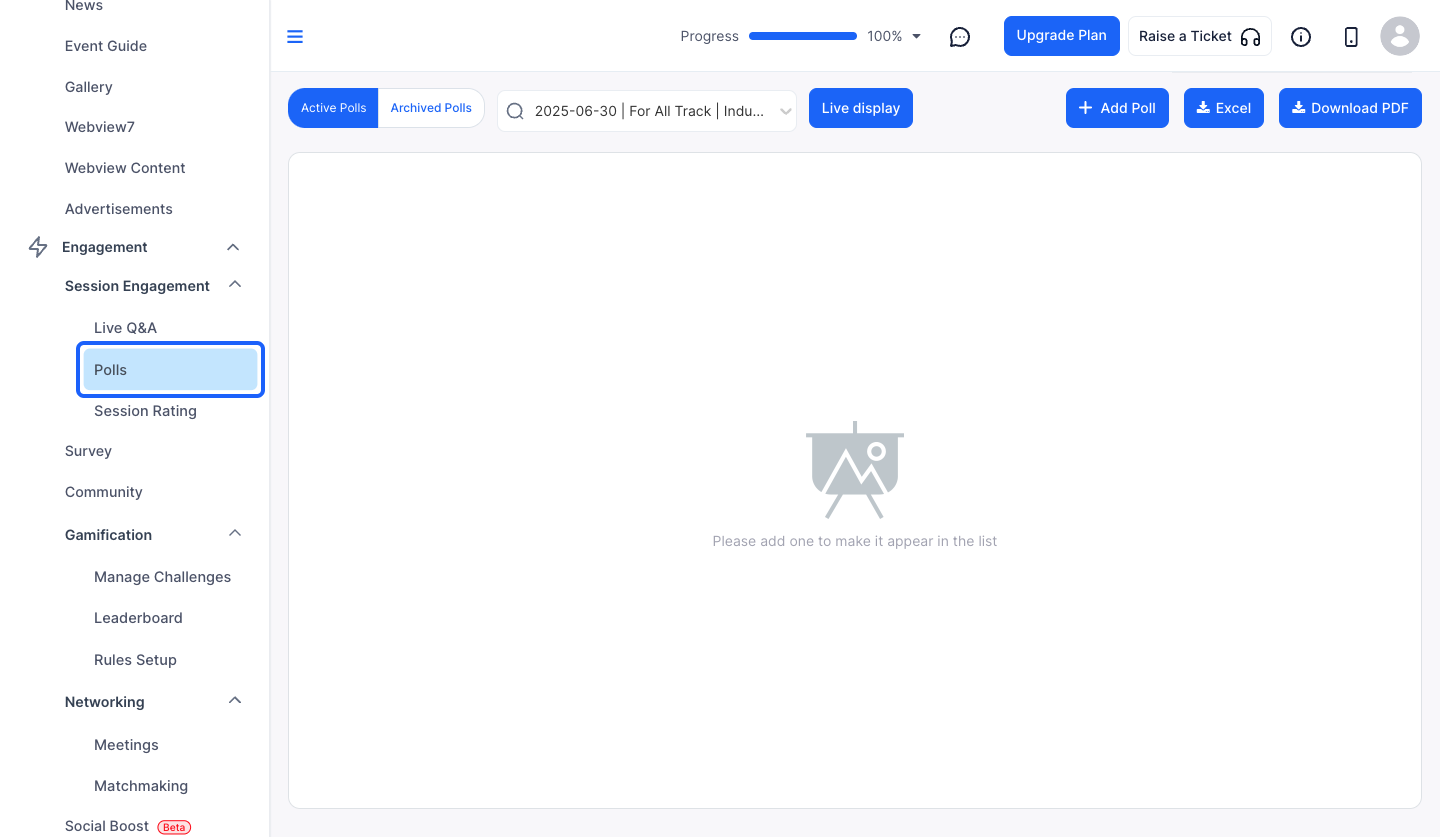
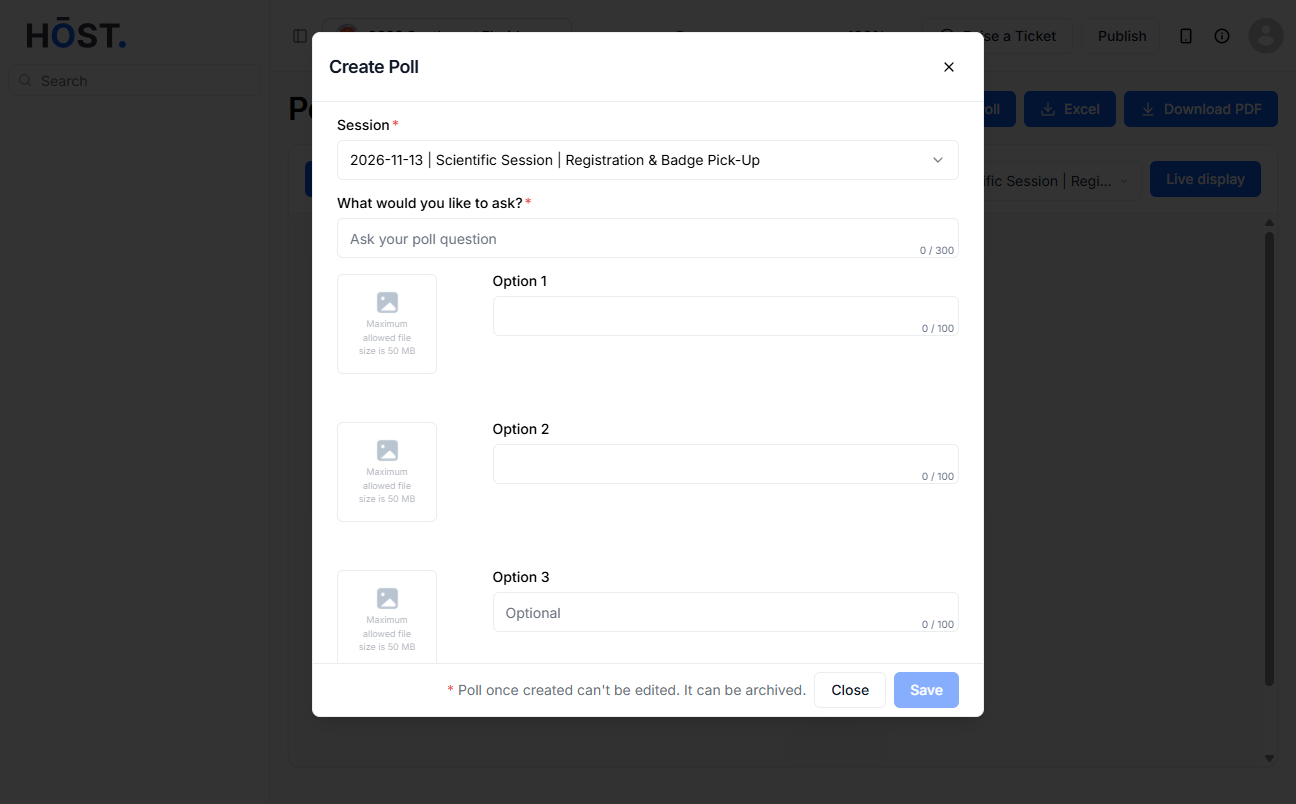
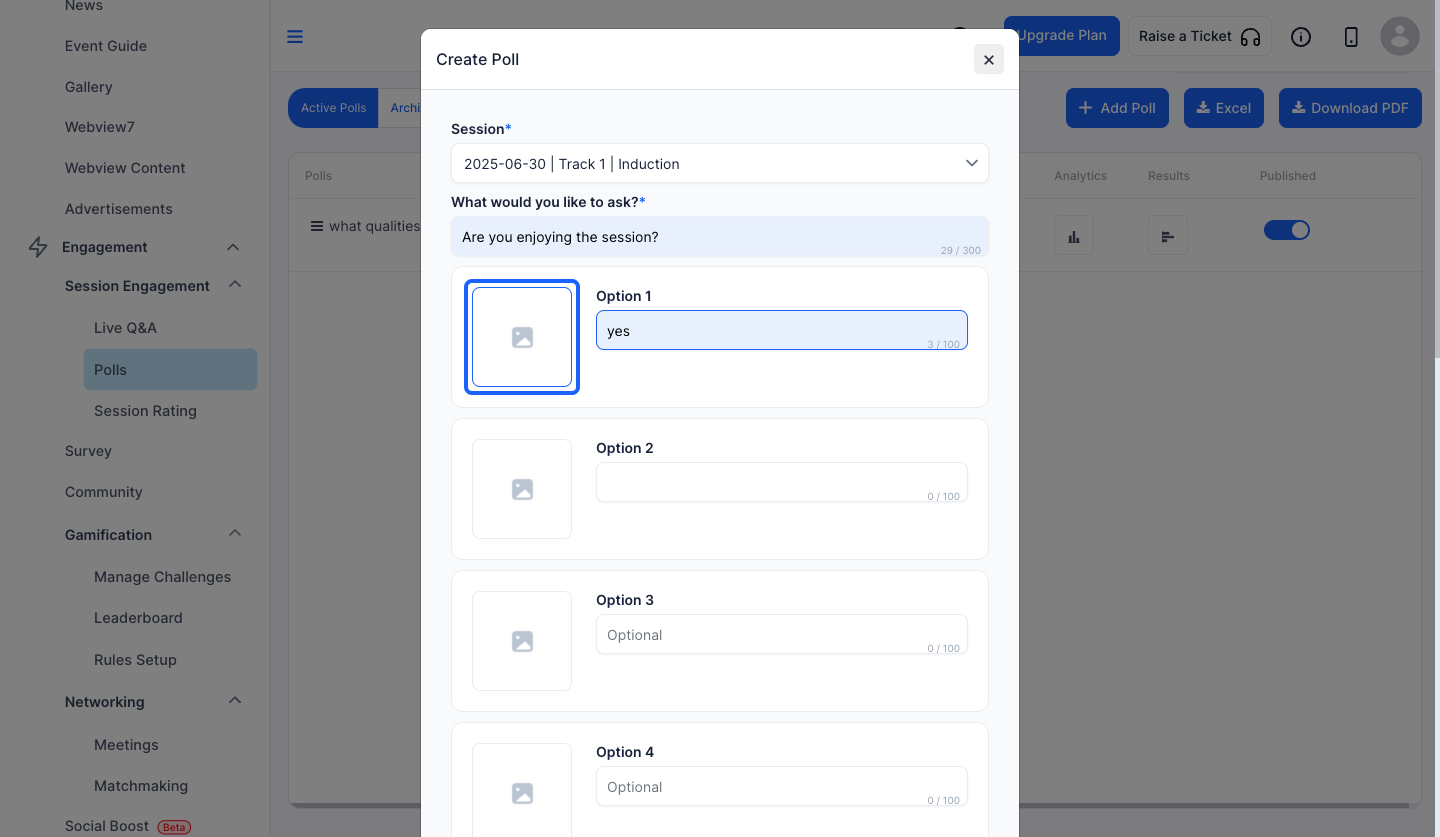
9: Click the “Add Poll” button to add a new poll
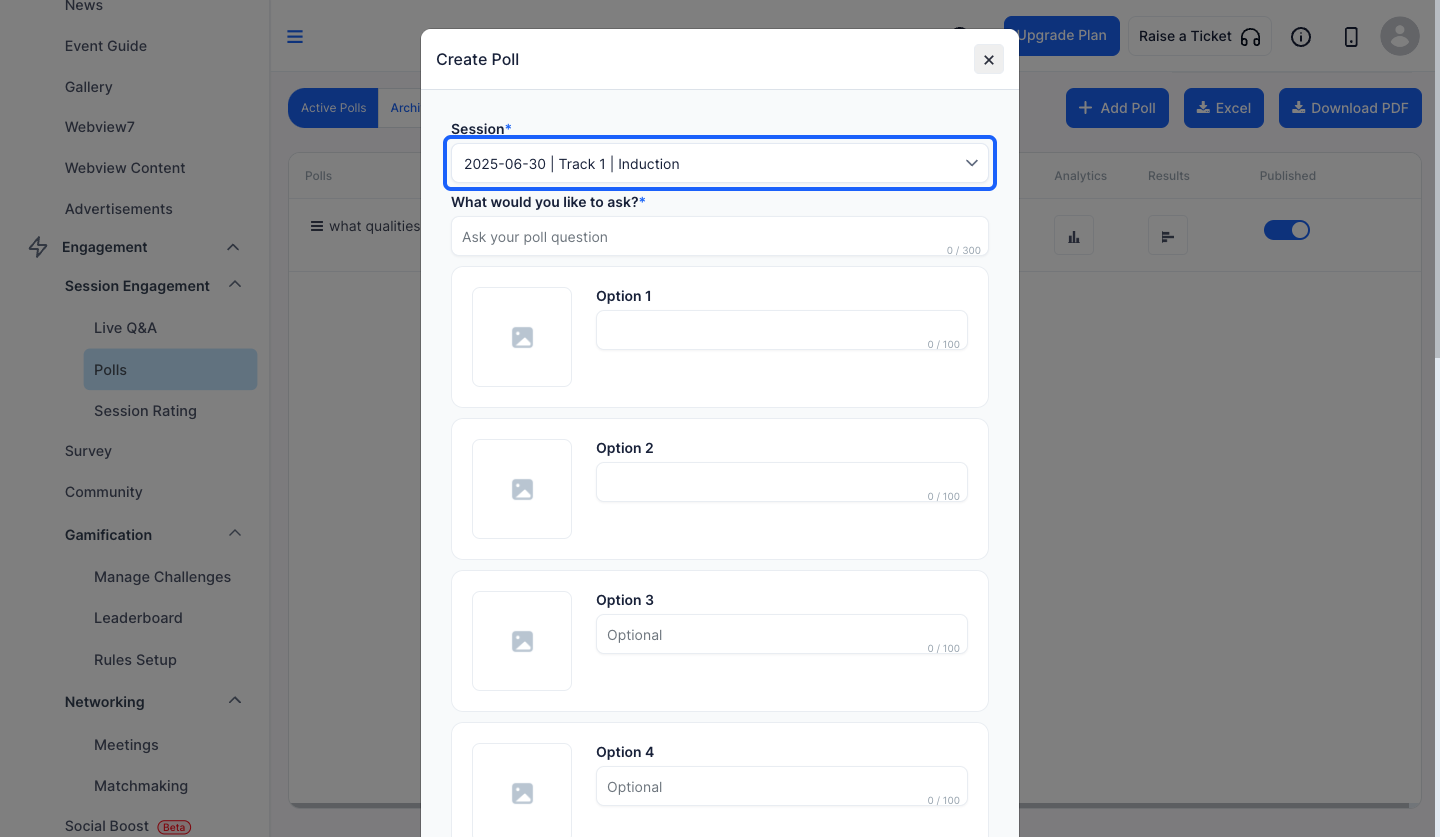
10: Select a session from the dropdown
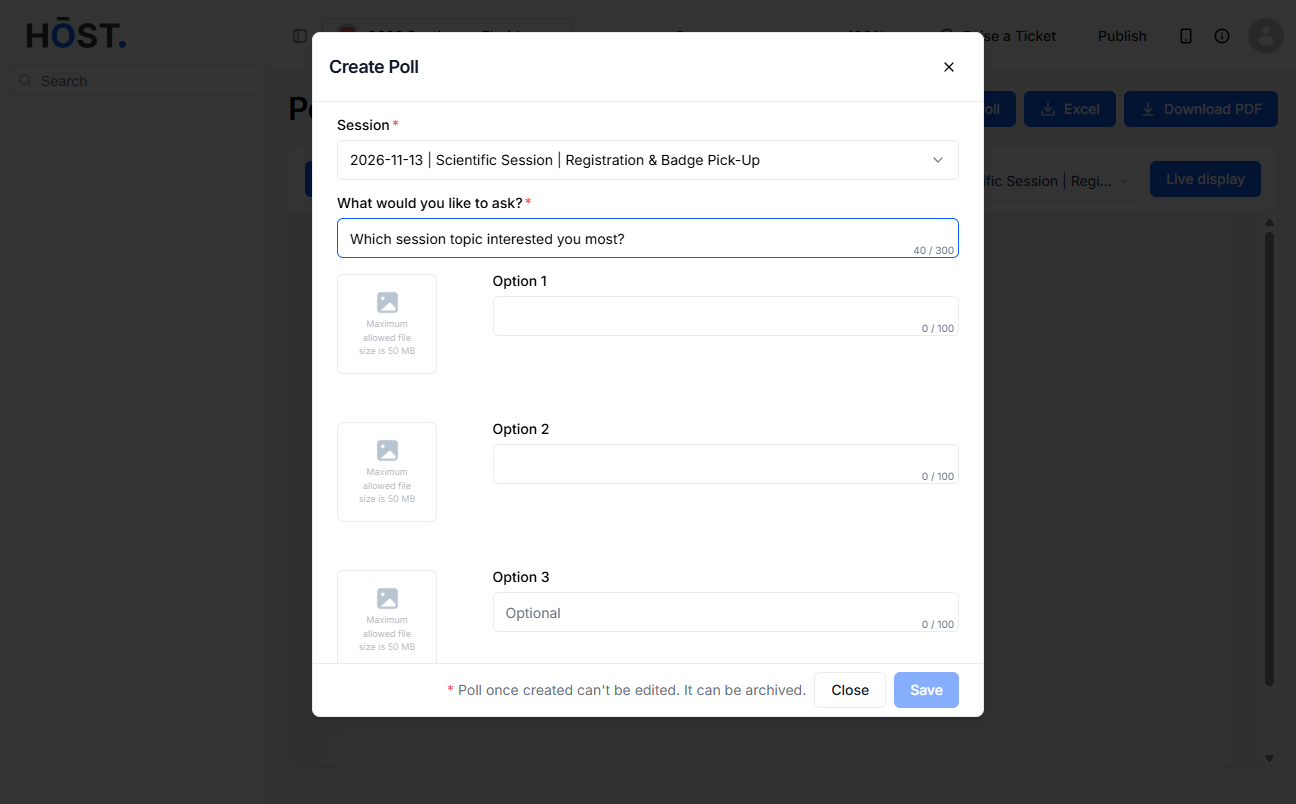
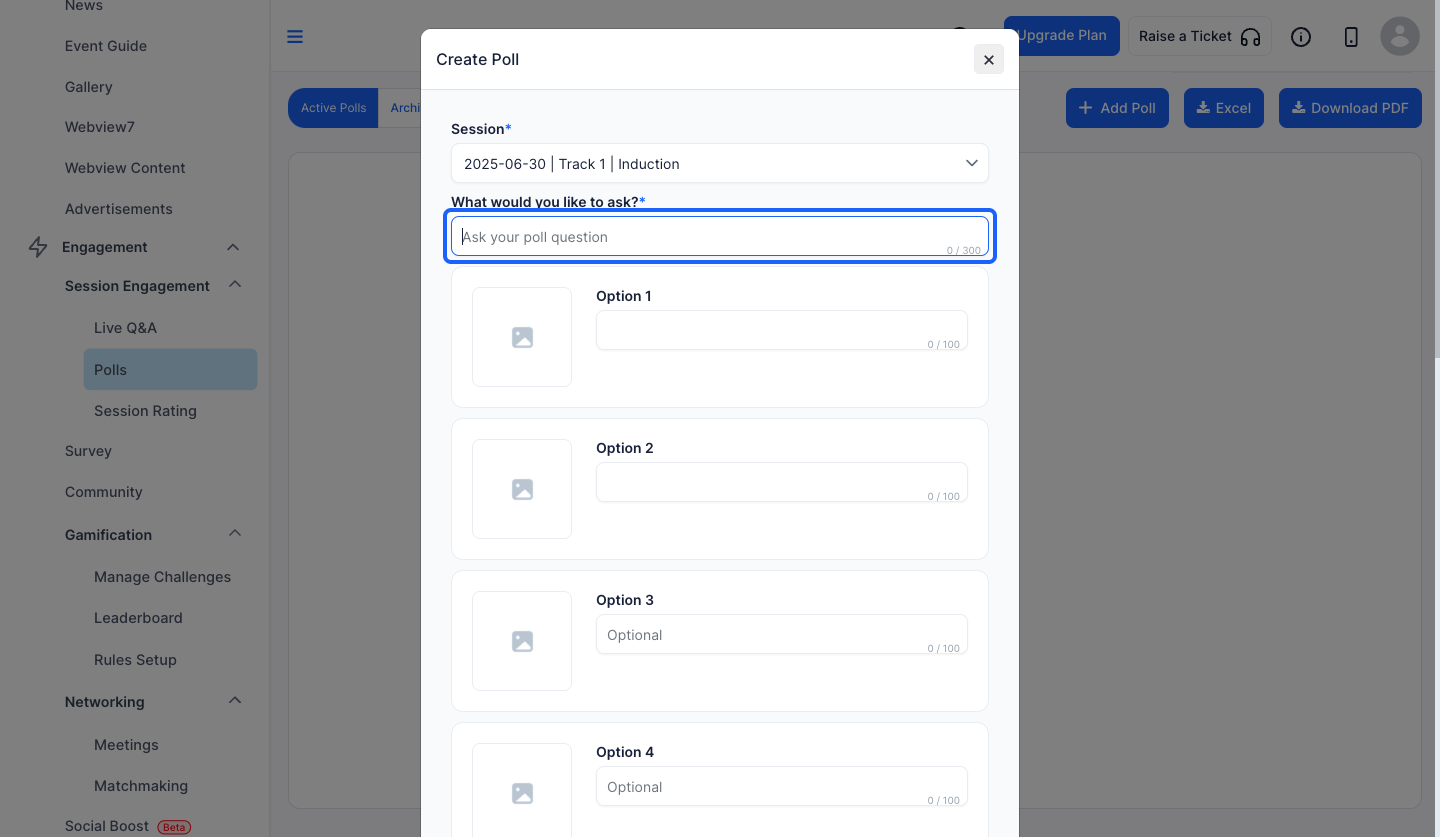
11: Type your question in this textfield
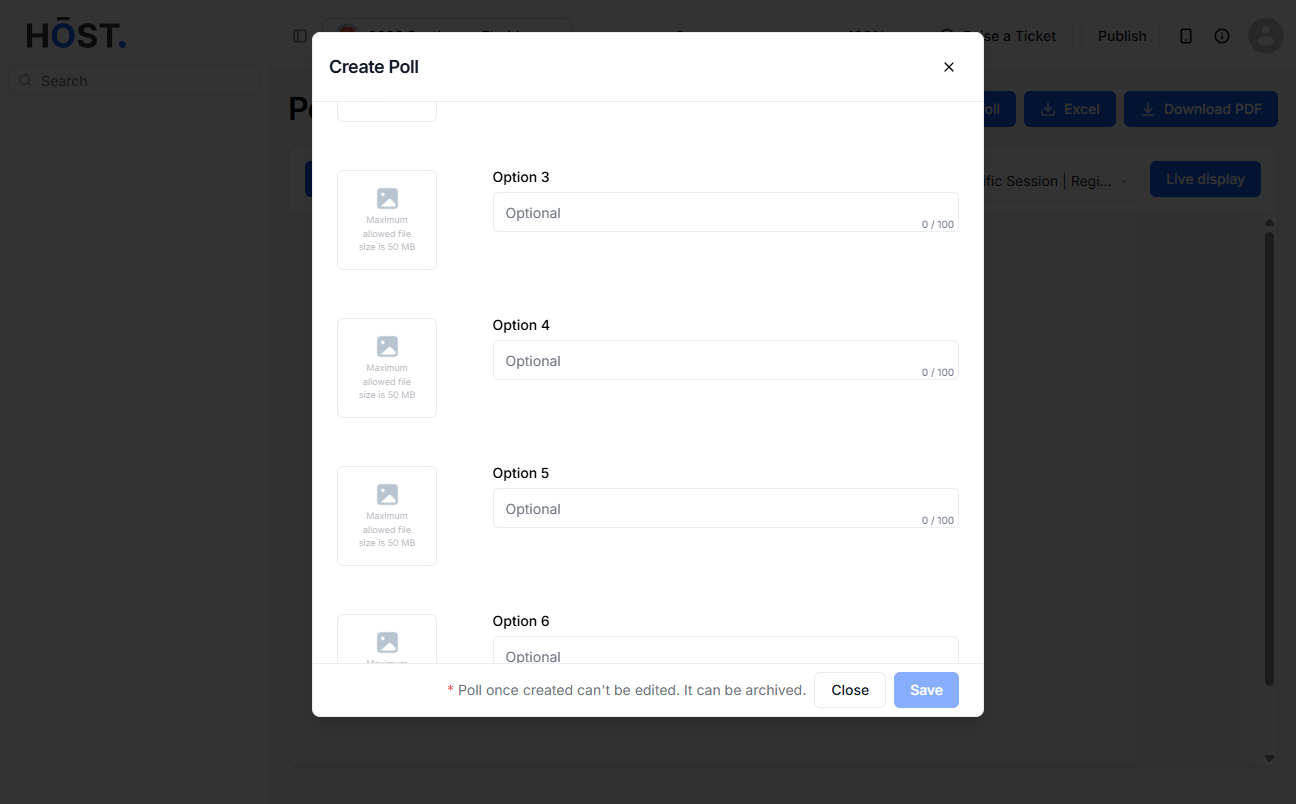
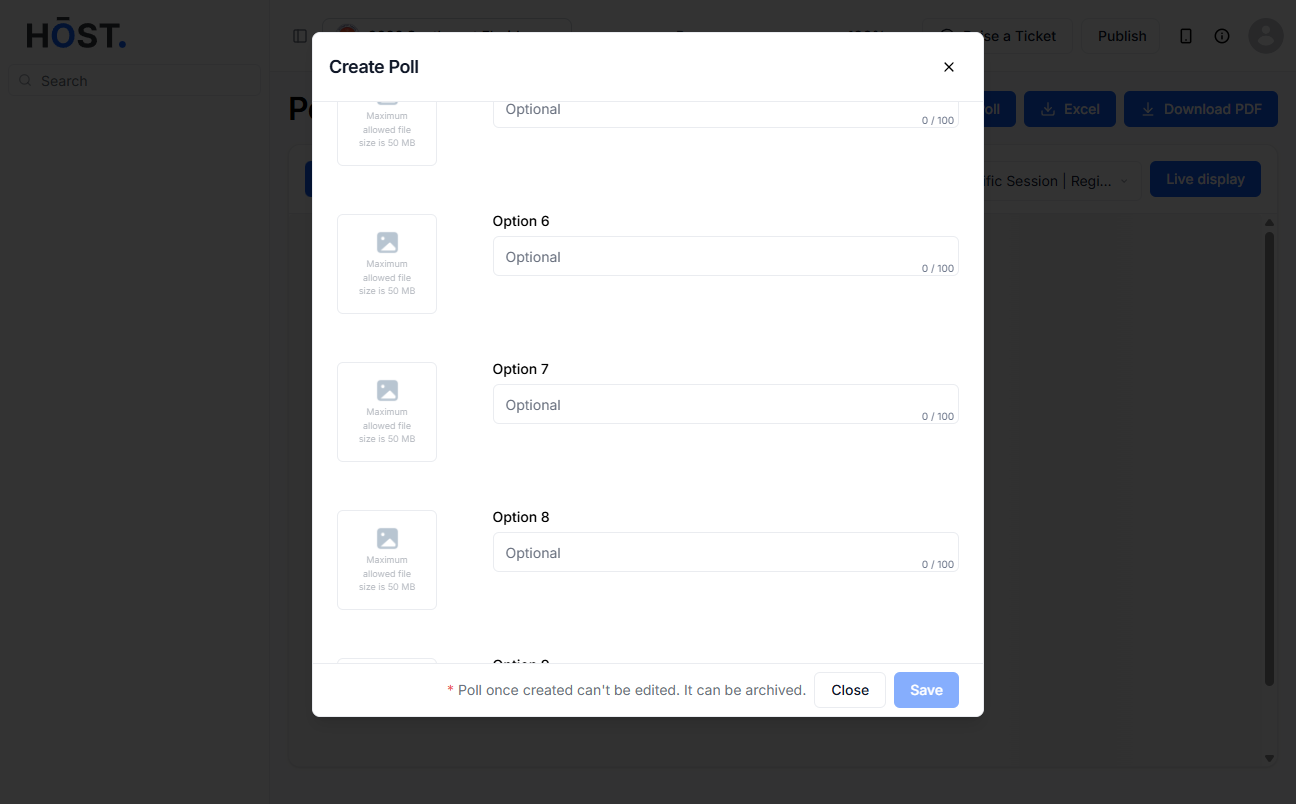
12: Enter the options for the poll
note: You can add maximum 10 options for a poll
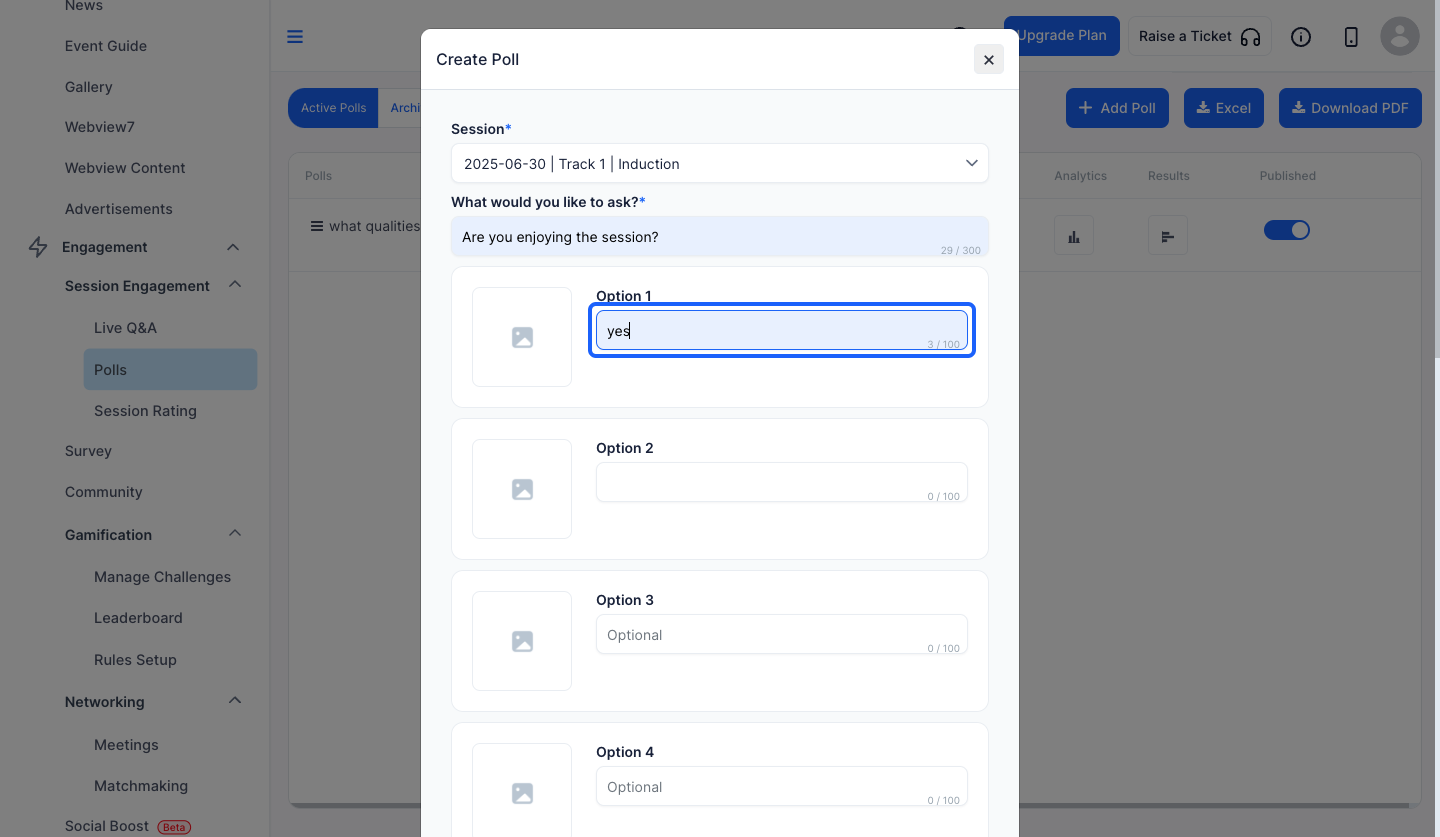
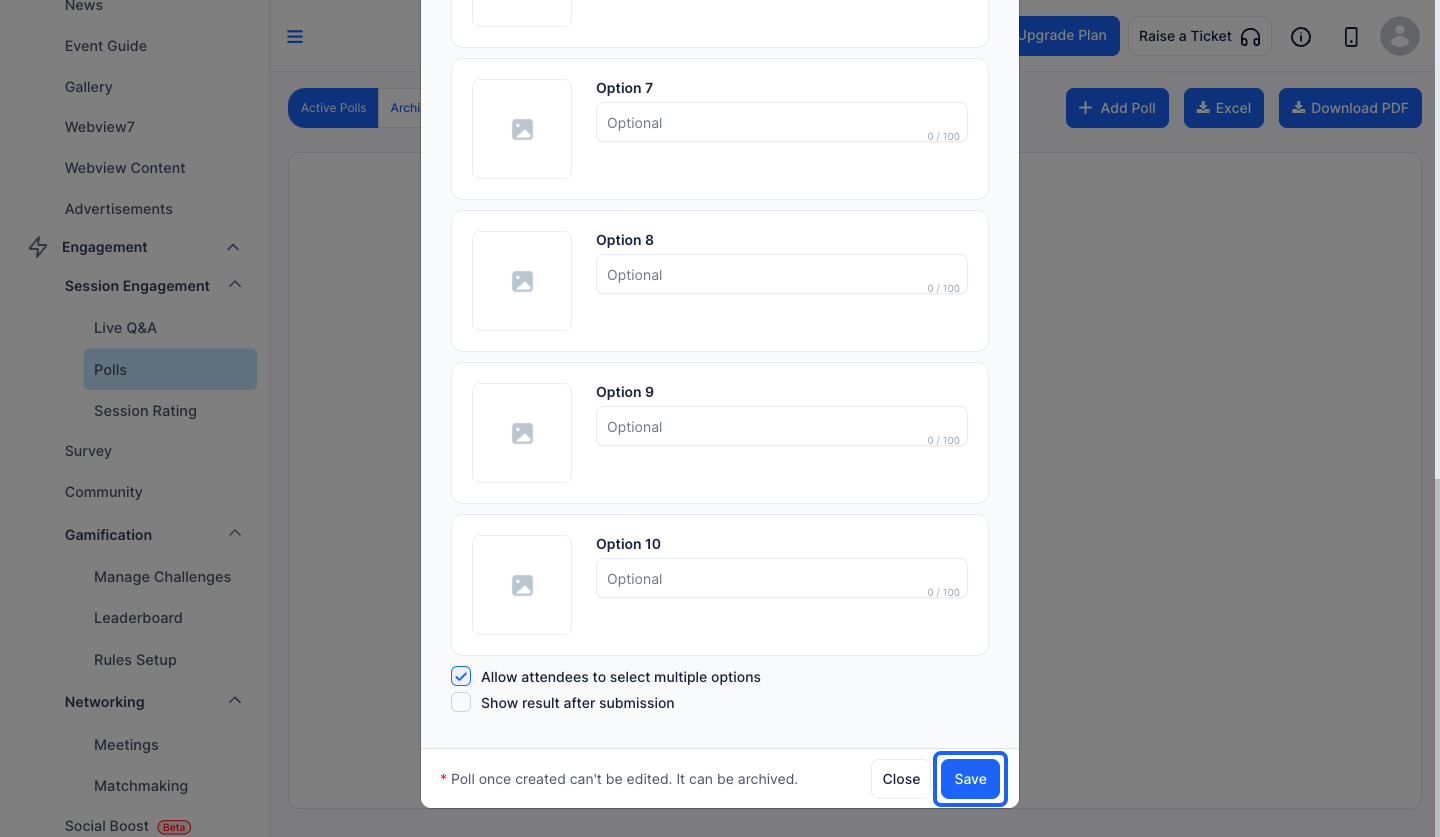
13: You can also upload images corresponding to the options
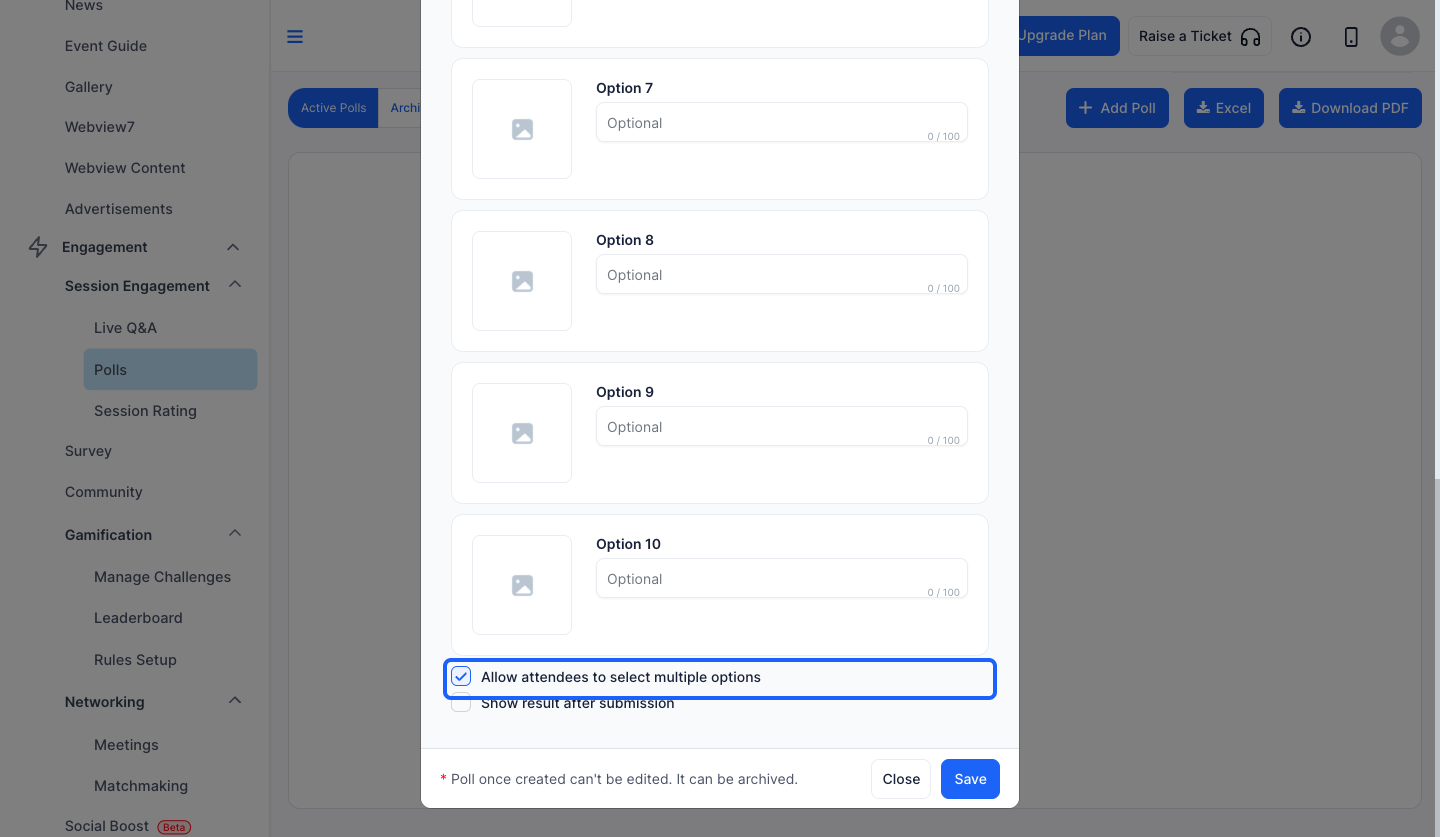
14: Enable this to allow users to select multiple options
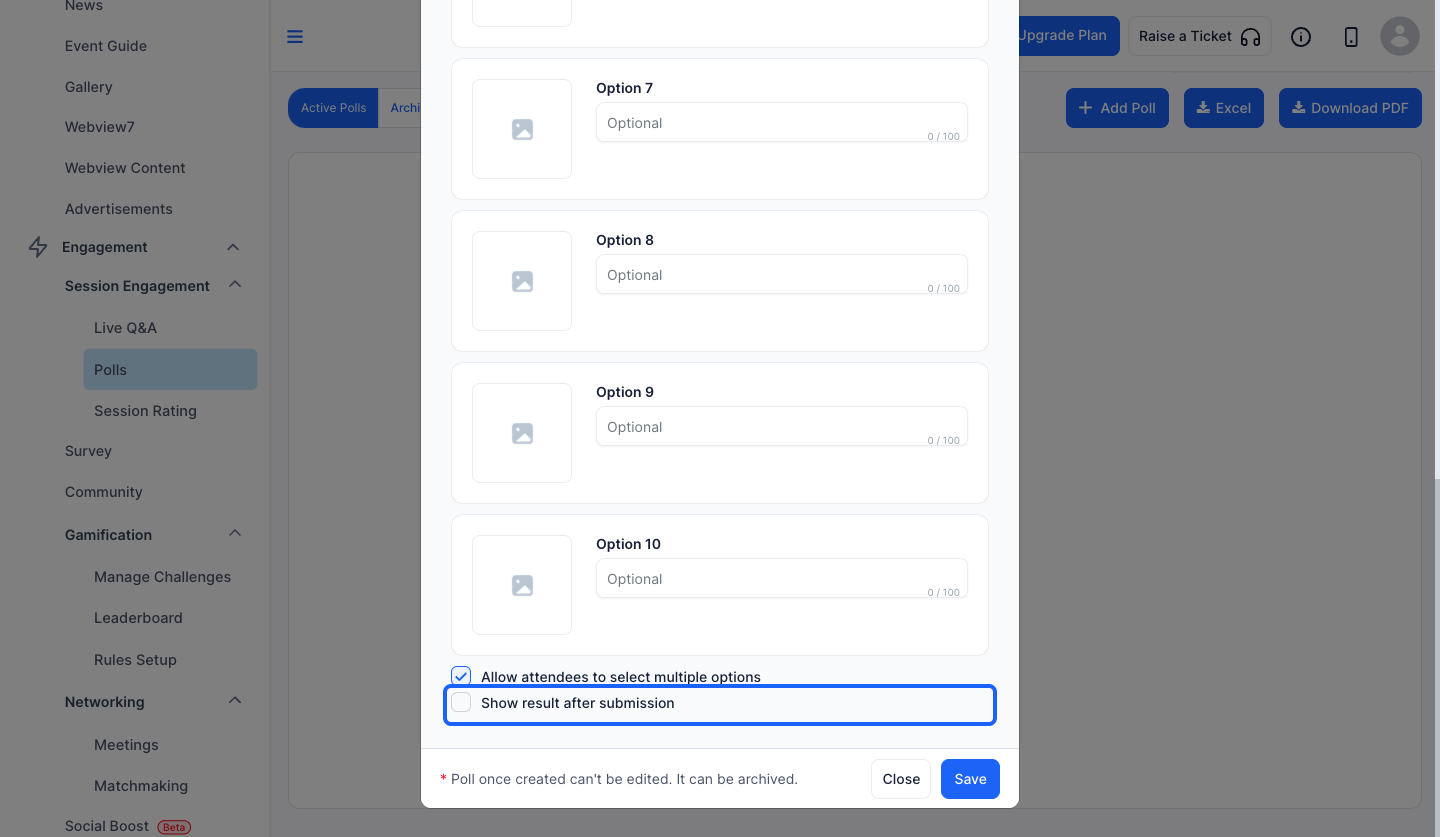
15: Enable this if you want to display the result after submission
16: Click the “Save” button to add a new poll