
Not every event needs every feature. A corporate conference has different requirements from a networking evening or a trade show, and HOST is built with that in mind. From your admin panel, you can switch individual features on or off at any time, so your attendees only ever see what's relevant to your event. If something isn't needed, you can hide it entirely, and if you change your mind later, turning it back on takes just a few seconds.
Here's how to manage your event features from the HOST Admin Panel.
Log in to your HOST Admin Panel and click on Setup from the left-hand navigation menu.
Inside Setup, click on Features. This opens a full list of all the features available for your event, each with a toggle next to it showing whether it's currently active or not.
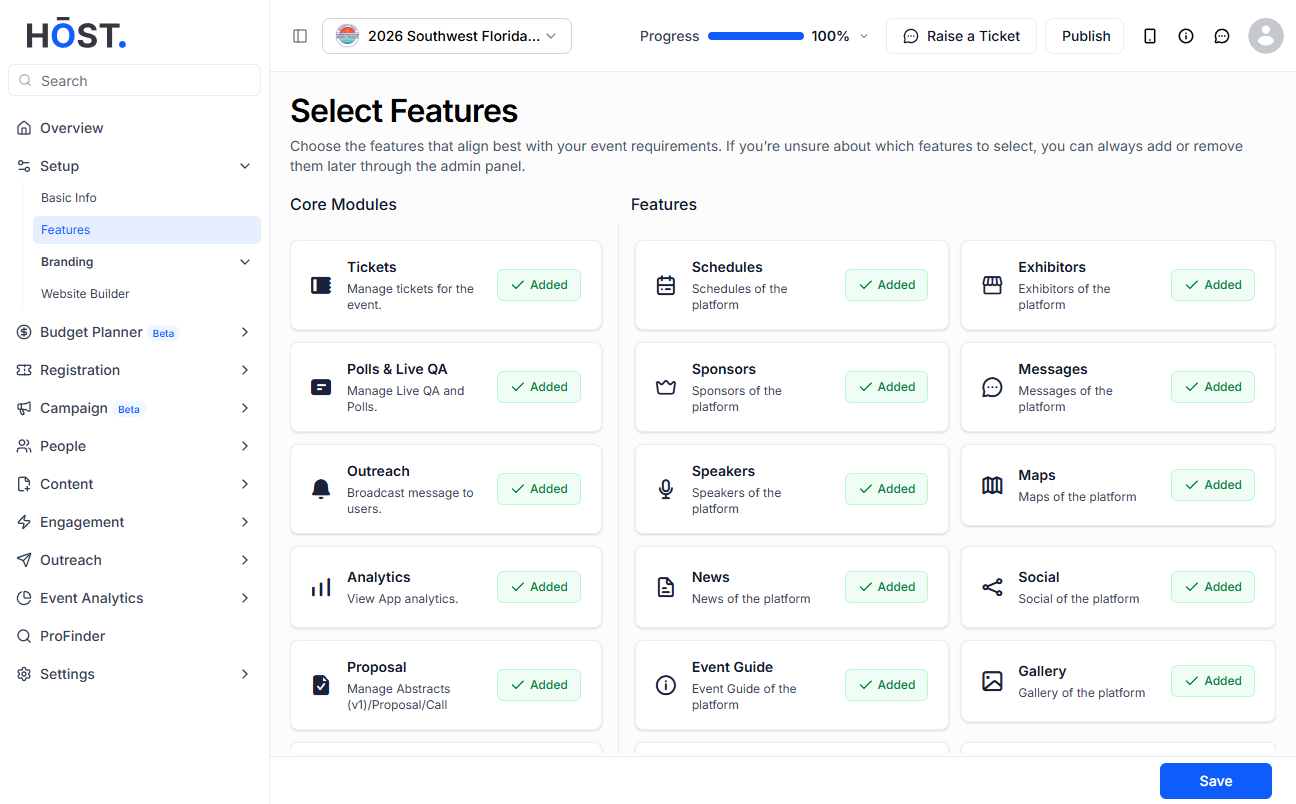
By default, most features are switched on. Take a moment to look through the list and identify anything that doesn't apply to your event. For example, if you're not selling tickets, you probably don't need the Tickets feature showing up in the app.
To turn off a feature, simply click the toggle next to it. It will switch from active to inactive, and that feature will no longer be visible to your attendees in the app. As an example, if you want to remove the Tickets feature, find it in the list and click its toggle to disable it.
Once you've made your adjustments, click Save. The changes will take effect immediately and the disabled features will disappear from the attendee-facing side of the app.
If you decide you want a feature back, just return to Setup, click on Features, find the feature you previously disabled, and click its toggle again to turn it back on. Hit Save and it will reappear in the app straight away.
Yes, you can update your features at any point, even after the event is live. Changes take effect as soon as you save, so if something needs to be added or removed during the event, you can do it in real time without disrupting anything else.
No, attendees won't receive an automatic notification when features change. The update simply reflects in the app the next time they open it. If a feature you're adding is important for attendees to know about, it's worth sending a push notification through the Outreach section to let them know.
Disabling a feature hides it from the attendee-facing app, but it doesn't delete the underlying data. So if you disable Tickets and then re-enable it later, your ticket data will still be there. That said, it's always a good idea to double-check before disabling anything mid-event.
The Features section applies to the event as a whole rather than to individual attendee groups. If you need more granular control over what different attendee types can see or access, that would be managed through your attendee categories and permission settings rather than the Features toggle.
If attendees have already interacted with a feature and you disable it, they simply won't be able to see or access it anymore. Any content or data they created within that feature is preserved on the backend, so it won't be lost. You can re-enable the feature at any time to restore access.
Some features may be tied to specific HOST plans or packages. If you notice a feature in the list that you can't enable, it's possible it's not included in your current plan. In that case, reach out to the HOST team at hello@hostlife.io to find out more about upgrading or unlocking additional features.
