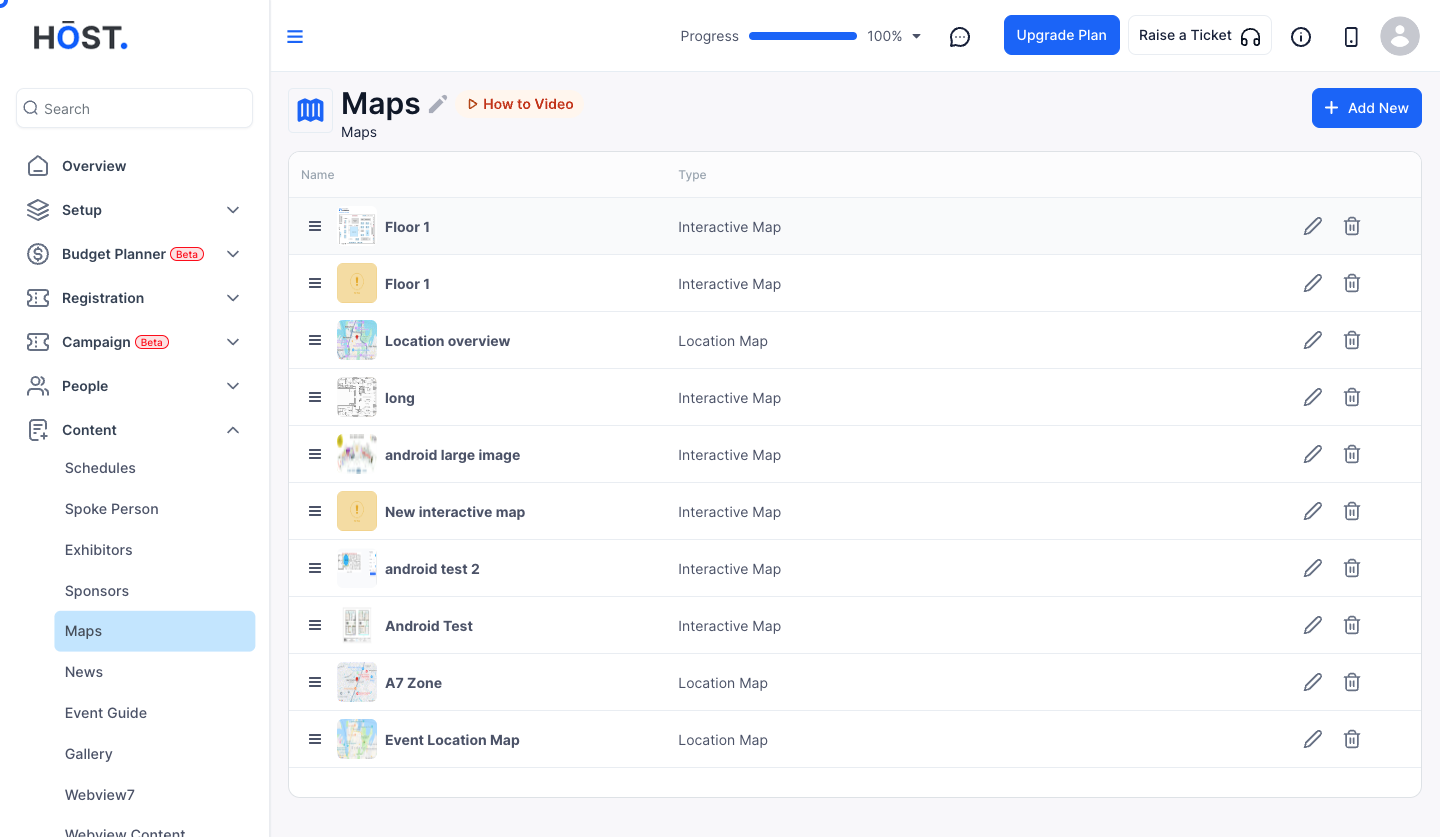
Adding an interactive map helps attendees navigate the event venue with clickable areas linked to booths, sessions, or other content. Follow the steps below to add an interactive map
1: Access the HOST Admin Panel and go to Content> Maps
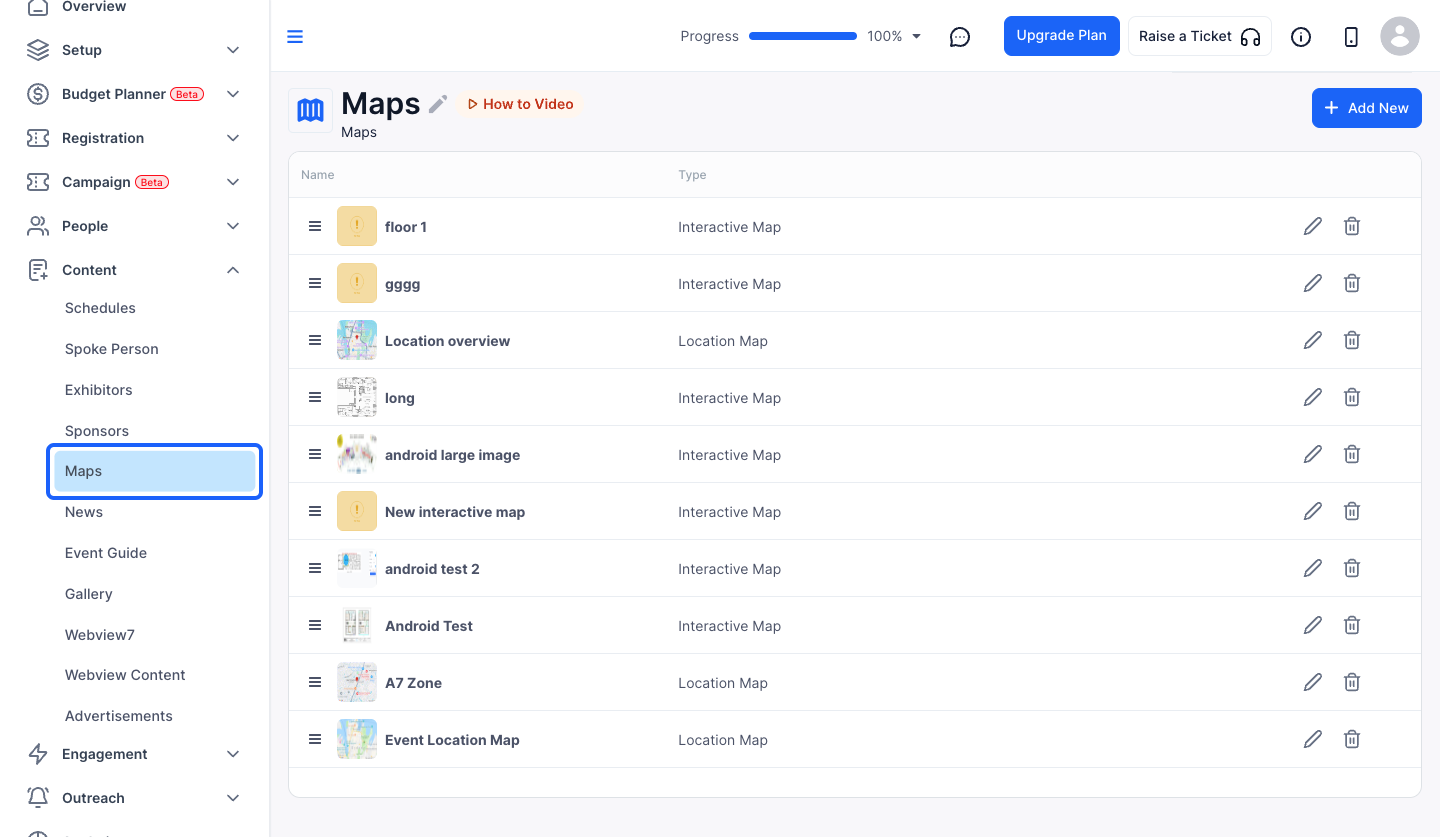
2: Click the “Add New” button to add a new Map
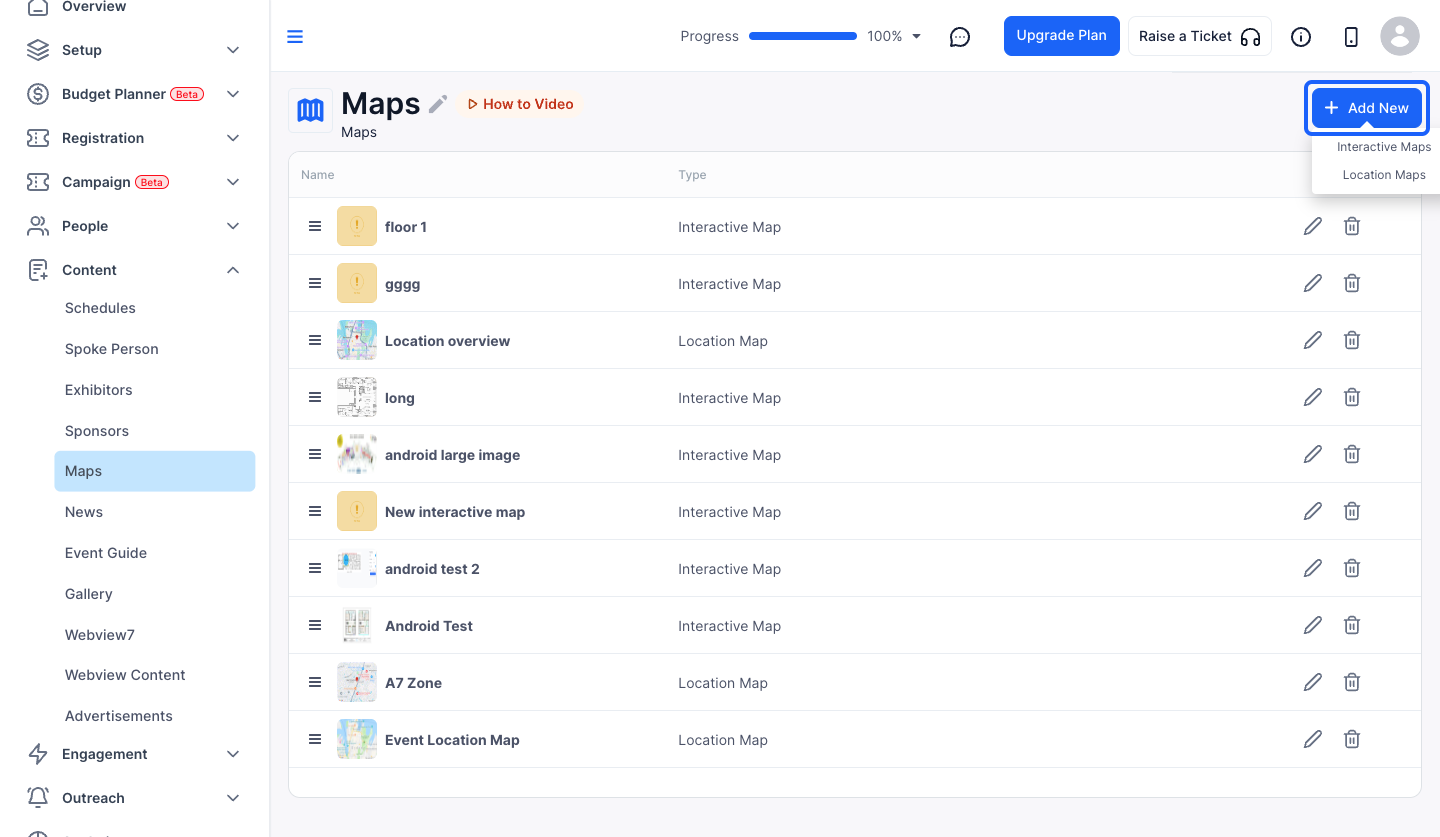
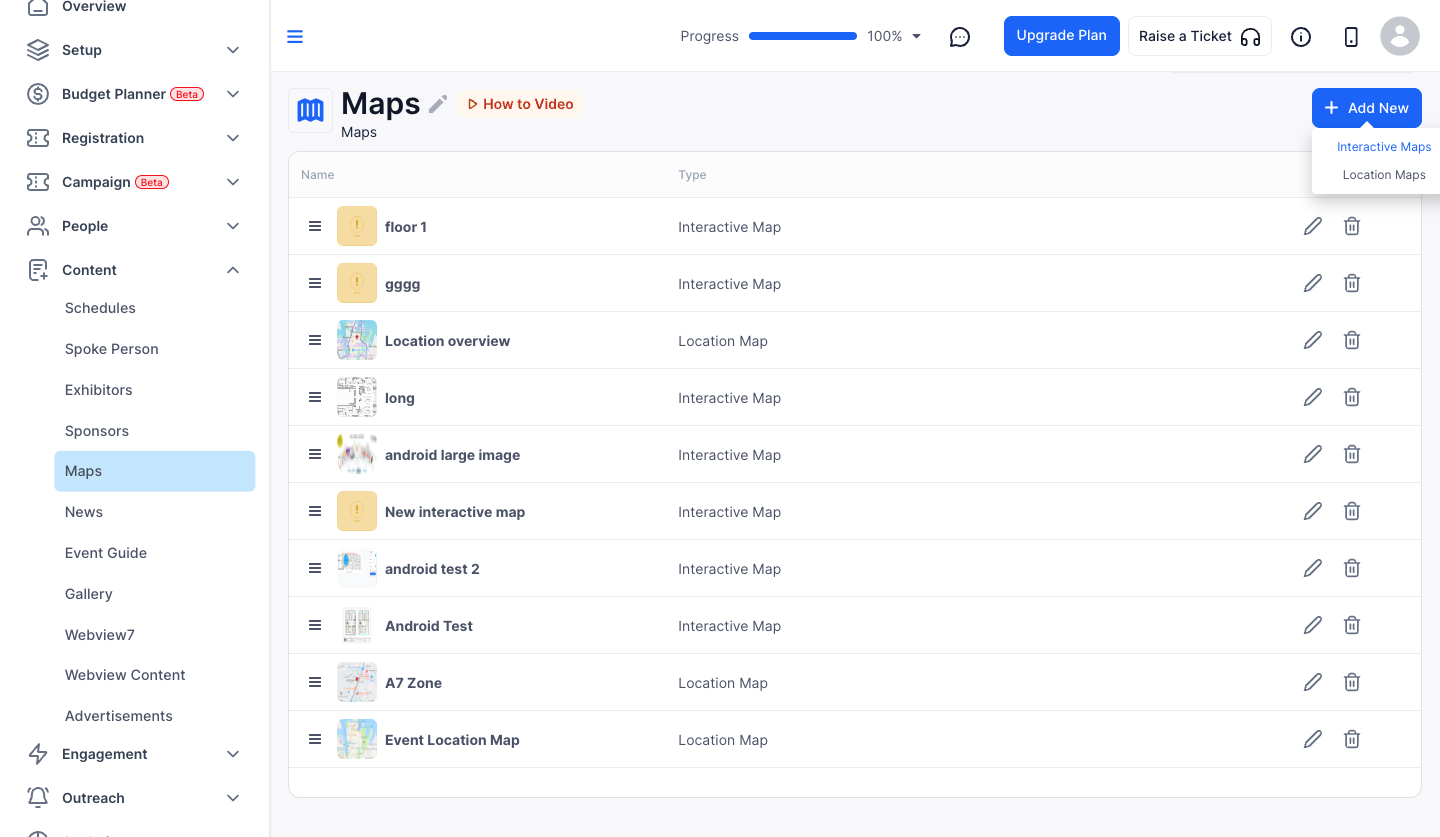
3: Select Interactive Maps
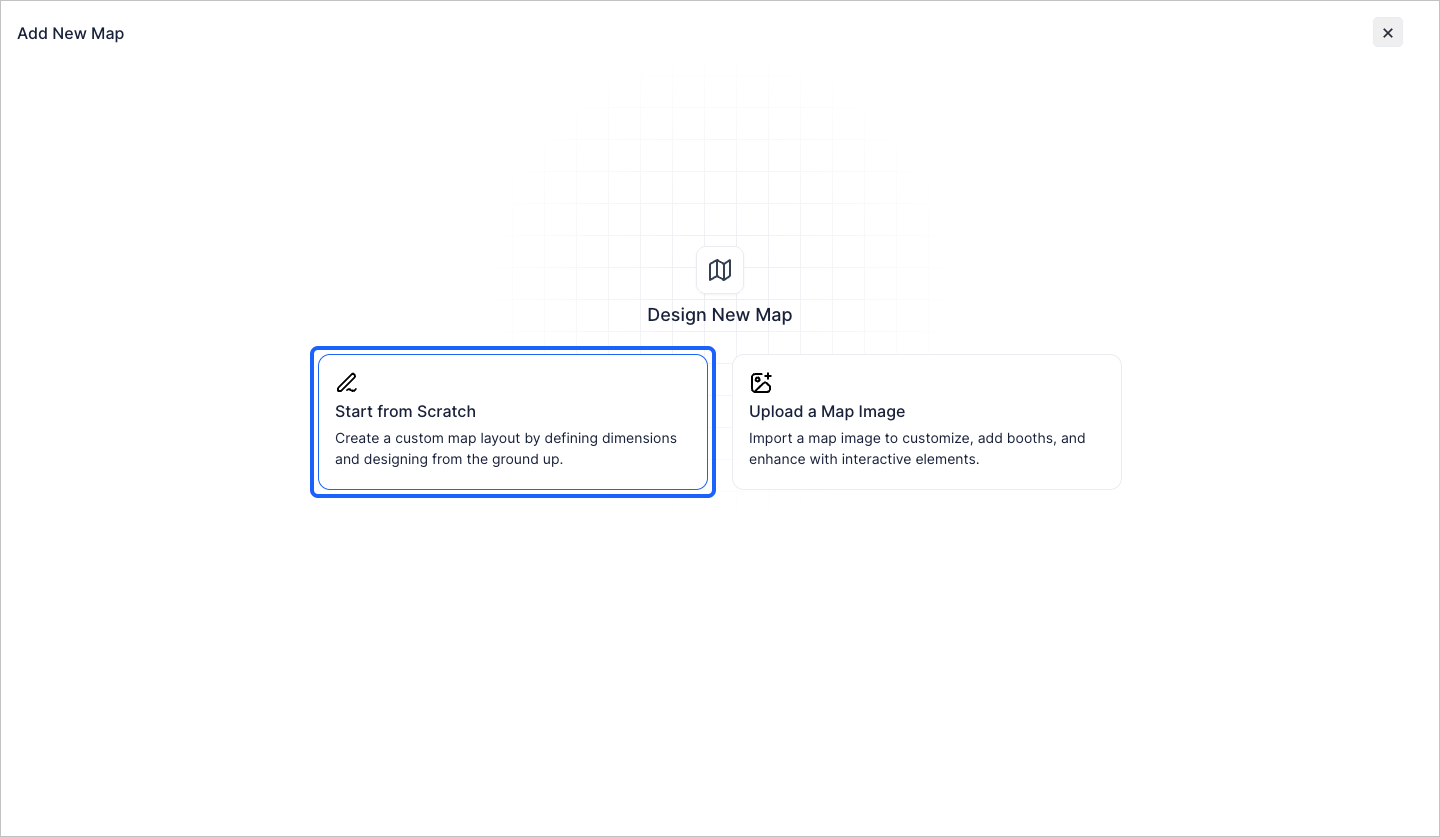
4: You can either start from scratch
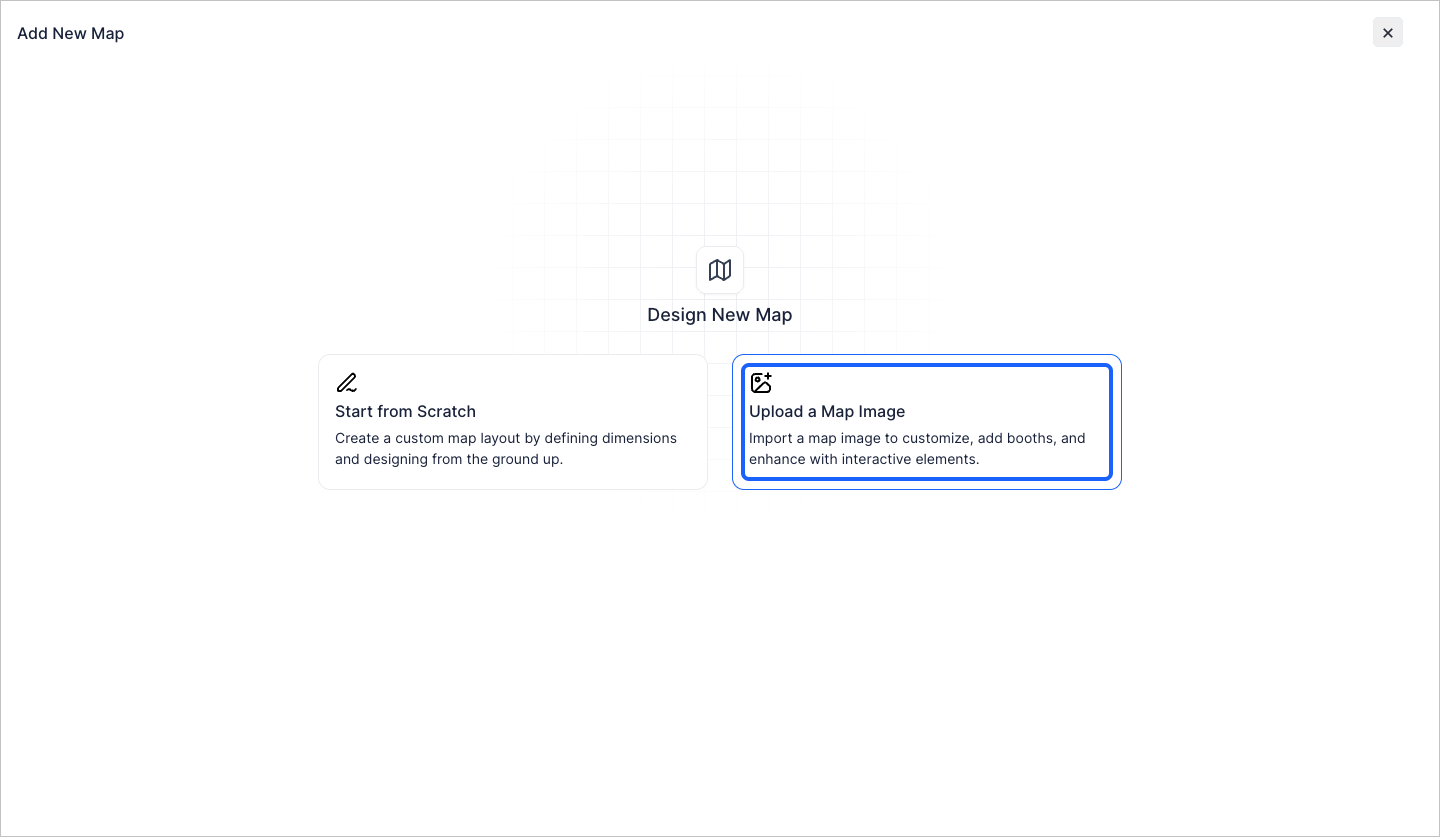
5: Or you can directly upload a map image
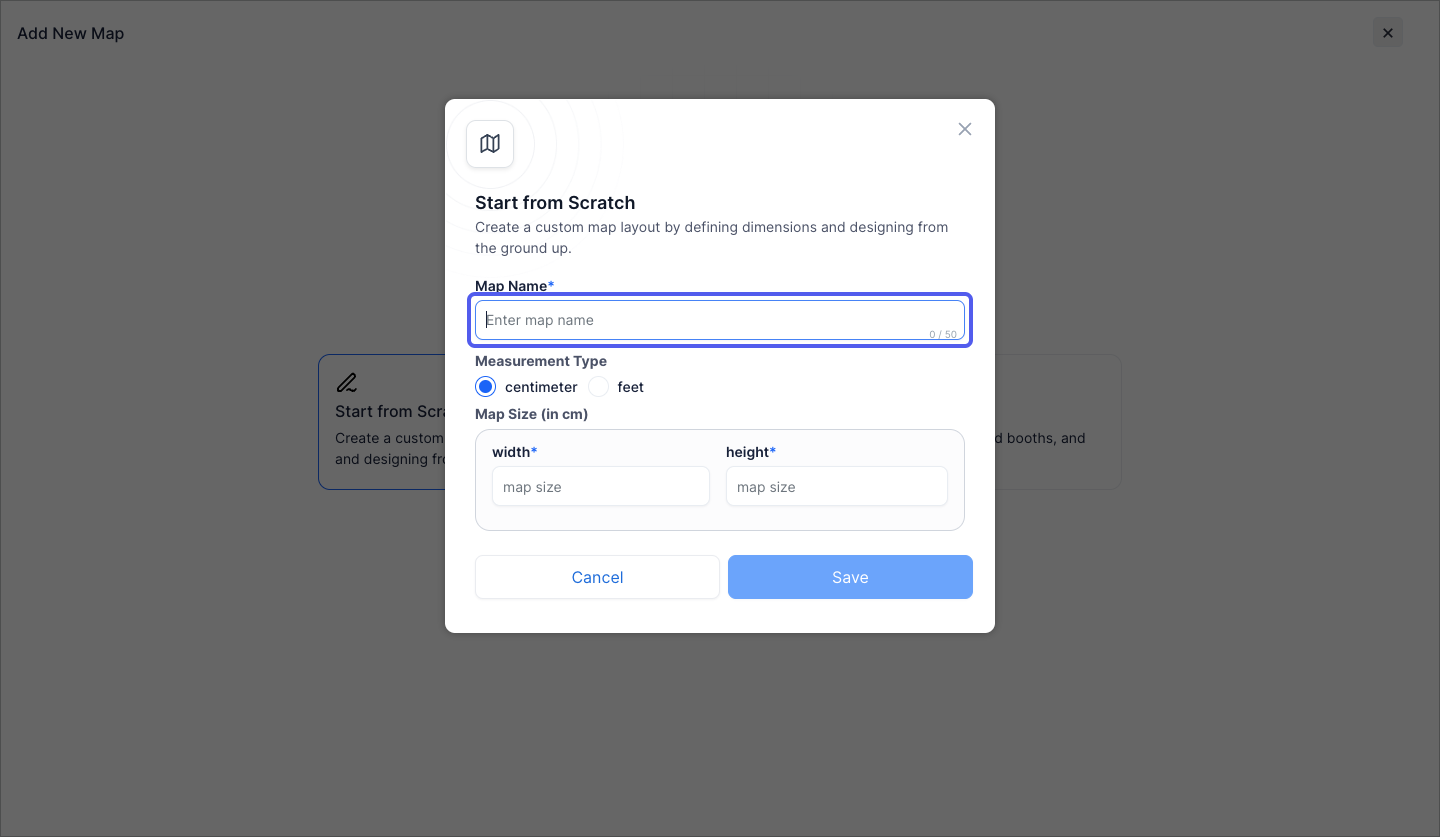
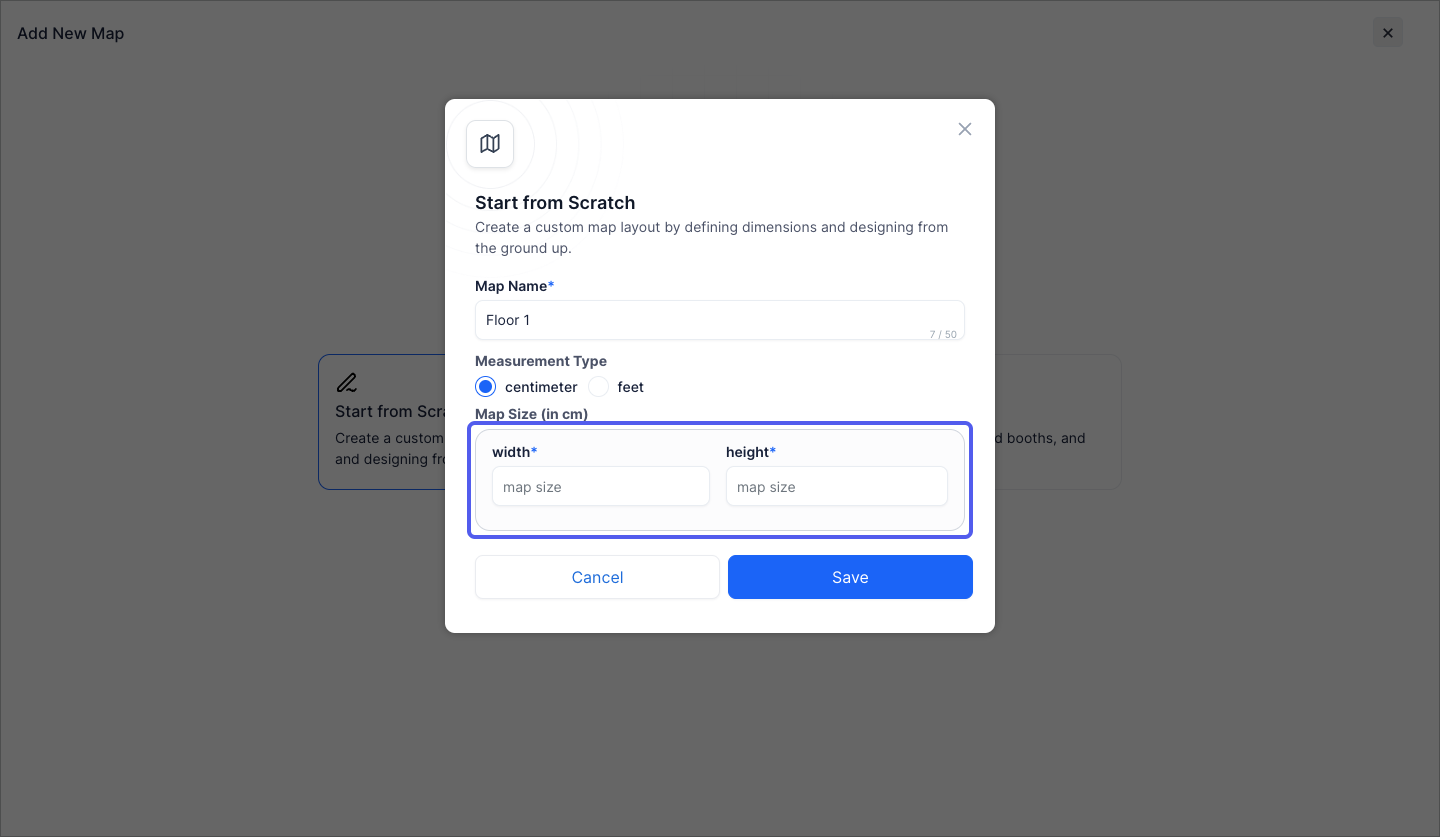
6: For starting from scratch, first enter the map name
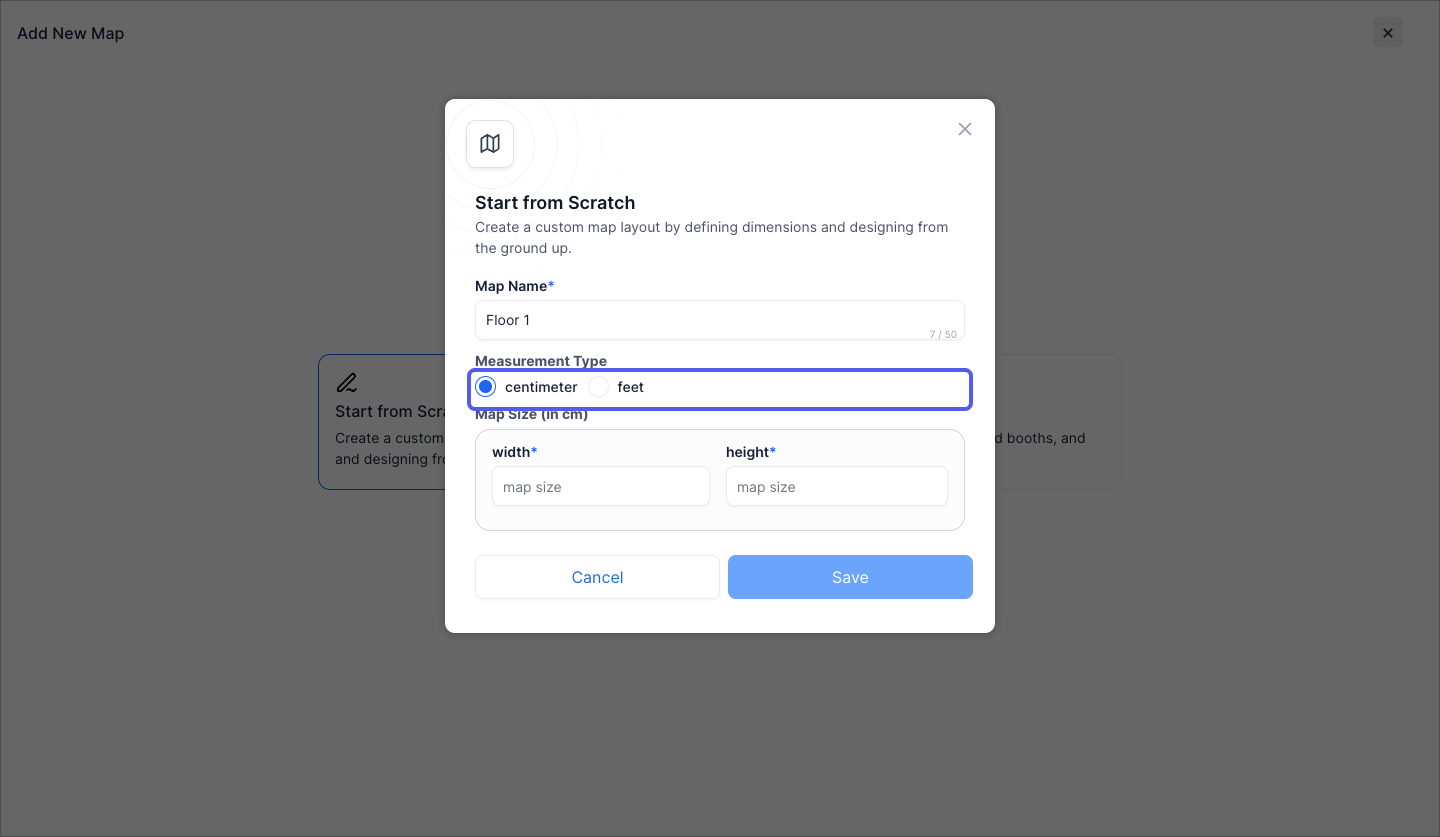
7: Select the Measurement Type
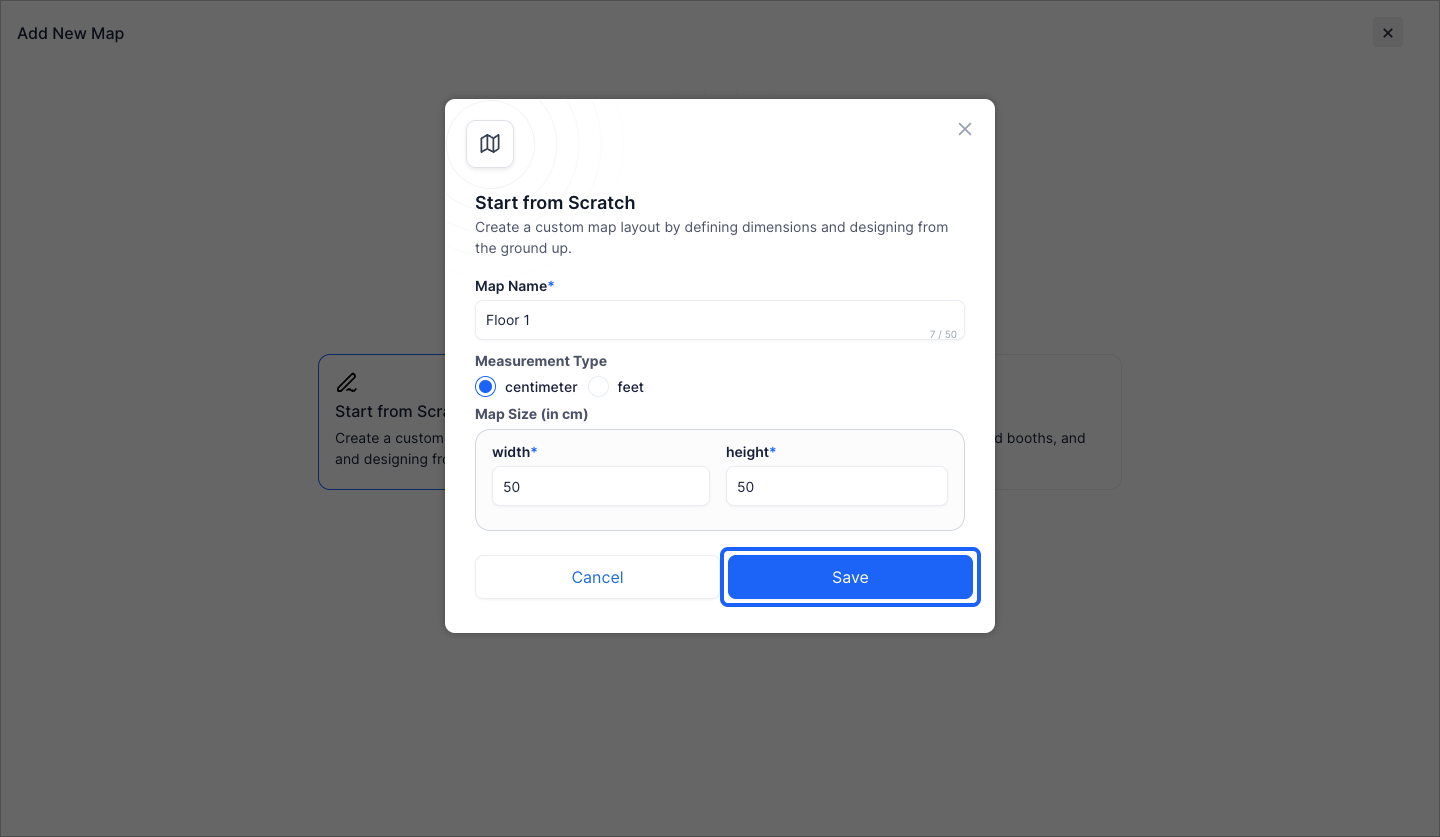
8: Enter the width and height of the Map
9: Click the “Save” button
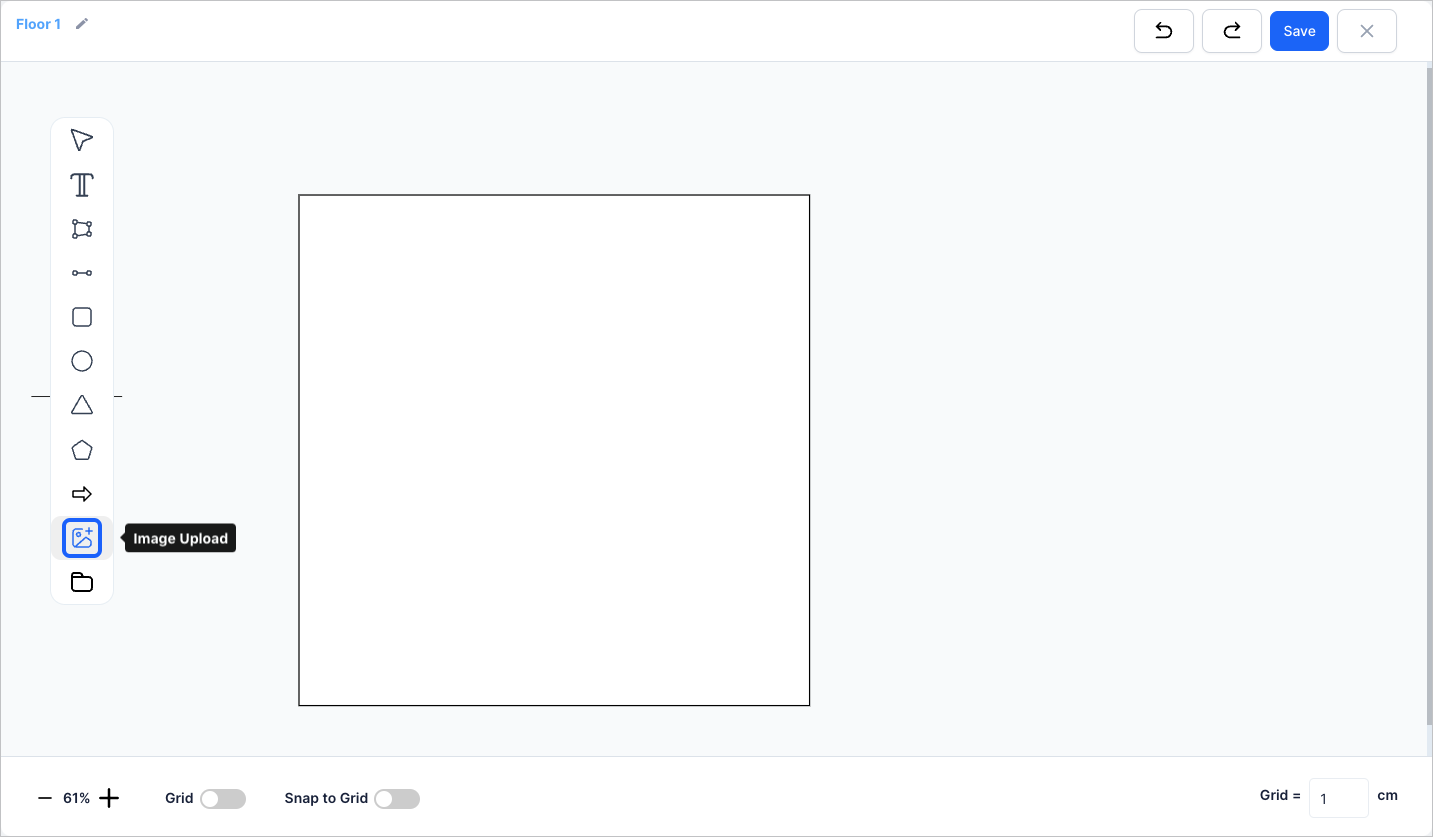
10: Click the “Image Upload” icon to upload the map image
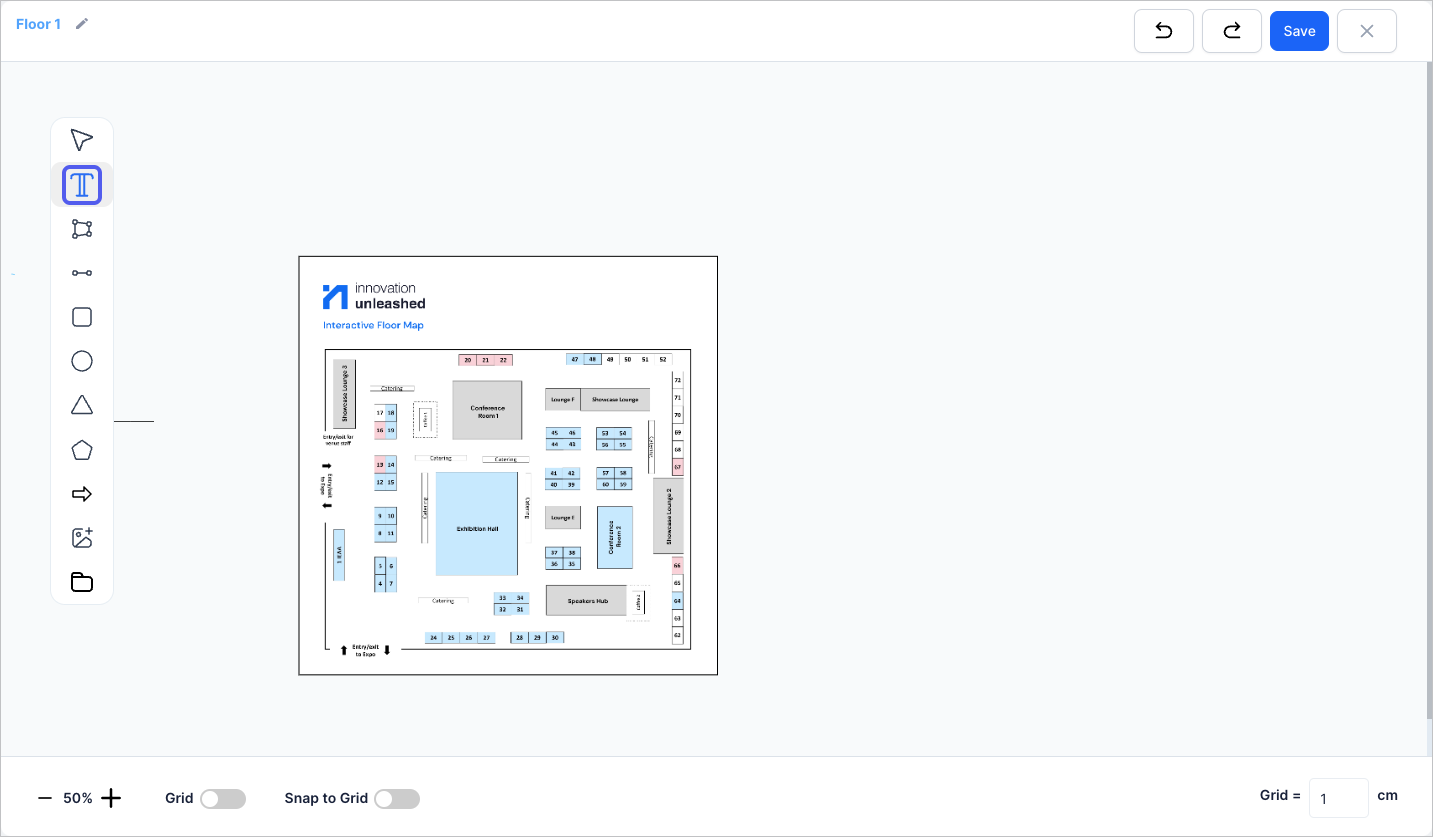
11: Click the “Text” icon to add a text
12: Select the “Free Shape Booth” icon to draw a free shape booth
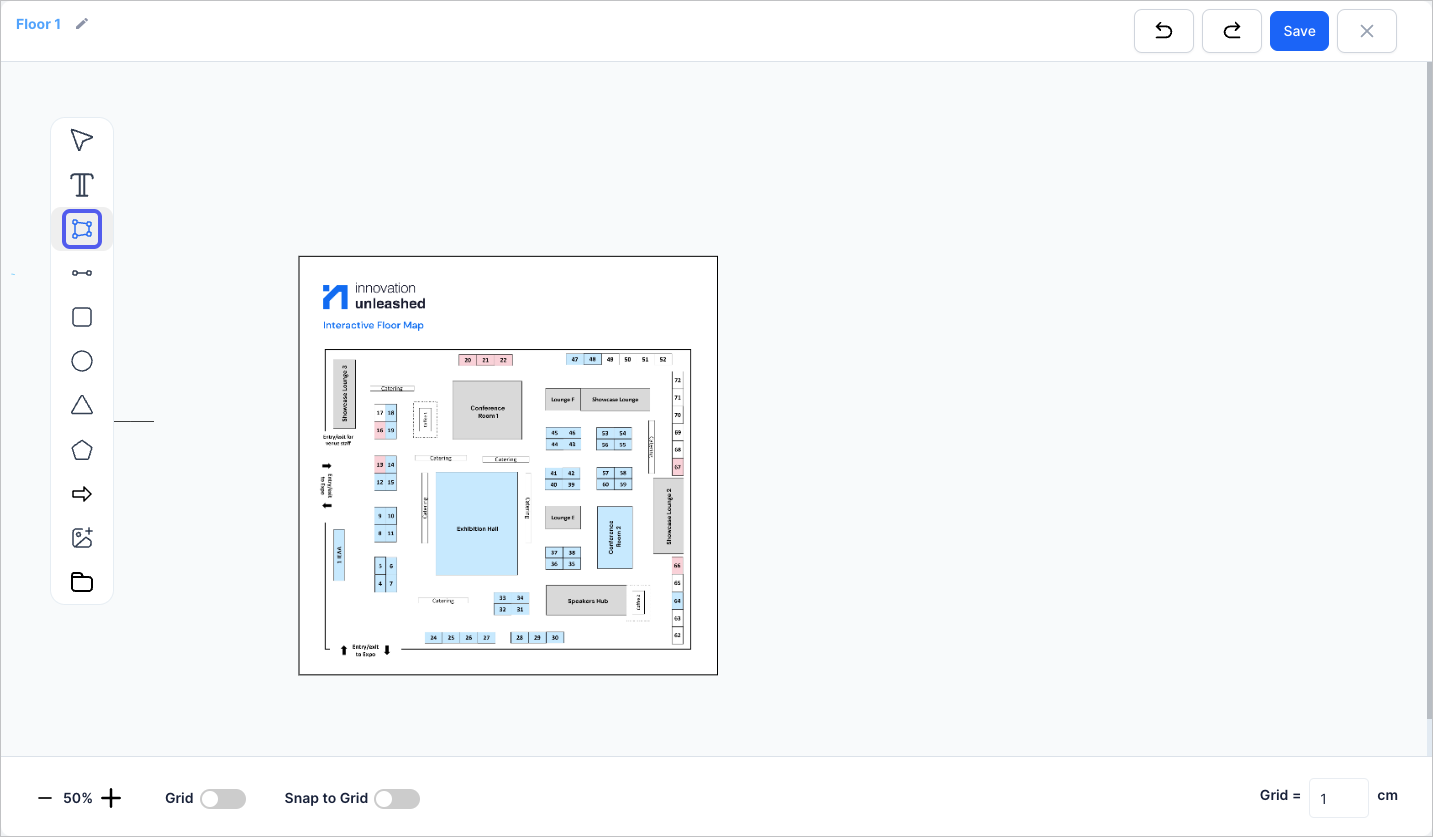
13: You can select different booth shapes from the list
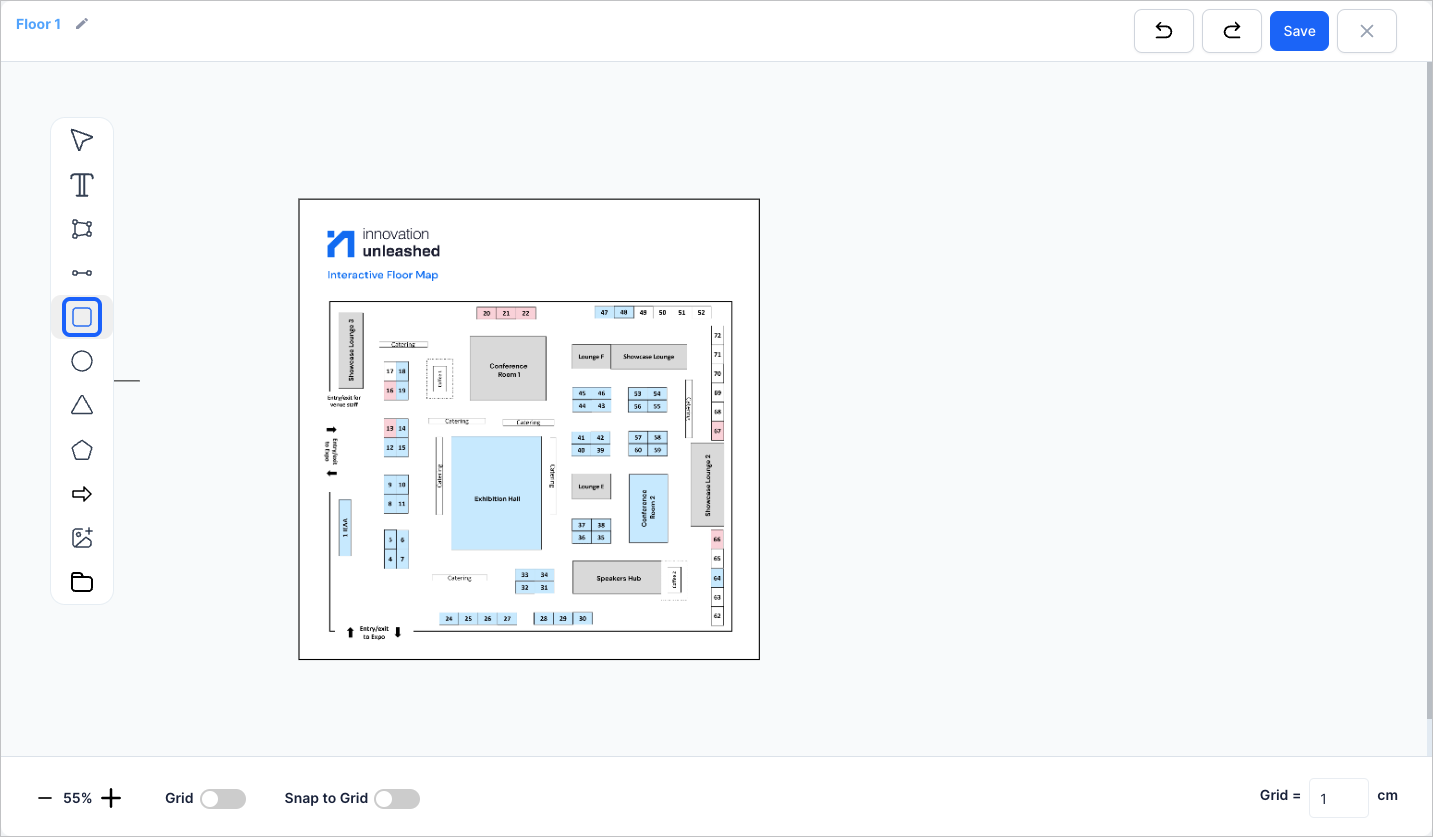
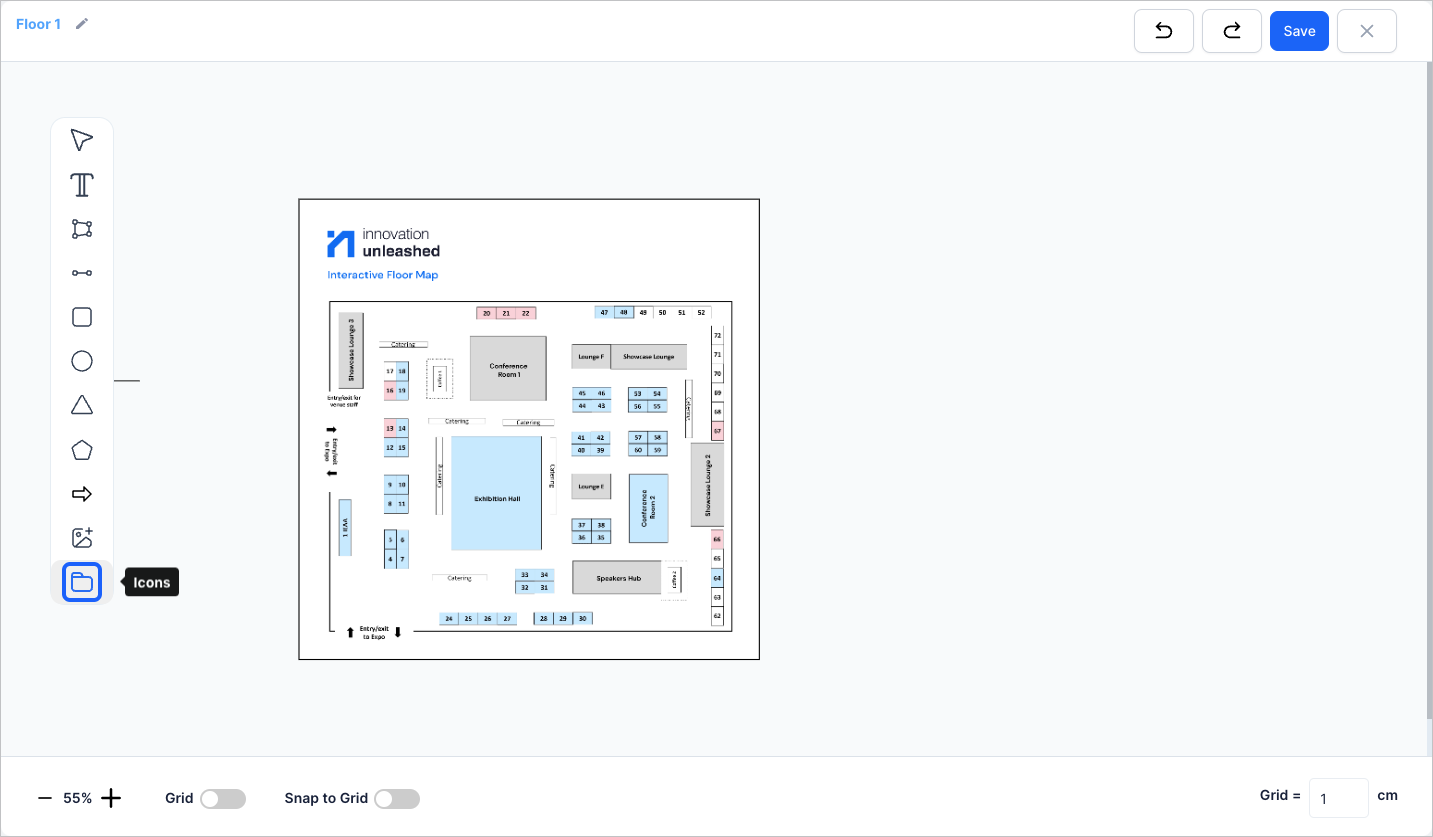
14: Click the “Icons” button to select the icon that will define the booth’s shape on the map
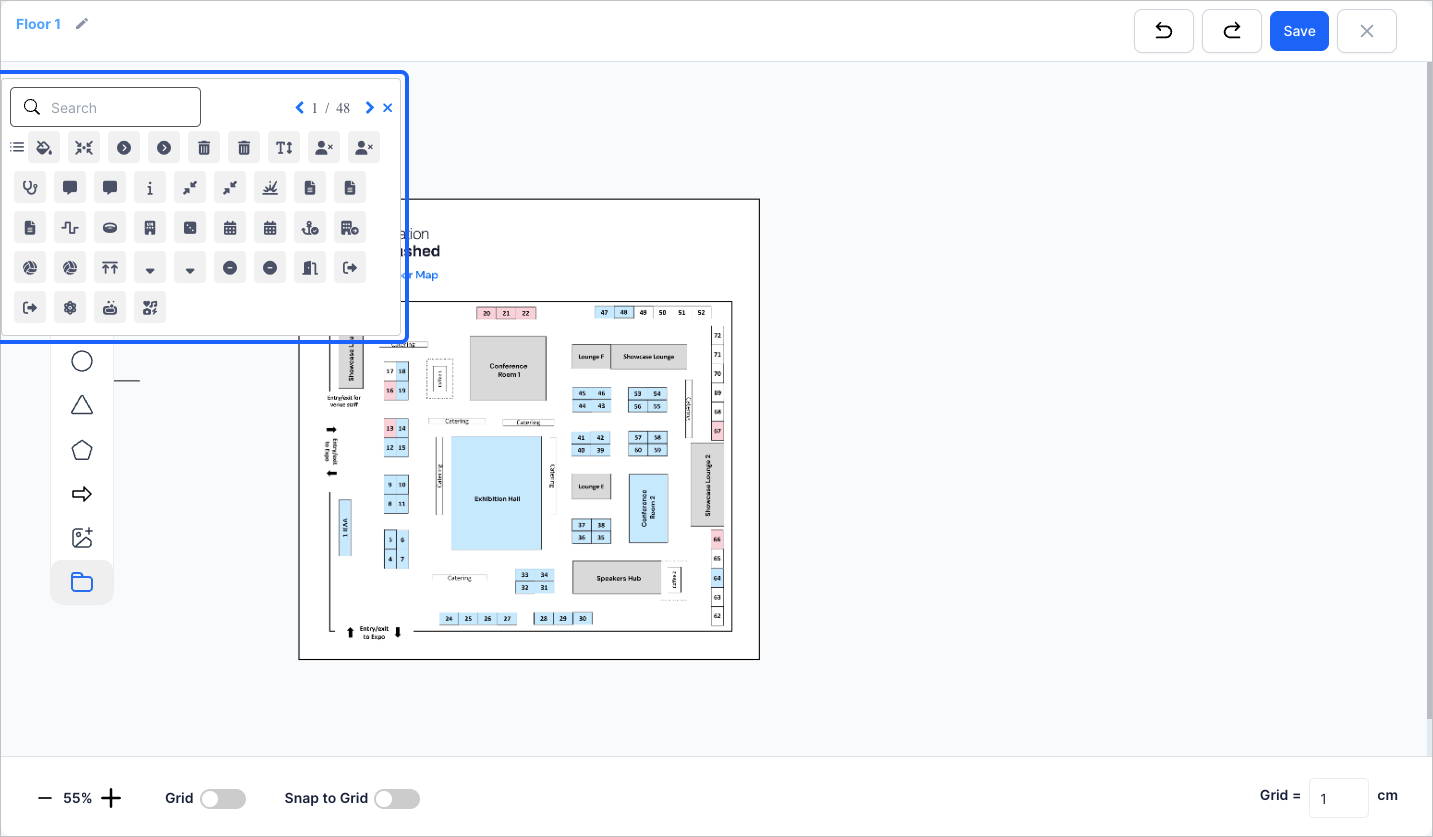
15: Select the icon from here
16: Click the “Save” button to save the map
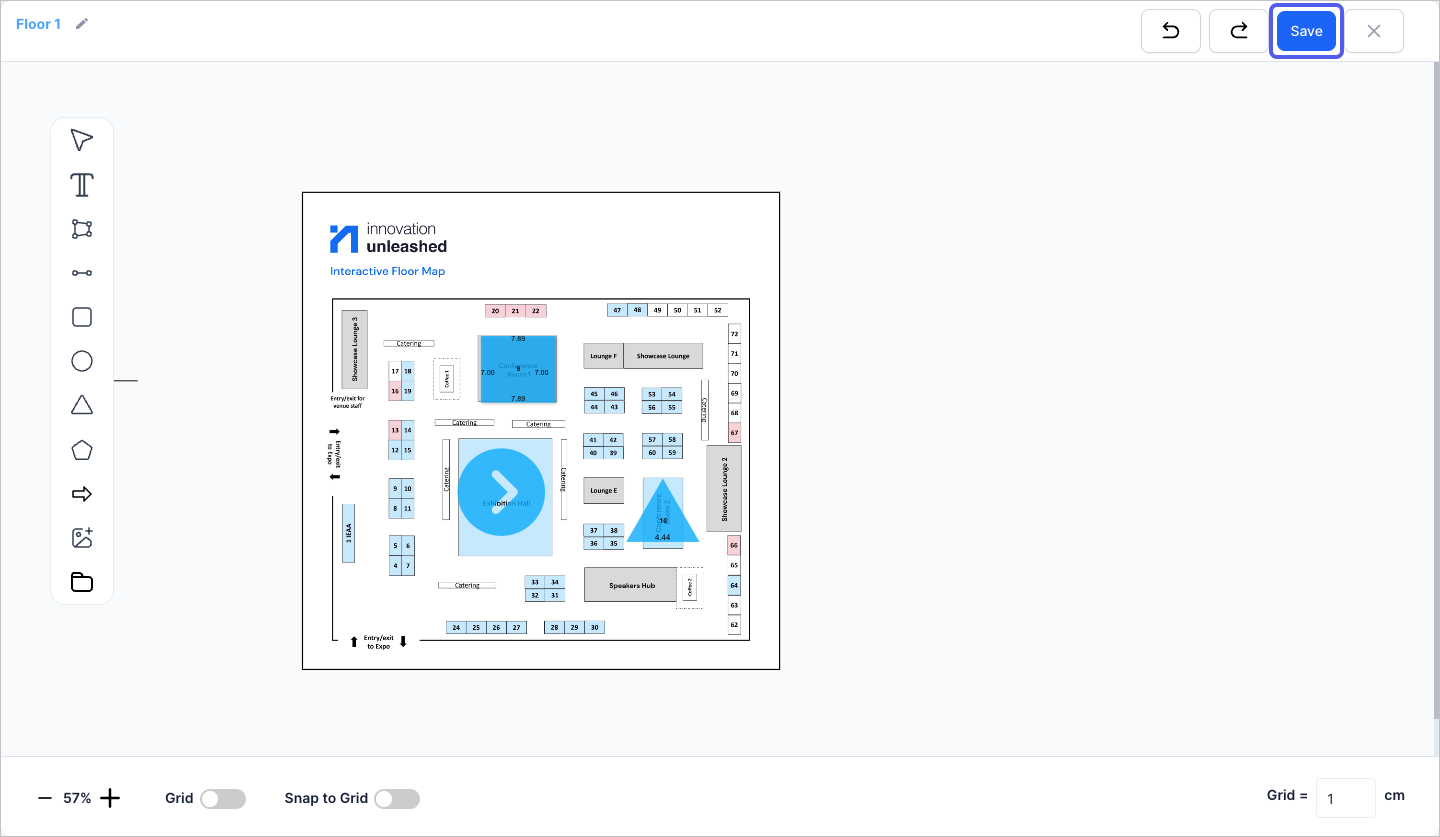
17: If you select " Upload a Map image", then enter the map name
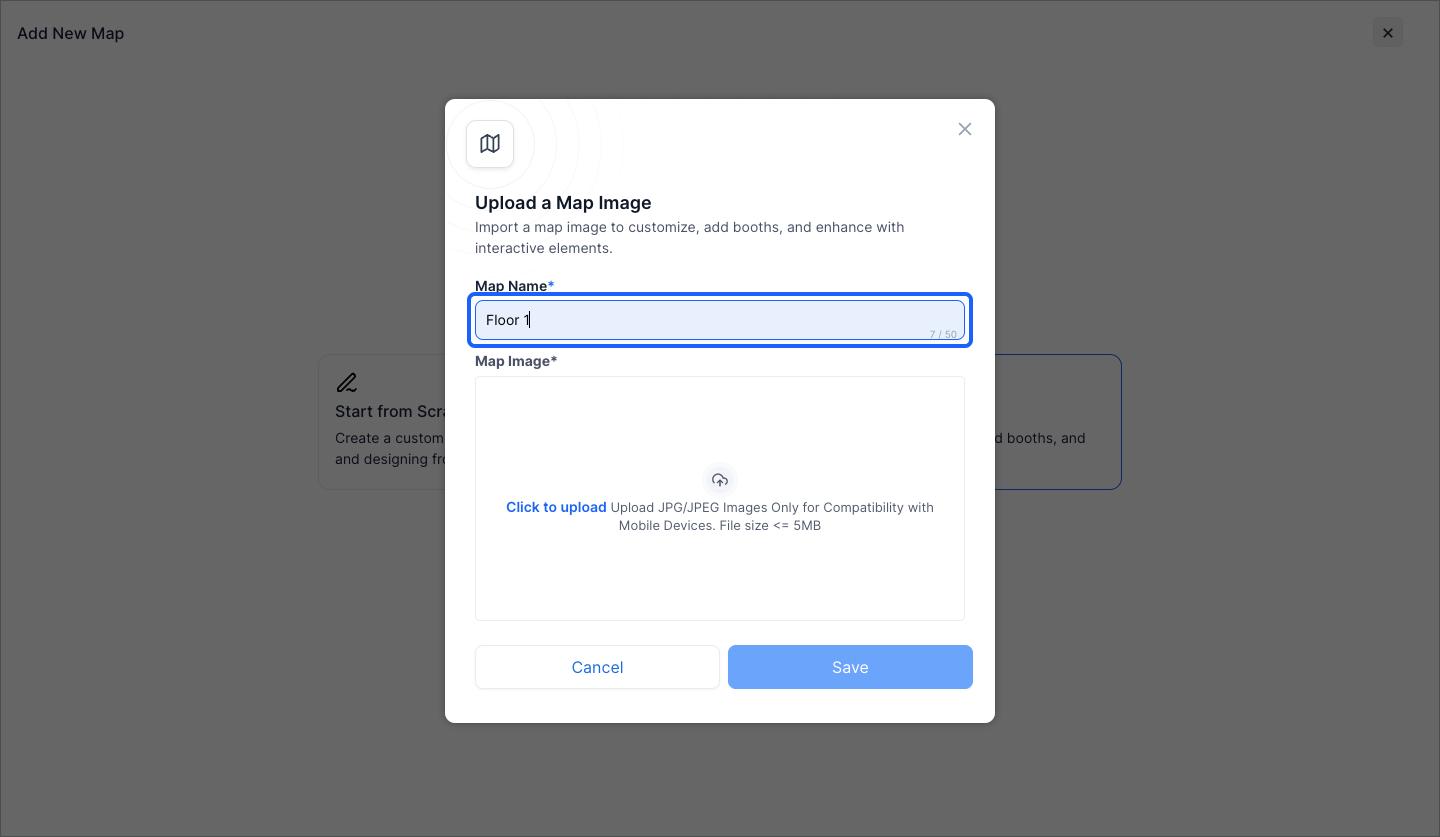
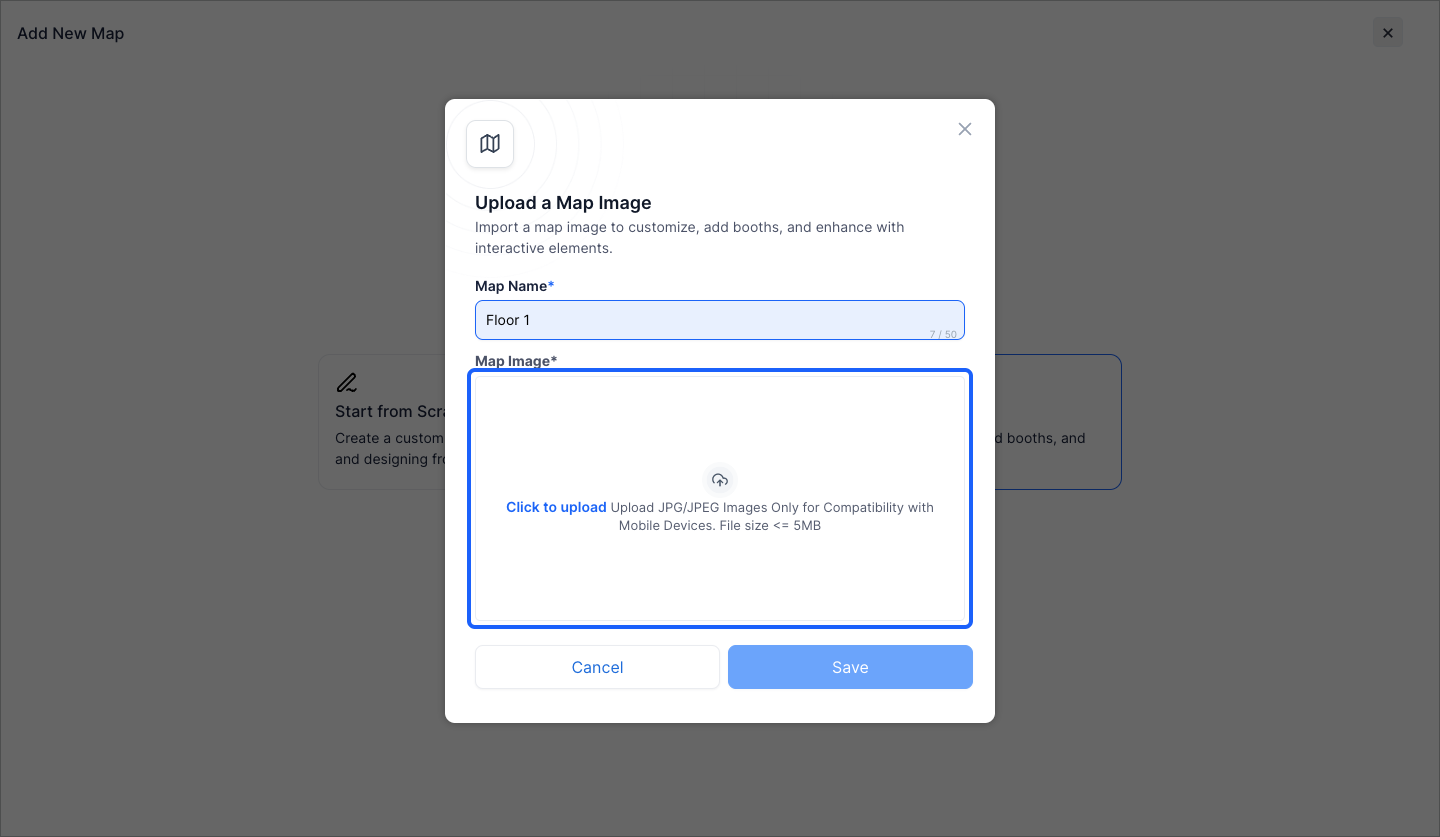
18: Upload the map image of given format and size
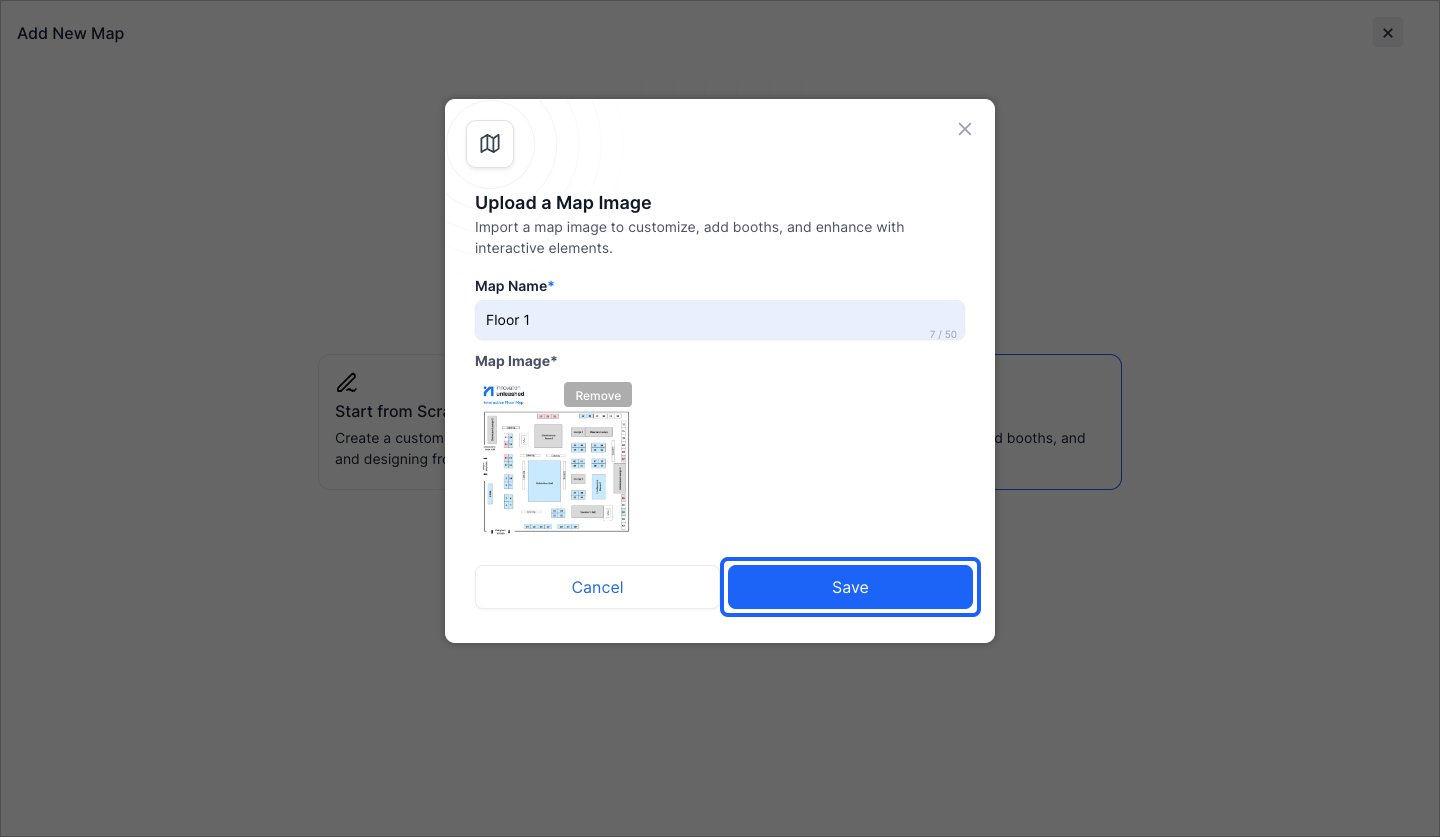
19: Click the “Save” button to save the image
20: You will find the added map here
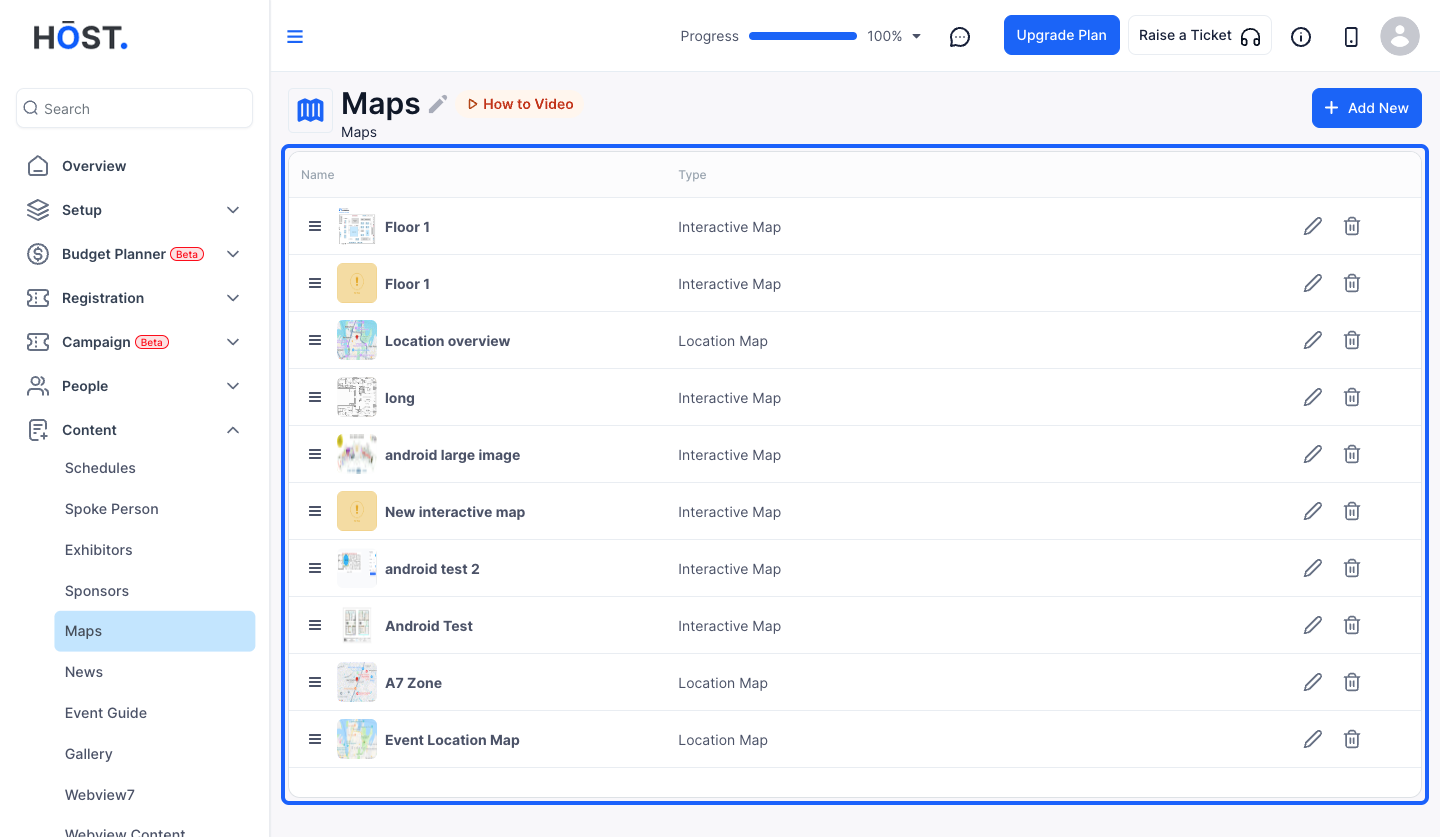
21: Click the “pencil” icon corresponding to the added map to add booths or change background