Event surveys help you gather attendee feedback before, during, or after the event to improve engagement and experience. Follow the steps below to create and launch a survey for your event in the HOST platform.
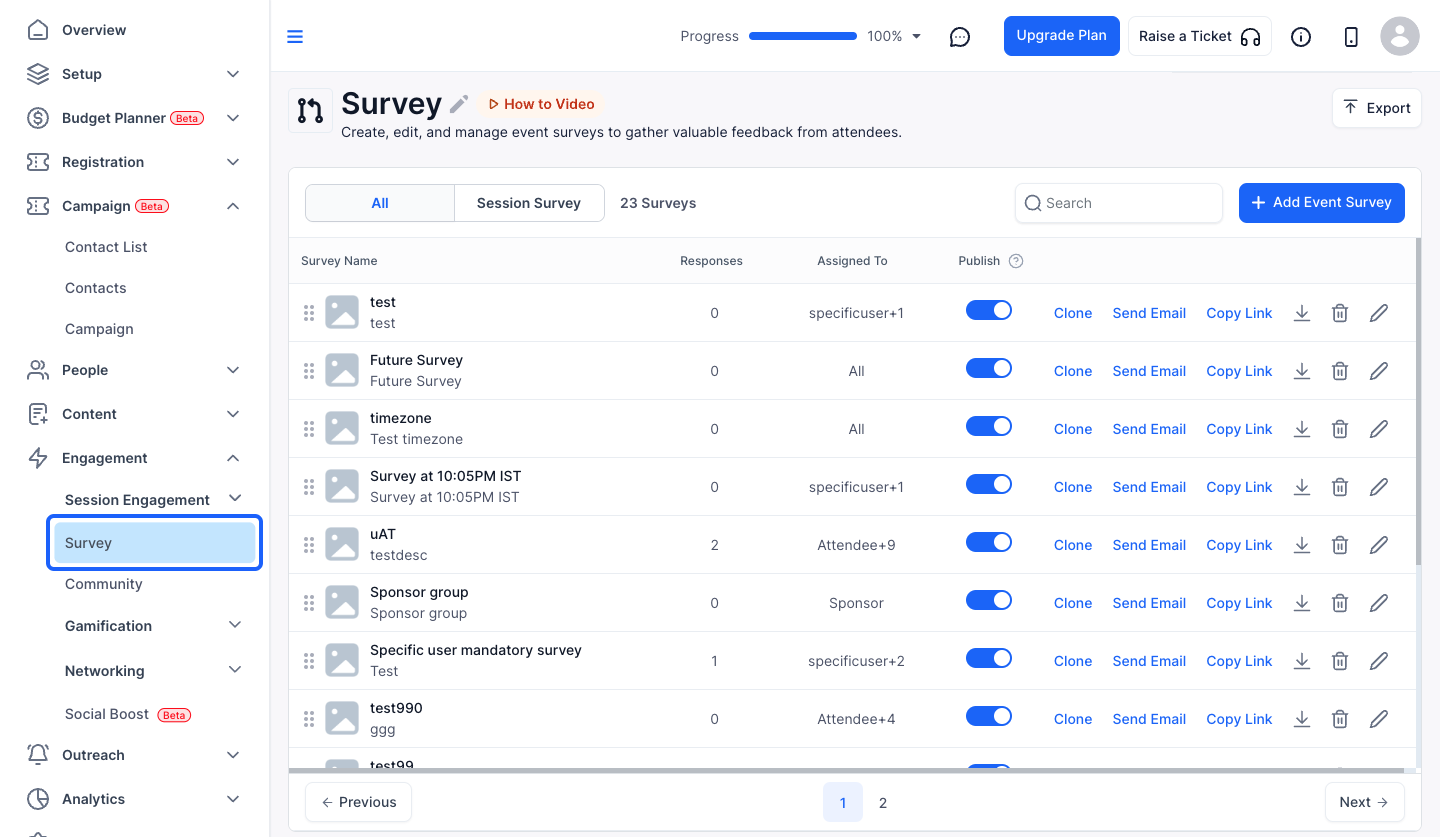
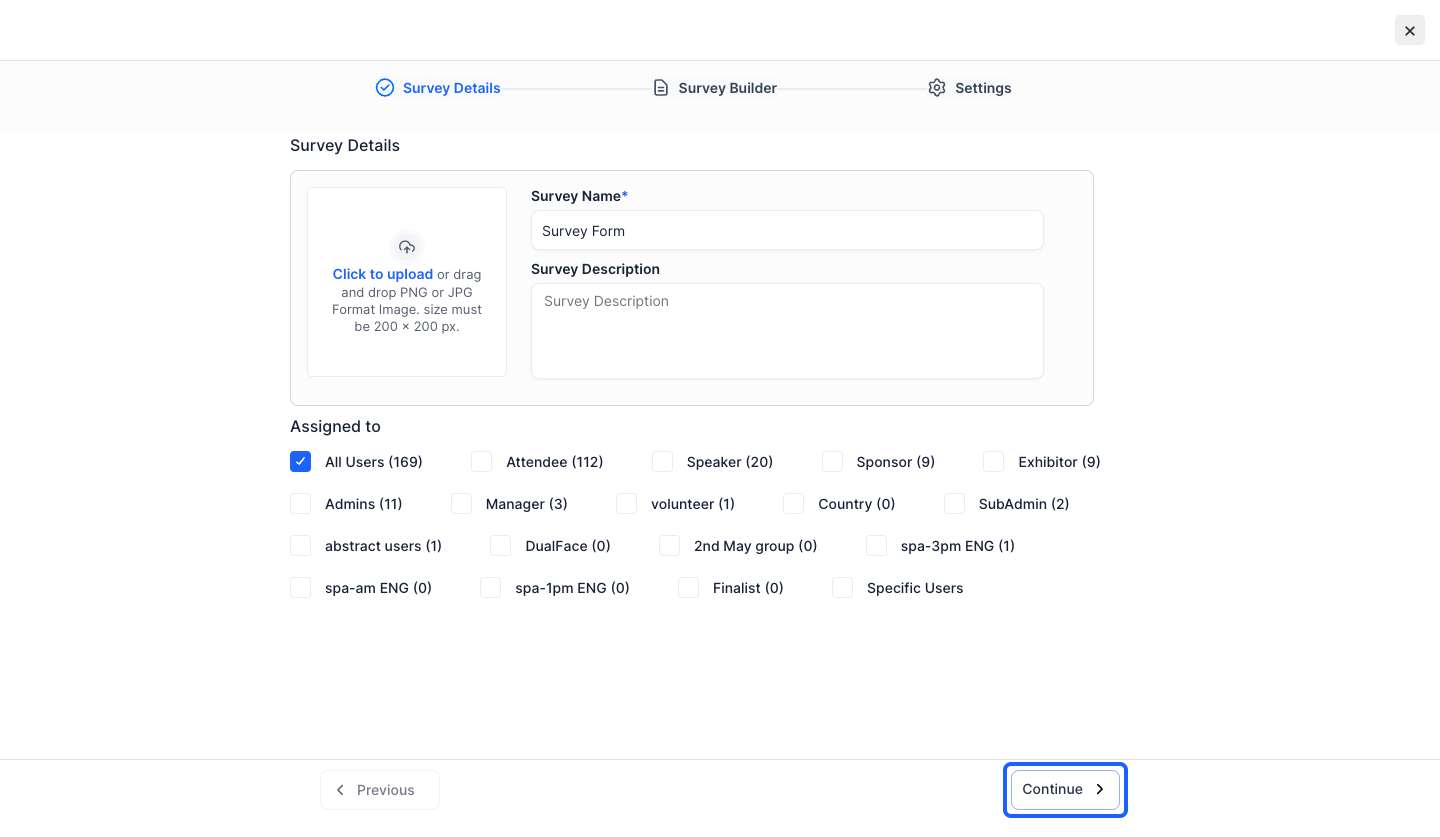
1: Go to HOST Admin Panel and navigate to Engagement> Session Engagement> Survey
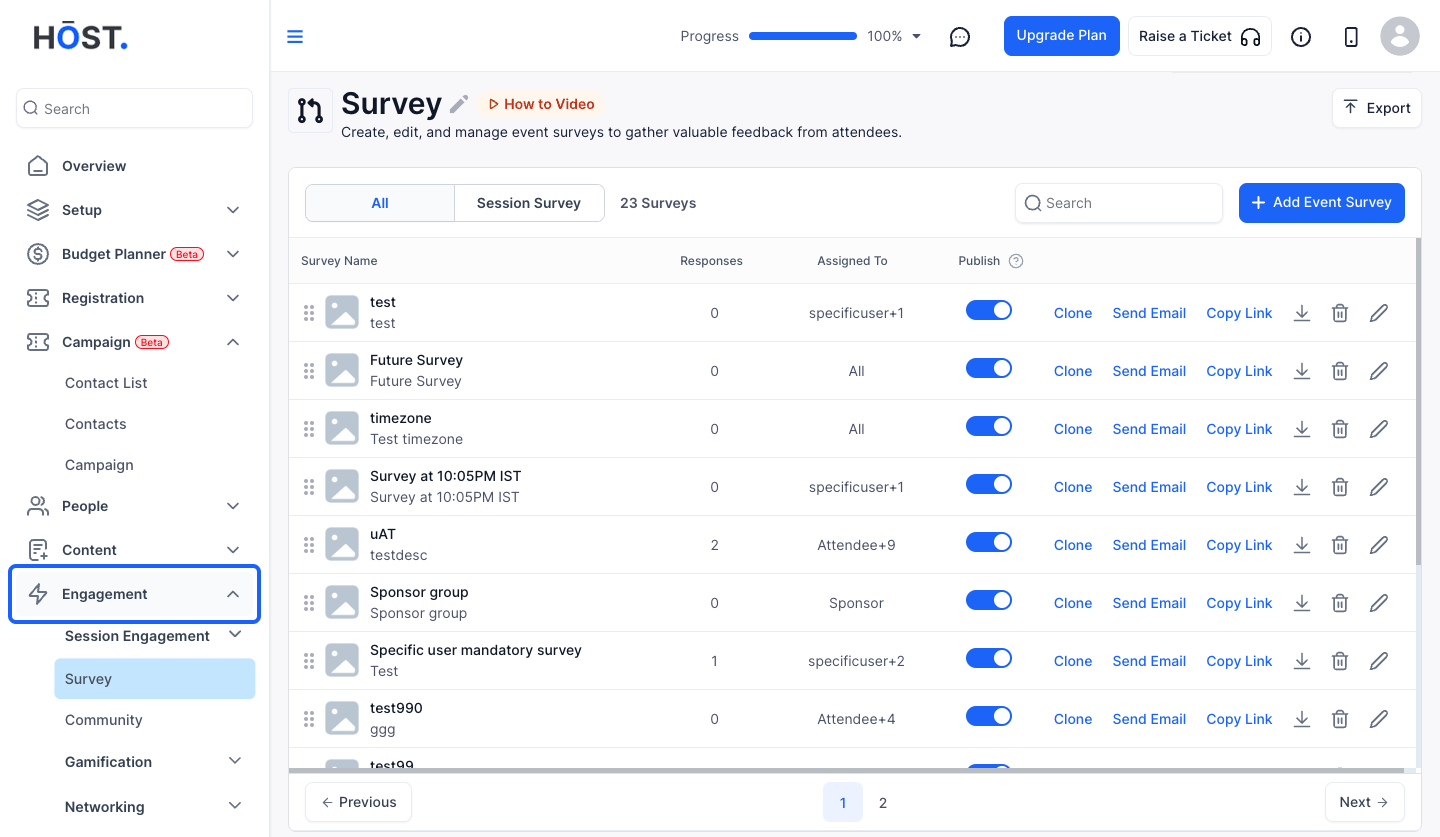
2: Select Survey
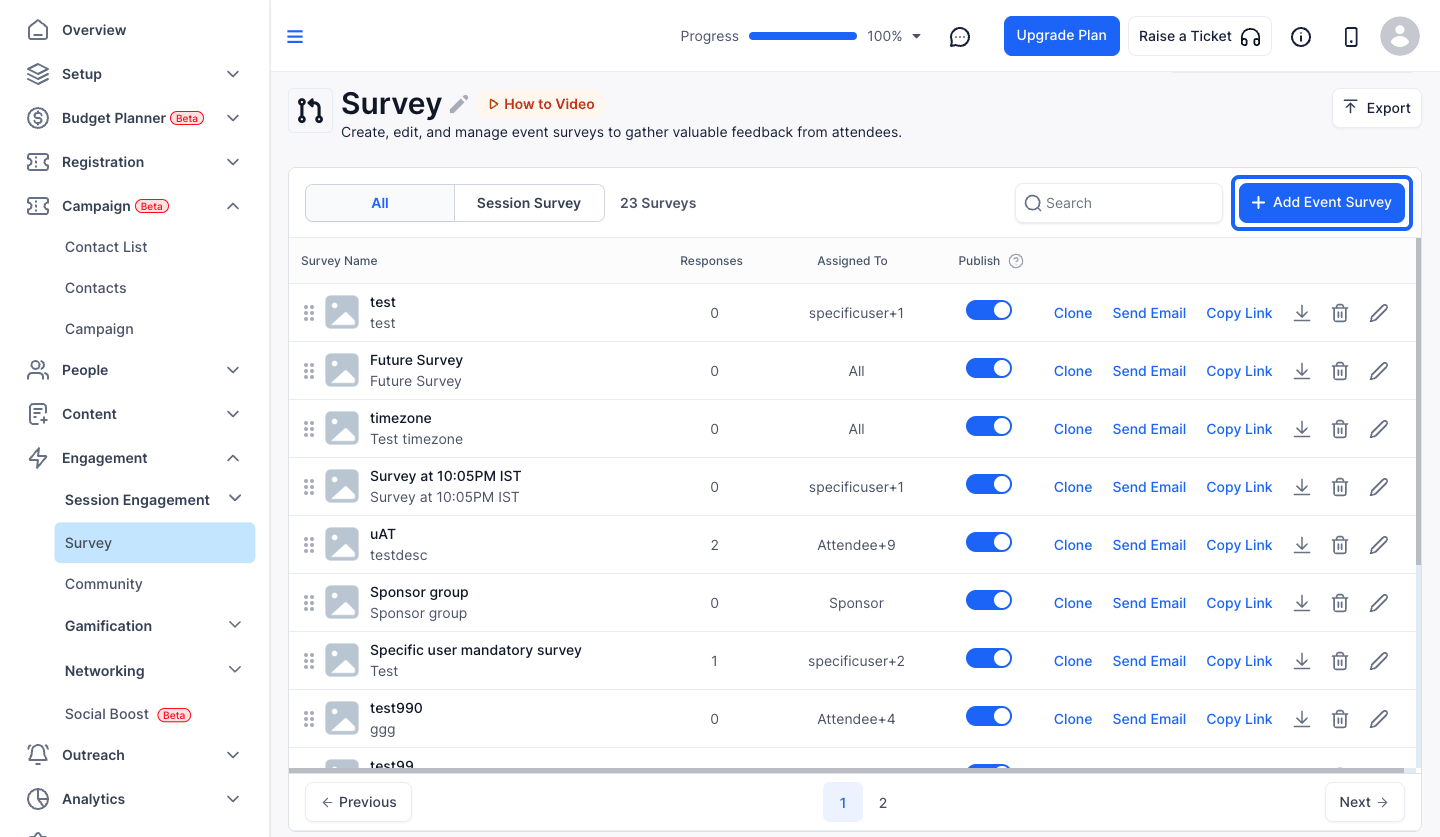
3: Click the "Add Event Survey" button
4: Enter a Survey Name
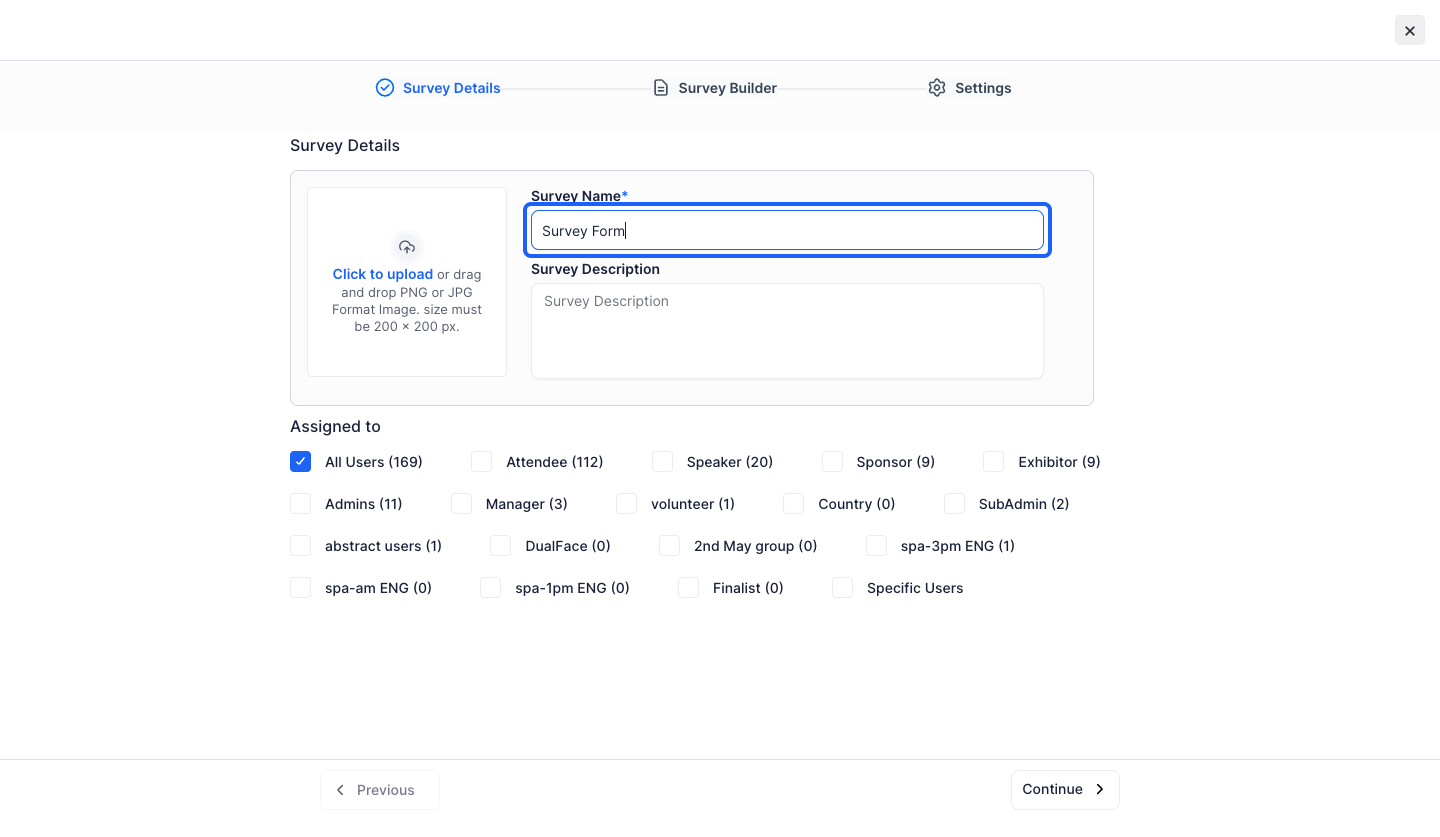
5: You can give a survey description if required
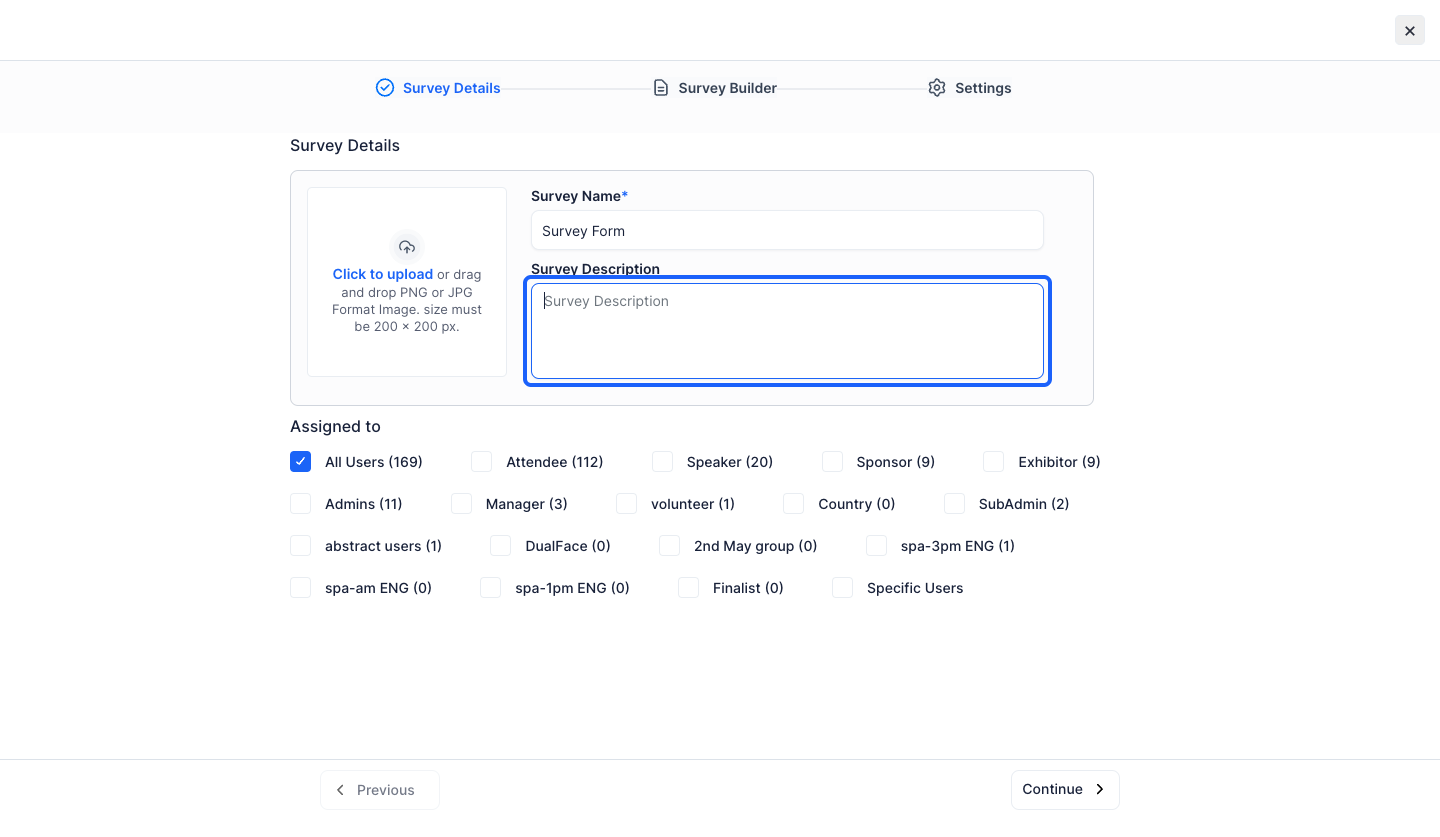
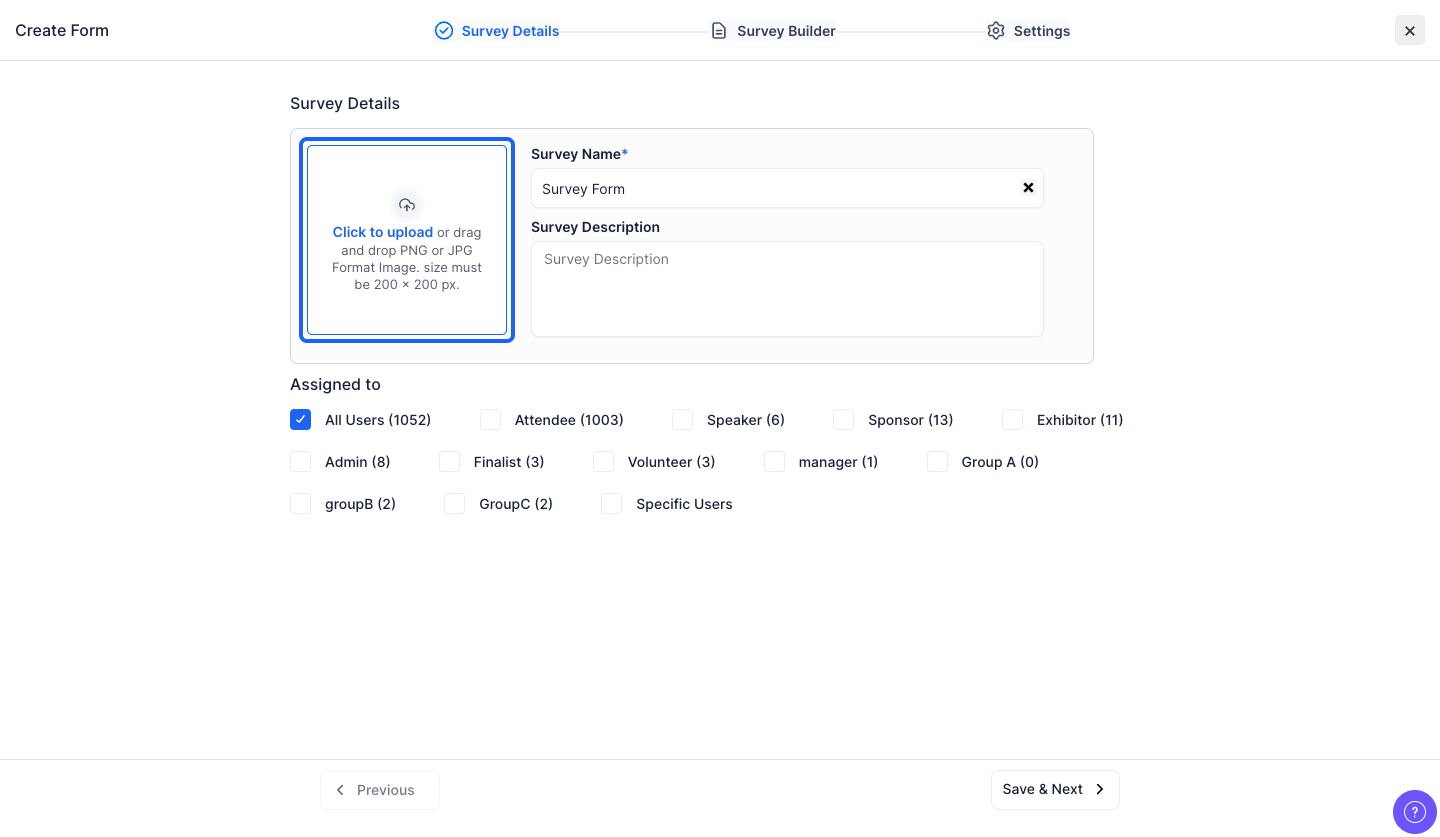
6: You can upload an image of the predefined resolution
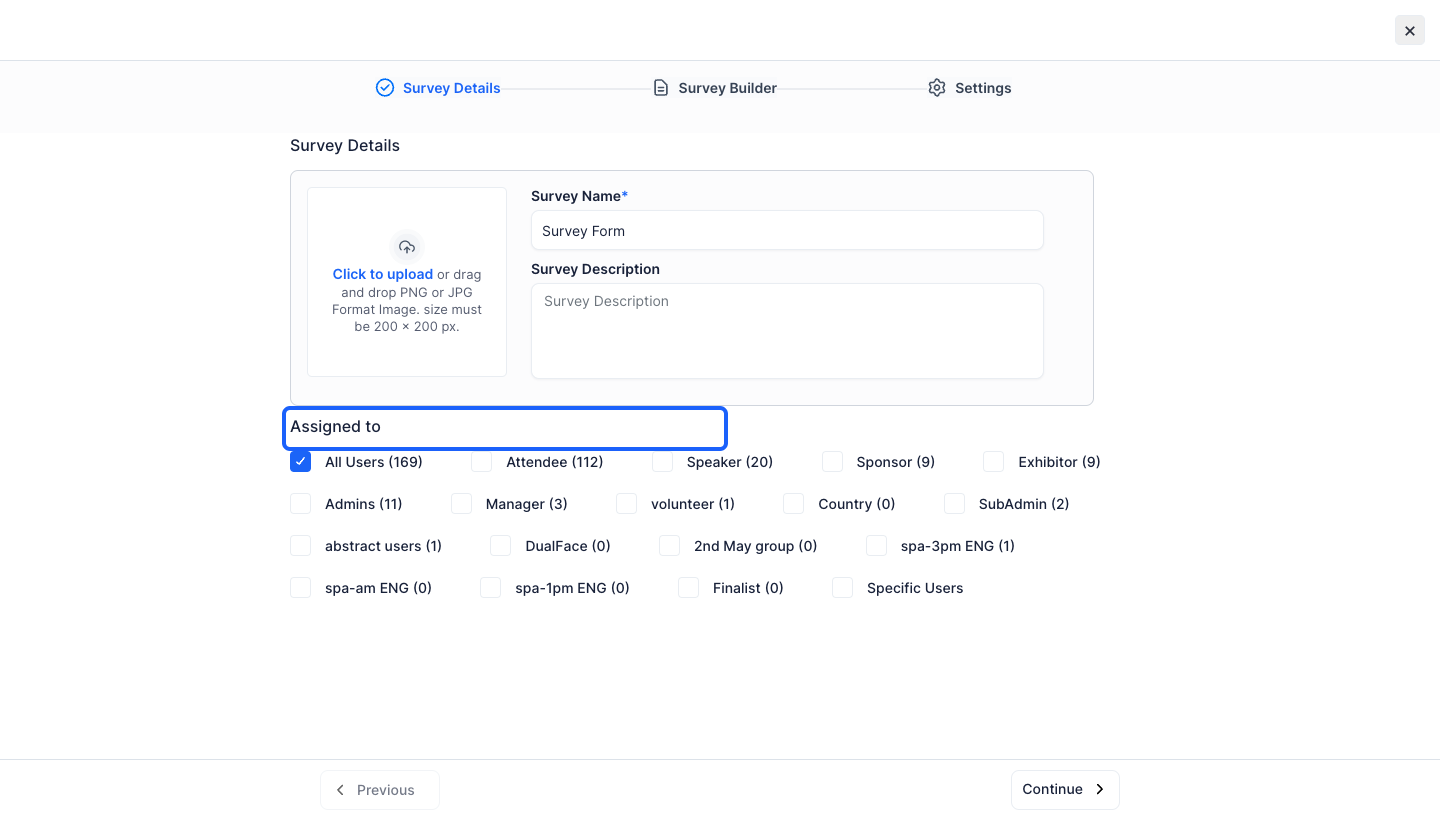
7: You can choose the User Groups to assign the survey
8: Click the "Continue" button to proceed to the next step
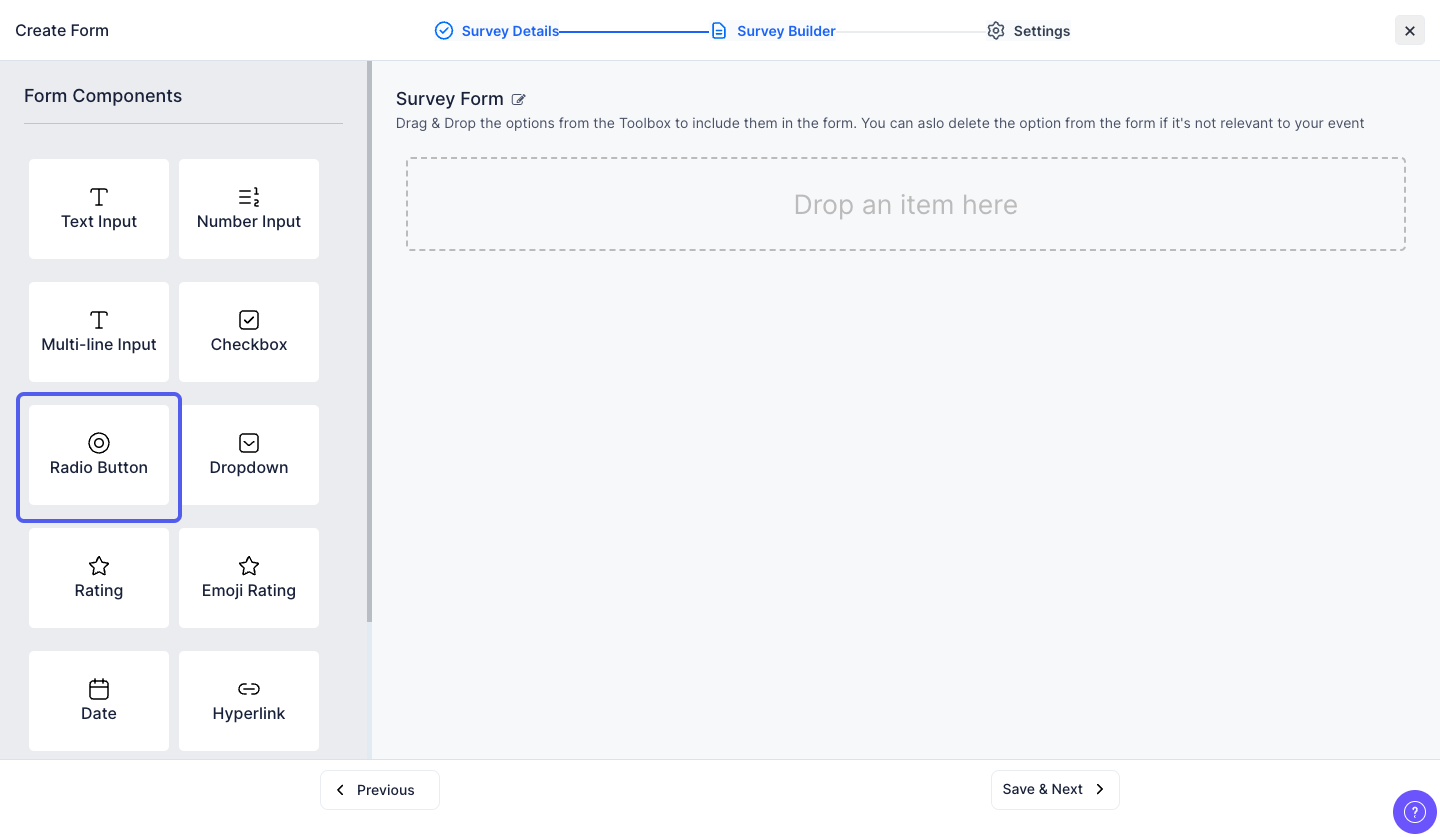
9: You can Drag & Drop Form Components to add them to the Survey Form
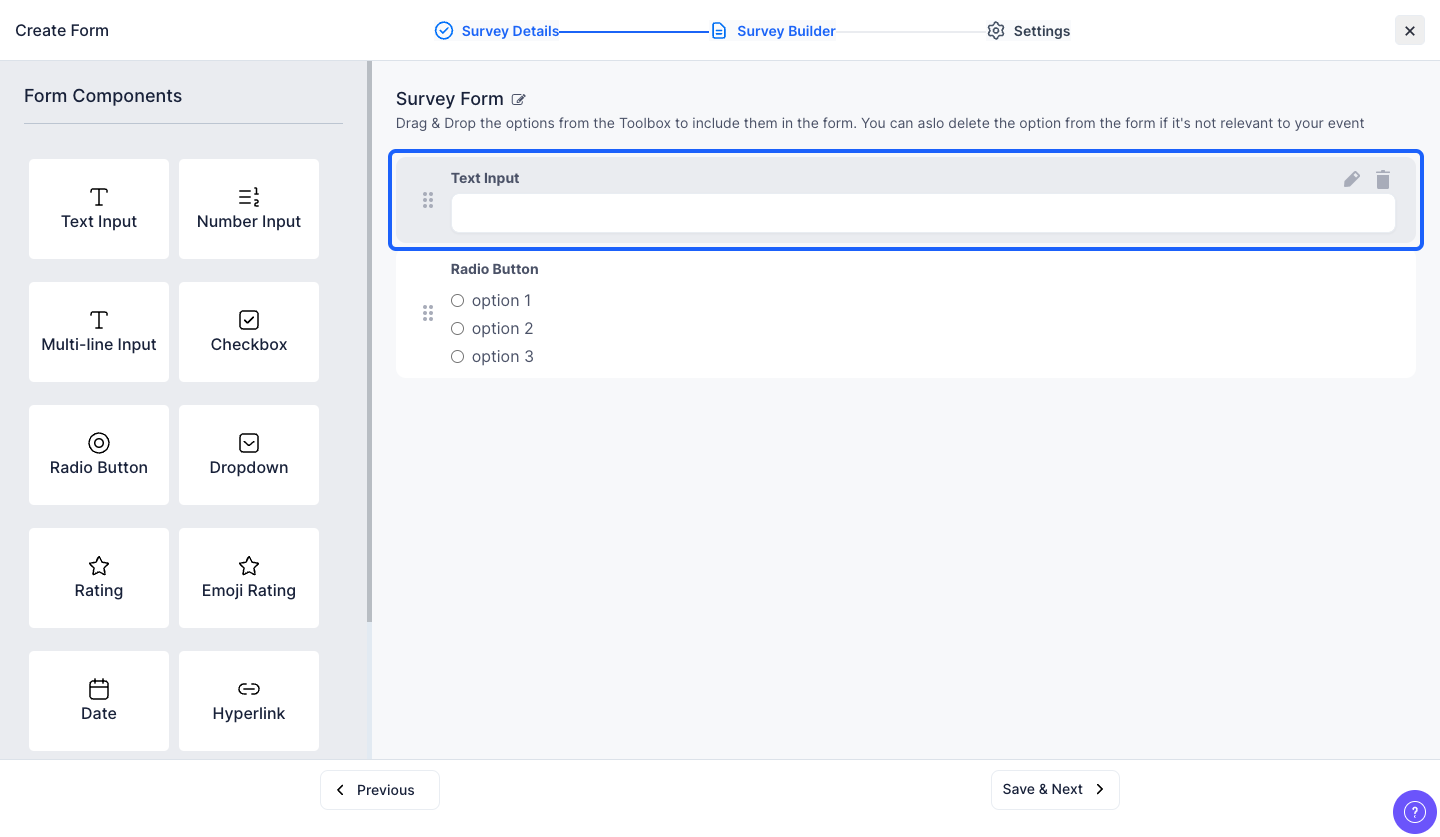
10: Click the "edit" icon to edit the form components
11: You can enable or disable the Survey Status
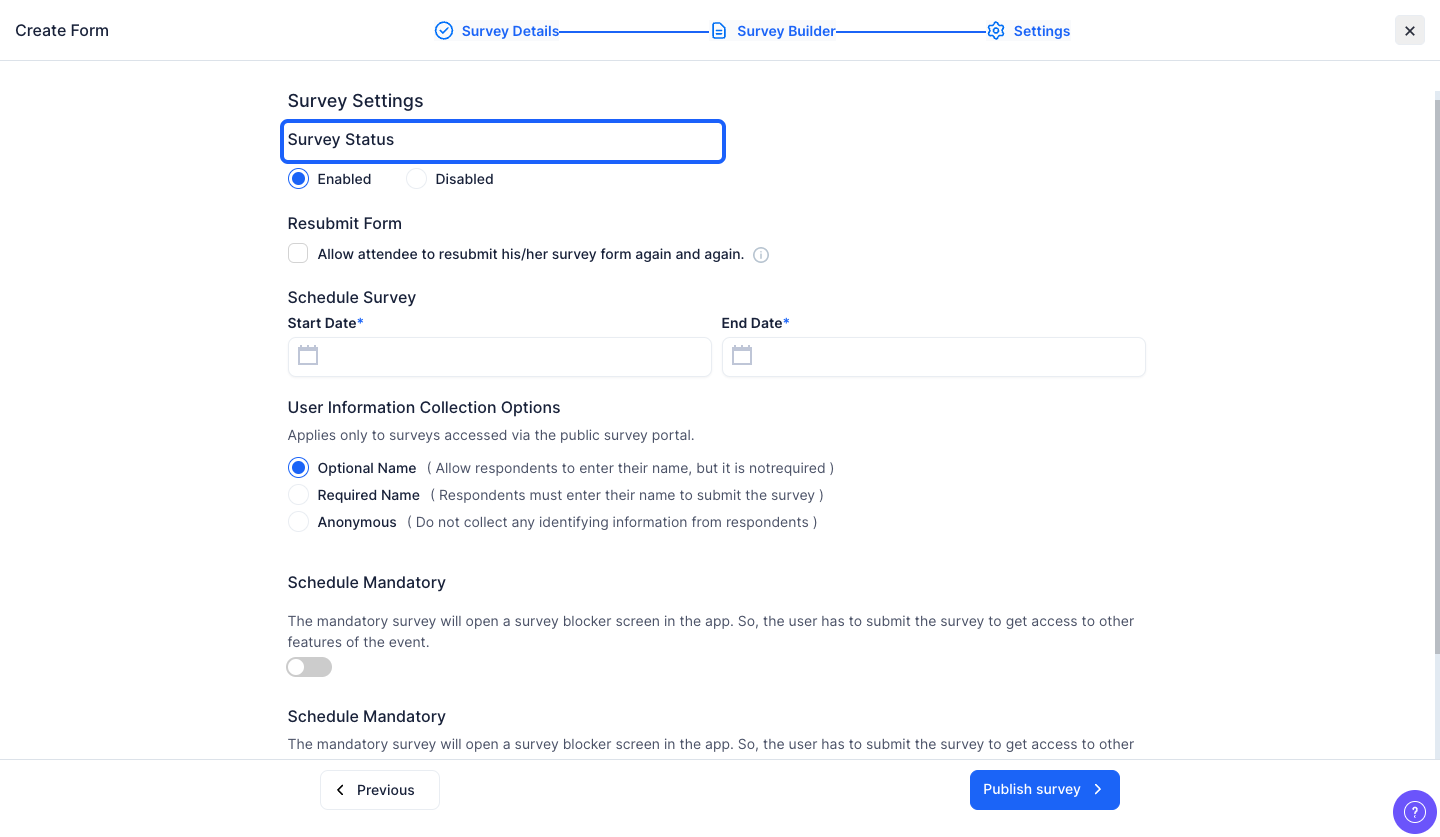
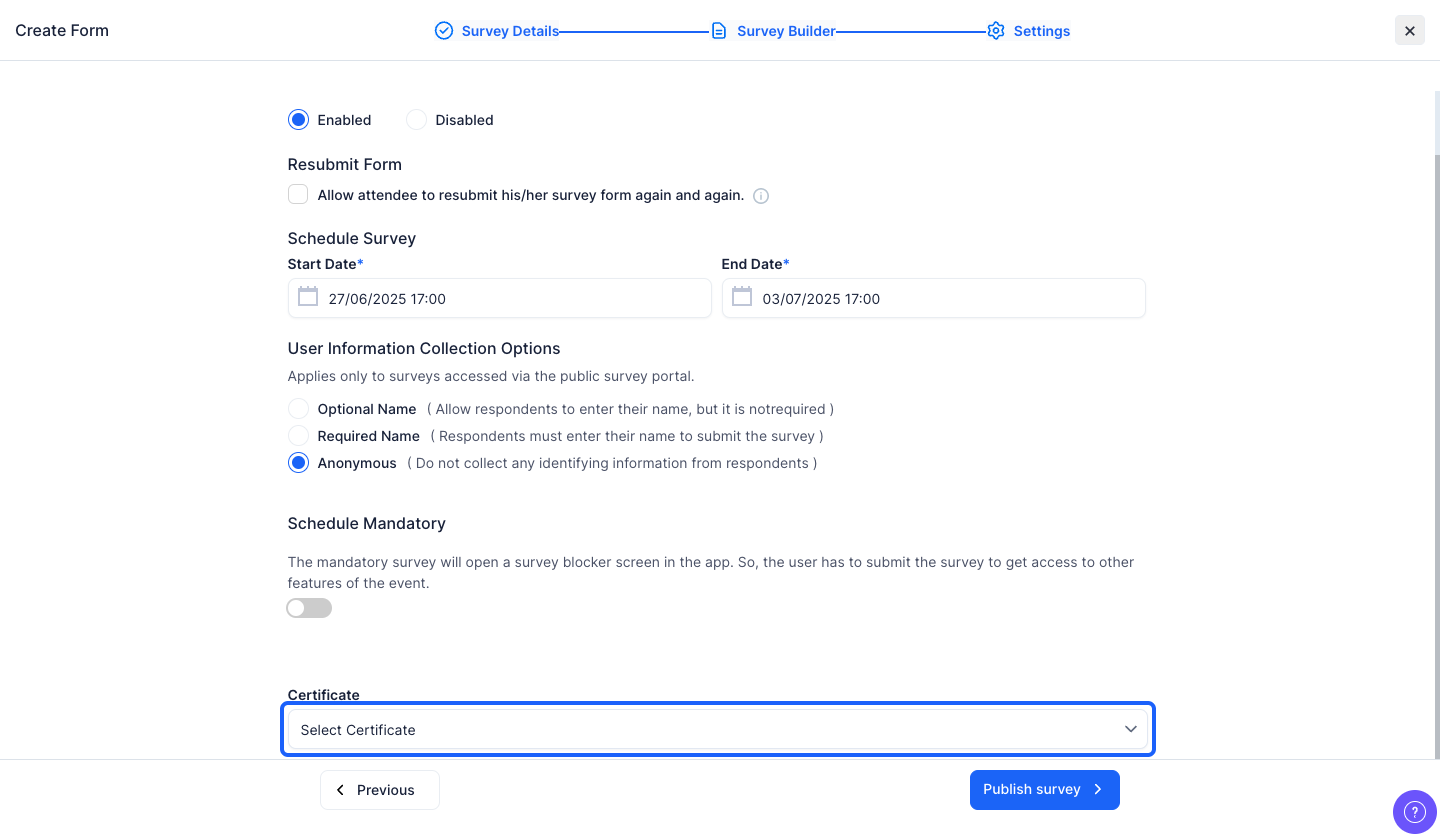
12: You can allow form resubmission if required
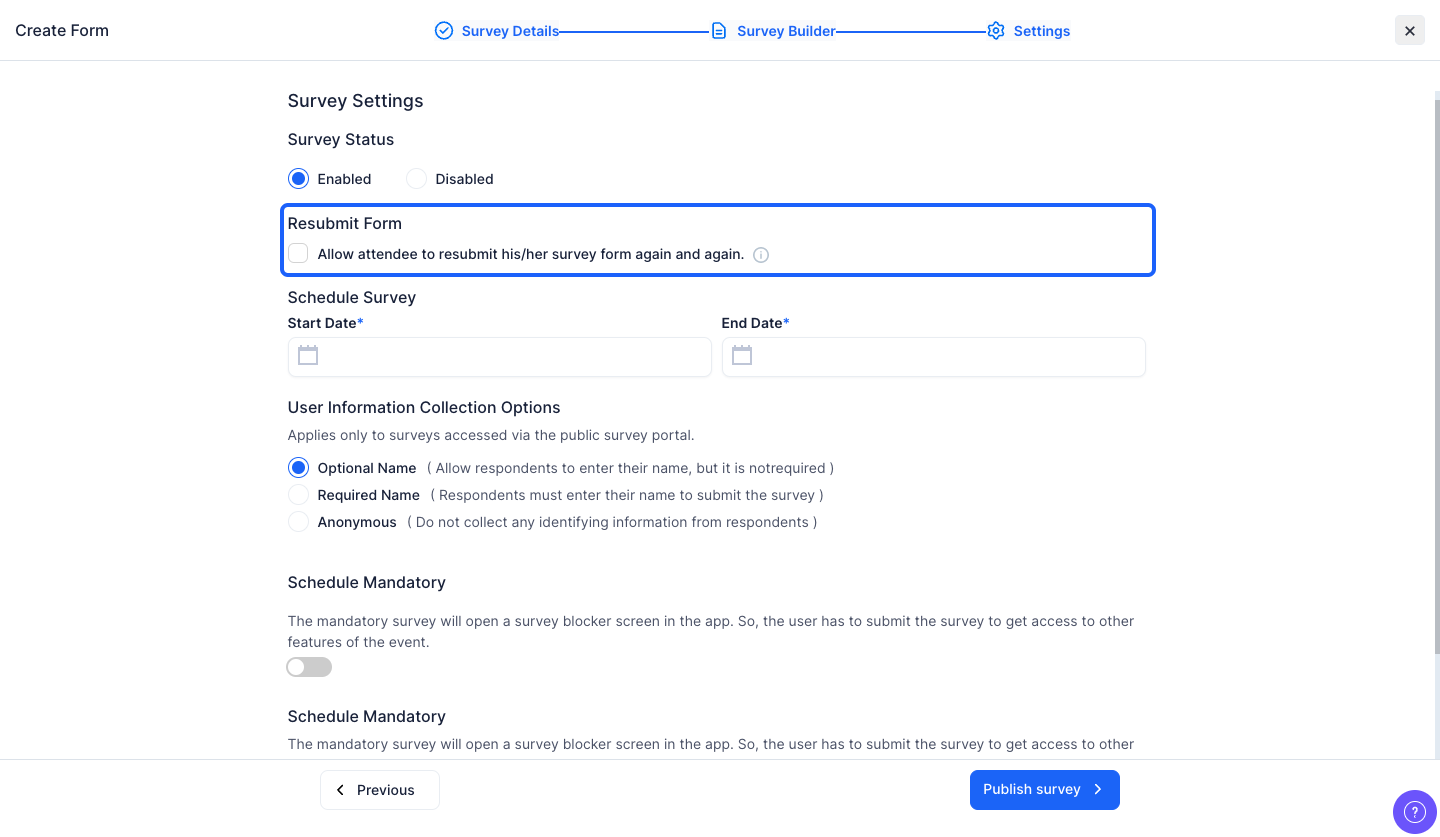
13: Select the Start Date and Time
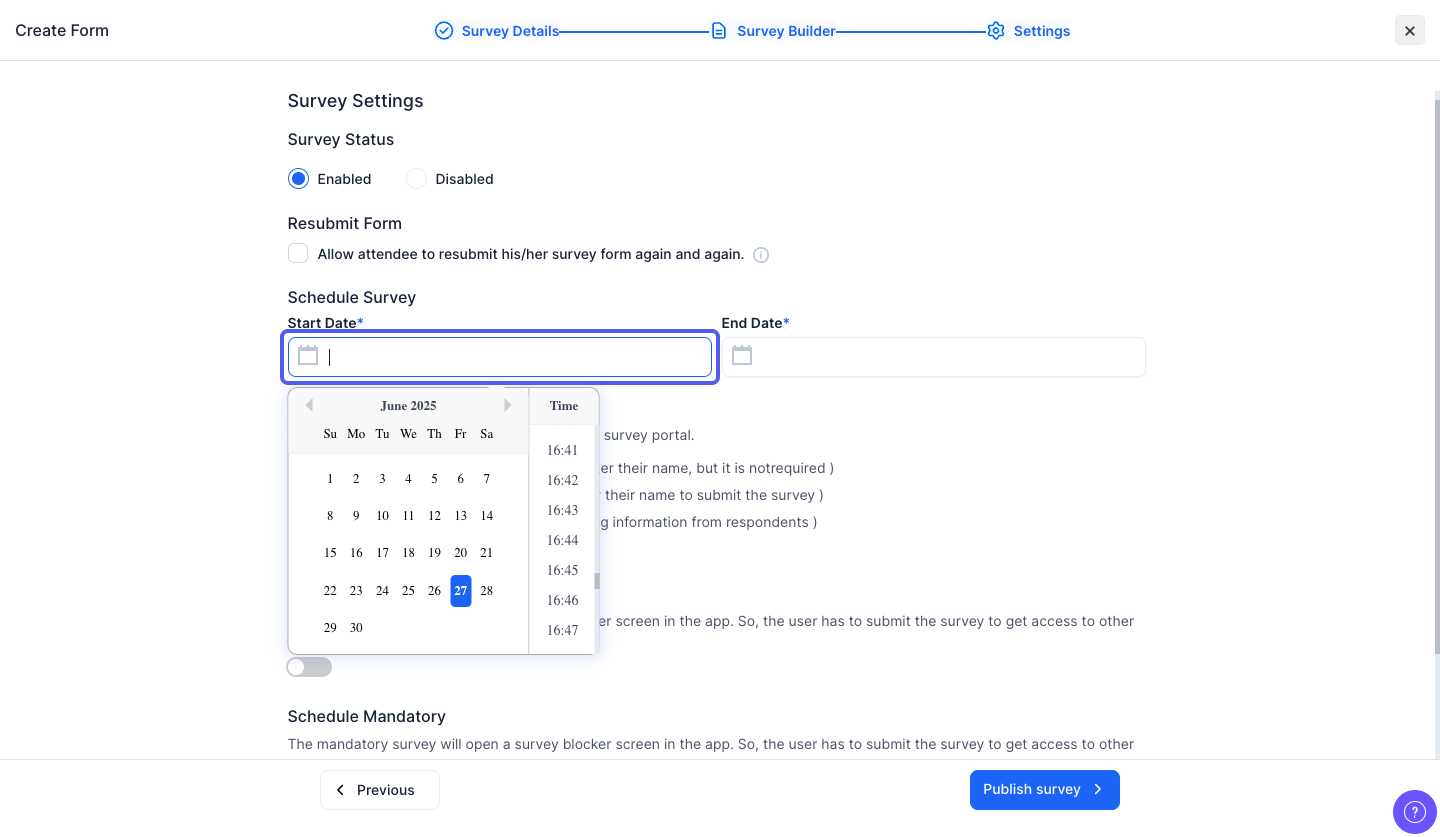
14: Select the End Date and Time
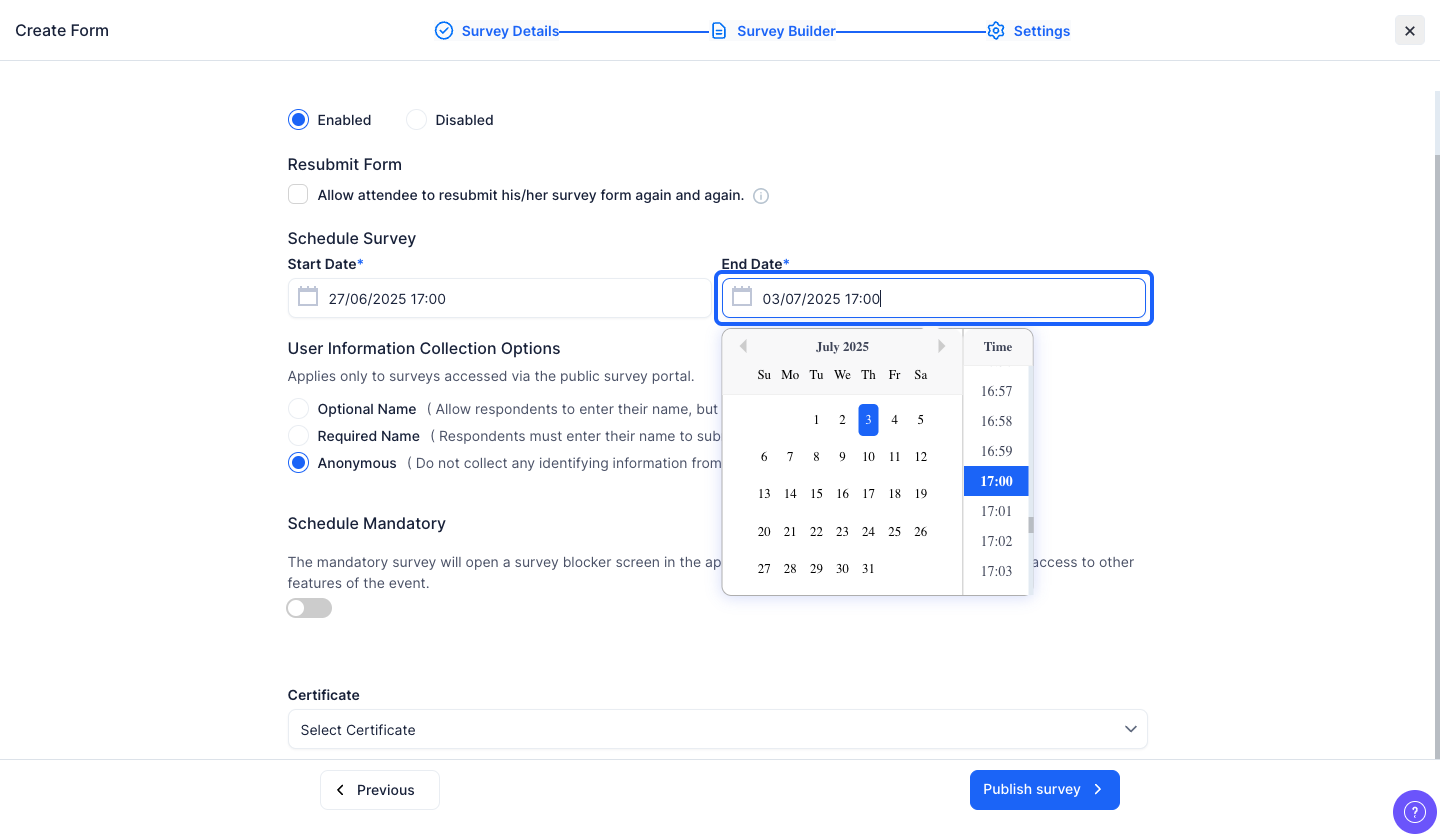
15: Choose how you want to collect respondent names for public surveys—make it optional, required, or keep the survey anonymous.
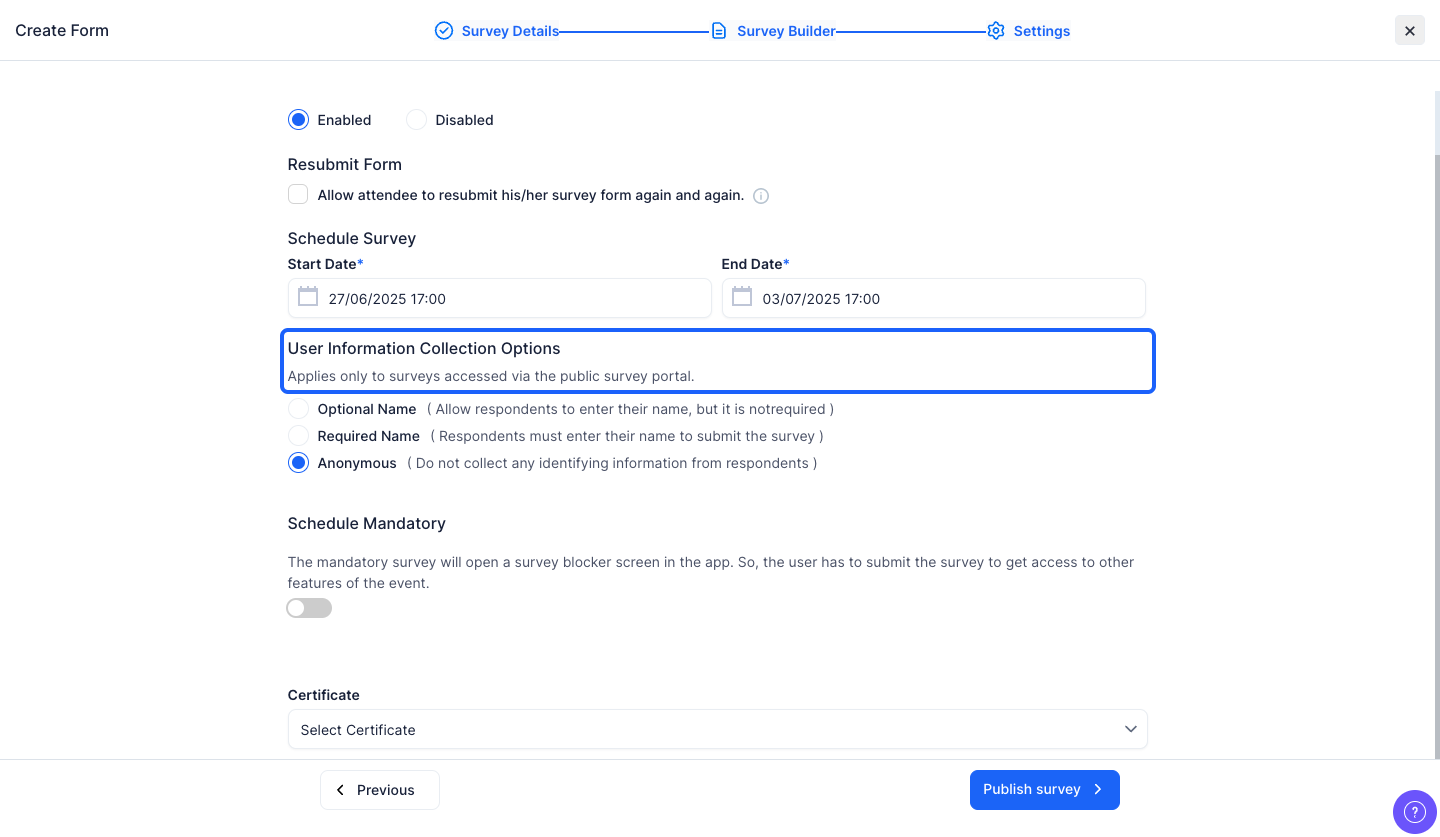
16: If you enable this button, a survey blocker screen will open in the app
The user will have to submit the survey to get access to other features
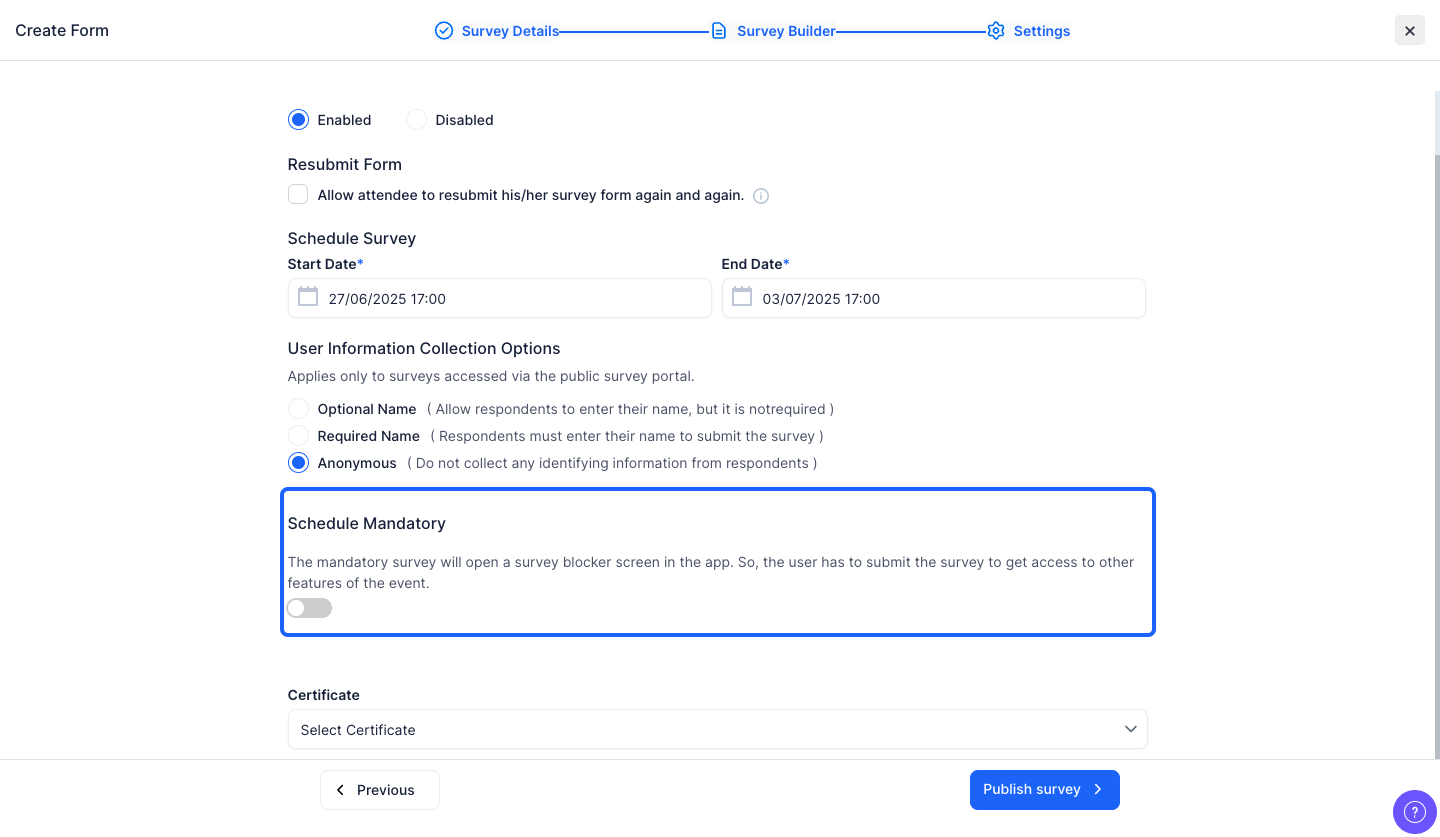
17: You can link a survey certificate to reward your attendees upon submitting the survey