Bulk editing sessions allows organizers to update multiple session details at once, saving time and ensuring consistency across event sessions. Follow the steps below to bulk edit sessions
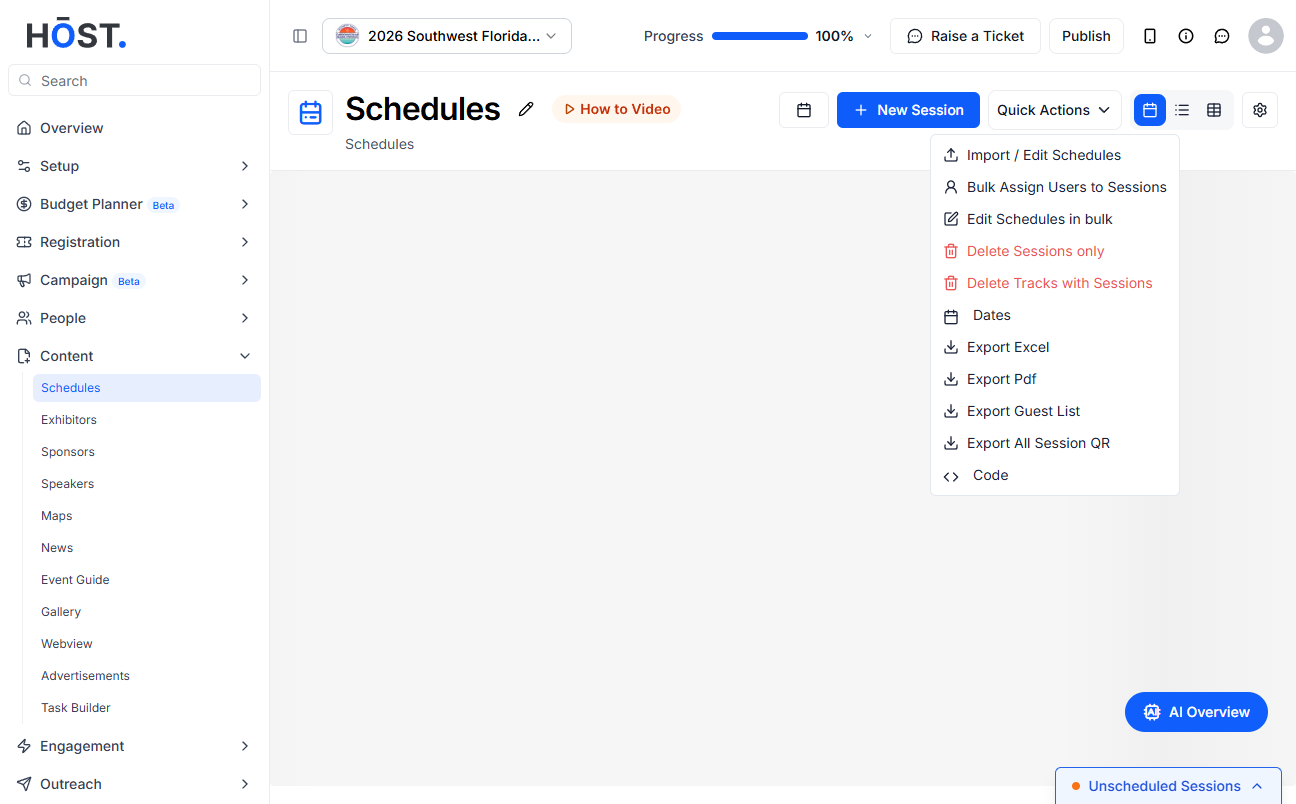
1: Go to Content > Schedules, click “Quick Actions”, then choose “Edit Schedules in bulk”.
2: The Schedule Bulk Edit grid opens with your sessions across all dates. Edit any field inline — banner image, date, track, session title, location, start/end time, description, speakers, exhibitors, sponsors, check-in type, colour, tags, session type, RSVP setting, capacity, and YouTube Live URL / Zoom ID. Use “+ New Session” to add a session inline.
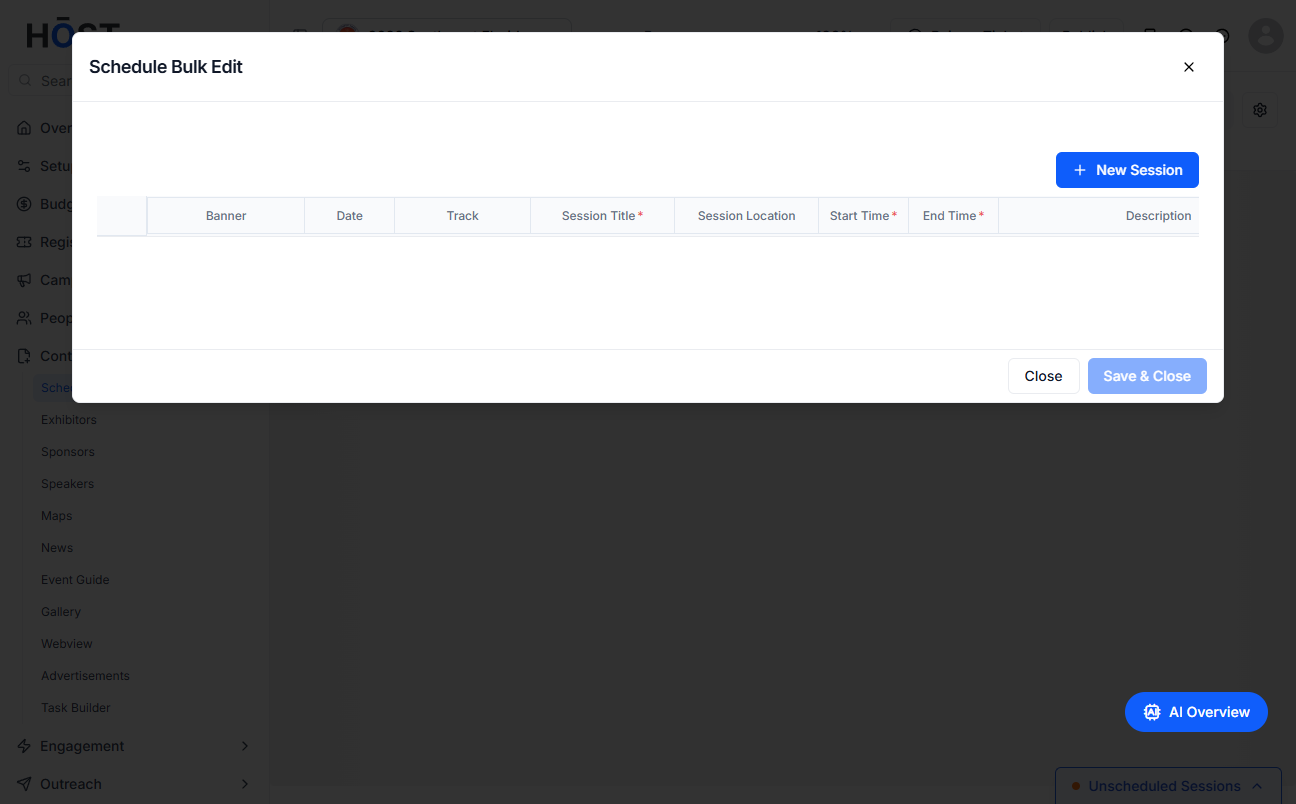
3: Once you've made your changes, click “Save & Close” to update everything in one go.

