Event certificates recognize attendee participation and can be generated and sent directly via email through the HOST platform. Follow the steps below to create, customize, and send certificates to your event attendees from the HOST Admin Panel.
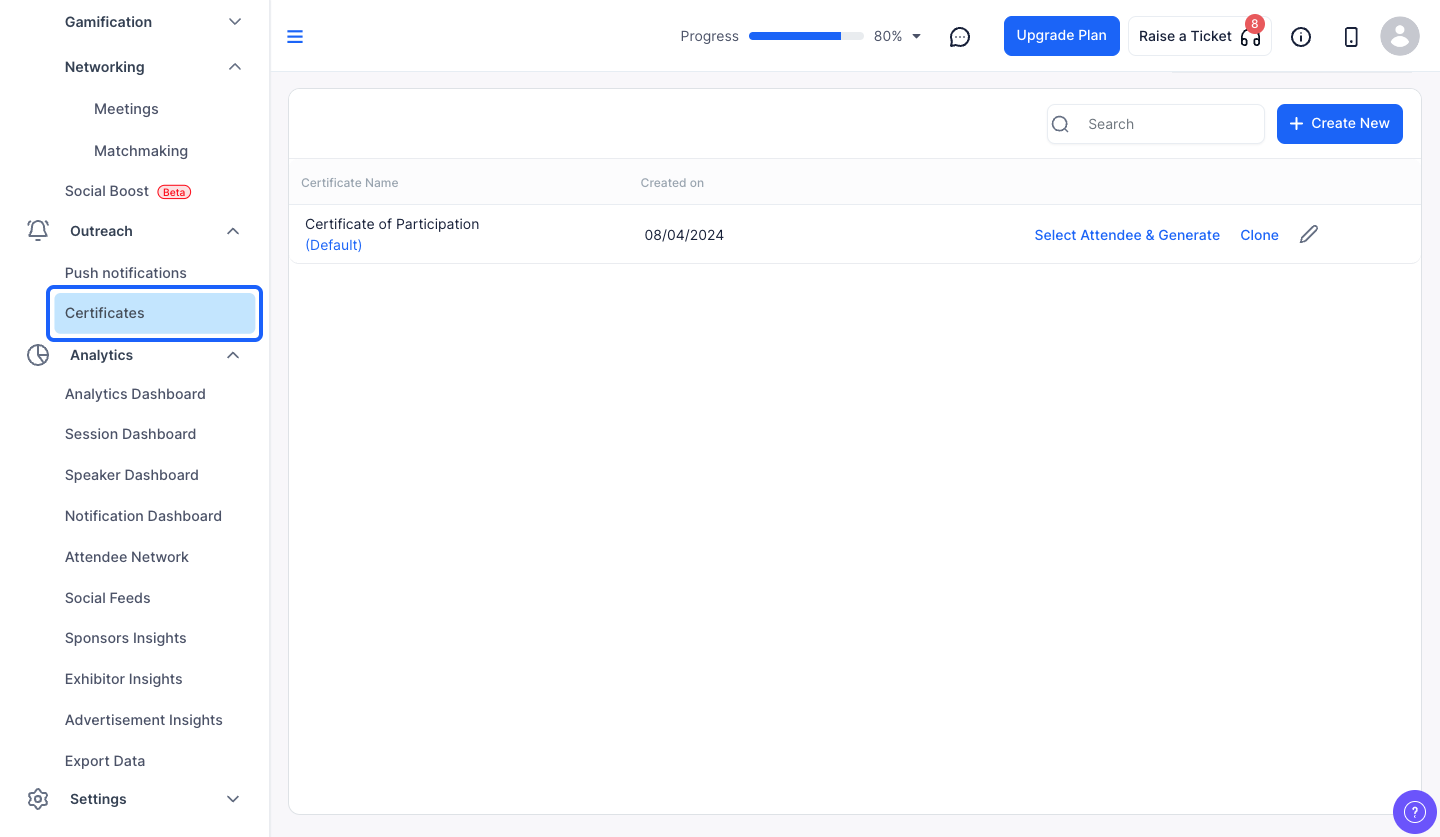
1: Access the HOST admin Panel and go to Outreach> Certificates
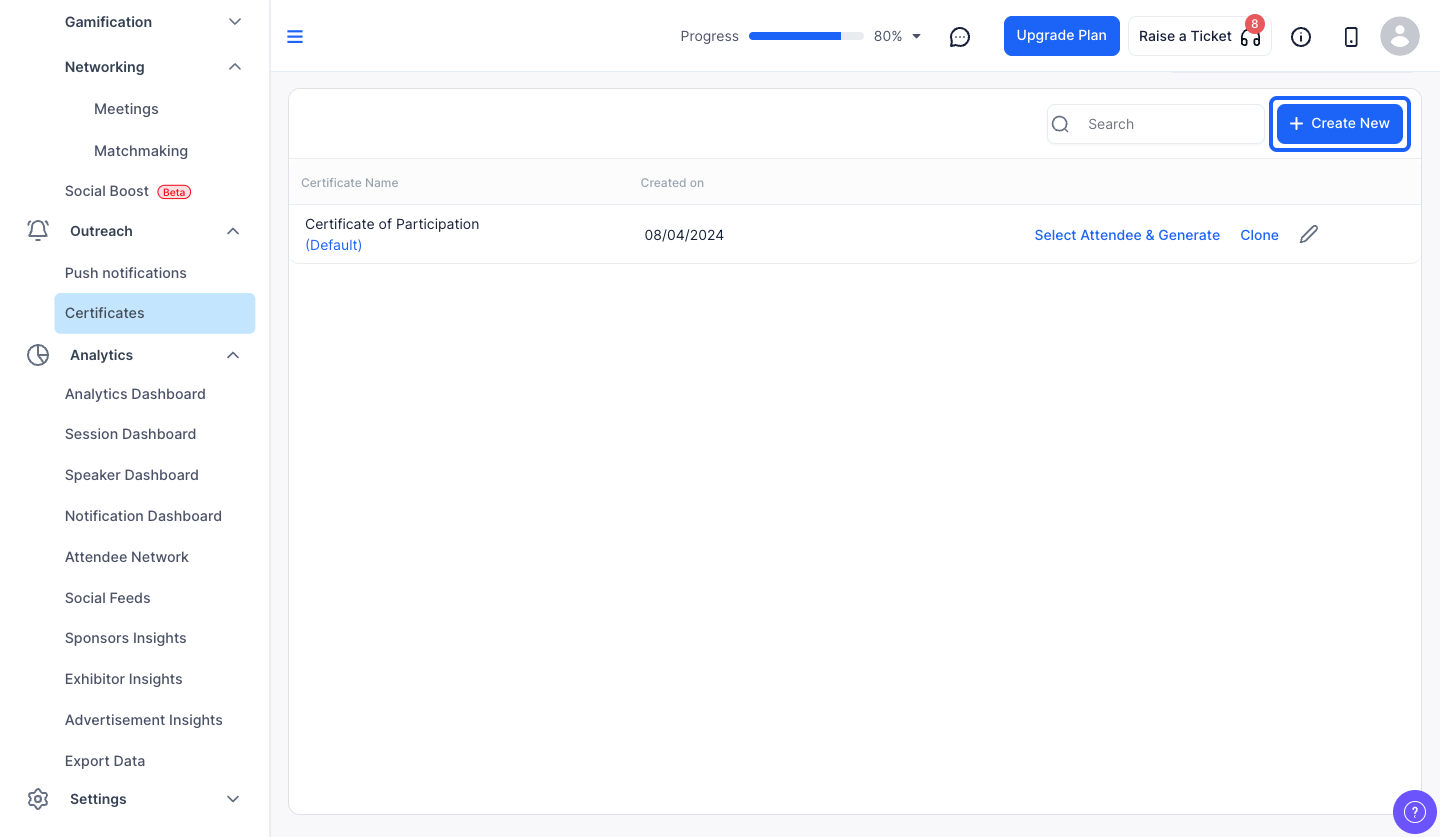
2: Click the “Create New” button to create a new Certificate
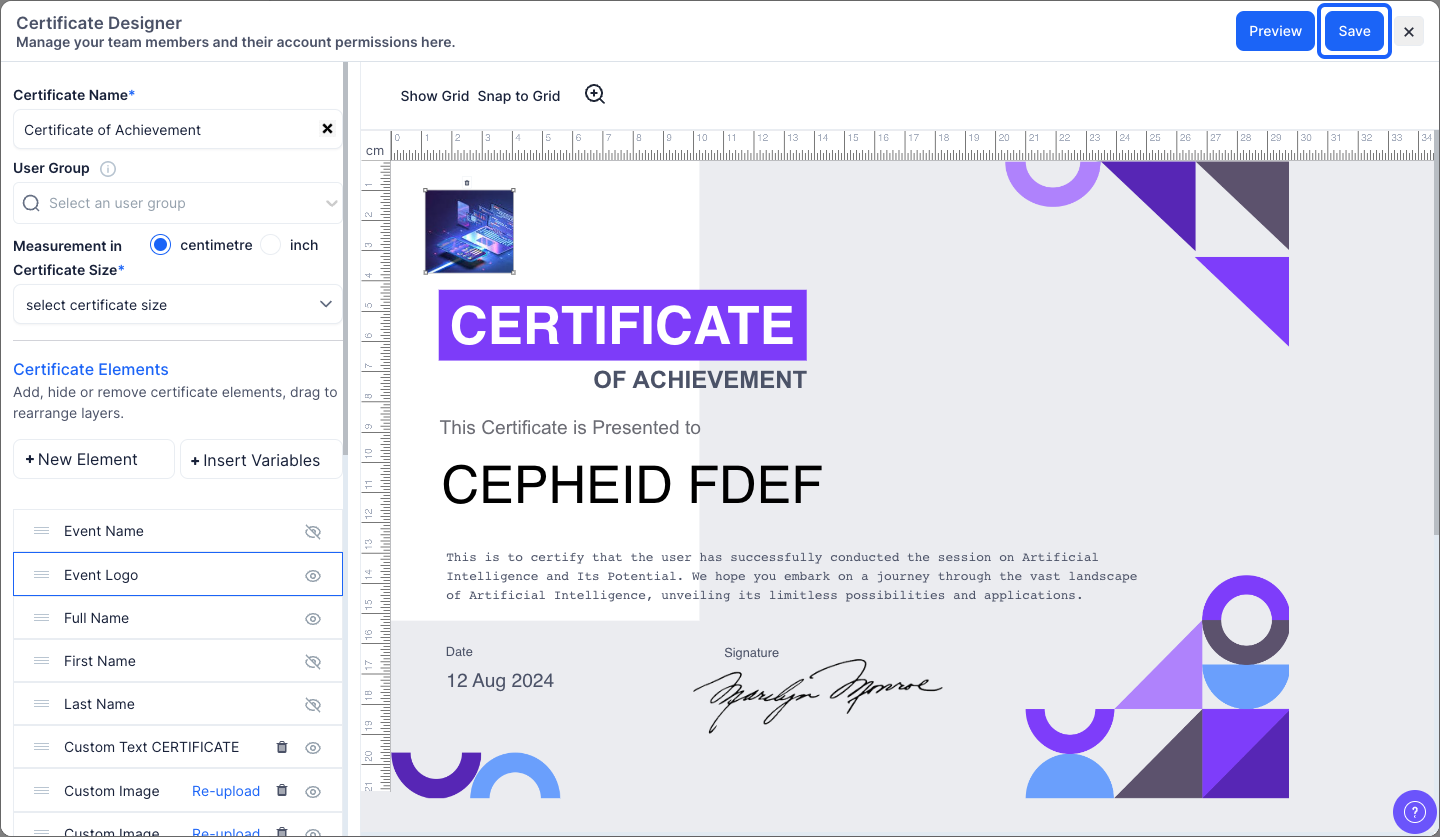
3: Enter the certificate name here
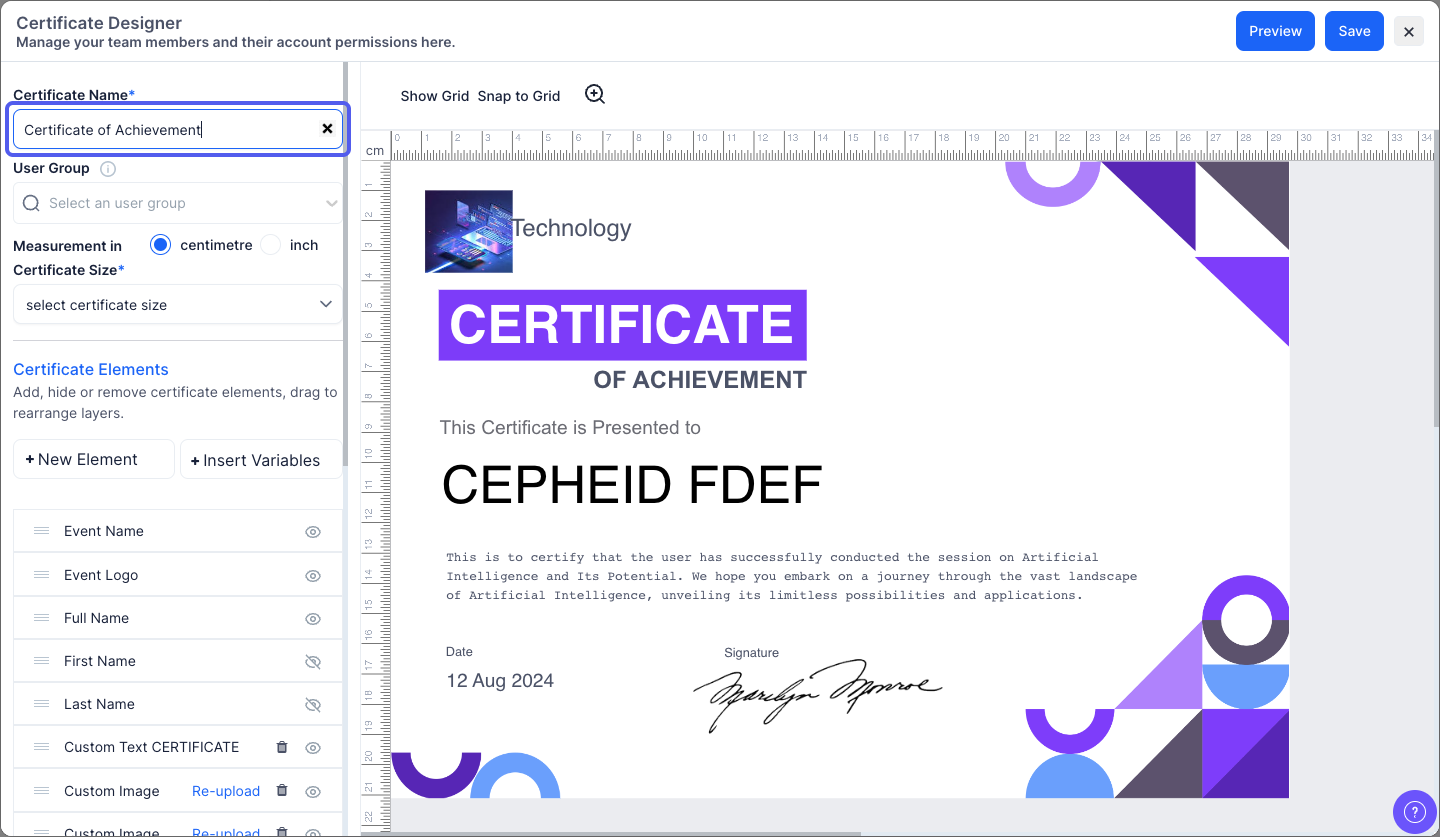
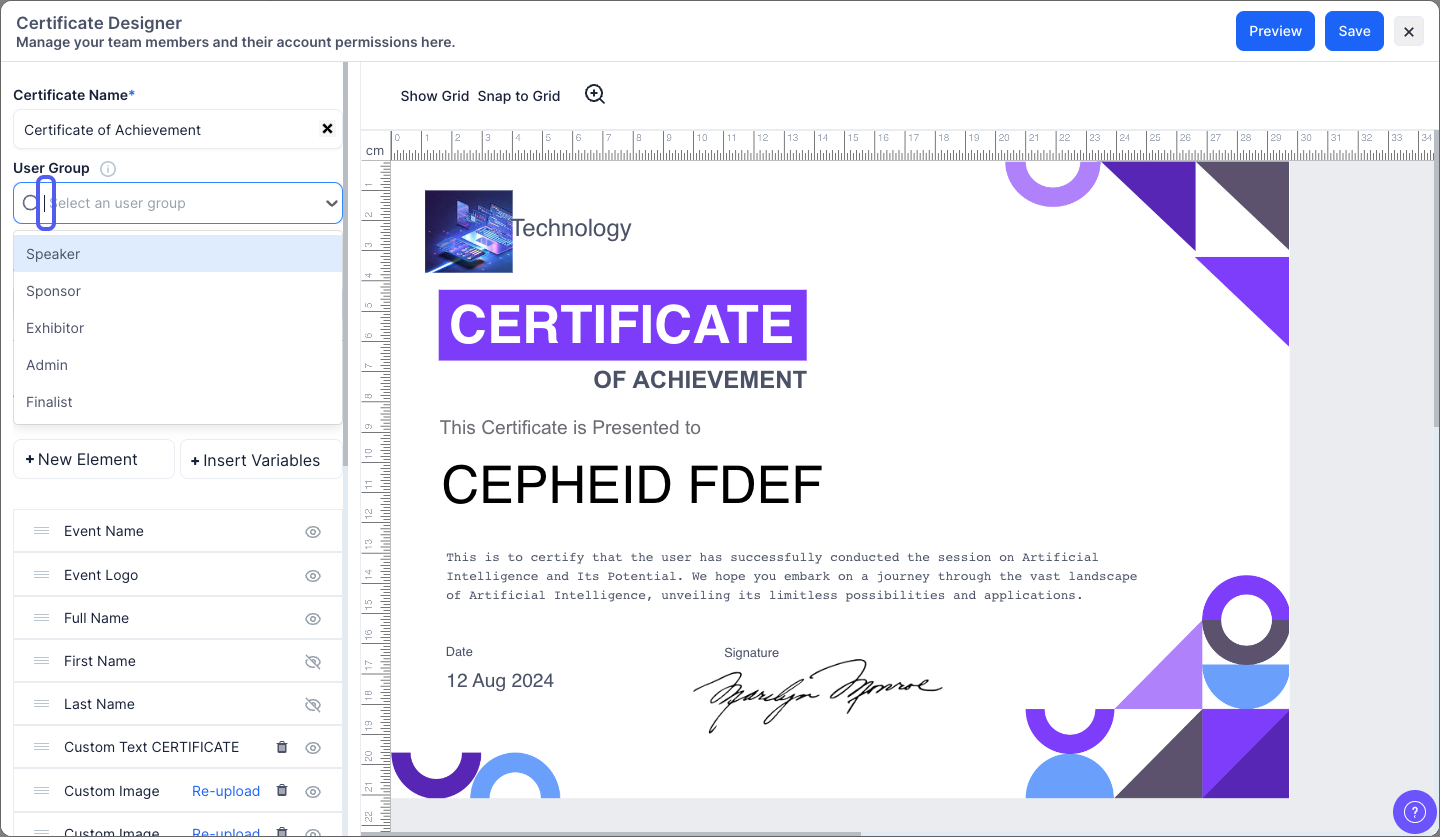
4: You can select user group if required
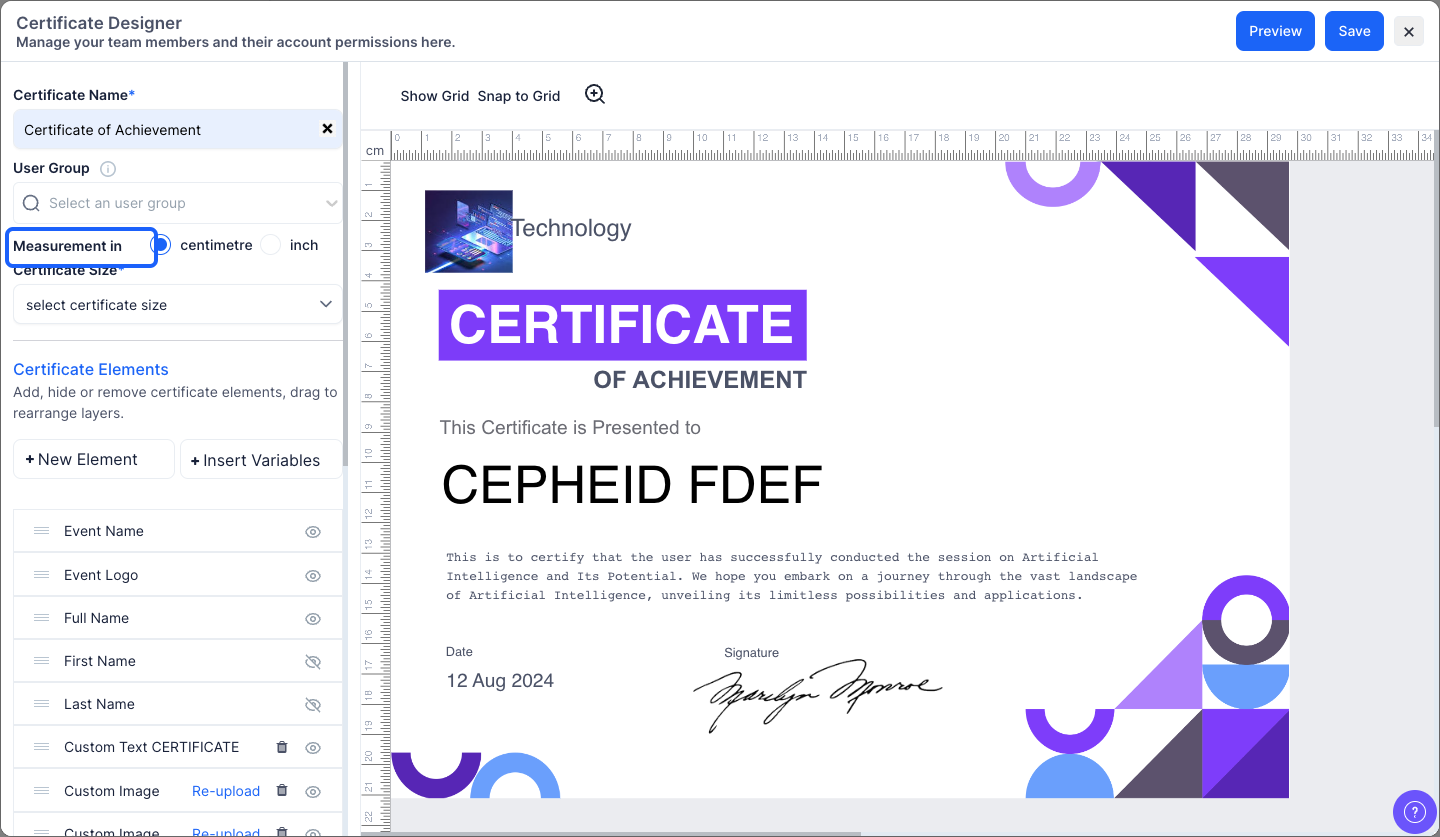
5: Choose whether you want the measurement in centimetre or inch
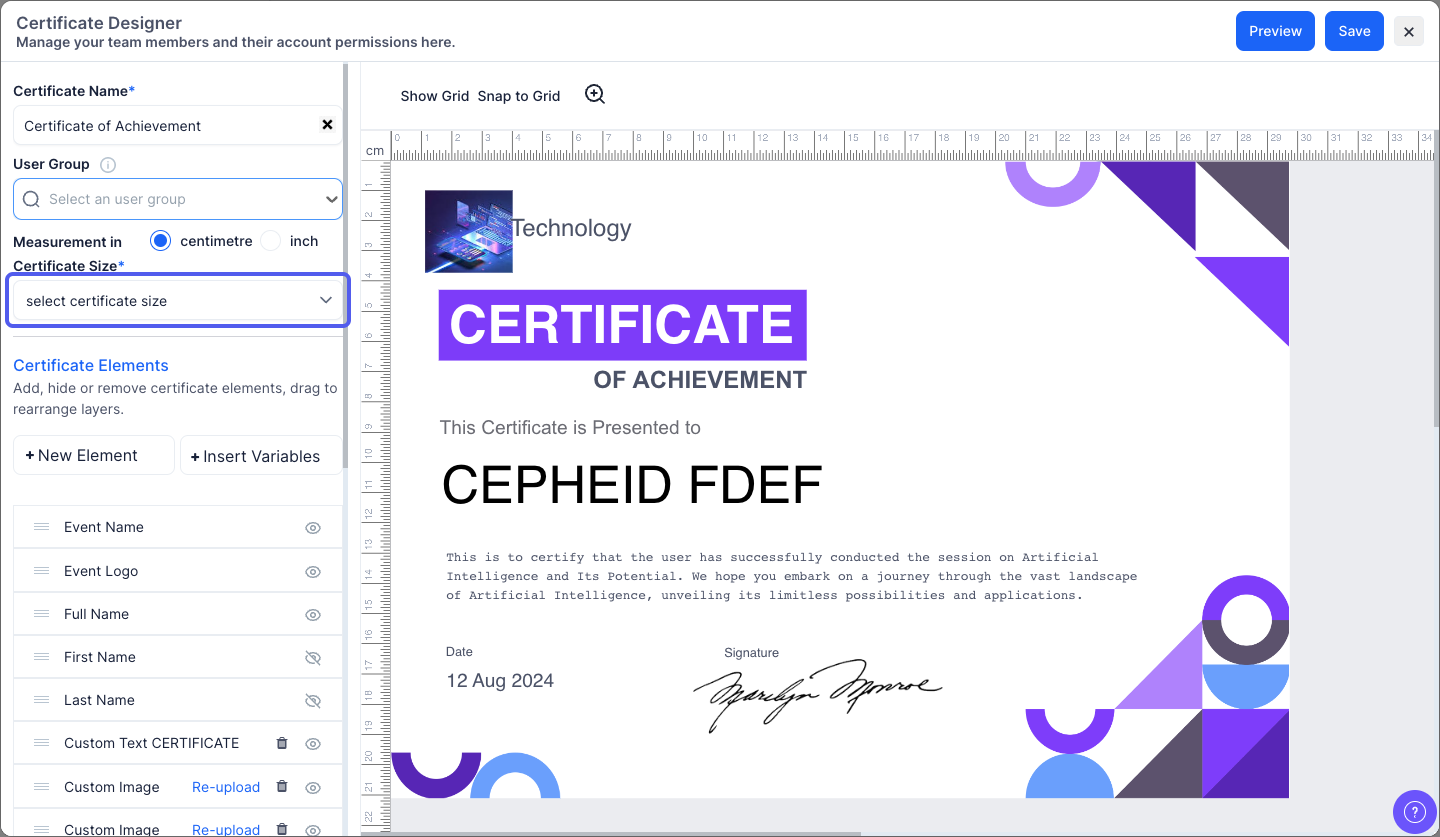
6: Select the Certificate size from the dropdown
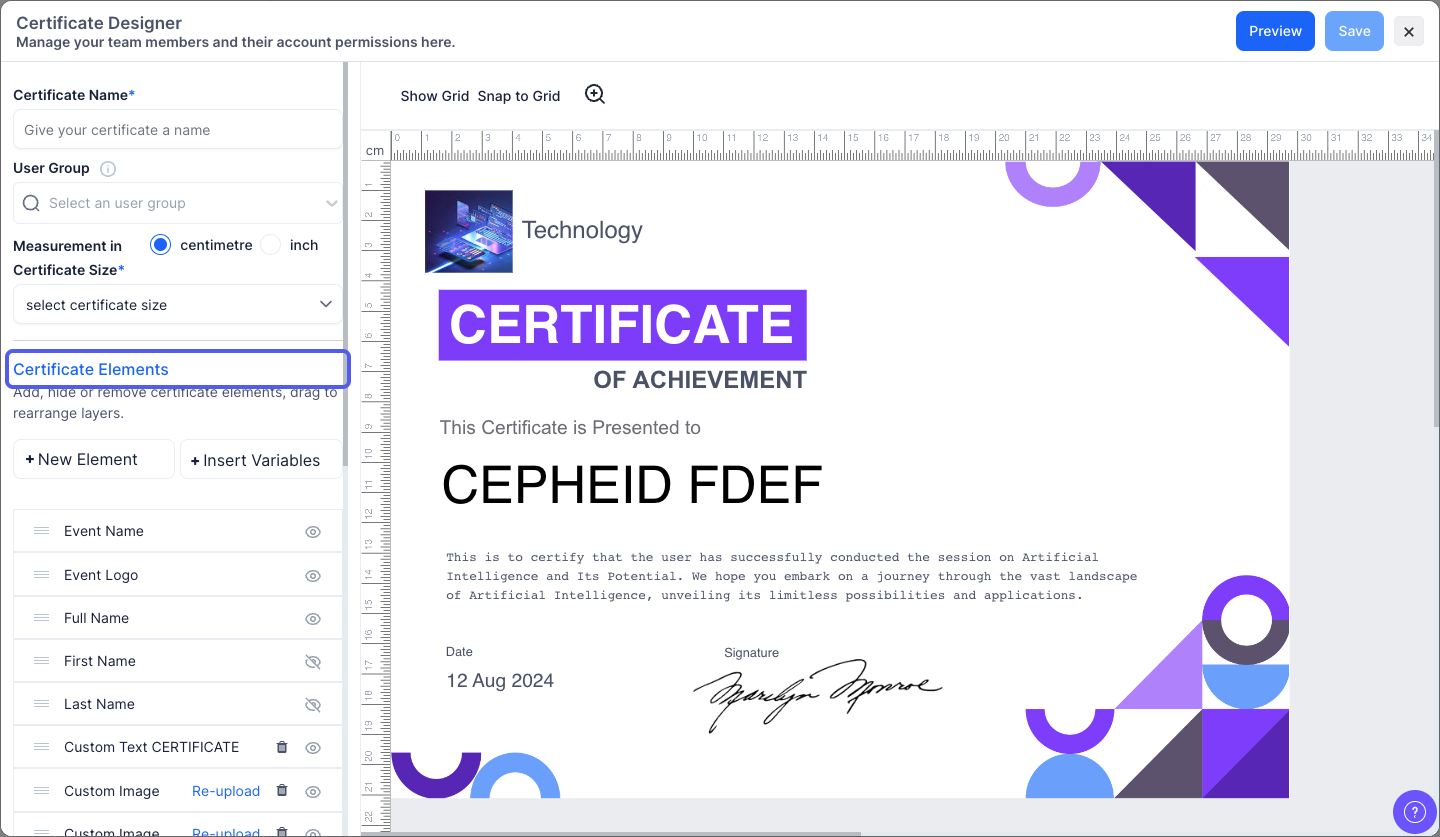
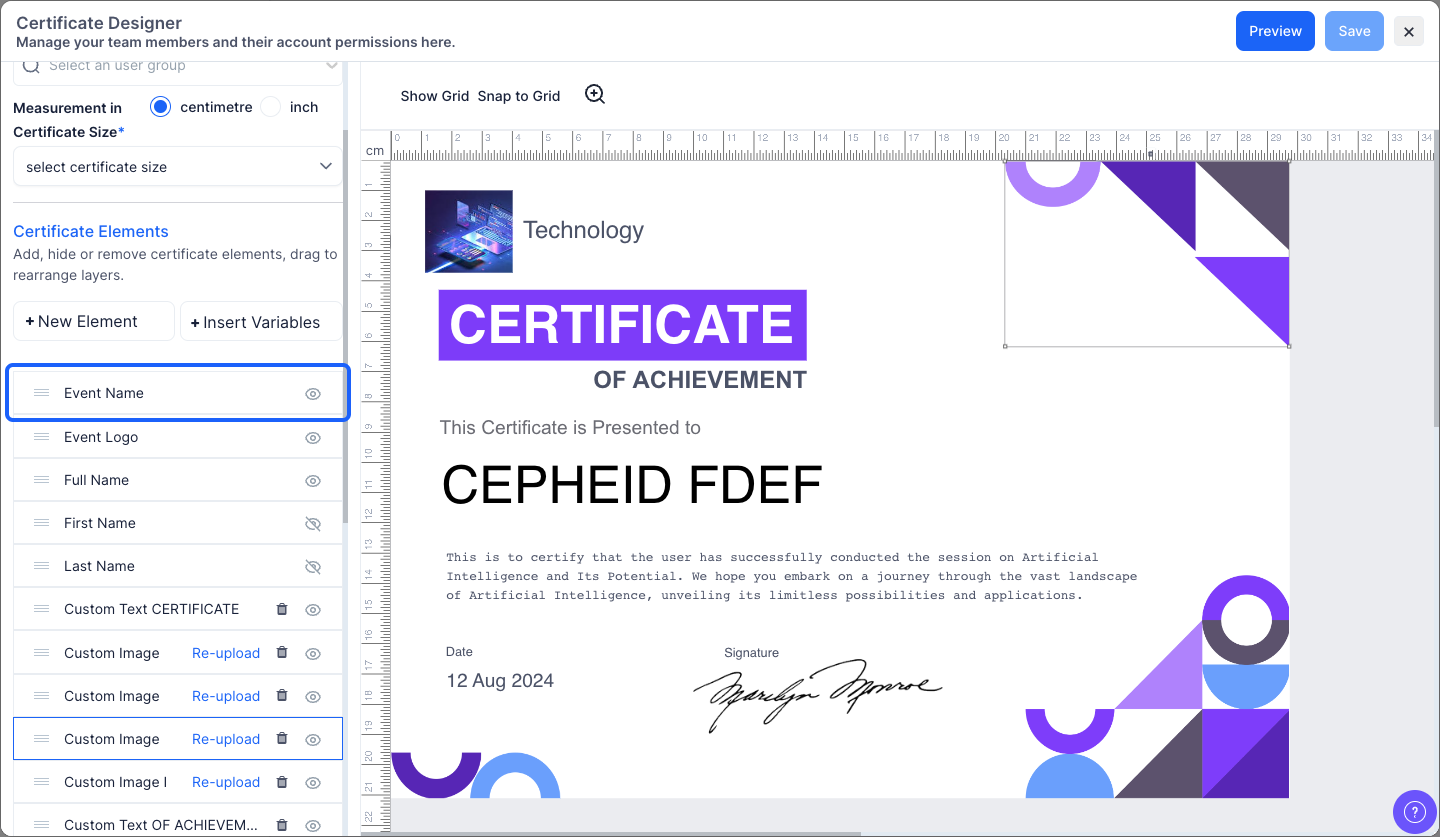
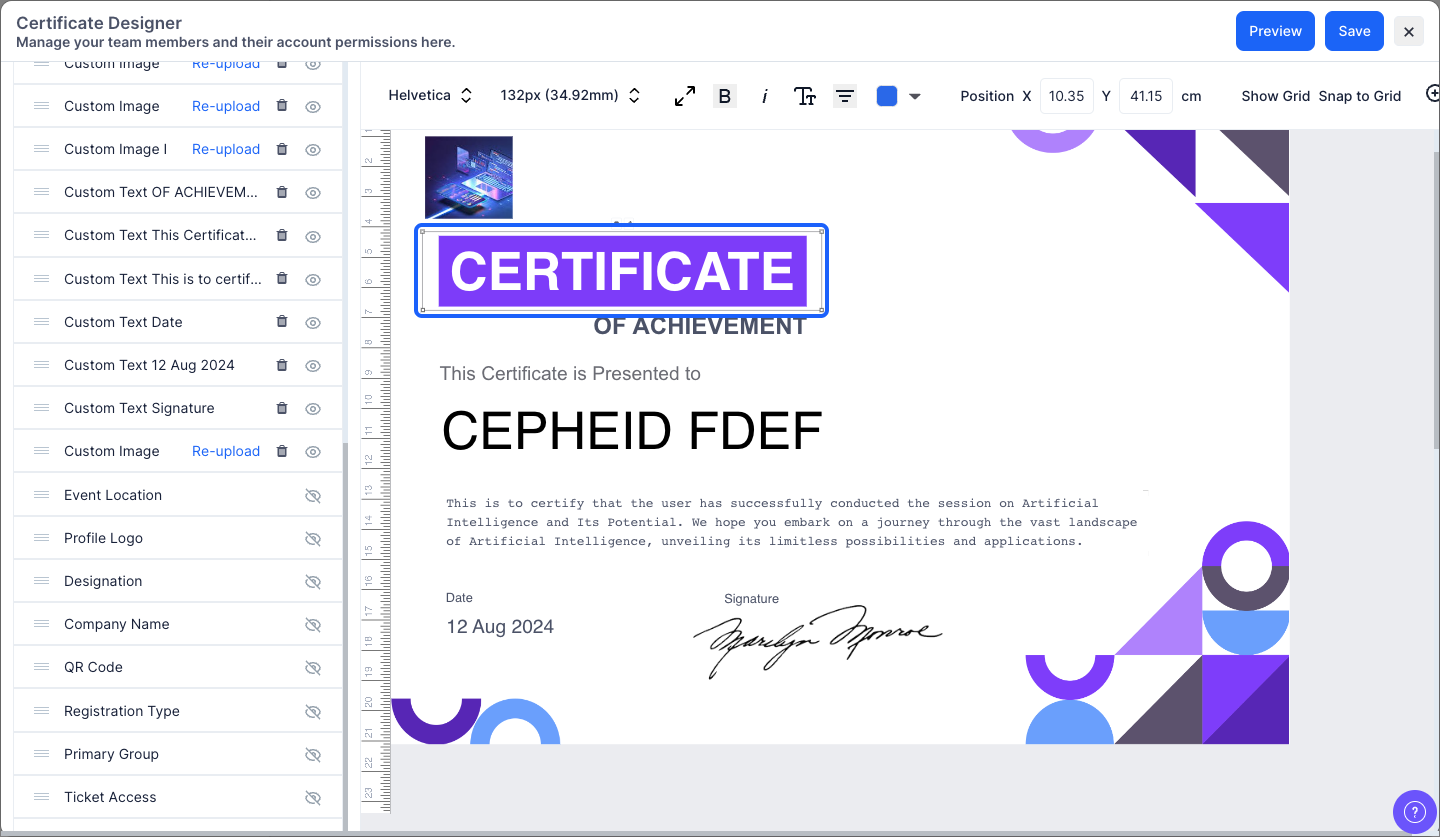
7: You can add new certificate elements or hide the existing ones. You can also drag to rearrange the layers
8: Click "New Element" button to add a new text or image
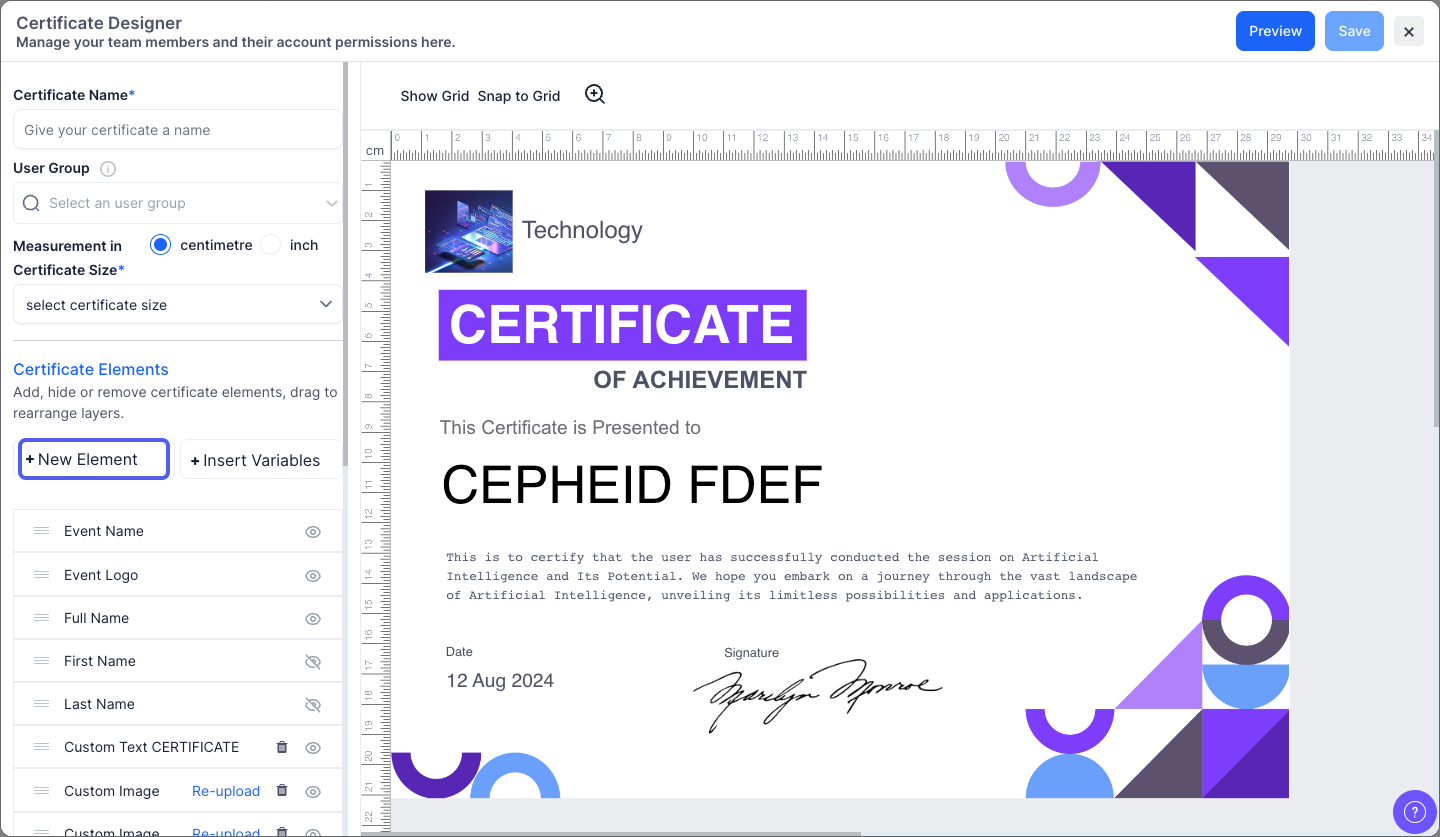
9: Click on “Insert Variables” button to add new checkout fields or gamification points
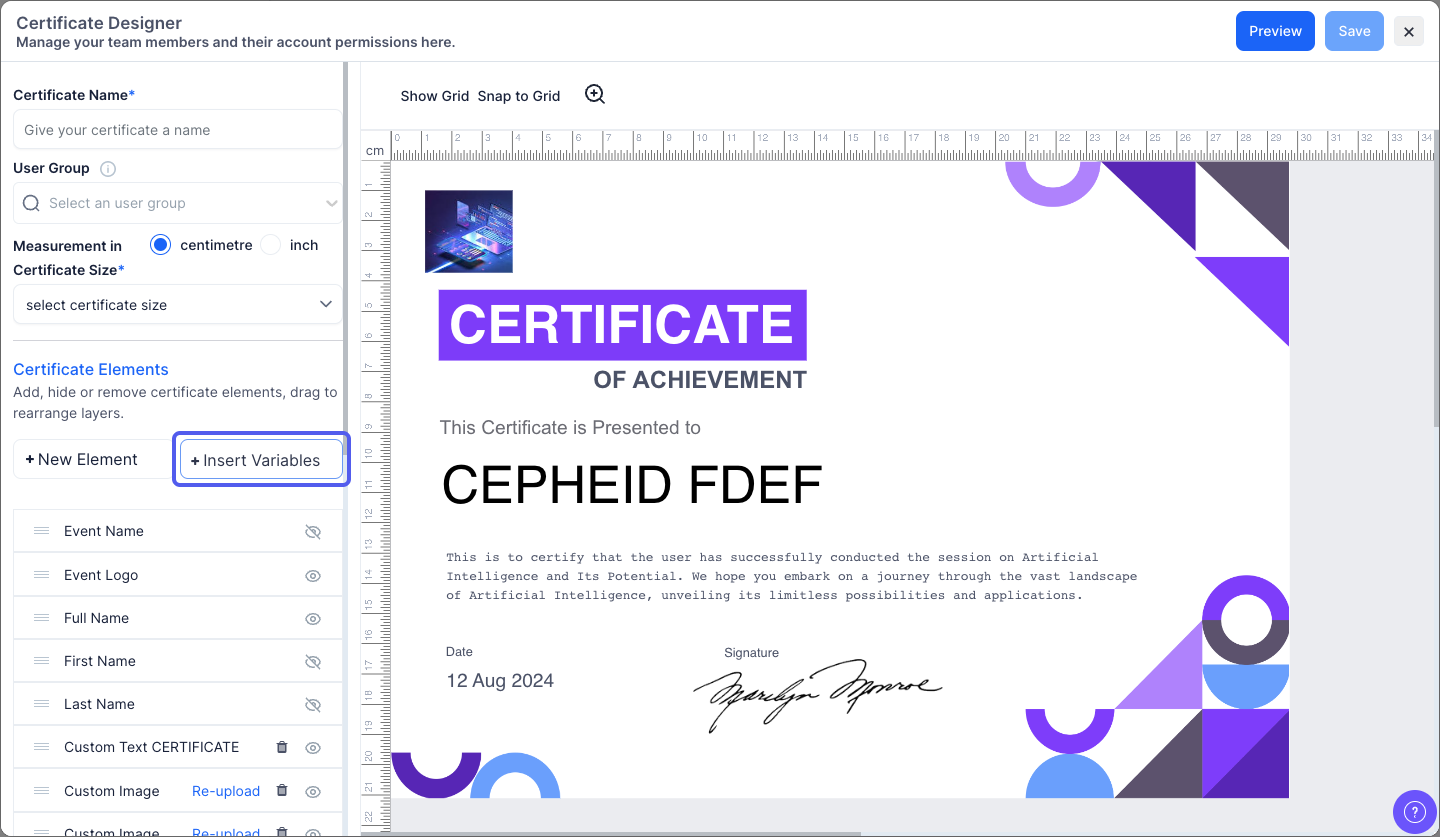
10: Click on the eye icon corresponding to each element to hide or unhide that element
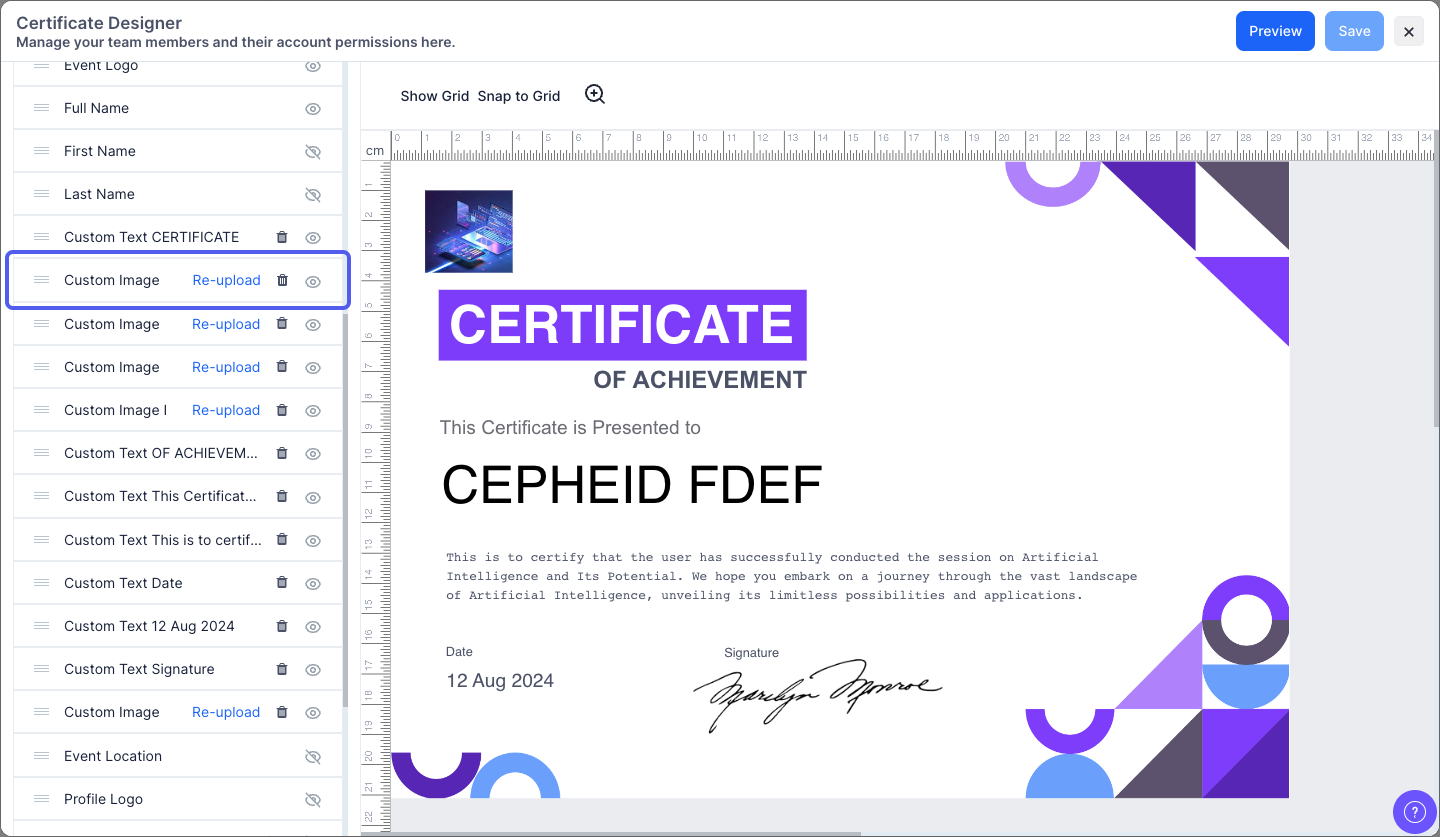
11: You can additionally reupload or delete the custom images as needed.
12: You can also edit existing elements by selecting them and then click on the pencil icon
13: Click the “Save” button to create the certificate
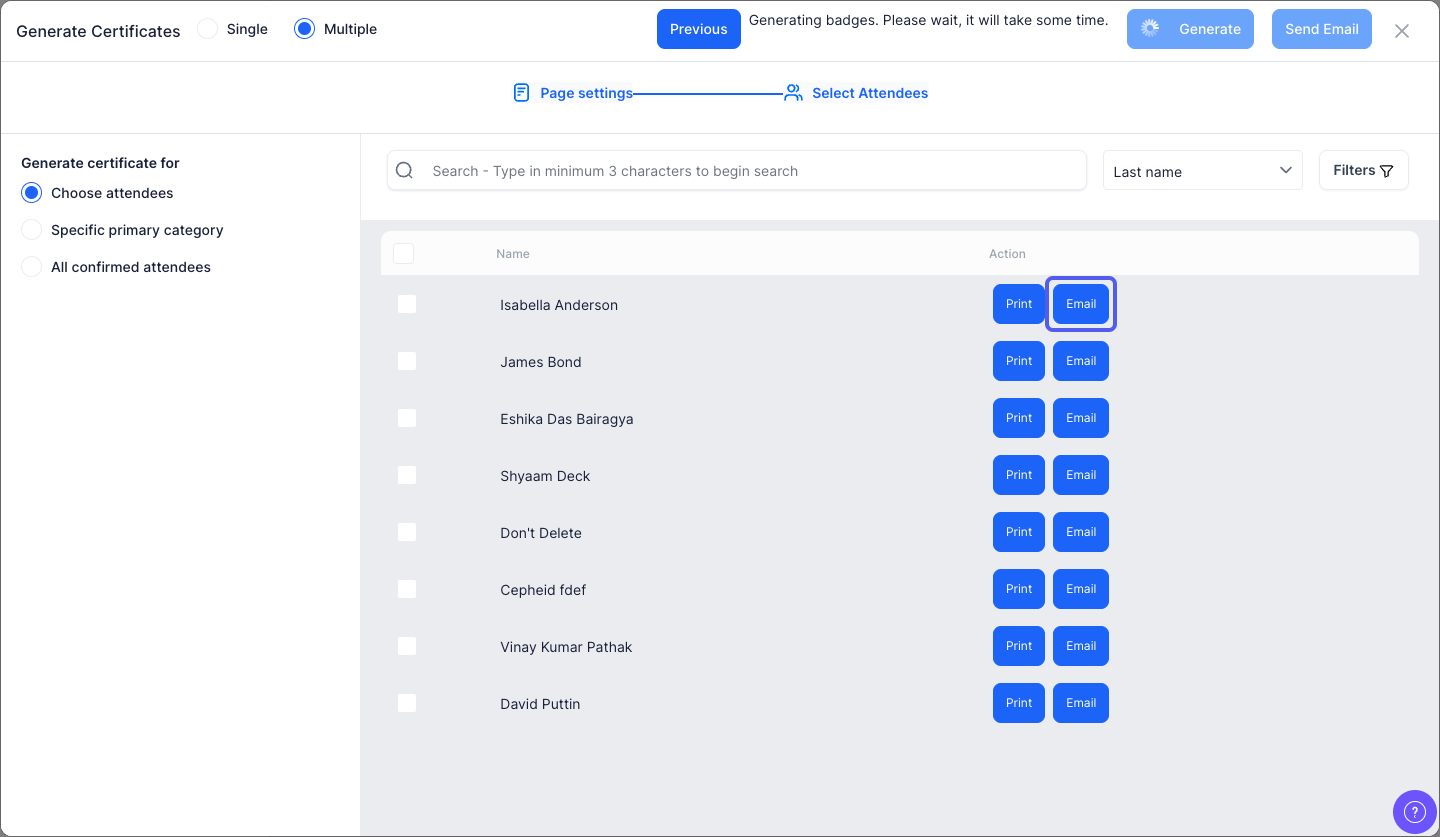
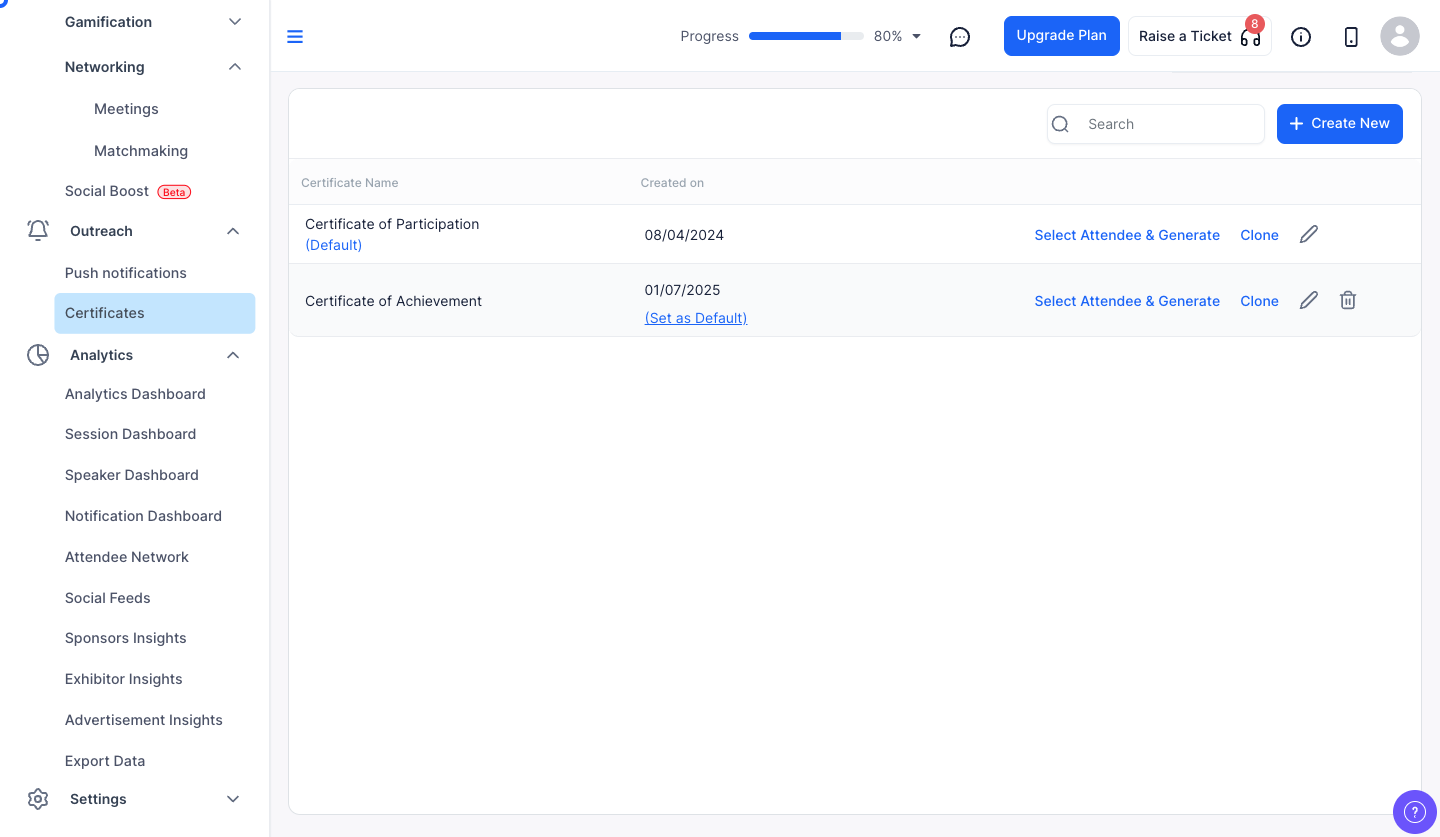
14: Now, click this to select attendees, generate and send the certificate
15: You can select the user category whom you want to send the certificate
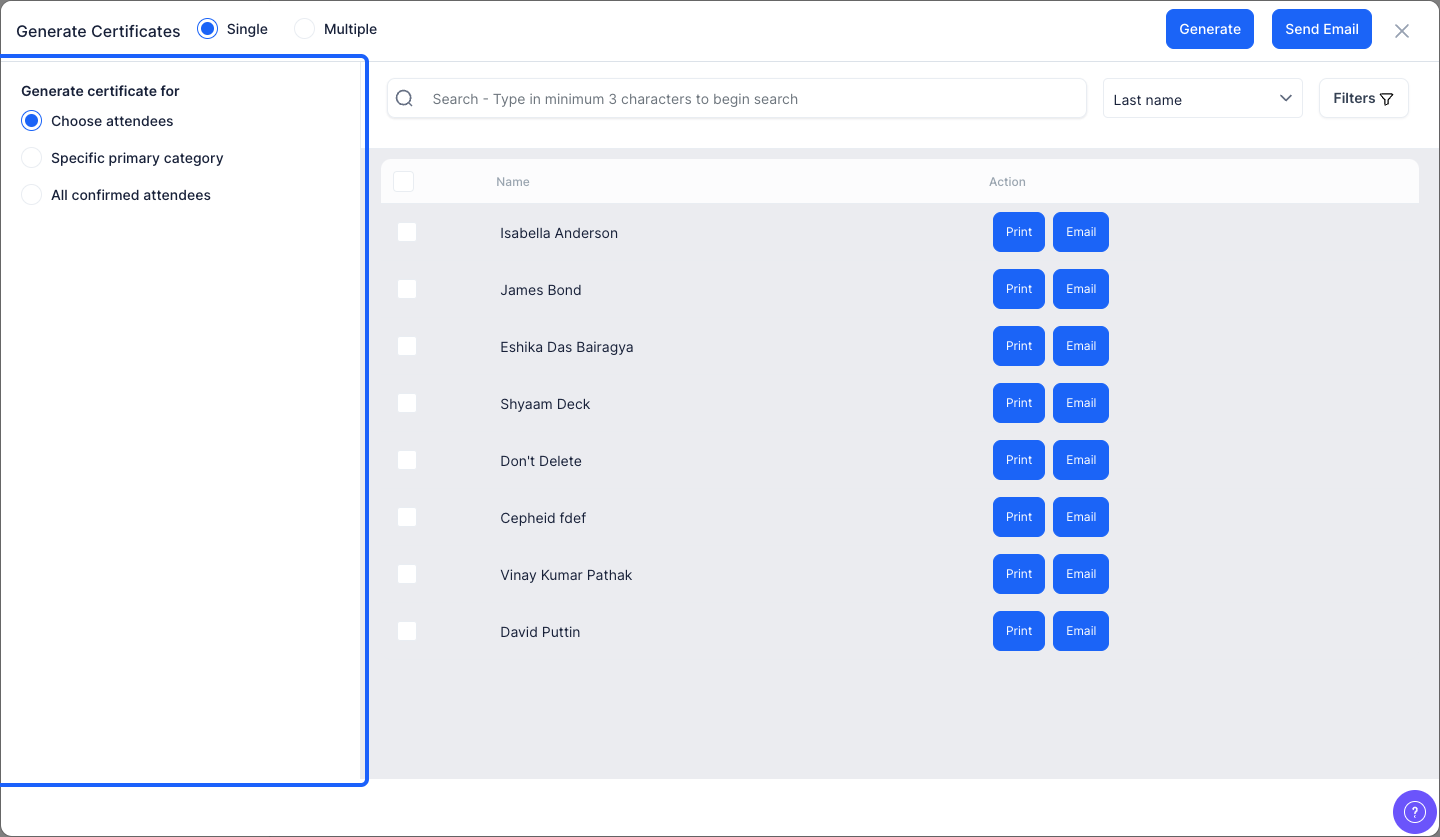
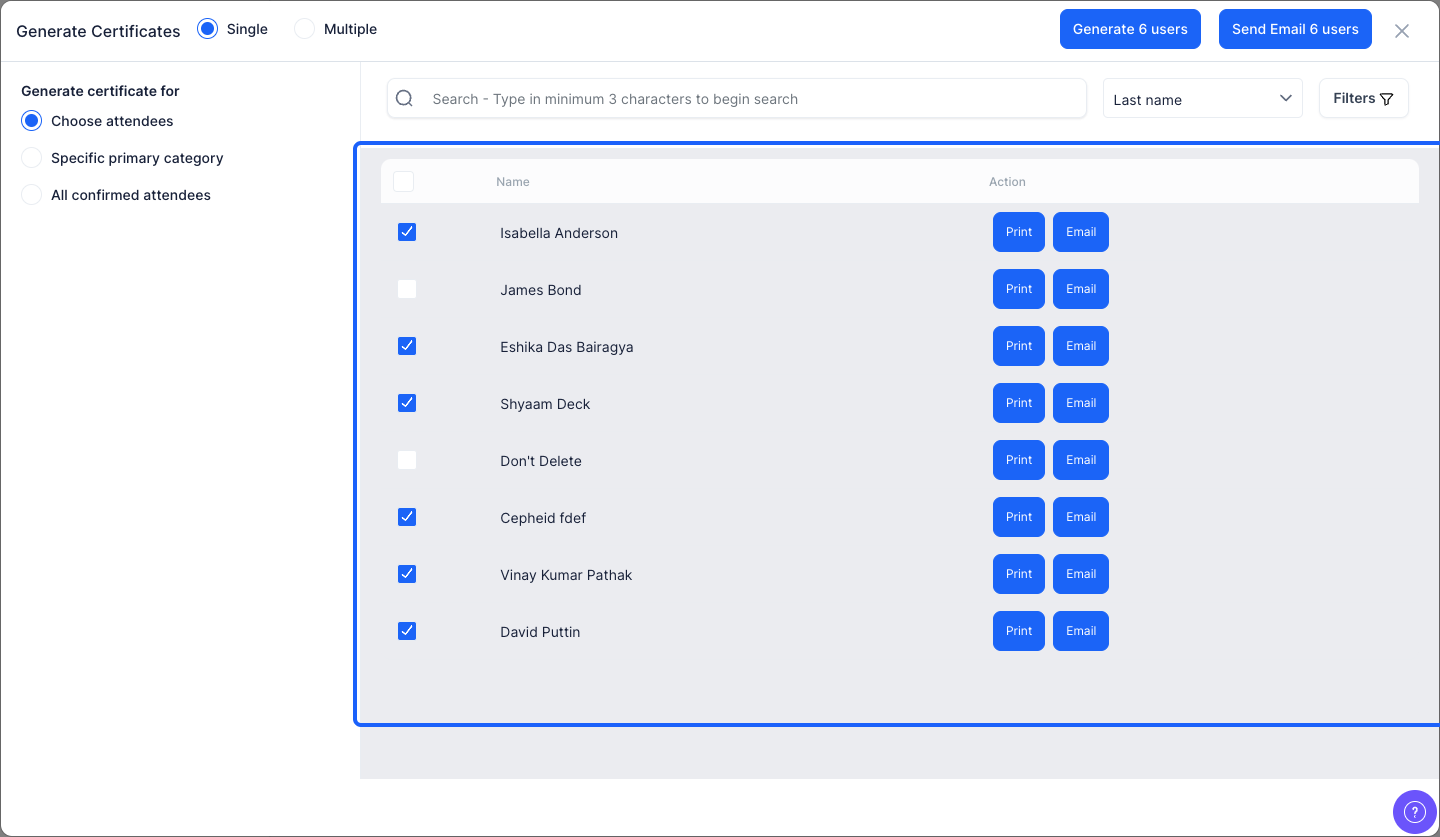
16: Select the users whom you want to send the certificate
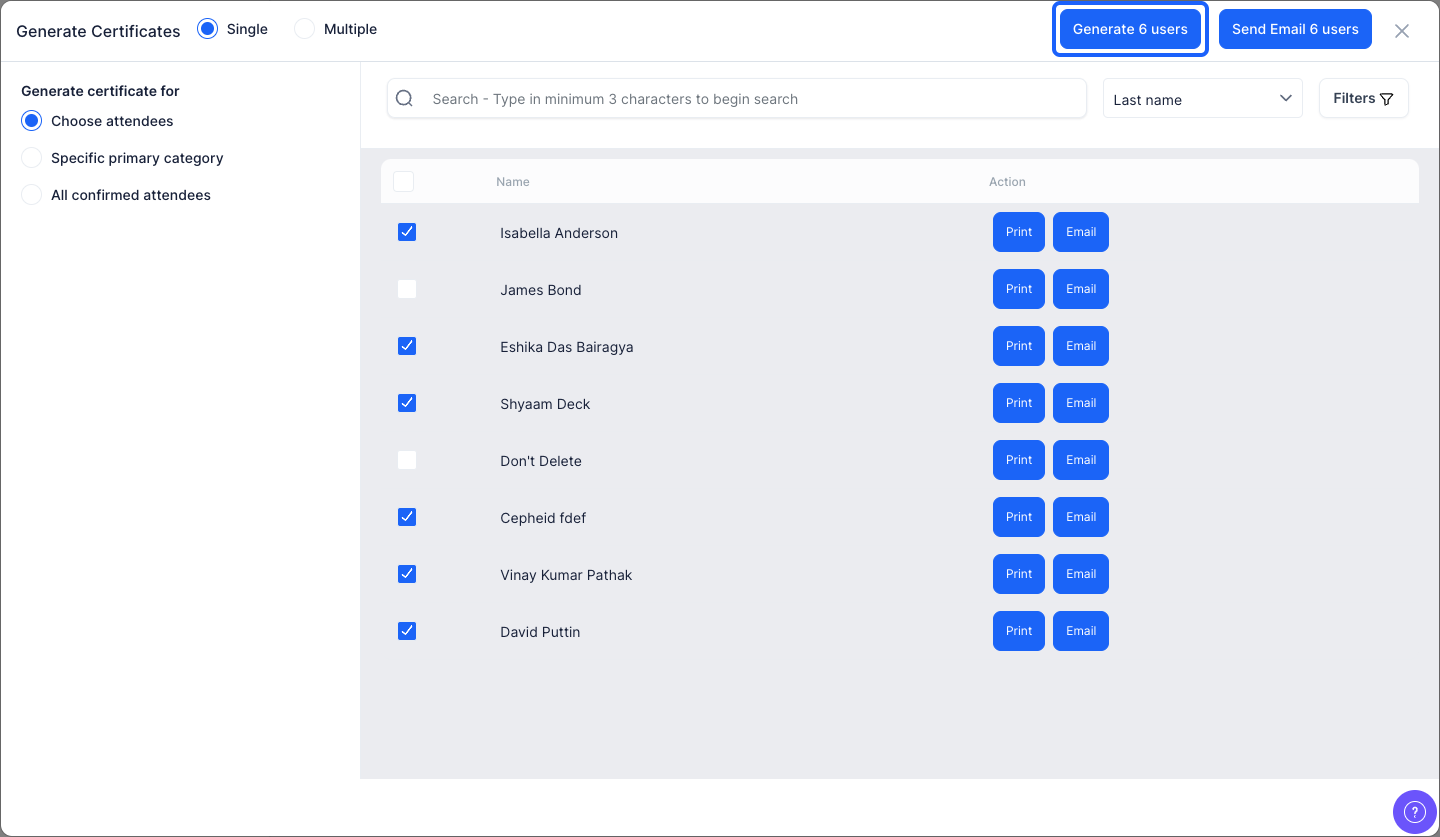
17: Click this button to generate certificates for the selected candidates in one go
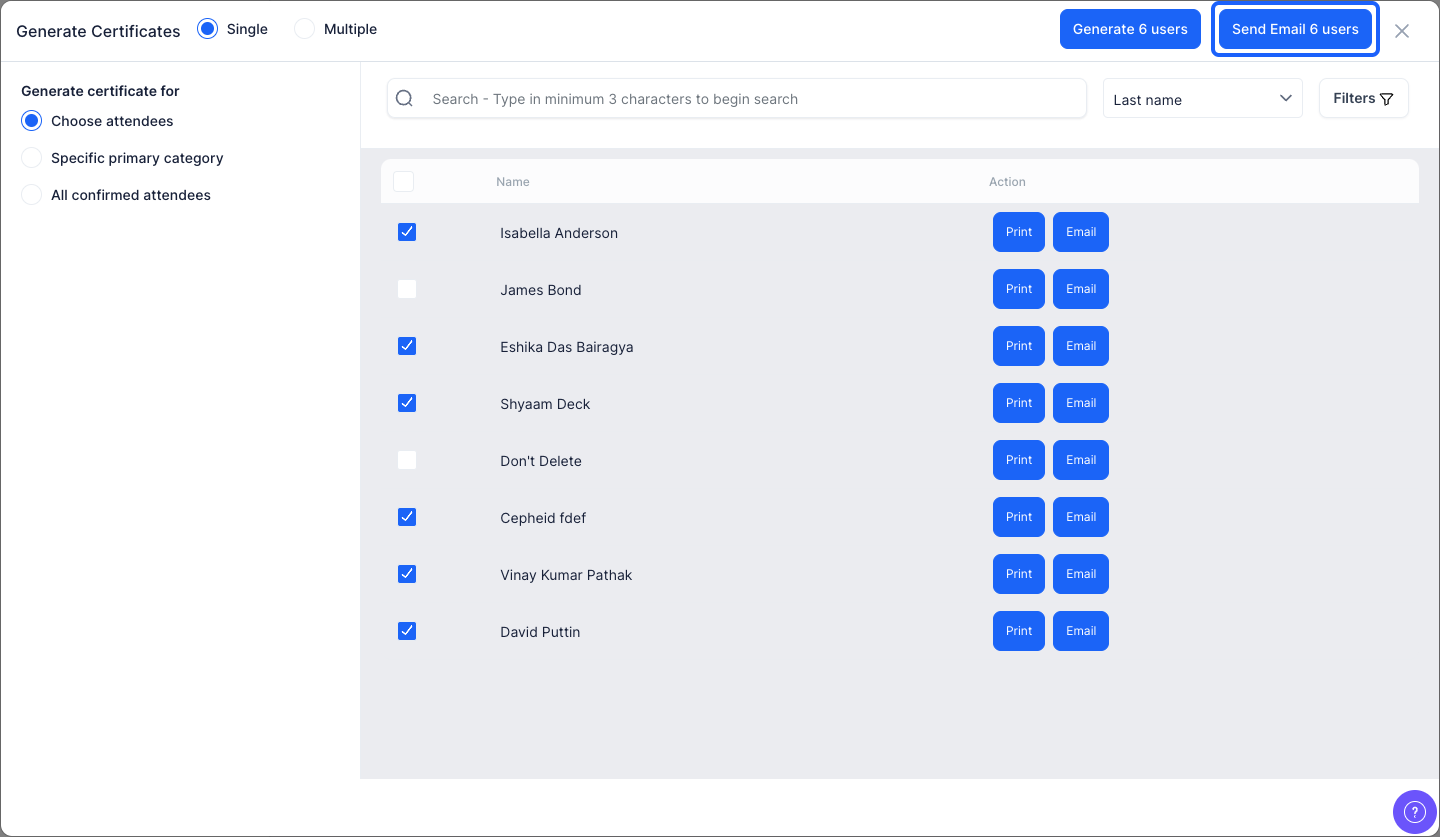
18: Click this button to send certificates to the selected users via email in one go
19: Click the “Print” button corresponding to each user to print the certificate of that user
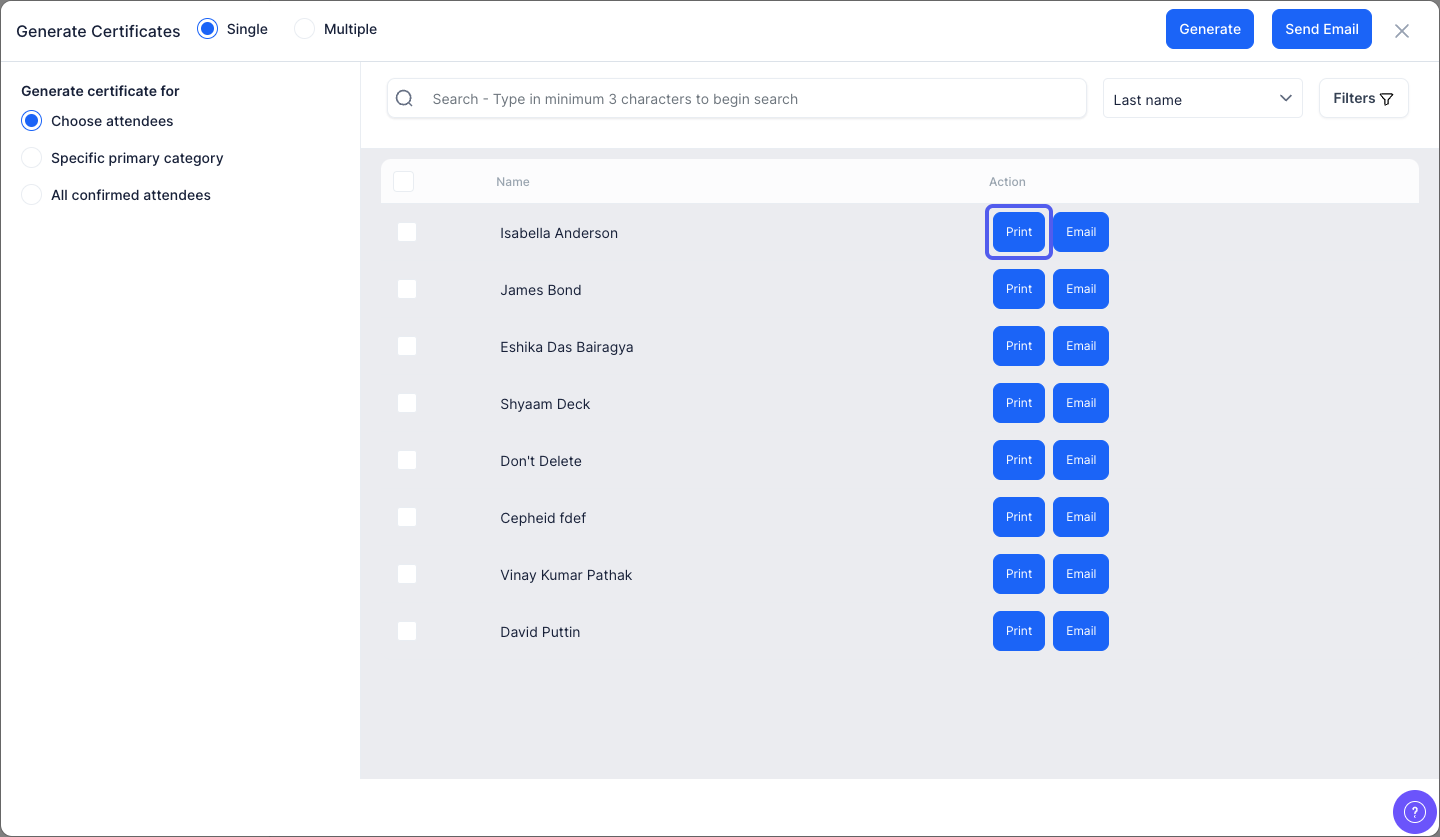
20: Click the “Email” button corresponding to each user to send the certificate to that particular user