
Keeping your account secure is something we all think about from time to time, and changing your password is one of the simplest ways to stay on top of it. Whether you're doing a routine update or you think your account may have been compromised, here's how to change your password in HOST.
Log in to your HOST account and head to the top-right corner where your profile icon is. Click on it to open your profile options.
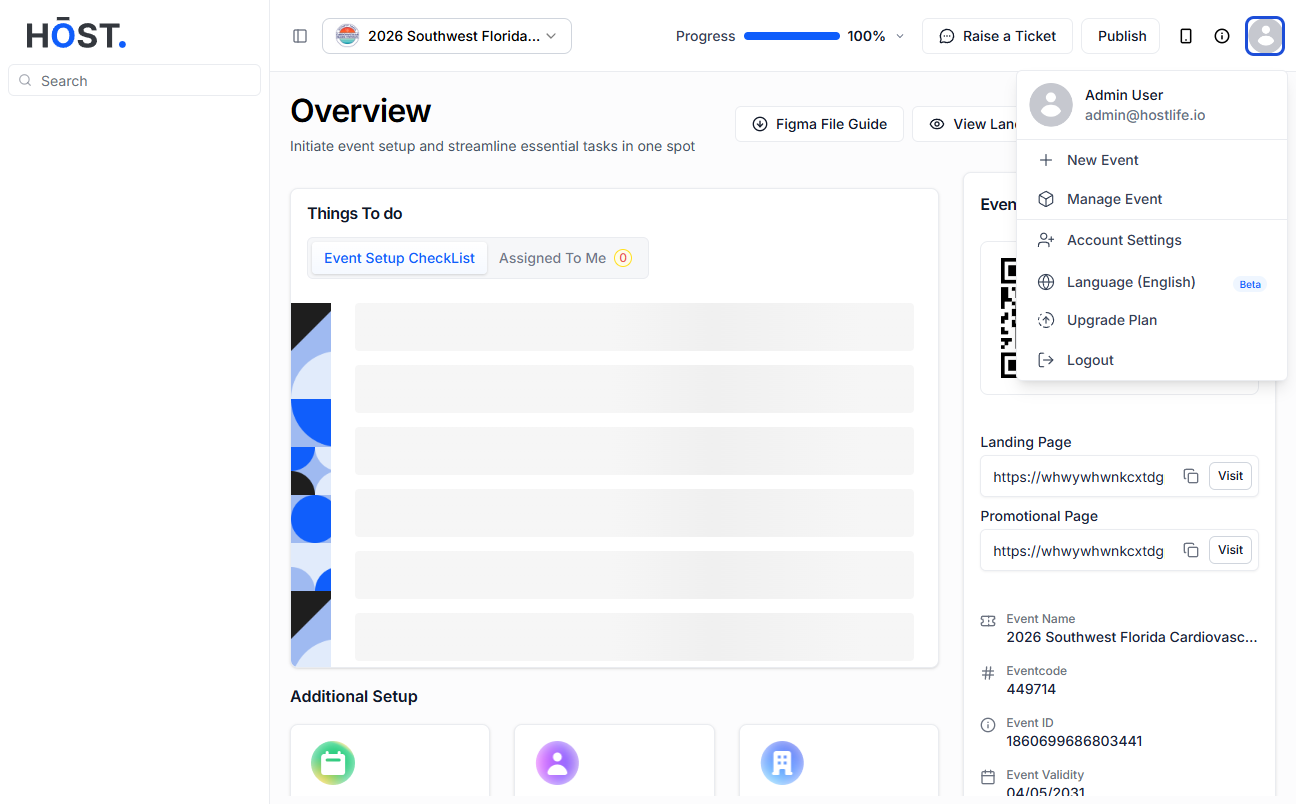
From your profile, click on Account Settings. This is where you'll find all the personal and security-related options for your account.
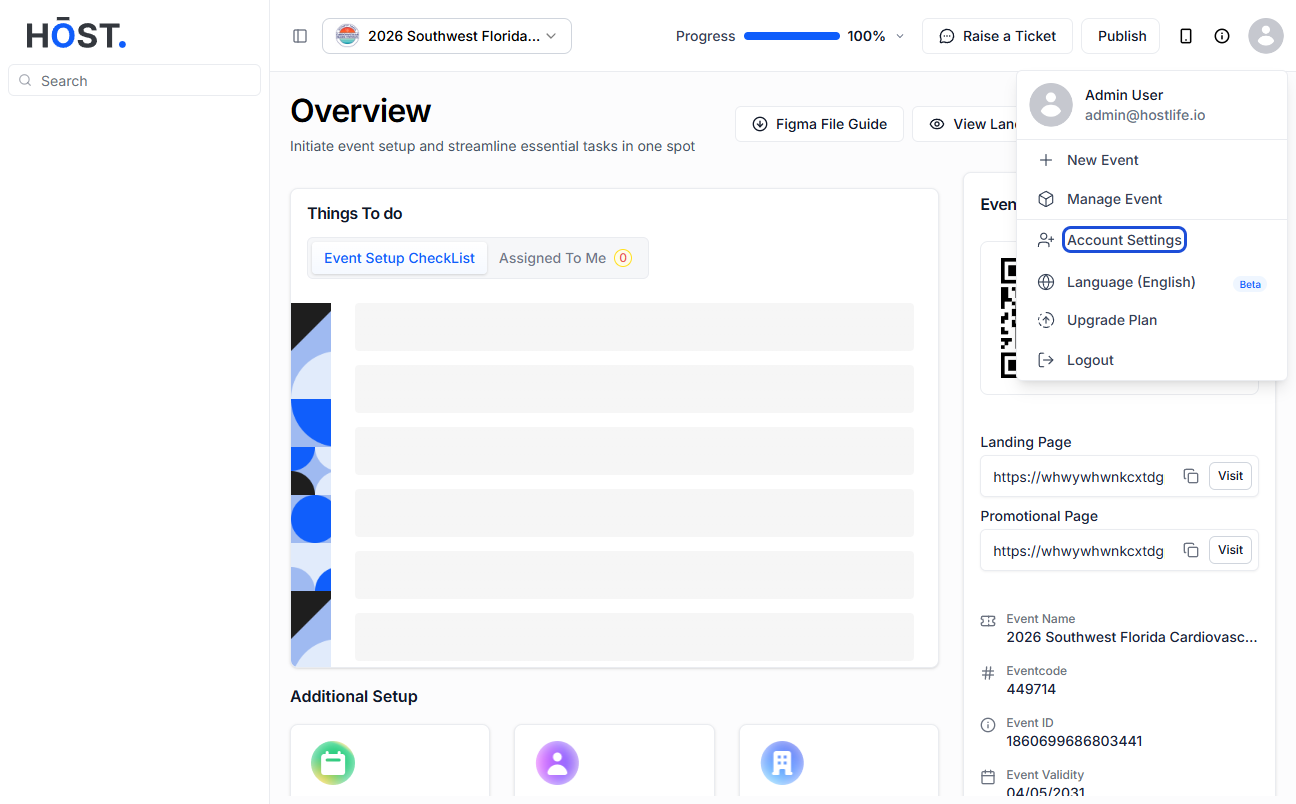
In the side menu on the left, look for the option that says Password Settings and click on it. This will take you to the password update section.
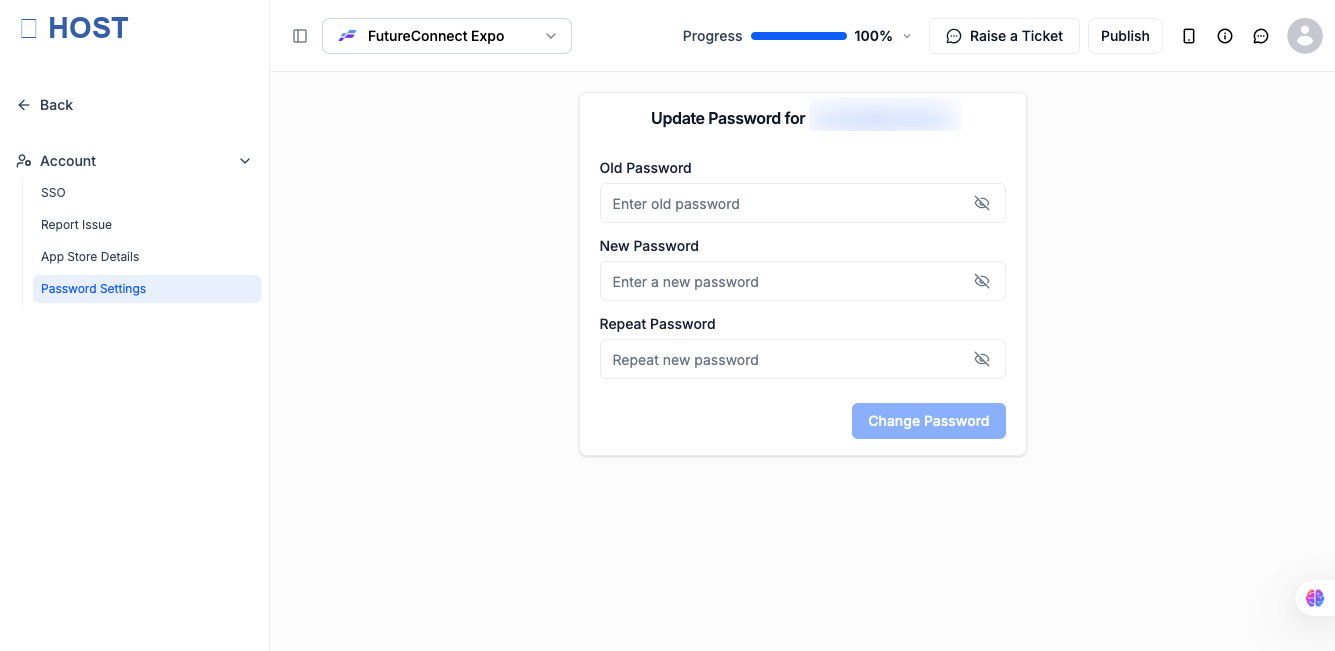
Type in your existing password in the field provided. This step is there to confirm it's really you making the change.
Choose a strong new password and type it in. A good password is at least 8 characters long and includes a mix of letters, numbers, and symbols.
Type the same new password again in the confirmation field. This is just to make sure there are no typos.
Click the Change Password button to apply the update. You'll get a confirmation once it's done, and your new password will be active right away.
Q: What should I do if I forgot my current password?
If you can't remember your current password, go to the HOST login page and click on the Forgot Password link. You'll receive an email with instructions to reset it. Once you've reset it, you can follow the steps above to set a new one.
Q: How often should I change my password?
There's no hard rule, but it's a good idea to update your password every few months or immediately if you think someone else may have accessed your account. Avoid reusing old passwords.
Q: Can I use the same password I had before?
For security reasons, it's best not to reuse a previous password. Try to pick something fresh that you haven't used on HOST or other platforms before.
Q: I changed my password but got logged out. Is that normal?
Yes, that can happen sometimes. After a password change, HOST may ask you to log in again with your new password. Just sign in with your updated credentials and everything will work as usual.
Q: My password change didn't save. What should I do?
Double-check that your new password meets the minimum requirements and that both password fields match exactly. If the issue continues, try refreshing the page and going through the steps again. You can also reach out to HOST support if you're stuck.
Q: Who can change my password?
Only you can change your own account password. HOST staff will never ask you for your password, so be cautious of anyone claiming otherwise.
