
Differentiating between attendee types such as admins, volunteers, sponsors, speakers, exhibitors, and participants is essential for streamlined event management and controlled event access. User Groups in HOST help organizers manage attendee categories, assign permissions, customize communication, and control feature visibility across the event platform.
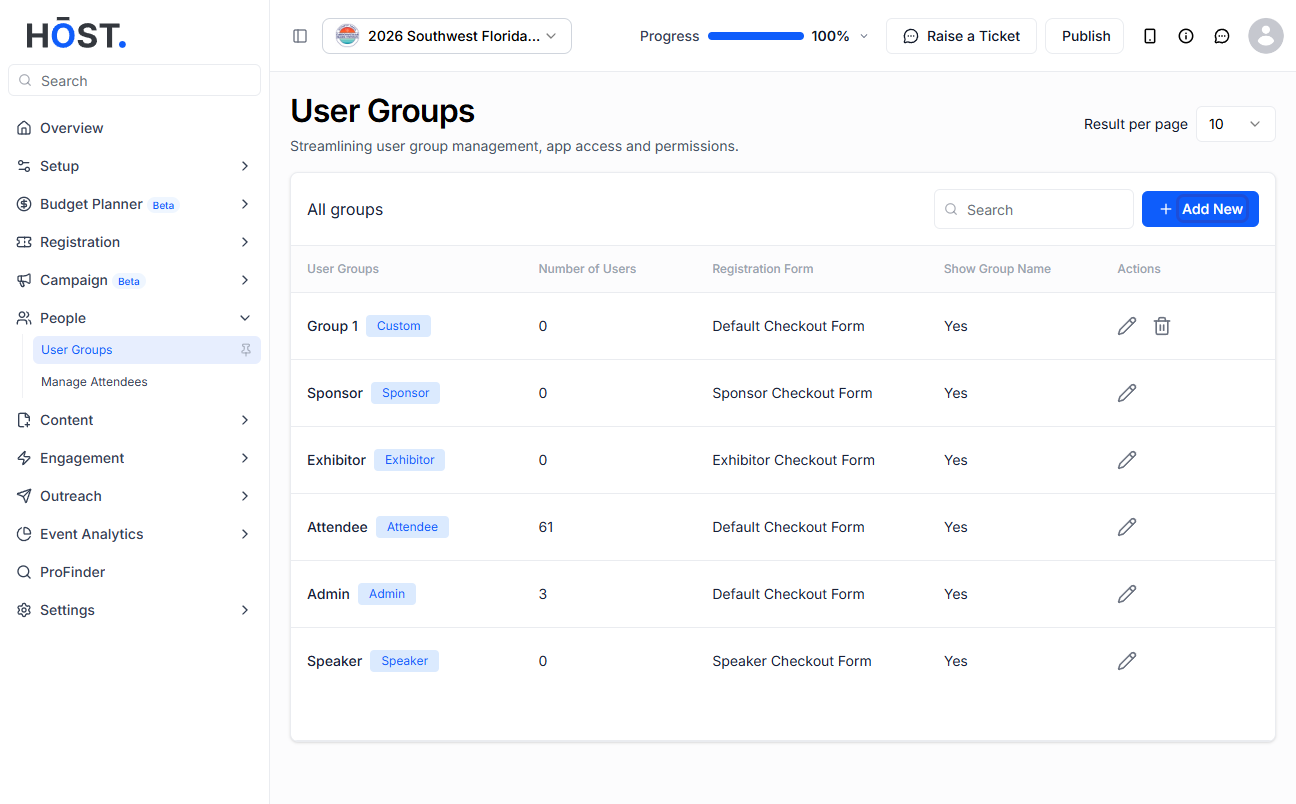
To manage user groups, go to People >> User Groups. Here, you will find all default and custom-created groups associated with the event, along with their assigned registration forms, visibility settings, and available actions such as edit or delete.
ℹ️ Default system groups cannot be deleted, while custom-created groups can be deleted when no longer needed.
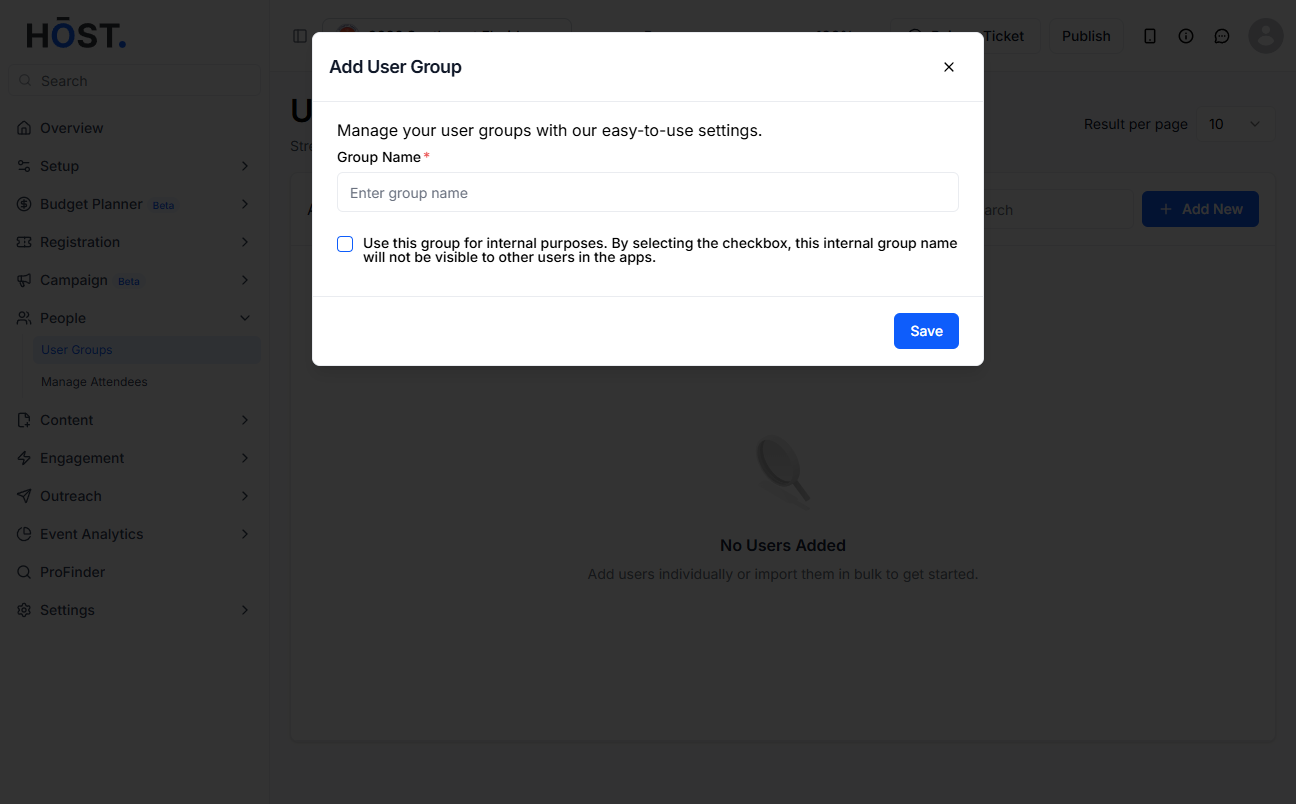
Click on Add New, enter the group name, and choose whether the group should be used internally. If the group is marked as internal, the group name will not appear on attendee profiles inside the event apps. Once completed, click Save to create the group.
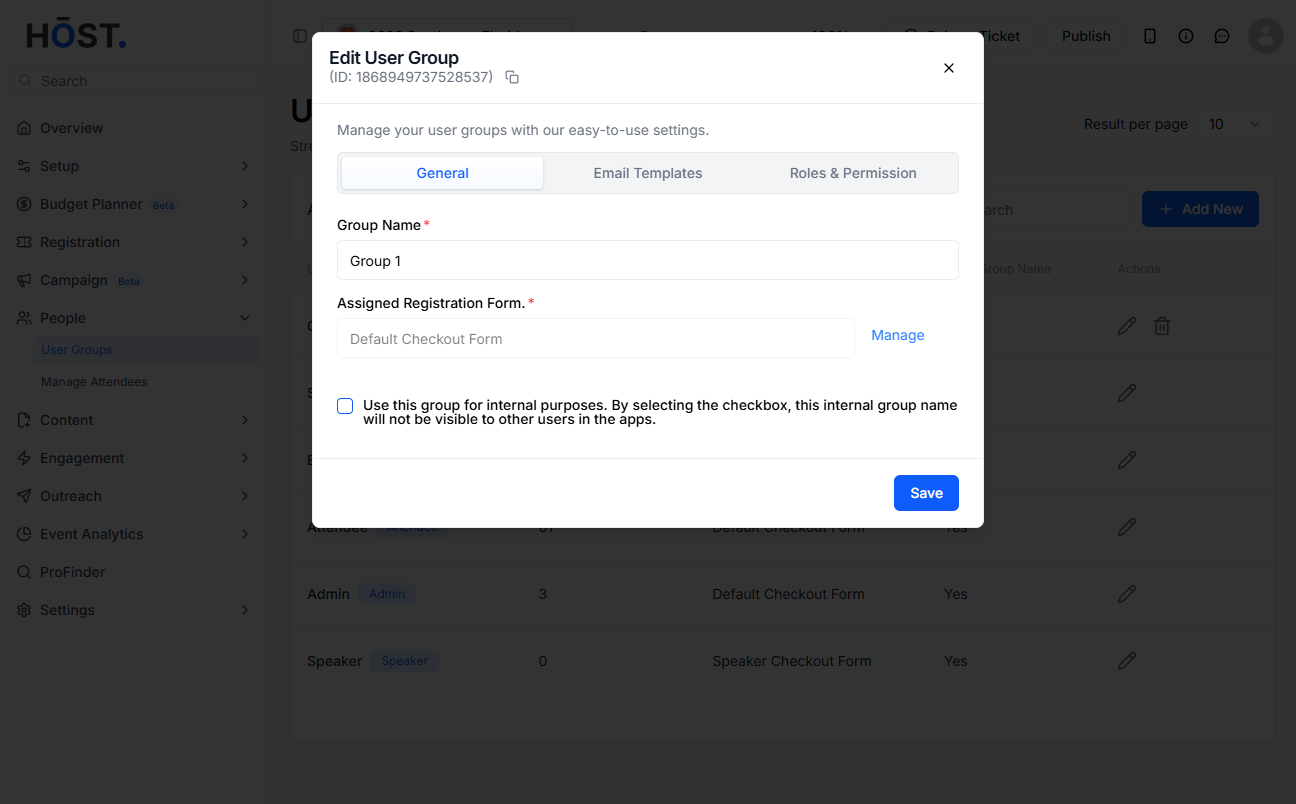
Navigate to People >> User Groups and click on the Edit icon beside the preferred group. Inside the group editor, you will find the General, Email Templates, and Roles & Permissions sections.
The General section allows you to update the group name, assign a specific registration form, and mark the group as internal if required. This is especially useful when different attendee categories require separate registration experiences or restricted visibility.
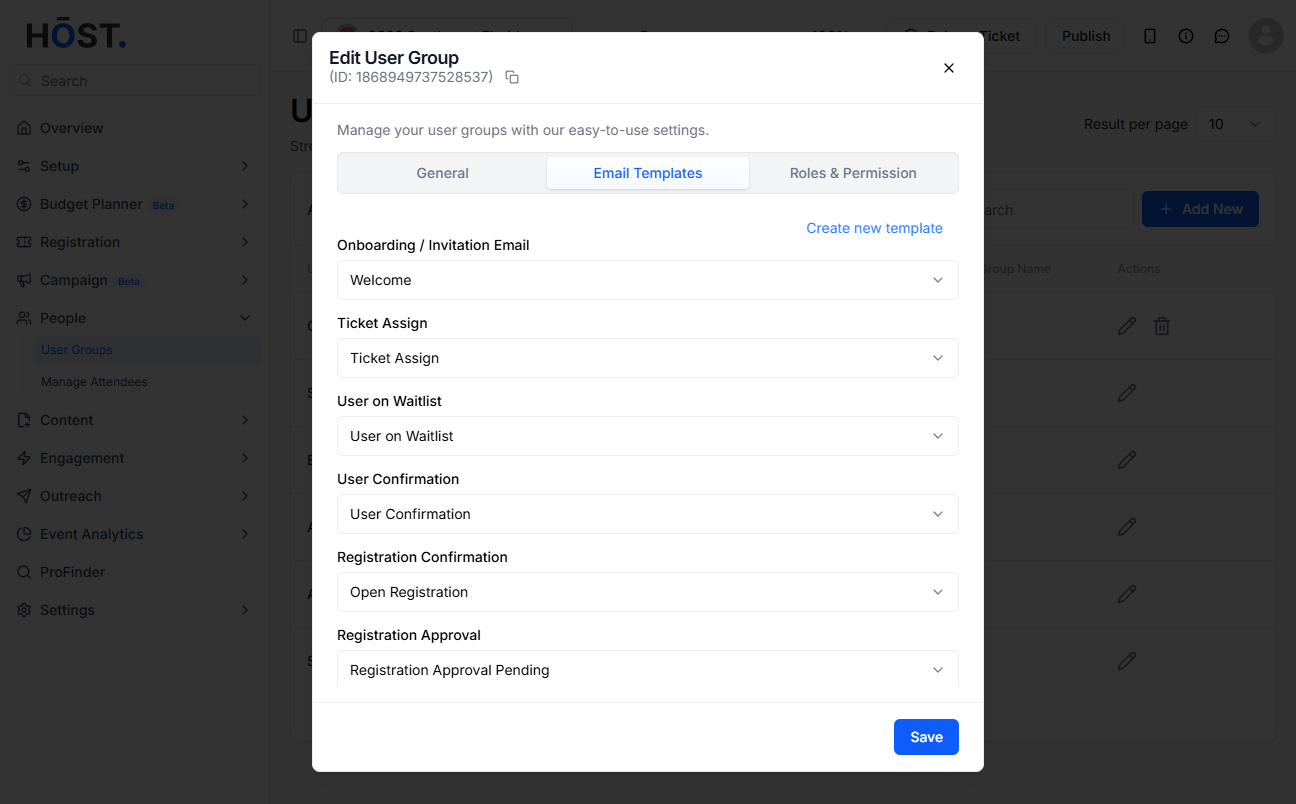
The Email Templates section allows organizers to assign customized email templates to a specific group. Default email templates are automatically assigned when a group is created, but these can be modified at any time. You can also create a new email template by clicking on create new template.
Here, you can define the email trigger, subject line, content, and choose whether to clone an existing template or create one entirely from scratch.
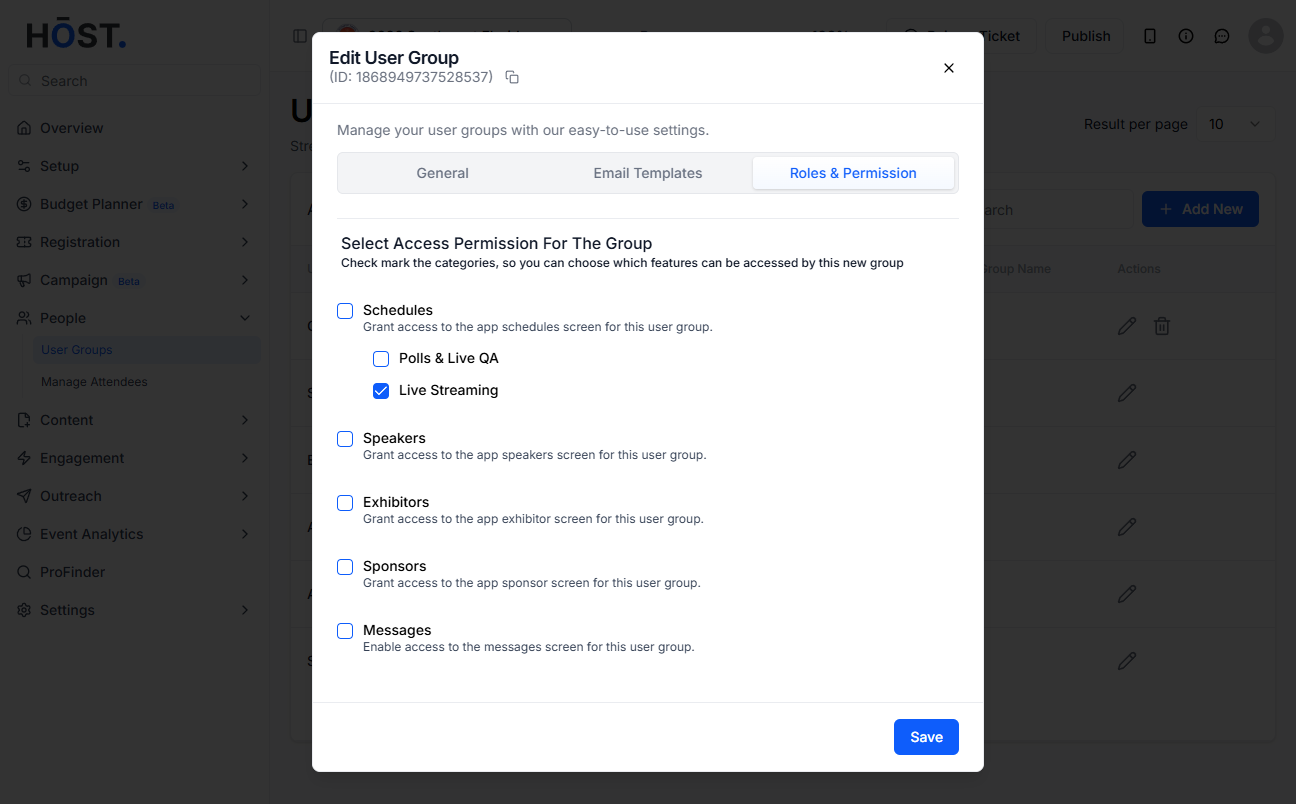
The Roles & Permissions section controls which event features are accessible to members of a particular group. You can enable or restrict access to features such as schedules, speakers, exhibitors, sponsors, messages, maps, live streaming, polls, live Q&A, and other event functionalities. This helps create personalized event experiences for different attendee categories.
Every attendee must belong to at least one user group. Users are automatically assigned to groups through registration forms, ticket types, imports, or admin assignments. However, organizers can manually update attendee groups whenever necessary. To manage attendee associations, go to People >> Manage Attendees.
To assign multiple attendees to a group at once, select attendees using the checkboxes beside their names and click on Assign as. From there, choose the preferred user group to complete the assignment. This feature is useful for organizing large attendee lists efficiently.
To modify groups for a specific attendee, click on the Edit icon beside the attendee profile.
Once the page opens, locate the User Primary Group and User’s Other Groups section. From here, you can assign one primary group and multiple secondary groups to the attendee. The Manage Group button provides quick access to all available event groups, making it easier to modify attendee associations directly from the attendee profile. After making any changes to user groups or attendee associations, click Save to apply the updates successfully.
