
When you're running an event, getting the timezone right matters more than most people realise. Attendees rely on it to know exactly when sessions start, and if it's off, you'll end up with confused messages and missed talks. Fortunately, HOST makes it straightforward to set or update your event timezone whenever you need to.
There's also a handy Global Timezone option for events that draw attendees from multiple countries. When that's switched on, the app automatically converts all event times into each attendee's local timezone, so nobody has to do the maths themselves.
Here's how to change the event timezone from your Admin Panel.
Log in to your HOST Admin Panel and click on Setup from the left-hand navigation menu.
Inside Setup, click on Basic Info. This section holds all the foundational details about your event.
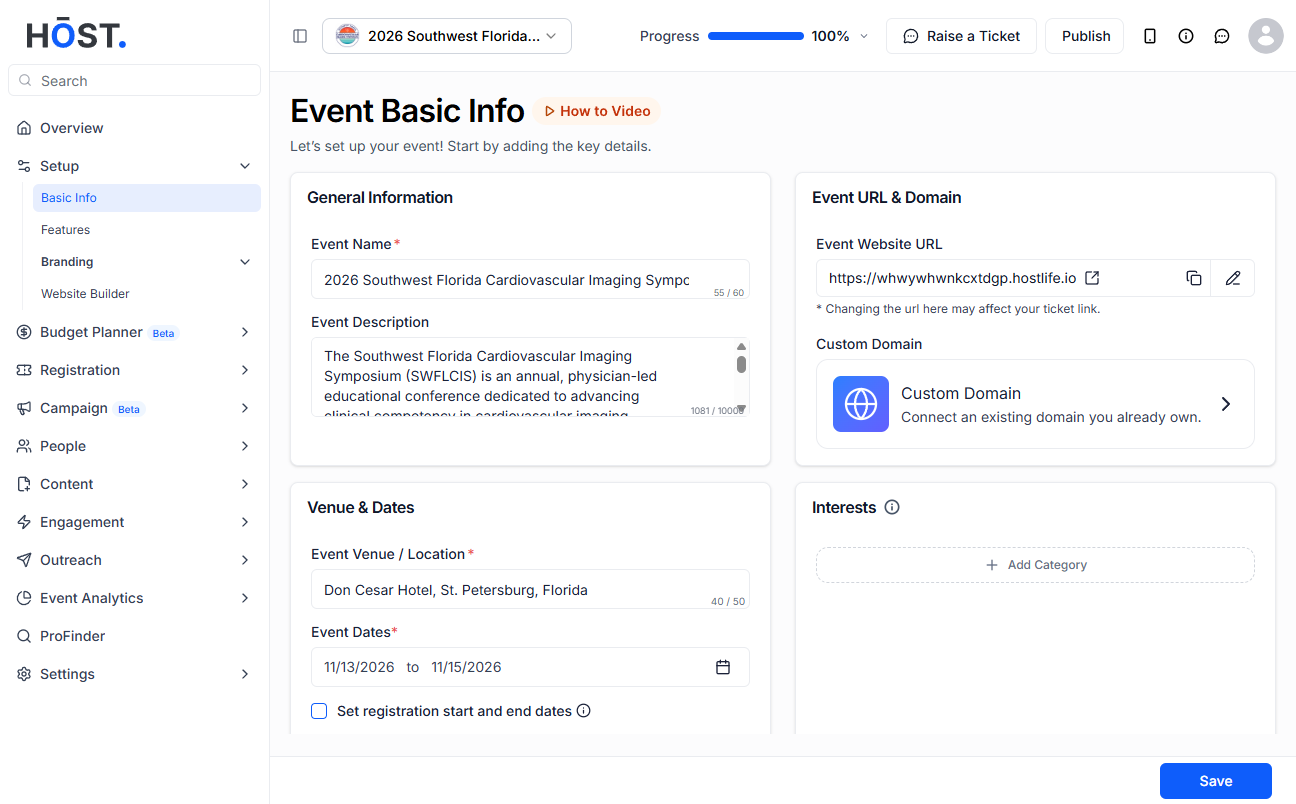
Within Basic Info, find and click on Venue and Dates. This is where your event's location and timing information lives.
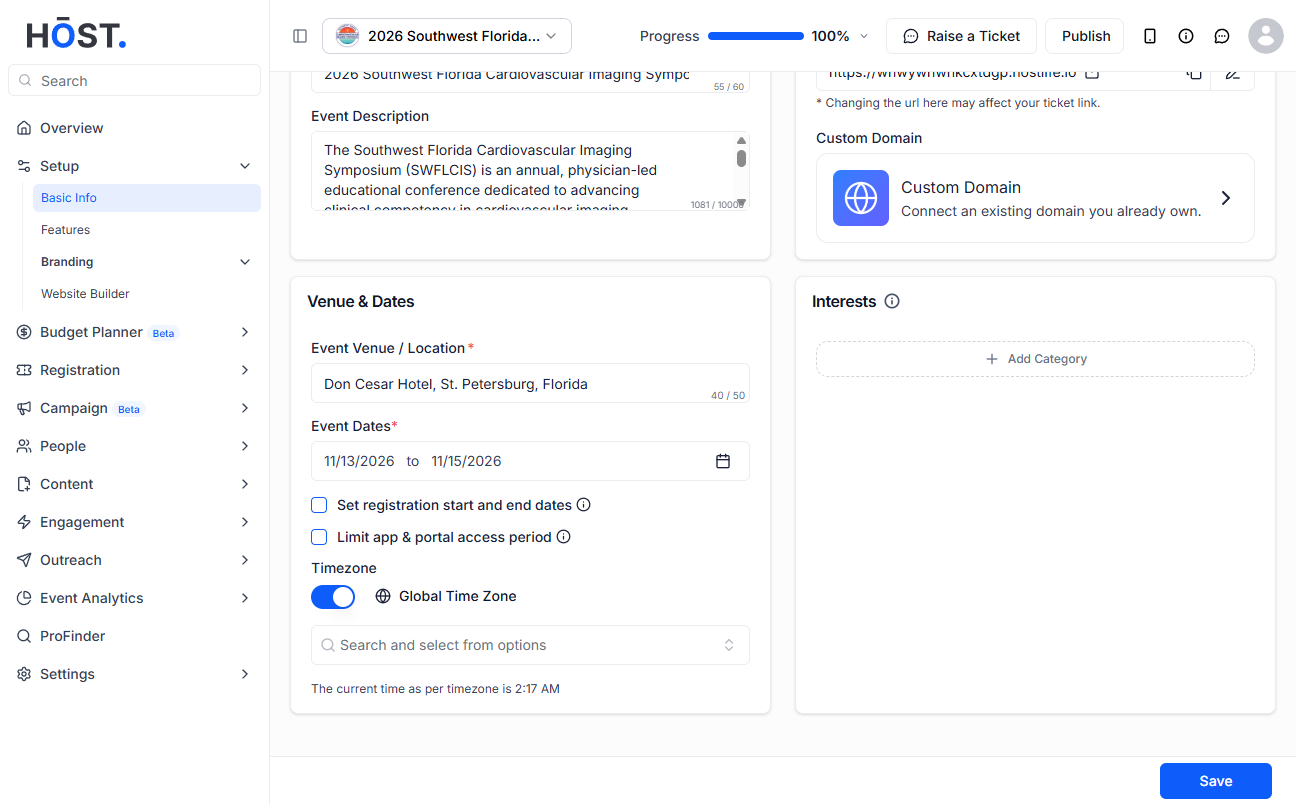
Look for the Timezone field and click on it to open the timezone selection options.
A dropdown will appear with a full list of timezones. Scroll through or search for the one that matches your event's location, then select it.
If your event has attendees joining from different countries, toggle on the Global Timezone option. Once this is active, the HOST app will automatically show all session times converted to each attendee's own local timezone, whether they're using iOS, Android, or a white-labelled version of the app.
Once you've made your selection, save your changes. After the event syncs, all dates and times across the app will reflect the updated timezone settings.
If the timezone is set incorrectly, attendees will see the wrong session times in the app. This can lead to missed sessions and a frustrating experience, especially for people attending from different locations. Getting it right from the start saves a lot of confusion.
Yes, you can update the timezone at any point. Once you save the change and the event syncs, the updated times will reflect across the app. That said, it's best to finalise the timezone before your event goes live so attendees don't see any inconsistencies.
The Global Timezone feature is designed for events with an international audience. When it's switched on, the app detects each attendee's local timezone and automatically displays all session times in their local time. You should use this whenever you have attendees joining from more than one country or timezone.
Yes. Once Global Timezone is enabled, the automatic time conversion works on both the iOS and Android versions of the HOST app, as well as on any white-labelled apps built on the platform.
After you save the setting and the event syncs, all session times in the app will be automatically recalculated and shown in each attendee's local timezone. There's no manual adjustment needed on your end or theirs.
No, attendees don't need to change any settings themselves. As long as Global Timezone is turned on and their device is set to the correct local time, the app handles the conversion automatically.
