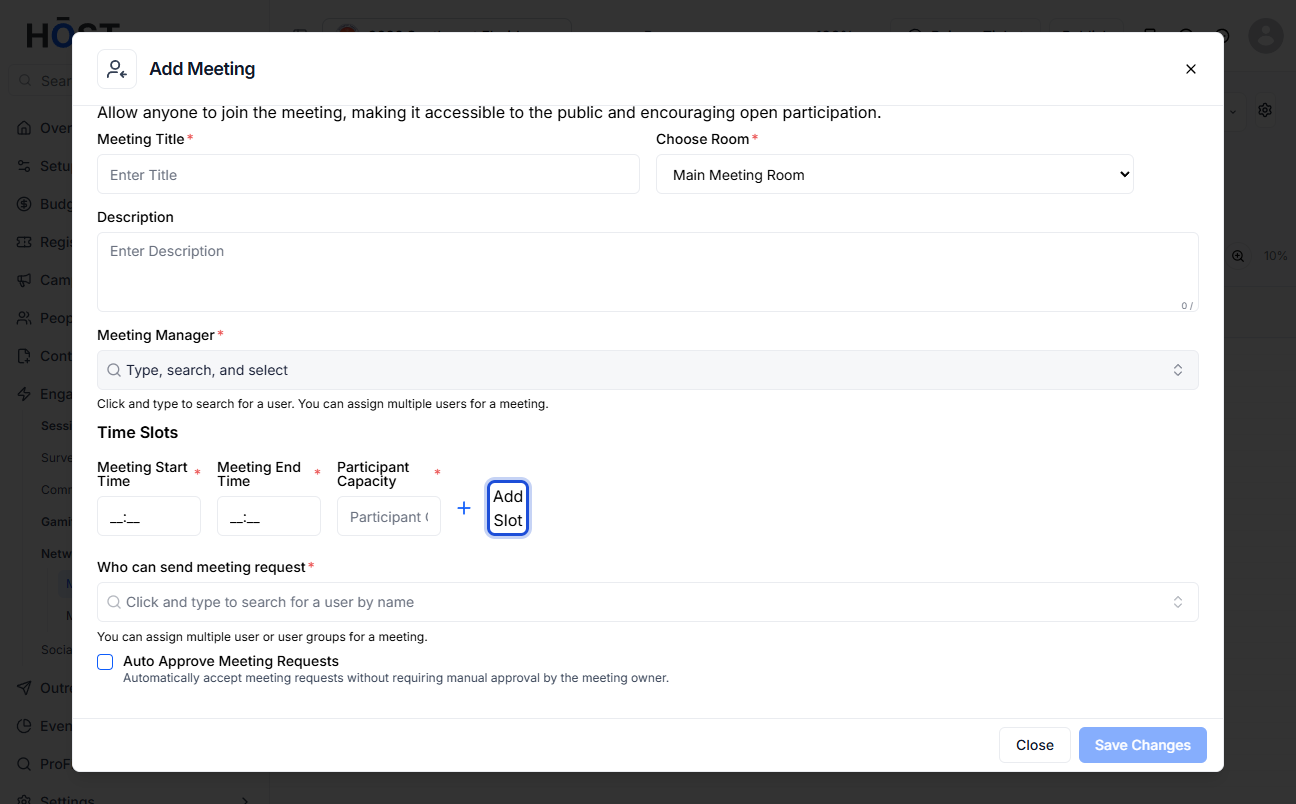
Public meetings allow any attendee to join without prior approval, making it ideal for open networking or group discussions. Follow the steps below to create and configure a public meeting in your HOST event.
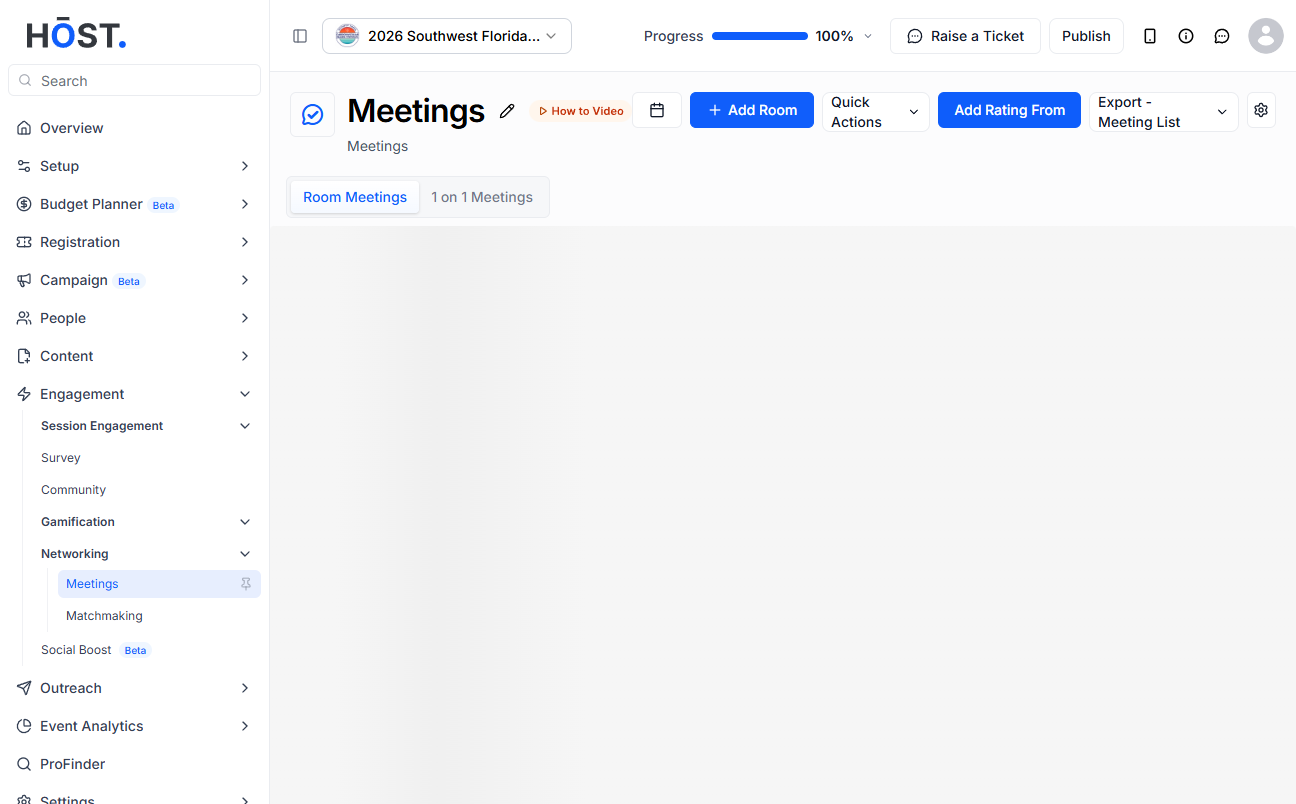
1: Go to Engagement > Networking > Meetings and open the “Room Meetings” tab, then click “New Meeting”.
2: In the Add Meeting dialog, select the “Public Meeting” tab to make the meeting open to everyone. Enter a Meeting Title, Choose Room, add an optional Description, and assign one or more Meeting Managers.
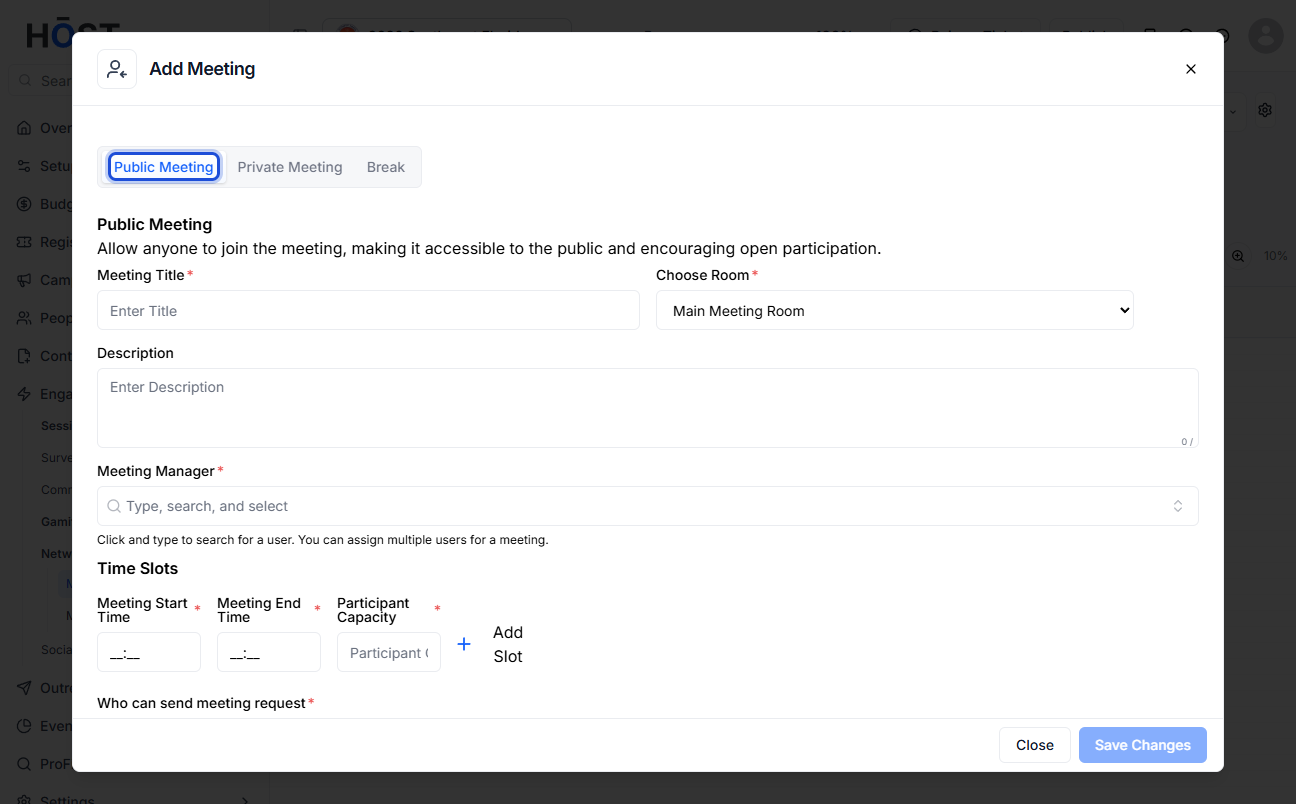
3: Under Time Slots, set the Meeting Start Time, Meeting End Time and Participant Capacity, and use the “Add Slot” button to add more slots.
4: Choose which user groups can send meeting requests and whether requests are auto-approved, then click “Save Changes” to create the meeting.