Developing Custom Event Ticketing Solutions: Creating Tickets from Scratch
You shall always consider using a professional ticketing platform for increased efficiency and security. Here we show you the process of crafting event tickets through a step-by-step guide.
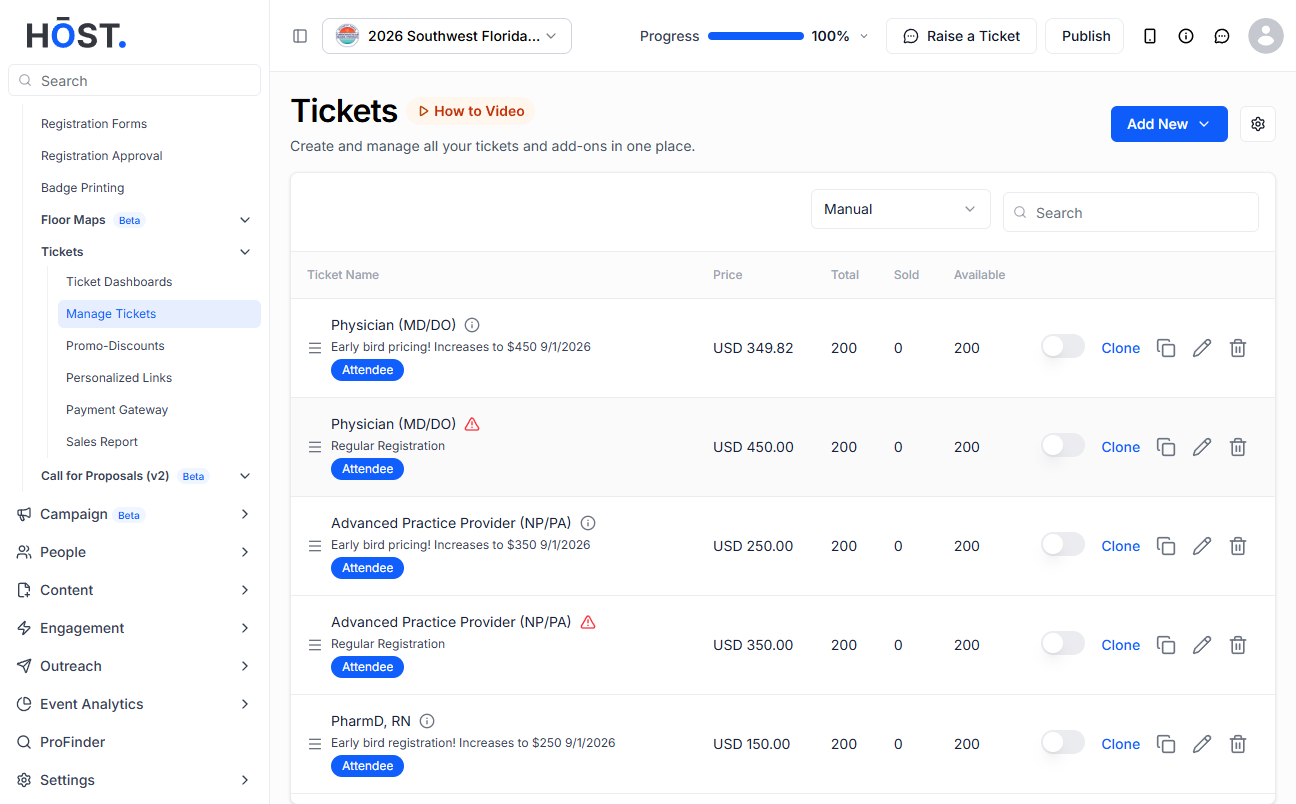
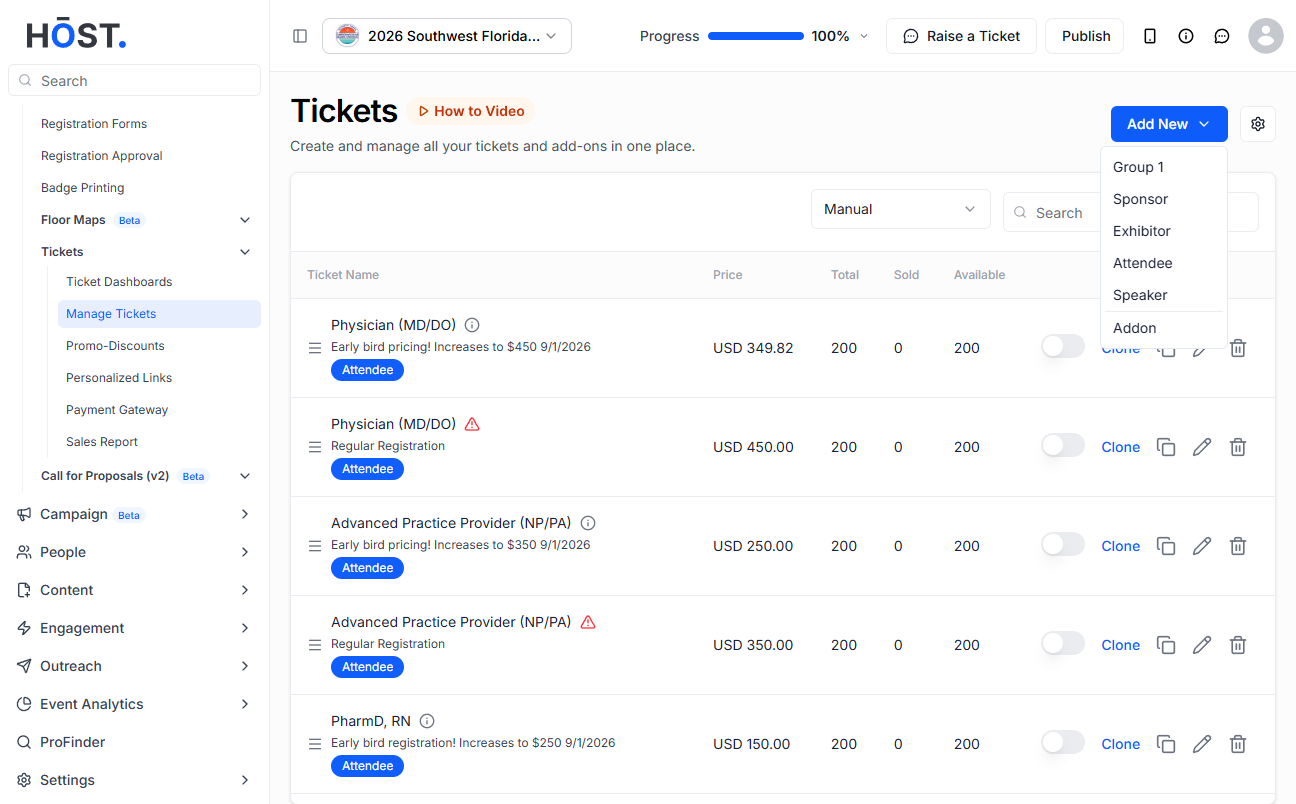
Once you click the “New Ticket“ tab, you will get to see the options to choose from the category of the ticket you prefer to create.
🔔 The categories here will correspond to the People >> User Groups
Let us check with the example of creating a fresh ticket for the "Attendee" user group
Click on the drop down of "New Ticket" andselect “Attendee”.
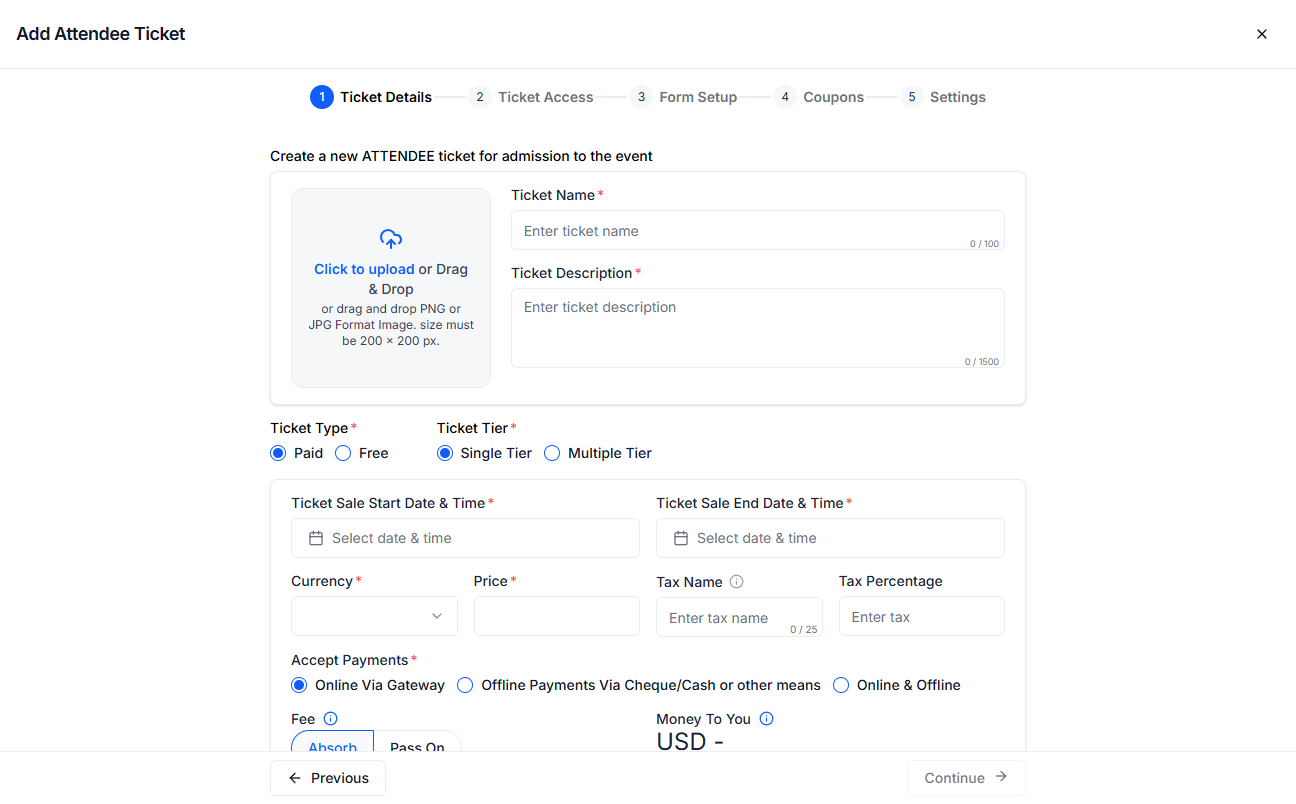
You will get the Add Ticket form.
Here you can specify the details for the ticket viz;
Ticket Name = Give an attractive ticket name
Ticket Tag = You can add a tag to the ticket. This tag will appear above the ticket name.
Ticket Color = You can pick the colour as preferred.
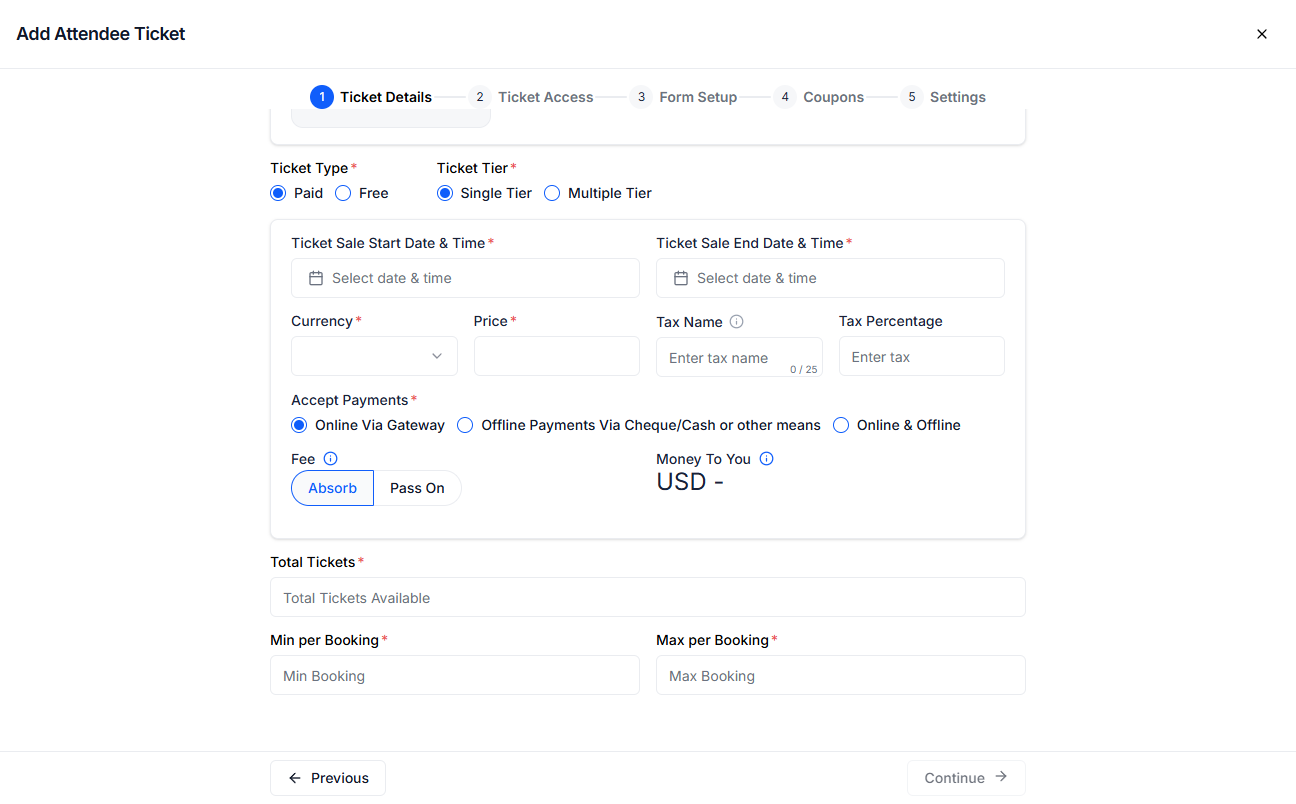
Quantity = The max number of tickets attendees can purchase.
Min per Booking = The min number of tickets that needs to be purchased per transaction.
Max per Booking = The max number of tickets that can be purchased per transaction.
Ticket Type = Select the price value of the ticket from the drop down options “Paid” or “Free”.
Ticket Price = If you select a paid ticket, then you need to define the price of the ticket.
🔔 You can choose to allow offline payment option in case you require cash transactions along with online transactions.
Fee = Additional Fees and Tax can either be absorbed by you or you can decide to pass on to the attendees. You can toggle the options (Absorb/Pass On) to see how the ticket price gets adjusted accordingly.
🔔 You can see the price breakdowns by clicking on the info icon ℹ️
Ticket Sale Starts From = The start date for Ticket sale to go live.
Ticket Sale Ends On = The end date for Ticket sales.
Ticket Description = Describe your ticket for users to have a clear picture of it.
🔔 Check "Allow existing attendee to buy an upgrade to this ticket" if you want to allow one attendee to be able to purchase multiple tickets.
Attendee Assignment Form Fields = Set up the information you want to collect when a person is making the purchase.
🔔 For All Details Form, the fields will be displayed according to the checkout form associated.
Status = Determines if the ticket is
Enabled: Listed and available for purchase on the tickets page
Disabled: The ticket will not be listed for purchase.
Hidden: The ticket will be available for purchase but will not be listed on the public ticket page. These tickets needs to be sent privately to the desired users.
🔔 If you want to track your tickets, add the Tracking Pixel custom code for header and Tracking Pixel custom code for footer.
After filling up all necessary details, click on the “Save” button to save the ticket.
🔔 Similarly HOST offers Group Tickets for exhibitor/sponsor type tickets. Learn more about group tickets in Creating Ticket Packages